Think about your own phone. You use WhatsApp every day, right? Your customers do too. That is why many businesses now talk to customers on WhatsApp. They send order updates, reminders and quick answers, and people read them fast.
But there is one rule. When a business sends the first message, WhatsApp asks it to use a template. A template is a message that is already written. It has empty spaces, like a customer name or an order number. Odoo fills these spaces for you when it sends the message. These rules help businesses follow WhatsApp messaging policies, but setting up and managing templates can take time.
Good news! Odoo 20 brings five new features to make this work easy. You can set a default person to get a message. You can make messages with buttons. You can give easy names to the empty spaces. You can block a number from inside Odoo. And you can connect your WhatsApp business account in a simpler way. In this blog, we explain each new feature, when to use it, and how to set it up.
Who is this guide for? It helps Odoo administrators, sales and support teams, accounting staff and business owners who send customer messages through WhatsApp. It also suits implementation partners who set up WhatsApp for clients. For each feature, we cover what it does, when to use it and the exact steps to set it up, with screenshots from Odoo 20. For the wider release, see our Odoo 20 overview and Odoo 20 Keynotes.
Important: Odoo's WhatsApp integration needs the WhatsApp Business Platform. It does not work with an ordinary personal WhatsApp account. Read "Before You Start" below if you are new to this setup.
What's New in Odoo 20 WhatsApp?
Here is a quick look at the five new features.
Default recipients
Choose who gets the message one time, so you do not pick every time.
Interactive message templates
Make messages with buttons that customers can tap.
Named parameters
Use easy names, like customer_name, for the empty spaces.
Number blocking
Block a WhatsApp number directly from Odoo.
Simplified authentication
Connect your WhatsApp business account with fewer steps.
What Changed from Odoo 19?
Default recipients
In Odoo 19 the team chose the receiver each time. In Odoo 20 the template can hold a default recipient.
Interactive templates
Odoo 20 adds an Interactive Templates menu for buttons and lists, next to normal message templates.
Named parameters
Odoo 19 templates used numbered variables like {{1}}. Odoo 20 also lets you set Variable Type to Name.
Number blocking
Odoo 20 adds a WhatsApp Blocklist under Configuration, so you can block from inside Odoo.
Authentication
Odoo 20 simplifies connecting a WhatsApp Business Account.
Before You Start
Before you try any feature, check three things.
WhatsApp Business Platform
Odoo works only with the WhatsApp Business Platform (Meta's Cloud API). It does not work with an ordinary personal WhatsApp account or the WhatsApp Business mobile app.
Meta setup
You need a Meta Business account, a WhatsApp Business Account, and a phone number added to the platform. From Meta you copy the App ID, App Secret, Phone Number ID, WhatsApp Business Account ID and Access Token into Odoo.
Odoo setup
The WhatsApp app must be installed in your Odoo database and your WhatsApp Business Account must be connected. Most settings in this blog are in the WhatsApp app, in the list of templates.
Default Recipients: Pick the Receiver Only Once
Imagine you send a payment reminder 50 times a day. Each time, you must choose who gets it. This takes time, and it is easy to choose the wrong person. Odoo 20 fixes this. You can now add a default recipient to a WhatsApp template. Then your team does not need to choose the receiver each time.
This is useful for sales order confirmations in the Sales app and for payment reminders in Accounting.
When should you use it?
Same message again and again
order confirmations, payment reminders or follow-ups that always go to the same type of contact.
Fewer mistakes
your team does not choose the receiver by hand, so there is less chance of a wrong choice.
How to Set Default Recipients on a WhatsApp Template
- Open the WhatsApp app and go to Templates.
- Open the template you want to change, or make a new template.
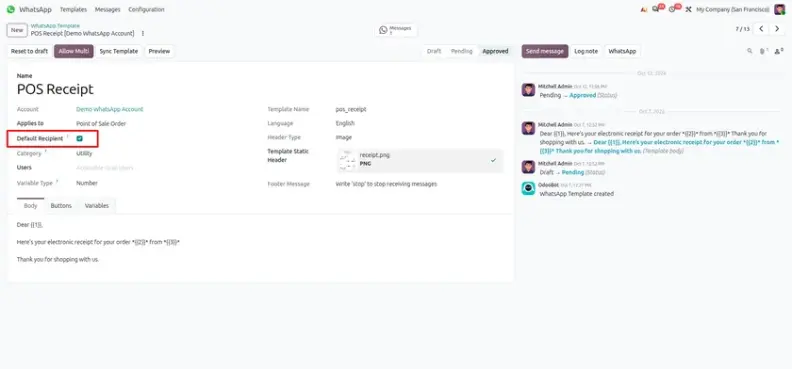
- Turn on the Default Recipient option. The message will go to the default person linked to the record (for example, a partner).
- Save the template. Then send a test message to check that it goes to the right person.
Note: If the Default Recipient option is turned off, you must write the phone field path yourself.
Interactive Message Templates: Messages with Buttons
A plain text message is fine for small news. But sometimes you need an answer from the customer. If you ask them to type "yes" or write a long reply, people can get confused. Buttons are much easier. With one tap, the customer can answer. Odoo 20 lets you make these button messages in the same place as your other WhatsApp templates.
When should you use it?
Quick replies
customers can say yes or no with one tap. No typing needed.
Clear next step
show the customer what to do next, right inside the message.
How to Create an Interactive Message Template
- Open the WhatsApp app and go to Templates → Interactive Templates.
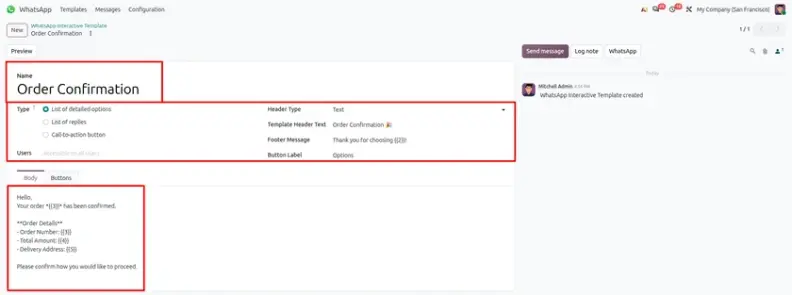
- Click New, write the template name and choose the message type: List of detailed options, List of replies, or Call-to-action button.
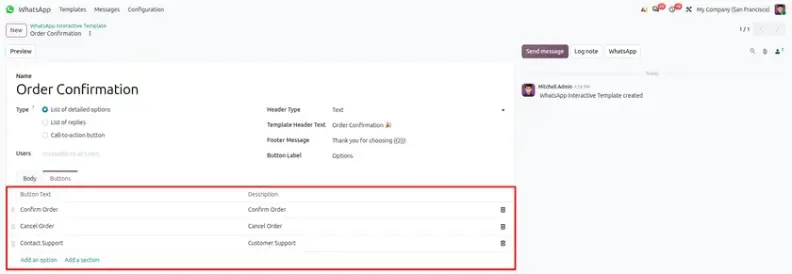
- Set up the header, the message text, the footer, and the options or buttons you need.
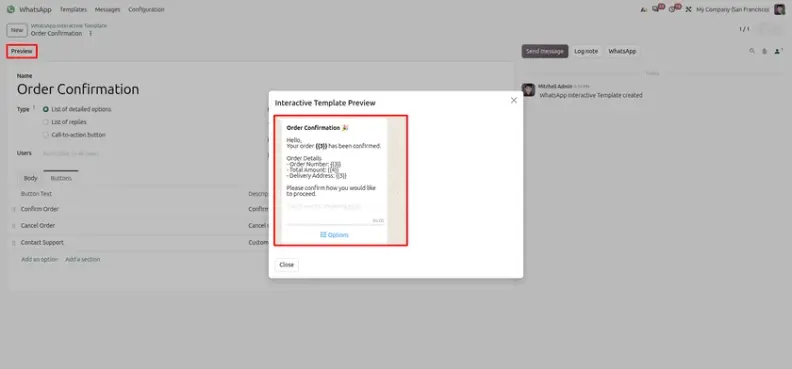
- Click Preview to see how the message will look to your customer.

Named Parameters: Easy Names for Empty Spaces
Templates have empty spaces for things that change, like a customer name or an order number. Before, these spaces used numbers like {{1}} and {{2}}. This is hard when a message has many spaces, because you must remember what each number means. Is {{3}} the date or the price? Now Odoo 20 lets you use names instead. A name like customer_name tells you the answer at once. Your templates become easier to read, check and change.
When should you use it?
Long templates
when a message has many changing details, names make it easy to follow.
Team work
when many people edit templates, names show what each space is for.
How to Use Named Parameters in a WhatsApp Template
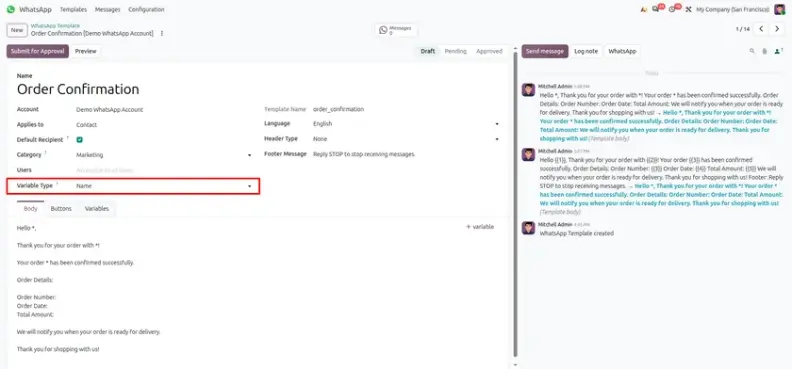
- Open the WhatsApp app. Open the template you want to change, or make a new one.
- Set the Variable Type field to Name.
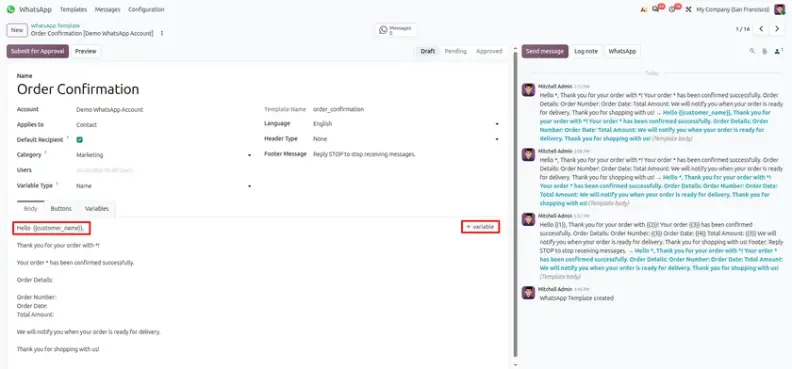
-
In the message text, add a variable and give it a clear name, for example
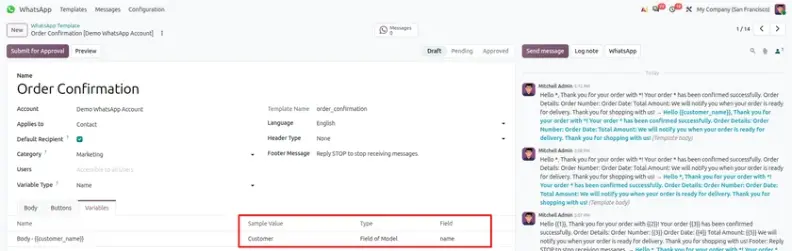
customer_name. - Choose what each named parameter will show when the message is sent.
- Save the template and send a test message. Check that every value shows correctly.
Number Blocking: Stop Unwanted Messages
Not every message is a happy one. Sometimes a number sends spam. Sometimes it sends the same message again and again. Sometimes a person does not want to talk to you anymore. The answer is to block the number. But before, you had to do this outside your business system, and that added extra steps. Now Odoo 20 lets you block a WhatsApp number directly from Odoo.
When should you use it?
Unwanted messages
stop spam or repeated messages from one number.
Fewer steps
block the number inside Odoo. No need to open another tool.
How to Block a WhatsApp Number in Odoo
- Open the WhatsApp app and go to Configuration → WhatsApp Blocklist.
- Click New and write the WhatsApp number you want to block in E.164 format (with the country code, for example +919876543210).
- Choose the right WhatsApp Account.
- Save the record. The number is now on the blocklist.


Simpler Authentication: Connect Your Account Faster
Before you can send WhatsApp messages from Odoo, you must connect your WhatsApp business account and check it. This step is called authentication. For many teams, this is the hardest part of the setup, because there are many accounts and settings. It is easy to get lost. Odoo 20 makes this step simpler, so you can connect with less work.
Remember: this step connects Odoo to the WhatsApp Business Platform. A personal WhatsApp account cannot be used here. Once connected, you can also message leads from the CRM app.
When should you use it?
First-time setup
connect your WhatsApp business account to Odoo for the first time.
Connect again
authenticate your account one more time when you need to.
How to Authenticate a WhatsApp Business Account in Odoo
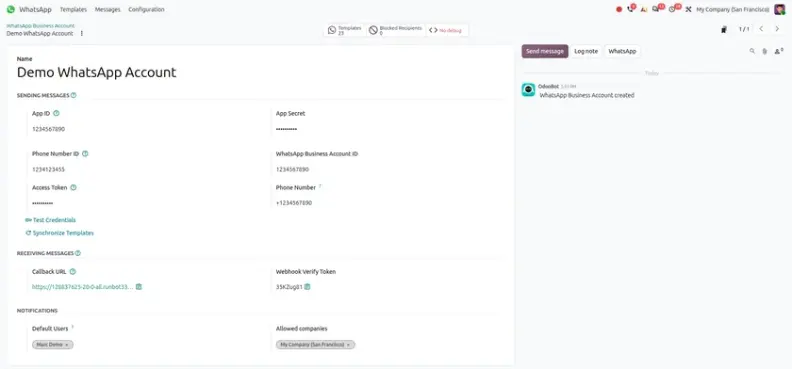
- Open the WhatsApp app and go to the settings of your WhatsApp business account.
- Open your account, or make a new one if you do not have one.
- Follow the steps you see on the screen.
- Check that the account shows as connected. Then you can start making templates.

Odoo 20 makes WhatsApp work easier for your team. Default recipients save you from choosing the receiver every time. Interactive templates let customers reply with one tap. Named parameters keep your templates easy to read. Number blocking helps you stop unwanted messages without leaving Odoo. And simpler authentication makes the first setup less hard. Try these new features and see how much time you save!
Related reading: Odoo 20 New features and Updates, Odoo 20 Keynotes, Odoo 20 CRM New Features and Updates, Odoo 20 Sales New Features and Updates and Odoo 20 Accounting New Features and Updates.
Odoo 20 WhatsApp: New Features and Updates