The Sales module is where most Odoo databases start earning: quotations, orders, deliveries and invoices all begin here. Odoo 20.0 gives it its biggest update in years. It is not one new button. It is a new dashboard, a cleaner quotation form, smarter pricing and sections, better invoicing control, commissions that follow cash, and a new area for services and materials.
Odoo 20 makes sales management simpler with new features and improvements designed around everyday user needs. Sales teams can manage orders, customers, and sales activities more smoothly, while managers get a clearer and more efficient way to oversee their operations. Explore the key sales features in Odoo 20 and see how they can improve your daily workflow.
The overall journey through the new module is simple:
Sales Workflow in Odoo 20
Business Process at a Glance
Odoo 19 vs Odoo 20: Everything at a Glance
What Is Odoo 20 Sales?
Each stage below is one change, in the order you meet it in daily work, with the Odoo 19 comparison.
New Sales Dashboard
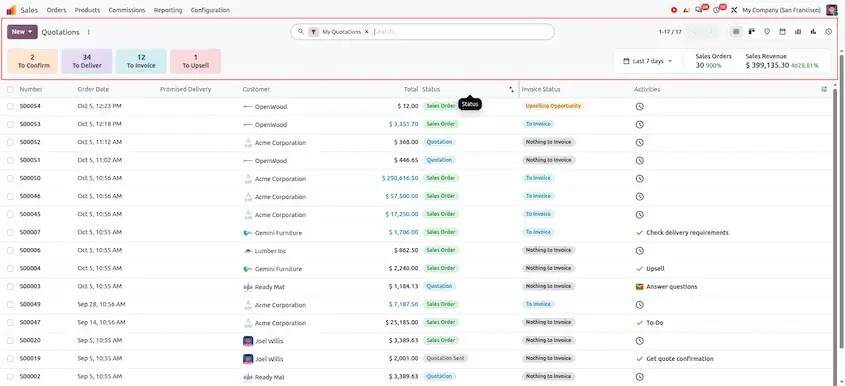
In Odoo 19, a manager had to open reports or the To Invoice menu to see where the business stood. In Odoo 20 the quotation list opens with a dashboard above it, with four cards:
- To Confirm: quotations waiting for a decision.
- To Deliver: confirmed orders waiting to be delivered.
- To Invoice: orders ready to be invoiced.
- To Upsell: orders where more could be sold.
At the right of the cards, a date filter (for example Last 7 days) sets the period. The Sales Orders and Sales Revenue totals next to it show the change against the previous period. The old To Invoice menu is gone, because the dashboard now does its job. The dashboard also supports dark mode.
Payment-Based Sales Commissions
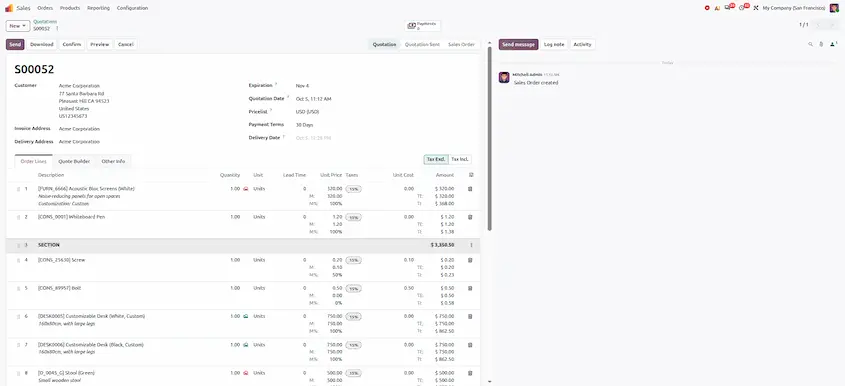
The order lines were redesigned so related information sits together. In Odoo 20 you will see:
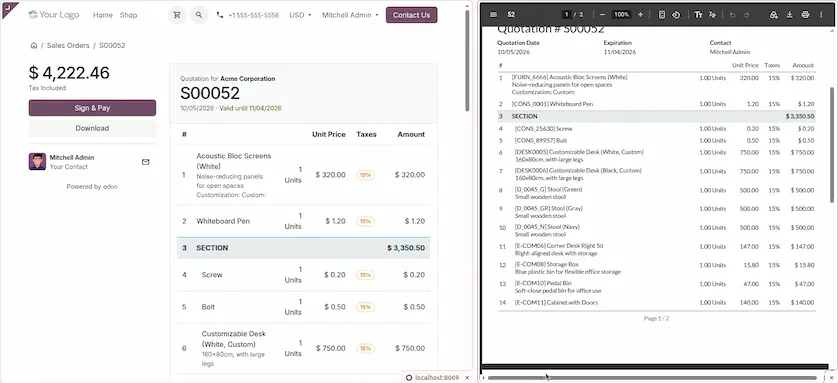
- Line numbers at the start of each line. This is a company setting, and the numbers also appear on the PDF quotation and in the customer portal, so "change line 7" means the same thing to everyone.
- A Product and description column that groups the product, its description and an editable Label. The label replaces the translated product name of Odoo 19, so you can type exactly the wording the customer should see.
- A Quantity column and a Unit of measure column, each with the section value underneath for sections.
- A simple stock availability indicator next to the quantity.
Money, number and percentage fields now show inline labels, so you can tell what a figure is without checking the column header.
Set the Margin on the Line
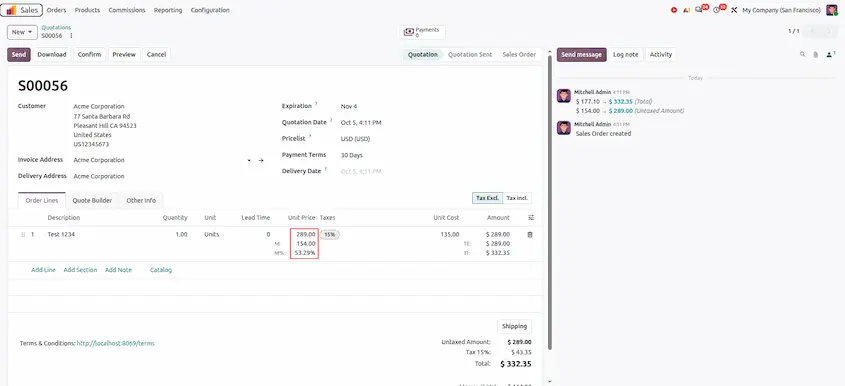
Salespeople think in margin, not unit prices. In Odoo 19 margin was only a result: you typed a price, looked at the margin and adjusted again. In Odoo 20 you type the margin and the sales price updates.
- Under the Unit Price you will see M (margin amount) and M% (margin percentage), next to the Unit Cost column. The total margin is shown at the bottom of the order.
- Type a value in M or in M%. Odoo recalculates the unit price using the cost, quantity and discount.
- M% is read-only when the product has no cost, and 100% cannot be set when there is a cost. Invoiced lines are locked.
Odoo 19: try 90 (22%), then 100 (30%).
Odoo 20: type 30 in M%. The unit price becomes 100, the subtotal 1,000 and the margin 300.
Sections that Carry Quantity, and Section Templates
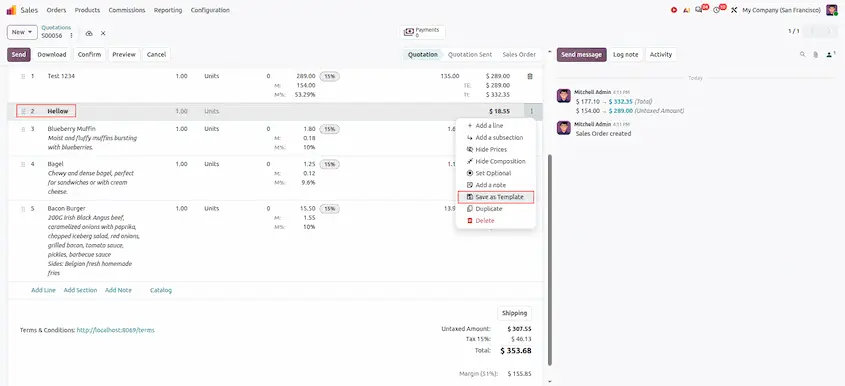
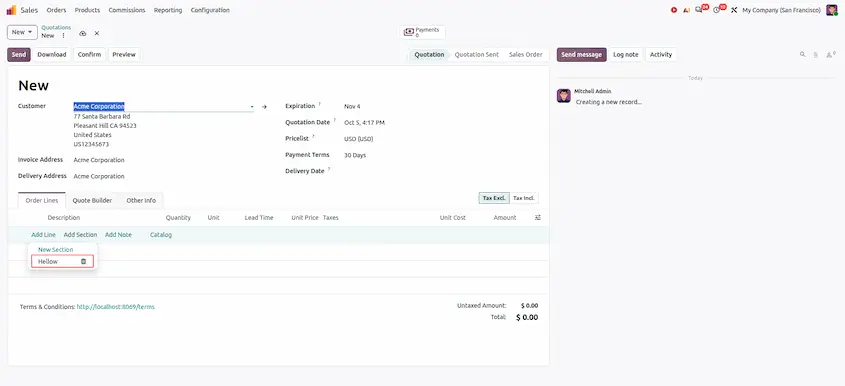
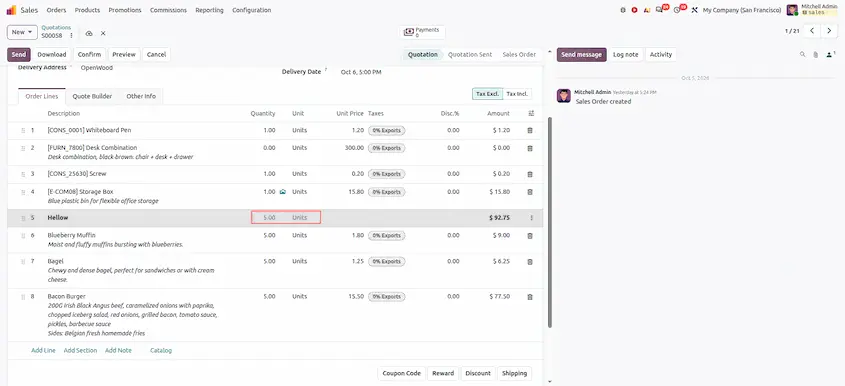
In Odoo 19 a section was only a heading. In Odoo 20 a section, and a subsection, has its own quantity and unit of measure. Change the section quantity and the lines under it follow. You can also save a section as a template and add it to other quotations.
- Build a section with its lines. Open the section's action menu (⋮) and choose Save as Template, then give it a clear name.
- On a new quotation, click Add Section. The list offers New Section and your saved section templates. Pick a template and the section arrives with all its lines.
- Change the section quantity to scale the whole block, for example five identical workstation packages.
Tax Mode per Document
In Odoo 19, showing prices with or without tax was a company-level choice. Odoo 20 lets you choose tax included or tax excluded on each document. This suits companies that sell to businesses (without tax) and consumers (with tax) from one database. The order lines follow the mode of the document, so check your quotation PDF to confirm the totals read as you expect. Above the order lines, a Tax Excl. / Tax Incl. switch shows the mode, and each line shows its amount both ways (TE and TI).
Prepayment as an Amount
Prepayment used to be a percentage of the order. In Odoo 20 the field is simply called Prepayment, and you can work with a monetary amount. Type 2,000 instead of working out which percentage that is.
Ship and Send the Delivery Email Without Inventory
A business that uses only Sales and Invoicing can now ship an order straight from the sales order and send the delivery email to the customer, even though the Inventory app is not installed. No warehouses, locations or stock moves are needed. In Odoo 19 these delivery steps came with Inventory.
- Confirm the sales order as usual.
- Use the shipping action on the order when the goods leave.
- The customer receives the delivery email.
When you later need stock levels, warehouses or multi-step delivery, install Inventory. Nothing changes in how your team sells.
Close an Order for Invoicing
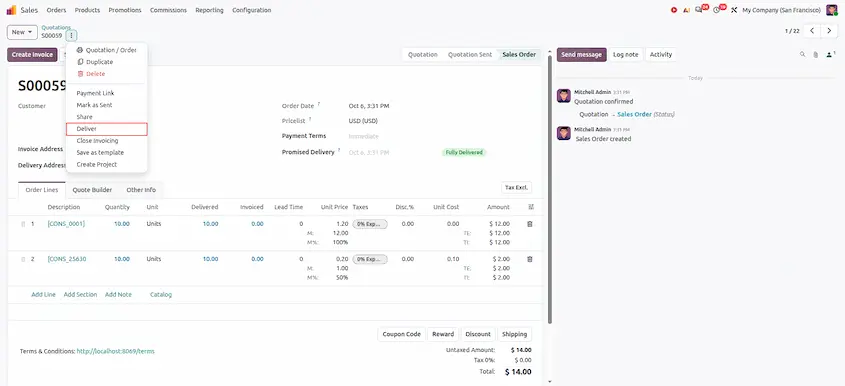
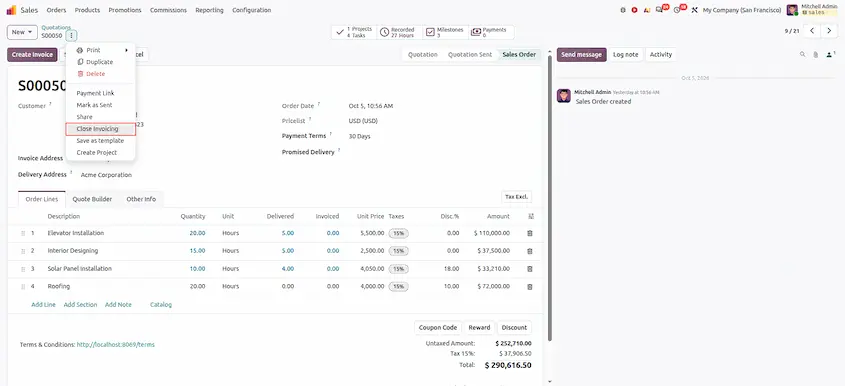
Sometimes an order is finished even though some lines were never delivered or invoiced, for example when the customer cancelled part of the work. In Odoo 19 such orders kept showing as "to invoice". Odoo 20 lets you close the order for invoicing manually, whatever the line status says. It is then shown as closed in the list and stops appearing as waiting for an invoice. If you closed it by mistake, you can reopen it. To do it, open the action menu (⋮) next to the order number and choose Close Invoicing.
Services & Material
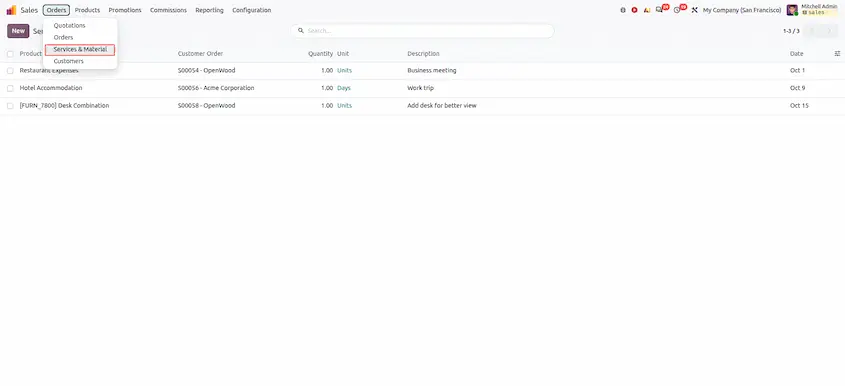
A new menu, Services & Material, lets teams log service hours, materials and expenses against sales orders. Behind the scenes these are analytic lines linked to the order.
- Entries can create the matching order lines for you.
- They can be re-invoiced at cost or at sales price.
- Services that were already invoiced are protected from changes.
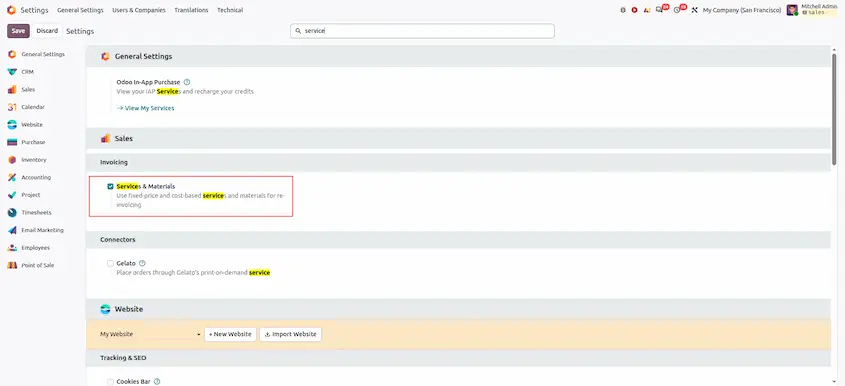
- The menu (Sales > Orders > Services & Material) appears only after the setting Services & Materials is switched on in the Sales settings under Invoicing, and it supports dark mode.
Accruals for Finance
Finance teams need to book what was delivered but not yet invoiced, and what was invoiced but not yet delivered. Odoo 20 includes an accrued orders wizard that calculates quantities as of a chosen date. Product categories get two new accounts for it: invoices to issue and invoiced not delivered.
Commission on Money Received
A big order is not the same as money in the bank. Many companies want to pay commission only when the customer has paid. Odoo 20 can pay commission on the money received, not only on the order. Unpaid invoices earn no commission until money arrives.
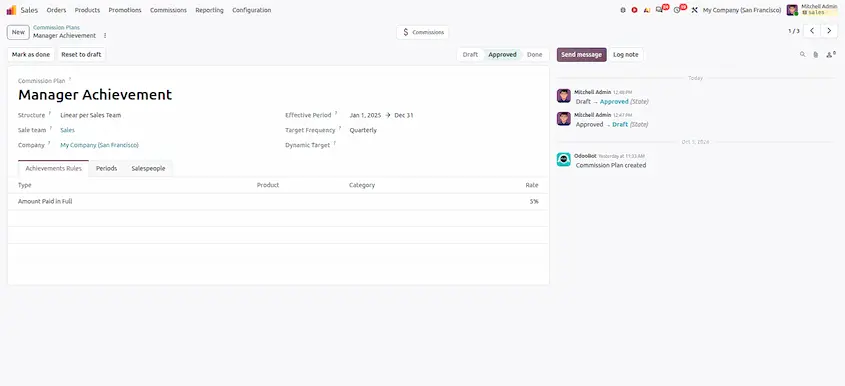
- Open Sales > Commissions > Commission Plans and open or create a plan. In the Achievements Rules tab, pick the rule Type that follows payments (Amount Paid in Full) and set the rate.
- Sell, confirm and invoice as usual. Register the customer payment on the invoice.
- Approve the plan (it moves from Draft to Approved). Commission is calculated once the customer's payment is registered, and finance reviews and pays it as usual.
Commission earned: 5% of 10,000 = 500. Before the payment arrives, no commission is earned.
Manager Commission from Team Targets
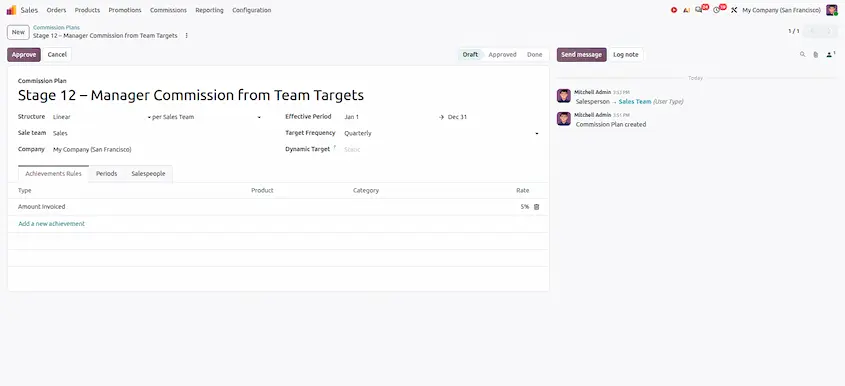
Sales managers earn when their team wins. In Odoo 20 a manager can roll the team's targets into their own commission. The manager's plan includes the combined targets of the reps they lead, so the spreadsheet that used to combine them is no longer needed.
- Open the manager's plan under Sales > Commissions > Commission Plans, choose the Sales team and the Target Frequency (for example Quarterly), and list the reps in the Salespeople tab.
- In the manager's plan, include the team's targets.
- Follow team and personal progress together, and review the manager's commission at period end.
For example, three reps each with a target of 100,000 give a combined team target of 300,000. If the manager's plan pays 2% when the team reaches target, a team that hits 300,000 earns the manager 6,000 (all numbers are examples).
Mandatory Product and Settings
A new Sales setting makes the product mandatory on order lines. Use it when free-text lines would cause problems in delivery or reporting.
Two settings from Odoo 19 are no longer in the Sales settings: Default Invoicing Policy and Automatic Invoice. Invoicing behaviour is now handled on the products and lines, so review your products after upgrading.
Redesigned Sales Order Portal
The portal home page now has structured entries for Quotations to review and Your Orders. Line numbers, when enabled for the company, appear for customers too.
Menu and Navigation Changes
Fields and Wording that Changed
Items that no longer exist on the order, and may affect custom reports or views: the expected date, the duplicate-order indicator, the undiscounted amount, the payment-required flag and the separate tax-total field. If you rely on any of them, ask your developer to check.
Access Rights in the Sales Module
The Sales module now ships its access settings in ir.access.csv instead of ir.model.access.csv, because access rights and record rules are merged into one Access Rights screen. A permission has a group and a restriction has none. Read our https://www.odoo.com/documentation/19.0/applications/general/users/access_rights.html for the full explanation. A new group, Enable Services and Materials in Sales, controls the Services & Material menu.
Use Cases
Morning Check by the Sales Manager
Situation: The manager wants to know what needs action today.
In Odoo 20: Open Quotations and read the four dashboard cards.
Benefit: No report hunting, and no To Invoice menu to open.
Quoting to a Target Margin
Situation: Every quote on a product line needs 25%.
In Odoo 20: Type 25 in M% and the price is calculated.
Benefit: Faster quotes with protected profit.
Selling Bundles
Situation: A customer orders five identical equipment packages.
In Odoo 20: Save the package as a section template and change the section quantity.
Benefit: One edit updates every line.
Business and Consumer Customers
Situation: One database serves companies and private buyers.
In Odoo 20: Set tax excluded for companies and tax included for consumers on each quotation.
Benefit: Prices read the way each customer expects.
Field Services with Materials
Situation: Technicians log hours and materials on site.
In Odoo 20: Use Services & Material and re-invoice at cost or sales price.
Benefit: Everything billable is linked to the order.
Paying Commission on Cash
Situation: Finance wants commission paid only when customers pay.
In Odoo 20: Use commission on money received, and roll team targets into the manager's plan.
Benefit: Commission cost follows cash in, and managers and reps share one number.
Business Benefits
- Better visibility: the dashboard shows what needs attention.
- More control: tax mode per document, manual closing for invoicing and a mandatory product setting.
- Cleaner quotes: line numbers, labels and sections make quotations easier to read and discuss.
- Faster quoting: margin on the line, section quantity and prepayment as an amount save calculation time.
- Better finance support: accrual wizards, Services & Material and payment-based commission link work to money.
Checklist: Moving from Odoo 19 to Odoo 20
- Train the team on the dashboard. Show where the To Invoice menu went.
- Review your invoicing policy. Default Invoicing Policy and Automatic Invoice are no longer Sales settings. Check each product.
- Choose a tax mode for your quotation templates and test the PDF.
- Check prepayment rules. Percentage and amount behave differently from before.
- Test the online payment flow from quotation to payment. Payment handling was restructured.
- Test the portal as a customer: Quotations to review, Your Orders and line numbers.
- Decide whether you need Services & Material, line numbers, mandatory product and payment-based commission, and enable only those.
- Ask developers about custom reports or views that used fields that no longer exist.
- Review access rights. See the Access Rights guide.
Best Practices
- Make the dashboard the first screen the team opens.
- Use sections and section templates for bundles, and keep each section self-contained.
- Set margin targets as a team rule and keep cost prices up to date.
- Decide one tax mode policy per customer type and document it.
- Use the Label field for customer-facing wording instead of editing the product name.
- Close orders for invoicing deliberately, and note the reason in the chatter.
- Write the commission policy down before configuring it, and explain it to reps and managers.
- Test on a copy of your database before upgrading production.
Odoo 20.0 keeps the familiar sales flow and improves every step of it. The dashboard shows what needs action, the quotation form reads better, margin and sections save calculation time, tax mode is set per document, invoicing has more control, and commissions follow the money.
For most teams the change is an improvement they notice on the first day: a dashboard instead of hunting through menus, and a quotation that reads better. Plan a short review of invoicing policy, payment flow and custom reports, and the upgrade will be smooth.
The overall journey is simple:
Odoo 20 Sales: New Features, Improvements & Complete Guide