Odoo 20 Knowledge provides a centralized workspace for creating, organizing, managing, and sharing business information. Teams can use Knowledge articles to maintain internal documentation, procedures, FAQs, training materials, and customer-facing help content.
Odoo 20 provides several tools for managing Knowledge articles, including article organization, access rights, nested articles, templates, version history, online sharing, and collaboration features.
In this guide, we explore the key Odoo 20 Knowledge features and explain how businesses can use them to build and maintain an organized knowledge base.
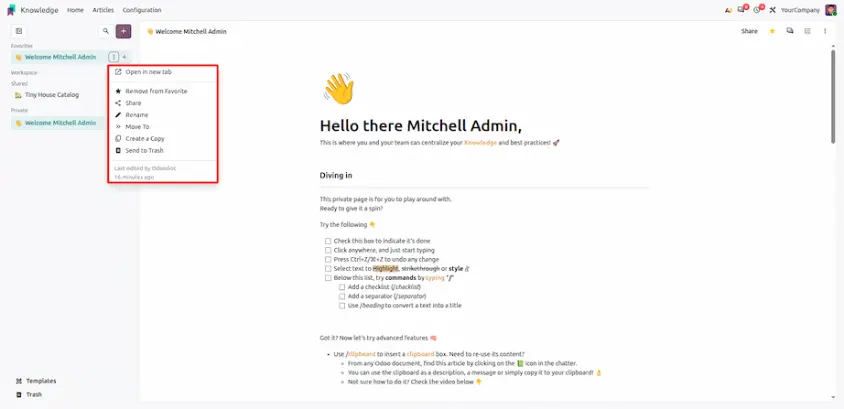
Odoo 20, adds article settings and quick access to Knowledge. You can now right-click an article in the sidebar tree to open a quick menu with its most common actions, without opening the article first. The same menu is also available from a three-dot button on each row of the sidebar.
What's New in Odoo 20 Knowledge?
One improvement stands out for teams that maintain a lot of articles. It comes in two ways to reach the same menu. Here is the short version before we go through it step by step.
01
Right-click in the sidebar
Right-click any article in the sidebar tree to open its quick menu.
02
Three-dot button on each row
Open the same menu from the new three-dot button on every sidebar row.
Manage Article Settings and Content in Odoo 20 Knowledge
In Odoo 20 Knowledge, you can right-click an article in the sidebar tree to change its settings. A quick menu opens with these actions: open in a new tab, add to favorites, share, rename, move, copy, and send to trash. Renaming happens in place, so you can change a title without leaving the sidebar.
WHY IT MATTERS
Renaming, moving, favoriting or sharing an article are small actions that people do all the time. When each one requires opening the article first, the extra clicks add up. A menu that opens on the article in the sidebar keeps these actions one right-click away.
Configuration Steps
There is almost nothing to configure, since the quick menu works from the sidebar you already use.
Make sure the Knowledge app is installed. According to the Odoo 20 this improvement is available in the Enterprise edition.
Check that the people who manage articles have the right access to them. The actions you can use on an article may depend on your access rights.
Try it out: open Knowledge, right-click an article in the sidebar, and check that the quick menu opens with the actions listed above.
How to Use
- Navigation path: Knowledge ▸ sidebar ▸ right-click an article.
- Right-click the article you want to manage. If you prefer not to right-click, use the three-dot button on the same row to open the same menu.
- Choose the action you need from the quick menu.
- To rename, type the new title in the small rename box and confirm. The article keeps its place in the sidebar tree.
| Quick menu action | What it does |
|---|---|
| Open in a new tab | Open the article in a separate browser tab, so you can keep your place in the sidebar. |
| Add / Remove to favorites | Add / Remove the article to your favorites for quick access later. |
| Share | Opens the sharing options for the article. |
| Rename | Changes the article title in place. |
| Move | Moves the article to a different place in the sidebar structure. |
| Copy | Creates a copy of the article. |
| Send to trash | Send the article to the trash. A trashed article can be restored from the Trash. |
After you use the quick menu, the result is the same as using the matching option from inside the article:
Sidebar: the article shows its new title or position straight away.
Favorites: favorite articles appear under Favorites for quick access.
Trash: articles sent to the trash are not lost, and they can be restored.
Manage Knowledge Articles
Odoo Knowledge provides several tools for managing articles beyond the quick menu. You can move articles, lock their content, create copies, review previous versions, export articles, and remove or archive content when it is no longer needed.
- Move articles: Reorganize an article under another category or article.
- Lock content: Prevent further edits when an article is ready for use.
- Create copies: Duplicate an existing article when you need similar content.
- Version history: Review previous versions and restore an earlier version when needed.
- Download or export: Save an article as a PDF when a downloadable copy is required.
- Delete or trash: Move unwanted articles to the Trash and restore them when necessary.
- Archive: Remove outdated articles from active use without permanently deleting them.
Configuration Checklist
Use this short list to check the feature in a test database.
| Feature | App required | Where to use it | One-time setup |
|---|---|---|---|
| Right-click quick menu | Knowledge (Enterprise) | Sidebar tree, right-click an article | No setup. Open Knowledge and right-click an article. |
| Three-dot button | Knowledge (Enterprise) | Three-dot button on each sidebar row | No setup. Click the button to open the same menu. |
Previous Approach vs. Odoo 20 Summary
| Previous approach | Odoo 20 replacement | Operational impact |
|---|---|---|
| Opening an article first, then using the menu in the top bar to manage it | Right-click the article in the sidebar to open its quick menu | Fewer clicks for everyday actions. |
| Opening each article just to rename it | Rename in place from the quick menu | Titles are fixed without leaving the sidebar. |
| Searching for the right option inside the article | Common actions grouped in one menu | The most-used settings are always in the same place. |
How This Feature Changes the Knowledge Workflow
Taken together, the direction of Odoo 20 Knowledge is a quicker way to keep the article library organized, with less opening and closing of articles:
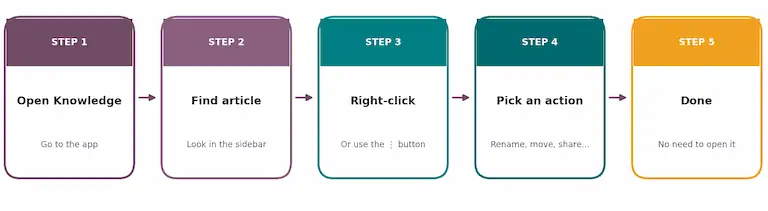
Here is how a typical clean-up of the article tree can flow:
Open Knowledge: the sidebar shows your article tree.
Right-click an article: the quick menu opens on the spot.
Pick the action: rename it, move it, share it, or add it to favorites.
Move to the next article: repeat for the rest, without opening each one.
Review the result: check the sidebar to see the tree as your team will see it.
Odoo 20 Knowledge brings a practical improvement to how articles are managed. Right-clicking an article in the sidebar opens its quick menu, and the three-dot button gives the same actions without a right-click. Together, they make everyday article management faster and keep your knowledge base easier to organize.
Odoo 20 Knowledge for Helpdesk
Knowledge can also support your Helpdesk team by keeping useful answers, troubleshooting guides, and customer documentation in one place. Support agents can use Knowledge articles while working on tickets, while selected articles can be published as customer-facing help content.
For internal support: Teams can keep troubleshooting steps, internal procedures, and frequently used answers in Knowledge so support agents can quickly find the information they need.
For customers: Publish selected Knowledge articles to the Help Center so customers can find answers without opening a support ticket. Articles intended for customers need to be published individually.
This makes Knowledge useful not only as an internal documentation tool, but also as a self-service support resource.
Odoo 20 Knowledge: New Features and Article Management Update