Odoo 20 Spreadsheet introduces new features that make it easier to analyze data, create reports, and organize information. Bubble charts help compare multiple values across categories, while calendar charts make it easier to identify patterns over time. Calculated columns let you perform calculations directly within dynamic lists, and new formulas provide more ways to work with data.
Alongside these major updates, Odoo 20 brings improvements to chart customization, conditional formatting, pivot tables, global filters, and data management. Features such as named ranges, sheet locking, and template access controls also give you more flexibility when working with spreadsheets. This guide explores these updates, explains how to configure them, and shows how they can help you create clearer reports and work with data more efficiently.
What's New in Odoo 20 Spreadsheet?
Three improvements stand out for teams that build reports and dashboards. Here is the short version before we go through each one step by step.
Bubble charts
Show data with both numbers and categories in one chart.
Calendar charts
See how values change from day to day on a calendar layout.
Calculated columns
Add a column to a dynamic list that is calculated from other columns.
Besides these, Odoo 20 Spreadsheet includes many smaller updates. Each one is explained in its own section below:
Chart annotations
Add notes to a chart to give readers more context.
Chart suggestions
Get chart ideas from your selected columns with Data analysis.
Pie slice colors
Set the color of each slice of a pie chart.
Axis min and max
Set minimum and maximum values for the x and y axes.
Multiple figure selection
Move several figures at once or turn charts into a carousel.
Custom format
Define your own formats for dates and numbers.
Scientific notation
Format numbers in scientific notation.
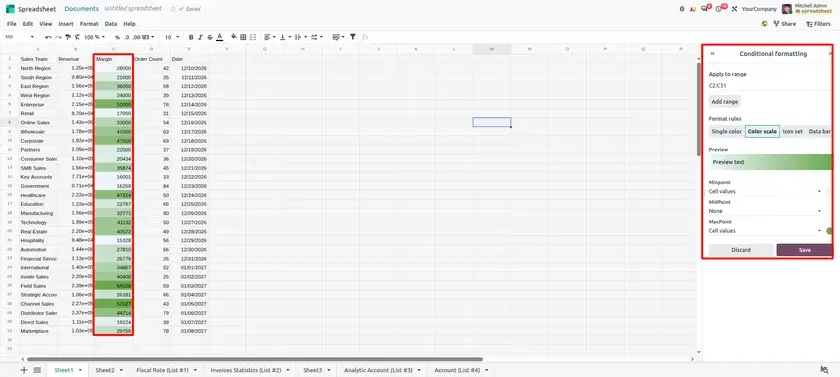
Conditional formatting
Date-based rules and a new Top/Bottom ranking option.
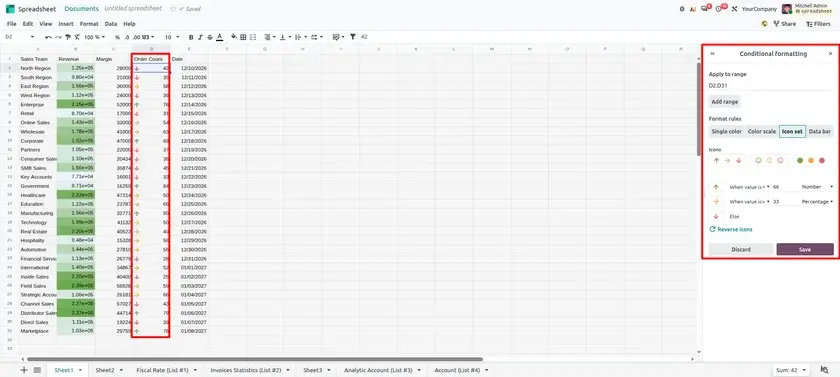
Sheet background colors
Set a background color on the entire sheet grid.
Zoom in/out
Adjust the view of a spreadsheet with the zoom control.
Print settings
Set print options and check them in Print Preview.
Column statistics
Quick statistics for a column from the Data menu.
Data cleanup
Remove unused data sources, duplicates and extra whitespace.
Named ranges
Label cells or ranges and use the names in formulas.
Manual recalculation
Turn off automatic recalculation and press F9 when needed.
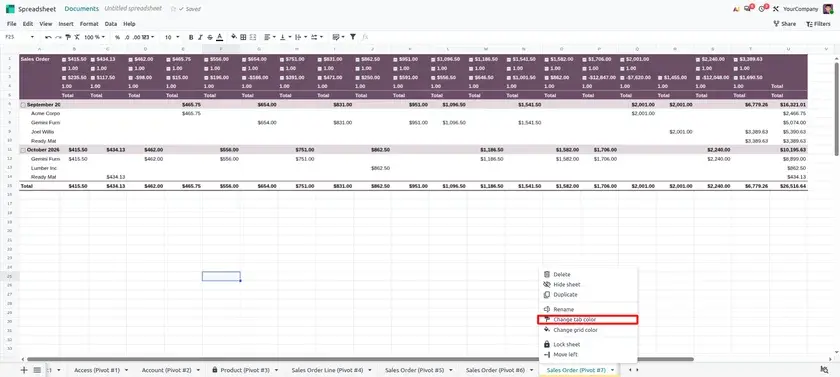
Lock sheets
Lock an entire sheet to prevent modifications.
Formula syntax
Curly brackets for arrays and the spill range operator (#).
Regex formulas
REGEXTEST and REGEXREPLACE to test and replace text.
New functions
New lookup, statistical and text functions.
Pivot improvements
Pivot domain, table styles, expand/collapse and tabular view.
List insertion
Insert a dynamic list directly from a spreadsheet.
Property fields in lists
Property fields in a list view are included when inserted.
Global filters
Default operators and filters created from data source properties.
Reduced JSON size
Downloaded JSON files use a more compact formula structure.
Template access
Limit template visibility and access to defined user groups.
Top menu navigation
Open top menus with keyboard shortcuts and arrow keys.
Mobile pinch to zoom
Pinch to zoom in the grid on a mobile device.
General Spreadsheet Chart Workflow
Every chart in this guide is created the same way. Follow these steps once, then use the sections below to see what data and settings each chart type needs.
- Open a spreadsheet in Documents.
- Select the required data range.
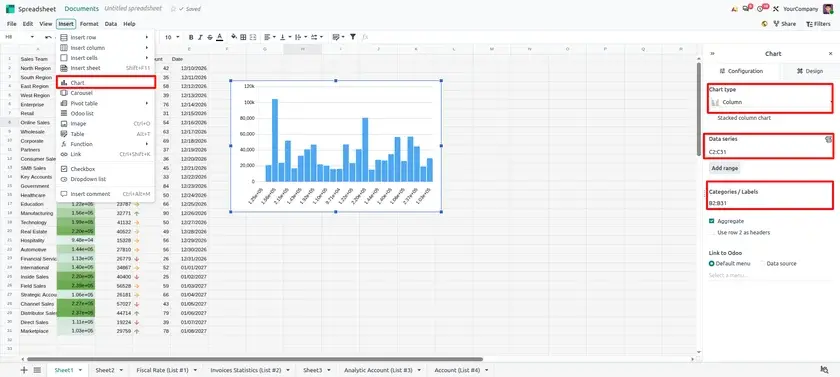
- Go to Insert ▸ Chart.
- Select the required chart type.
- Configure the chart properties.
- Save the spreadsheet.
Bubble Charts
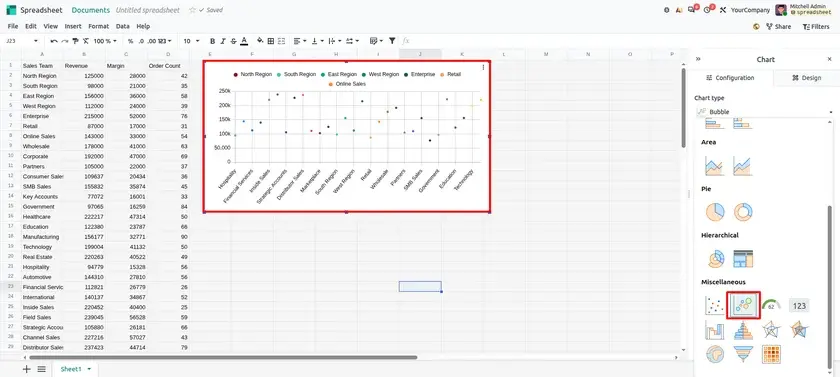
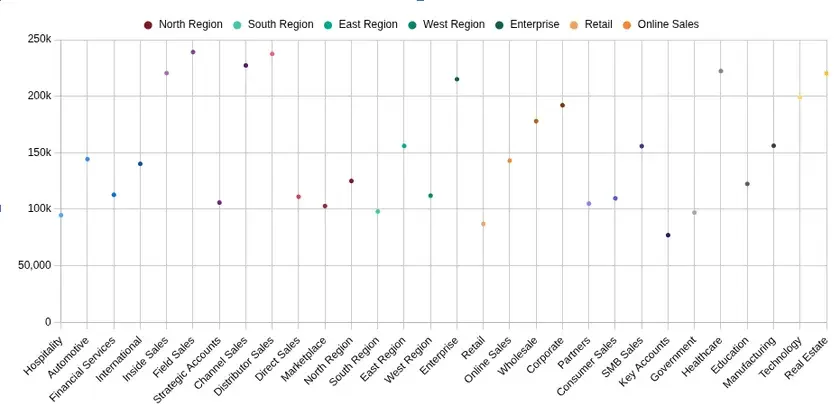
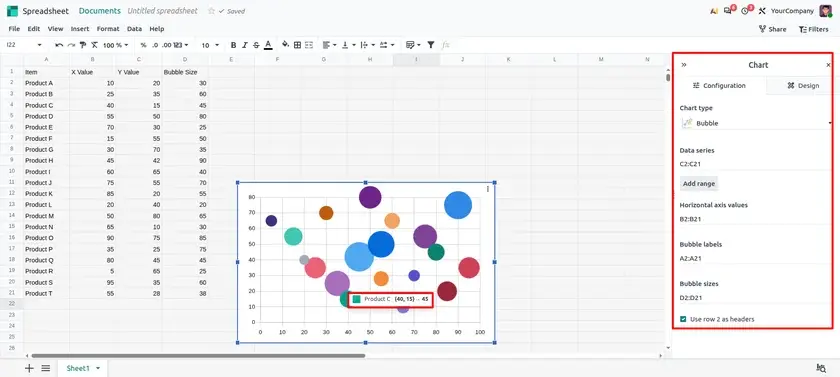
Odoo 20 adds bubble charts, used to display data with both quantitative and categorical values. In a bubble chart, each bubble is one item. Its position and size usually show numbers, such as revenue, margin or order count, while its color or label can show the category it belongs to.
Why It Matters?
Some data has more than one story: how much, how profitable, and which group it belongs to. A bubble chart lets you read these together in one picture, so you can spot the standouts without building several separate charts. Use it when a decision depends on comparing groups, such as which sales teams deserve attention.
When should you use it?
- Compare groups on several measures: revenue, margin and order count for each sales team, product line or region in one view.
- Find outliers: a team with high revenue but thin margin, or a small team with an unusually strong one.
Skip it when
you only have one or two numbers (a bar or line chart is simpler), or when there are so many categories that the bubbles overlap.
Before you start: prepare the data
A few one-time steps get your data ready before you insert the chart.
- Make sure the Spreadsheet is available in your database. It is part of Odoo Documents.
- Prepare a table with at least two number columns and one category column, for example revenue, margin and sales team. A dynamic list or pivot table from your Odoo data works well.
- Open the spreadsheet in Documents and select the whole table, including the header row, so every column is available when you configure the chart.
How to create a bubble chart in Odoo Spreadsheet
- Insert the chart: go to Documents, open your spreadsheet, select the data, then click Insert ▸ Chart.
- In the chart settings, open Chart type and choose Bubble (listed under Miscellaneous).
- Choose the values for the horizontal and vertical positions, then fill the Bubble sizes range (the column that sets each bubble's size) and the Bubble labels range (the column that names each bubble, such as the sales team).
- Check the legend and titles so readers know what each axis and bubble size means, then save.
| Chart element | What it shows |
|---|---|
| Horizontal position | A number, such as revenue |
| Vertical position | A second number, such as margin |
| Bubble size | A third number, such as the count of orders |
| Color or label | The category, such as the sales team |
Calendar Charts
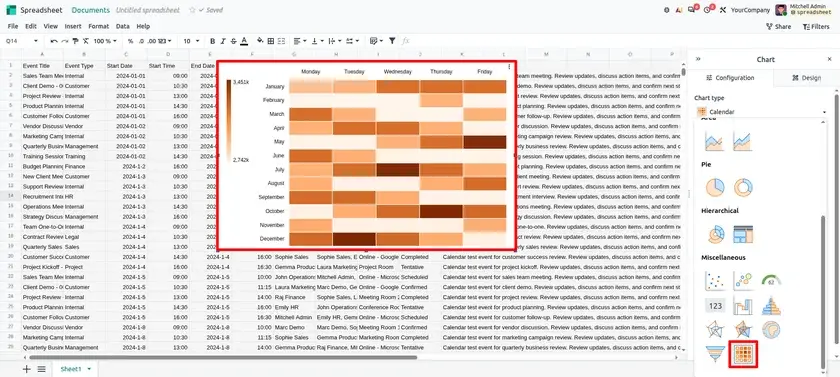
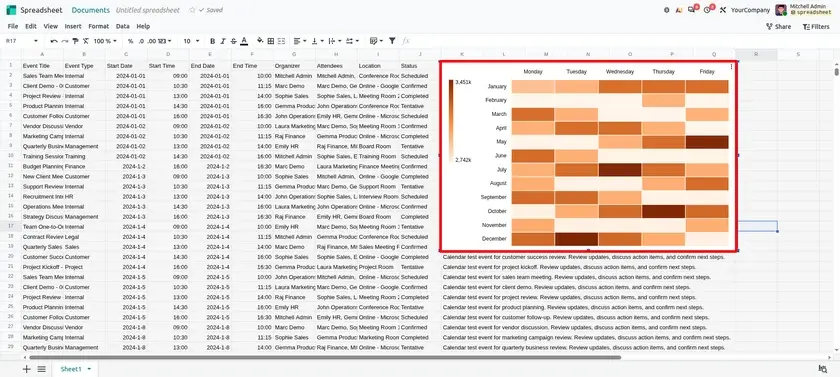
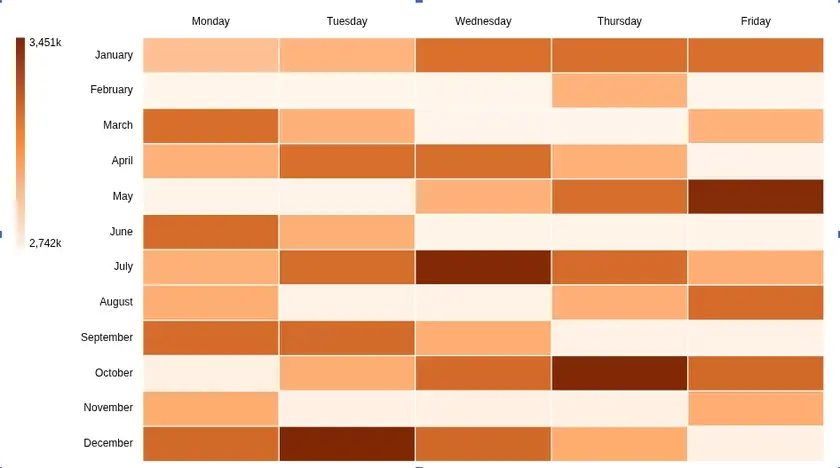
Odoo 20 adds calendar charts. A calendar chart lays values out by date, and the color of each day usually shows how high or low the value is. It is a quick way to spot trends such as busy weekdays, slow weekends or a sudden peak.
Why It Matters?
Many business numbers follow the calendar: orders by day, tasks by weekday, tickets by week. A calendar chart shows these patterns at a glance, so busy and quiet days are easy to see without reading every row. Use it when the question is when something happens, not just how much.
When should you use it?
- Look for timing patterns: busy weekdays, seasonal peaks and quiet periods in orders, tasks or tickets.
- Plan around the calendar: use the pattern to schedule staff, stock or follow-ups.
Skip it when
you need the exact value for every day. A list or pivot table is better for that.
Before you start: prepare the data
There is very little to configure, since the chart reads data you already have.
- Make sure your data has a date column and a value column, such as the order date and the number of orders.
- Check that the dates are real dates and not plain text, so the chart can place each value on the right day.
- Select the date column and the value column, including the header row.
How to create a calendar chart in Odoo Spreadsheet
- Insert the chart: go to Documents, open your spreadsheet, select the date and value columns, then click Insert ▸ Chart.
- In the chart settings, open Chart type and choose Calendar.
- Choose the horizontal and vertical grouping, for example Day of Week across and Month down. Each square is one period, and its color shows the value.
- Give the chart a clear title that says what the colors mean.
- Read the result: look for darker days, repeating weekday patterns and gaps, then add the chart to your report or dashboard.
| Step | Where to find it |
|---|---|
| Prepare dates and values | Your sheet, list or pivot table |
| Insert the chart | Insert menu, then Chart |
| Choose the chart type | Chart settings panel ▸ Chart type ▸ Calendar |
Calculated Columns in Dynamic Lists
In Odoo 20, it is now possible to add calculated columns in dynamic lists. Instead of working out values elsewhere, you add a column to the list and define it with a formula based on the other columns. The result sits next to your Odoo data in the same list.
When should you use it?
- Derive a figure from other columns: totals, margins or differences that should update together with the Odoo data.
- Keep the calculation visible: anyone opening the report can see how the number was worked out.
Skip it when
the value must be stored in Odoo itself, for example to use in other apps. A calculated column lives in the spreadsheet.
Before you start: prepare the list
A few steps get the list ready.
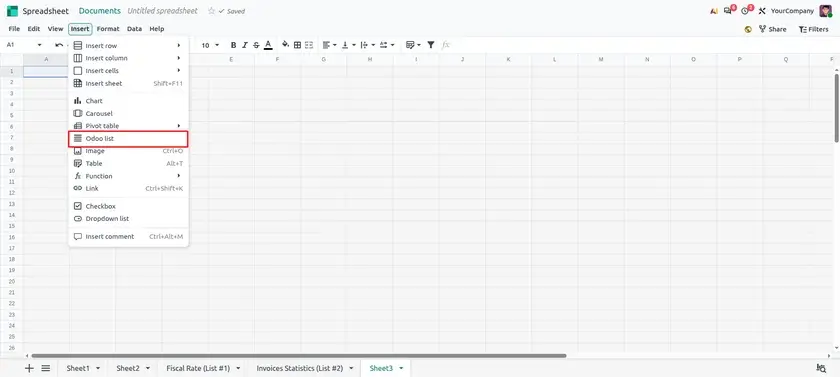
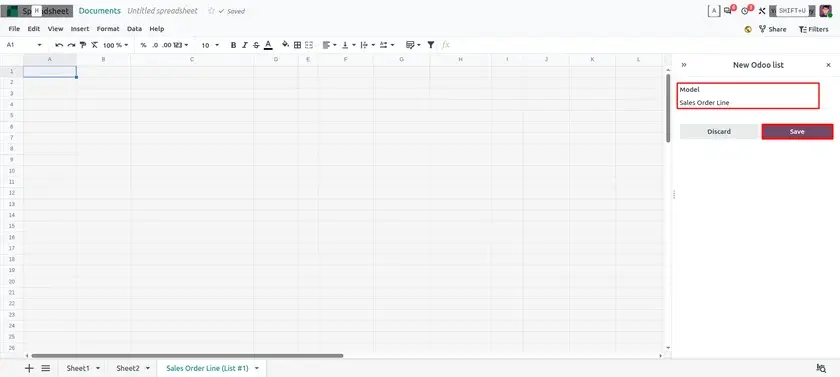
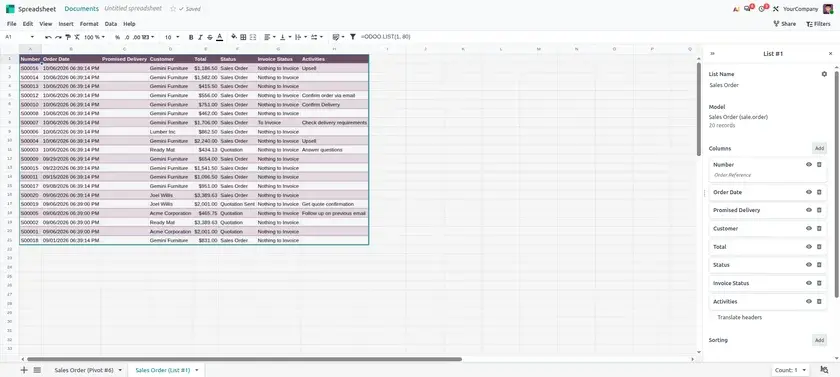
- Insert a dynamic list from the Odoo model you want to analyze: open Insert ▸ List ▸ Odoo list, pick the model, and click Save.
- Decide what the new column should show, for example quantity multiplied by unit price.
- Note the field names your formula will use, such as
amount_totalor the quantity and unit price fields of the model.
How to add a calculated column to a dynamic list
A dynamic list reads its data from Odoo and keeps it up to date.
- Open the list panel: go to Documents, open your spreadsheet, and select the list to open its side panel.
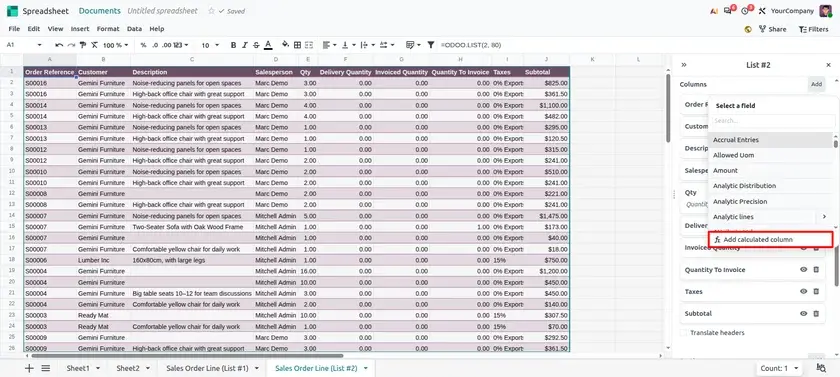
- Under Columns in the side panel, click Add and mark the new column as calculated.
- Name the column clearly, then write the formula using the row's other field names. For example,
amount_total*0.05creates a 5% commission column. - Check the results. The calculated column follows the list, so the values stay in step with your Odoo data.
| Field | Where to find it |
|---|---|
| Dynamic list | Spreadsheet, inserted from an Odoo model |
| Calculated column | List side panel ▸ Columns ▸ Add (mark as calculated) |
| Formula | Based on the other columns of the same list |
How dynamic Odoo data stays updated ?
When a list, pivot table or chart is inserted from Odoo, the spreadsheet creates a data source connected to the underlying Odoo data. The linked data can be refreshed when the spreadsheet is opened or reloaded, and it can also be refreshed manually from Data ▸ Refresh all data (confirm the exact label in your own database). To remove data sources a spreadsheet no longer uses, open Data ▸ Data cleanup ▸ Remove unused data sources.
Chart Annotations
Add annotations to a chart to give readers more context or an explanation of what they are looking at.
How to configure
- Select the chart in your spreadsheet to open its configuration panel.
- Find the annotation option and type the note you want to show with the chart.
- Check that the note is readable next to the data, then save the spreadsheet.
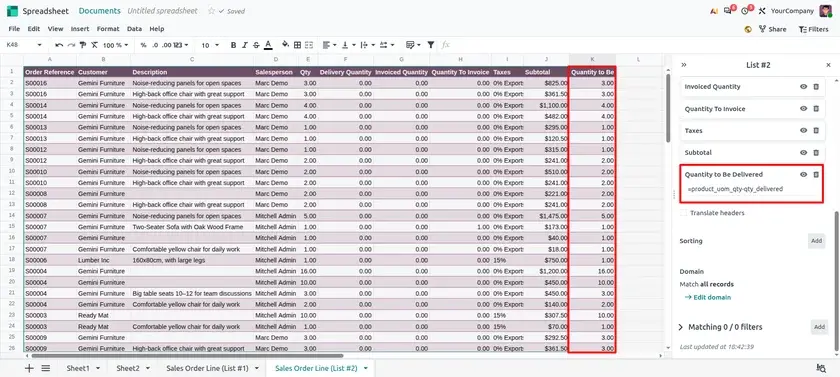
Chart Suggestions (Data Analysis)
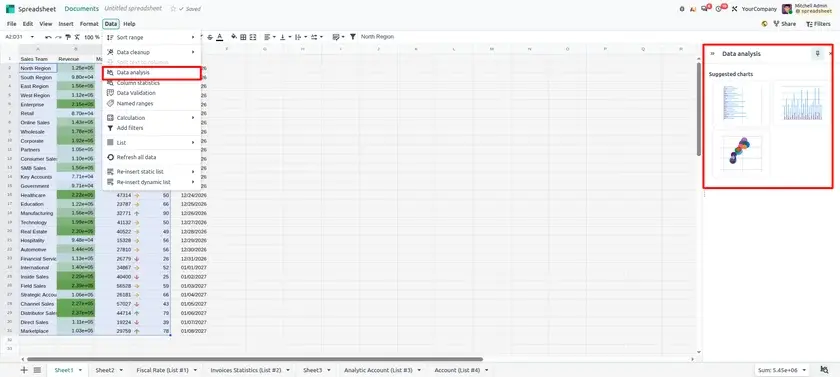
Get chart suggestions from the columns you select, using the Data analysis feature.
How to configure
- Select the columns that hold the data you want to chart, including the header row.
- Open Data ▸ Data analysis.
- Review the suggested charts and pick the one that fits your question, then save.
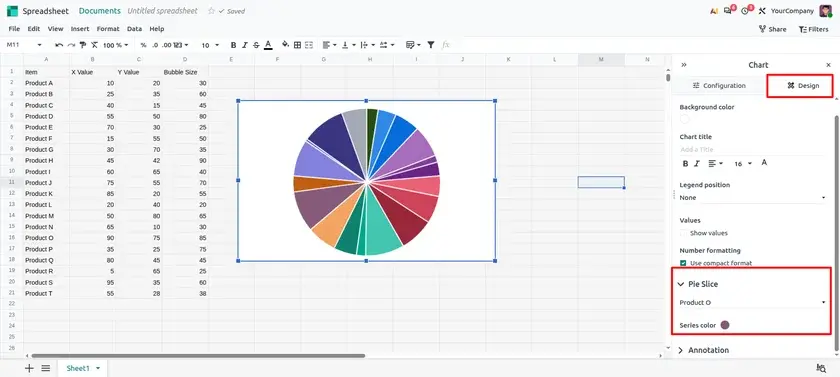
Pie Chart Slice Colors
Define the color of each slice of a pie chart instead of relying on the default palette.
How to configure
- Insert a pie chart: select the data, then click Insert ▸ Chart and choose the pie type.
- Open the chart configuration panel and go to its style options.
- Pick a color for each slice, then save.
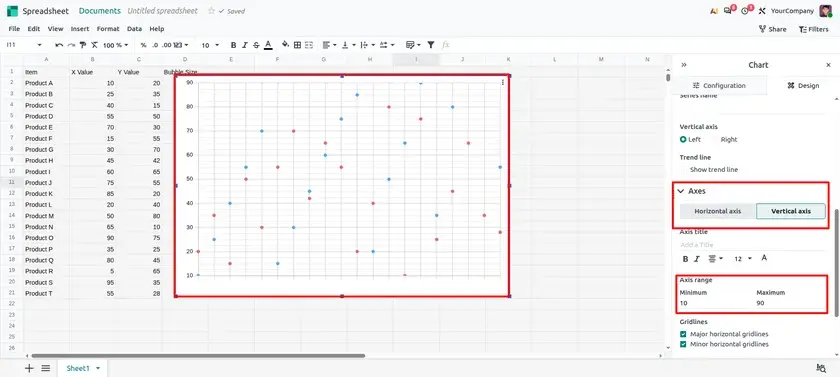
Axis Minimums and Maximums
Set minimum and maximum values for the x and y axes to better highlight your data.
How to configure
- Select a chart that has axes, such as a bar, line or scatter chart.
- In the configuration panel, open the axis options.
- Enter the minimum and maximum you want, then check the chart and save.
Multiple Selection on Figures
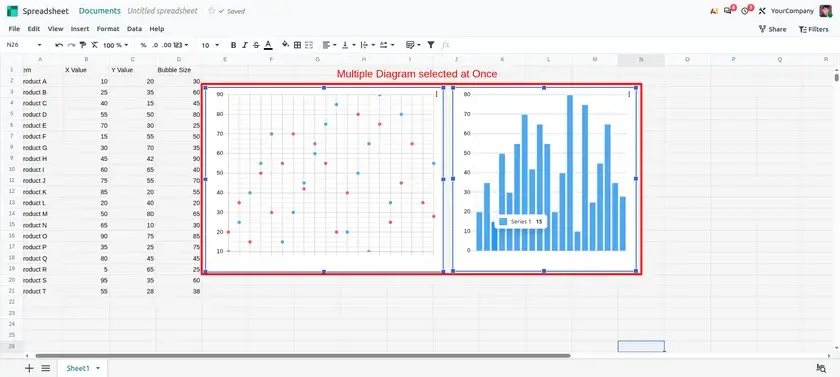
Select several figures (images, charts or carousels) to reposition them at once, or select several charts to create a carousel.
How to configure
- Click the first figure, then hold Ctrl (Cmd on Mac) and click the others.
- Drag the selection to reposition all selected figures together.
- With several charts selected, choose the option to create a carousel.
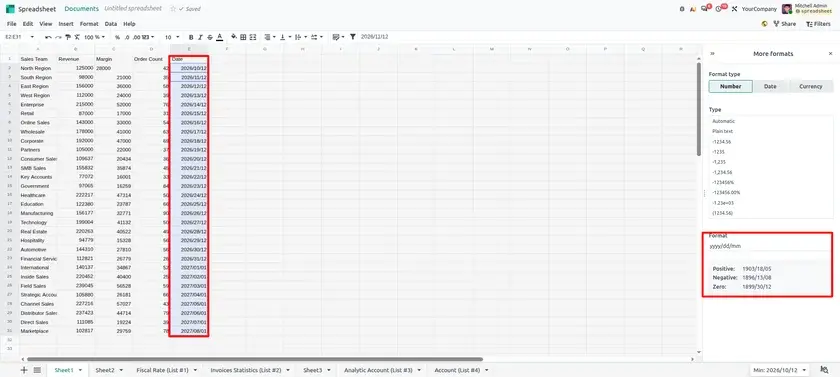
Custom Format
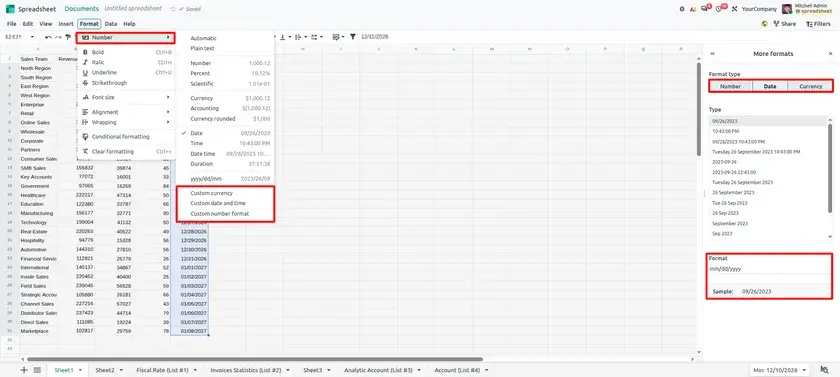
Define your own formats for dates and numbers.
How to configure
- Select the cells with the dates or numbers.
- Open Format ▸ Number and choose the custom format option.
- Enter the format you want and apply it.
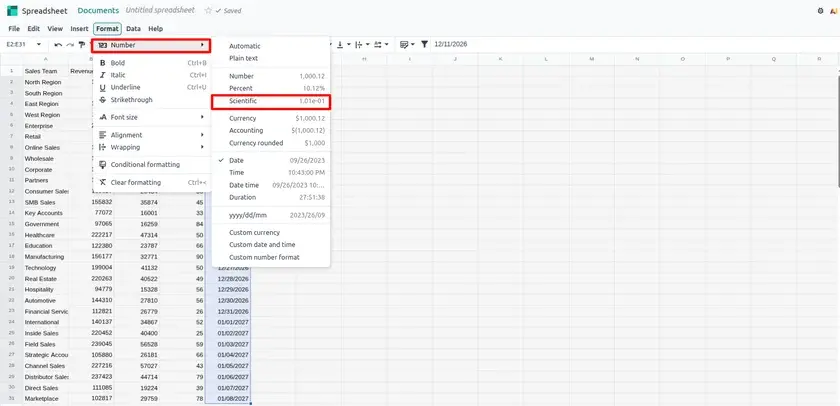
Scientific Notation
Format numbers in scientific notation.
How to configure
- Select the cells with the numbers.
- Open Format ▸ Number.
- Choose the scientific notation format.
Conditional Formatting Based on Dates
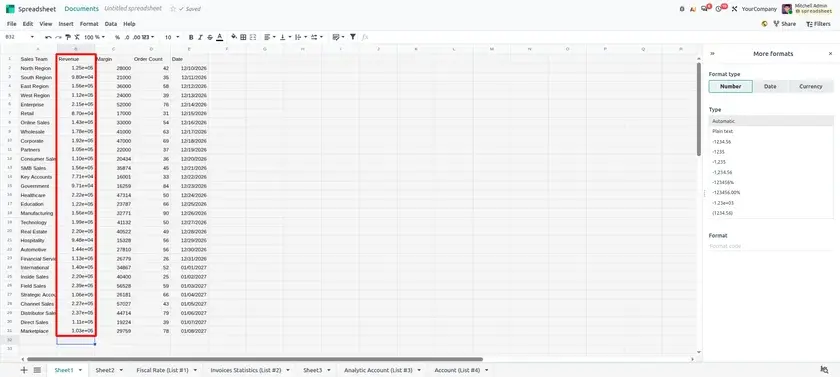
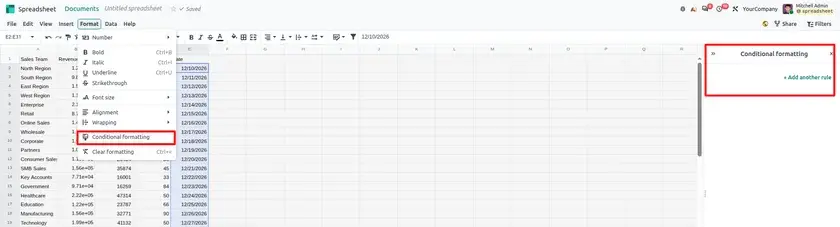
Apply conditional formatting rules based on dates.
How to configure
- Select the range of date cells.
- Open Format ▸ Conditional formatting and add a new rule.
- Choose a date-based condition, set the formatting style and save the rule.
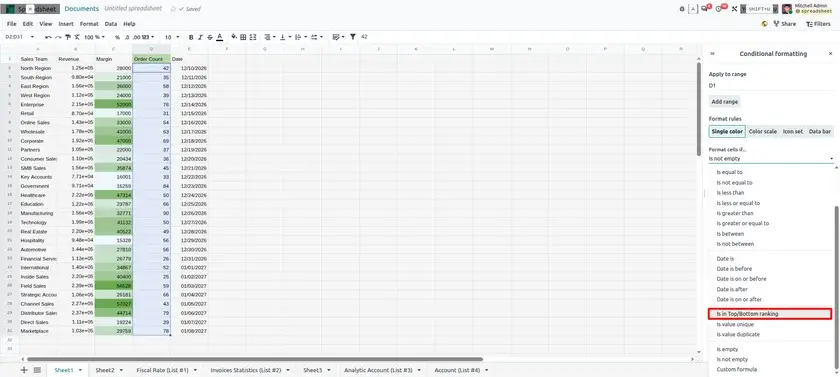
Top/Bottom Ranking
The new Is in Top/Bottom ranking option formats cells according to their rank in the range.
How to configure
- Select the range of numbers.
- Open Format ▸ Conditional formatting and add a new rule.
- Choose Is in Top/Bottom ranking, set how many items to rank and pick the style.
Sheet Background Colors
Set a background color on the entire sheet grid.
How to configure
- Open the sheet you want to change.
- Open the sheet options and choose the background color setting.
- Pick a color and check that your data is still easy to read.
Zoom In and Out
Zoom in or out to adjust the view of a spreadsheet.
How to configure
- Open your spreadsheet.
- Use the zoom control in the toolbar (it shows 100 % by default).
- Choose the zoom level that you want.
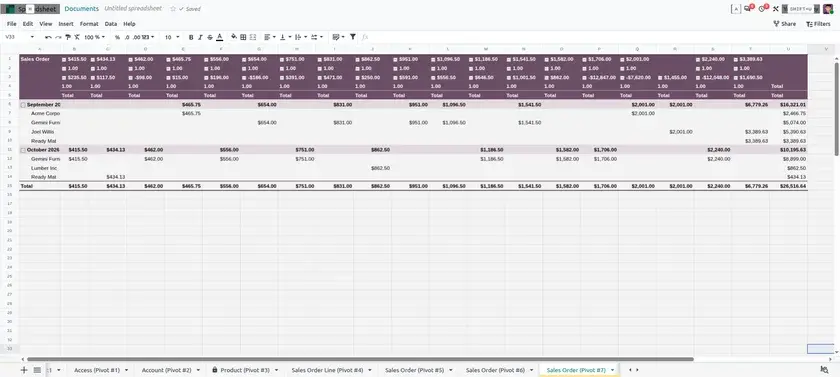
Print Settings
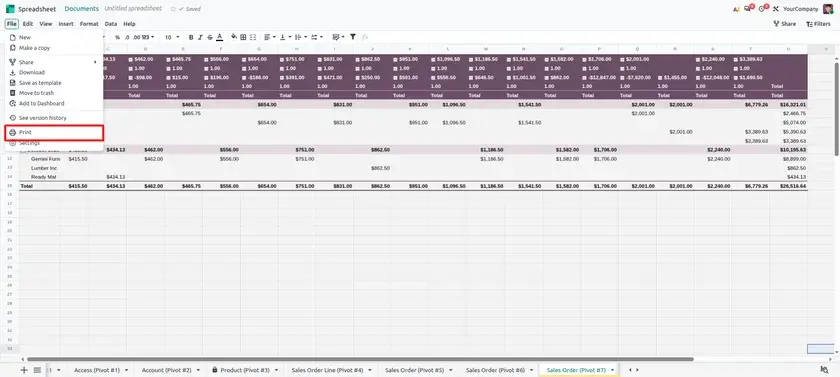
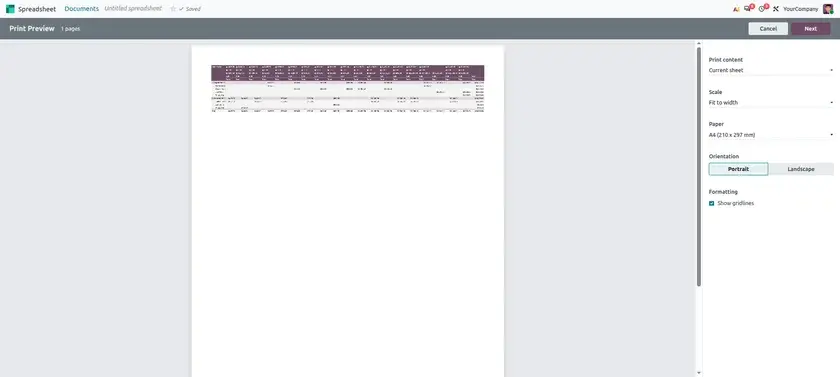
Define print settings for a spreadsheet or dashboard and preview any changes in the new Print Preview window.
How to configure
- Open the spreadsheet or dashboard you want to print.
- Open the print settings and adjust them.
- Check the result in the Print Preview window before printing.
Column Statistics
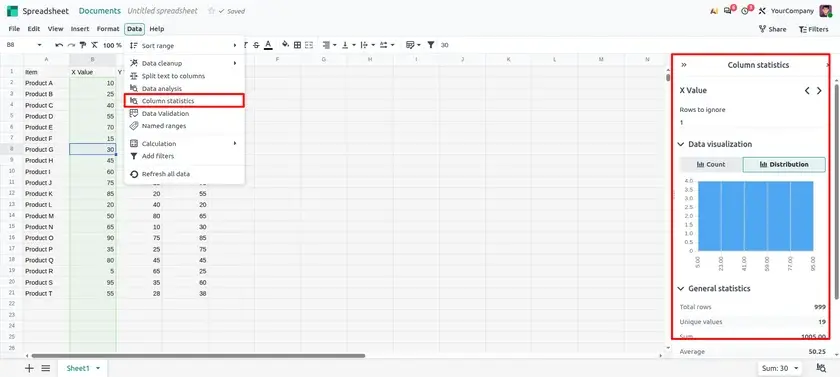
Get quick statistics for a column from the Data menu.
How to configure
- Select the column you want to look at.
- Open Data ▸ Column statistics.
- Read the statistics shown for that column.
Data Cleanup
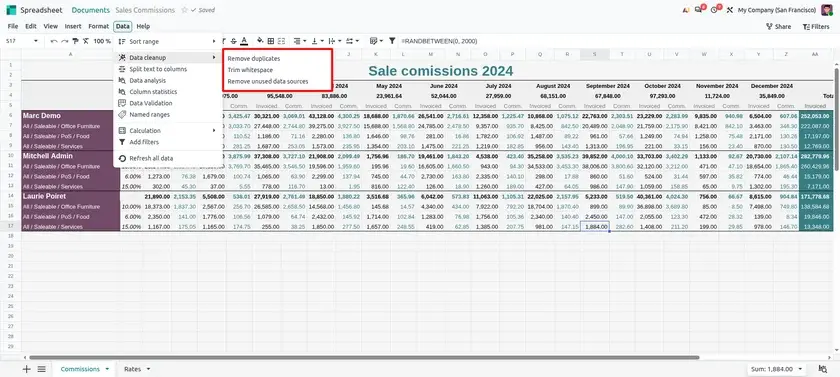
Remove unused data sources from the Data cleanup menu. The same submenu also lists Remove duplicates and Trim whitespace.
How to configure
- Open Data ▸ Data cleanup.
- Choose Remove unused data sources to remove sources the spreadsheet no longer uses.
- Save the spreadsheet.
Named Ranges
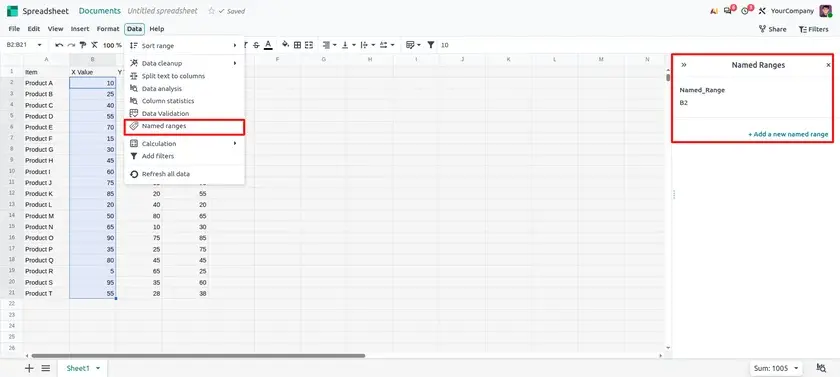
Add labels to cells or ranges, then use those names in formulas or to structure your spreadsheet.
How to configure
- Select the cell or range you want to name.
- Open Data ▸ Named ranges and add a name for the selection.
- Use the name in a formula instead of the cell references.
Disable Automatic Recalculation
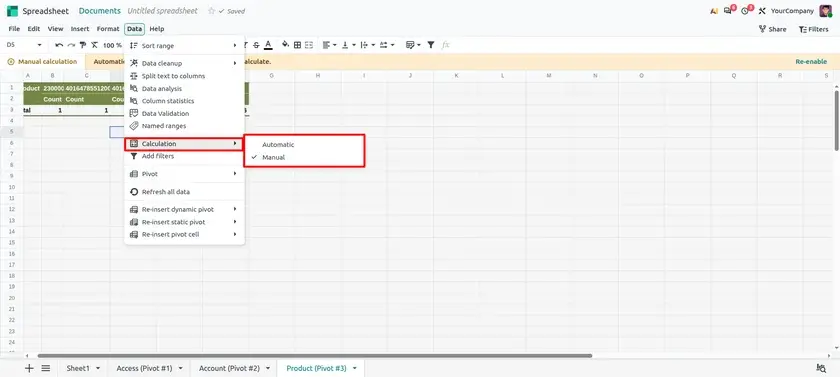
Turn off the automatic recalculation of formulas and recalculate manually by pressing F9. This can help in large spreadsheets.
How to configure
- Open the spreadsheet settings and turn off automatic recalculation.
- Work on your data as usual; formulas will not update on their own.
- Press F9 whenever you want to recalculate.
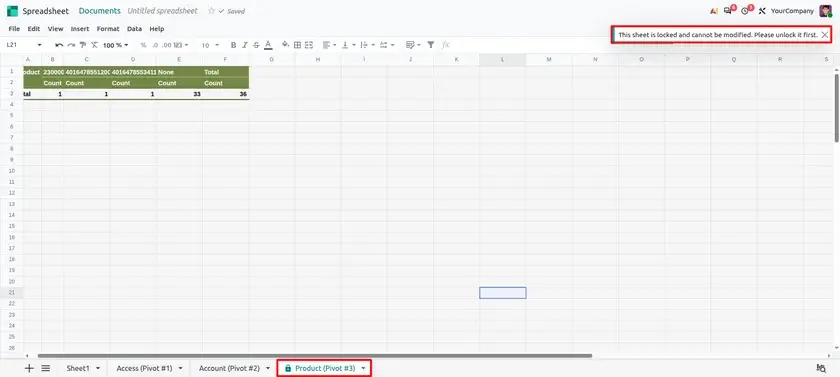
Lock Sheets
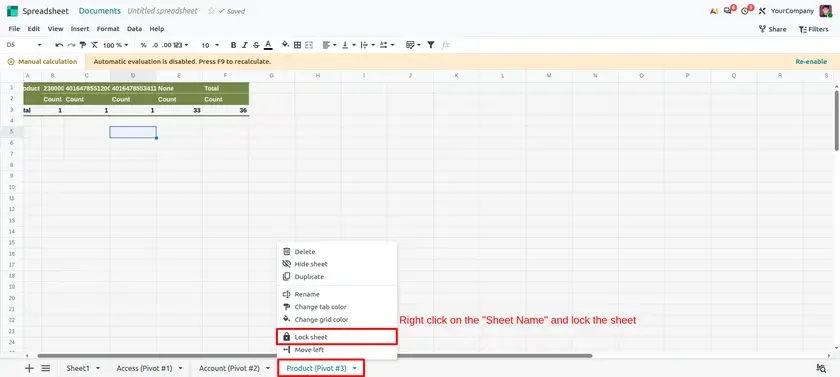
Lock an entire sheet to prevent modifications.
How to configure
- Open the sheet you want to protect.
- Use the sheet options (for example from the sheet tab) and choose the lock option.
- Try editing a cell to confirm the sheet is locked.
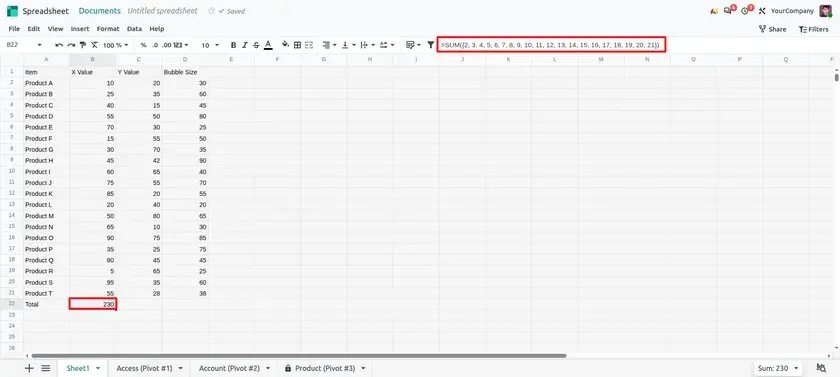
Curly Brackets
Use curly brackets, {}, to create arrays or as a custom formula parser.
How to configure
- Click a cell and start a formula with
=. - Type your values inside curly brackets, for example
=SUM({1,2,3}). - Press Enter to see the result.
Spill Range Operator
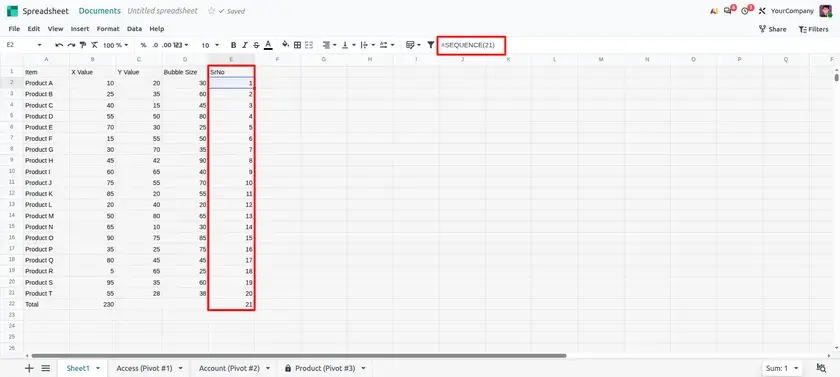
When a function such as SEQUENCE returns a spilled array, use the spill range operator (#) to reference the whole spill range from a single cell.
How to configure
- In cell A1, type
=SEQUENCE(5). The five values spill into the cells below. - In another cell, type
=SUM(A1#). - The
#makes the formula follow the full spill range, even if its size changes.
Regex Formulas
The REGEXTEST and REGEXREPLACE formulas let you test and replace text using regular expressions.
How to configure
- Click a cell and type
=REGEXTEST(text, pattern)to check whether the text matches the pattern. - Use
=REGEXREPLACE(text, pattern, replacement)to replace the matching part. - Press Enter and check the result.
New Functions
New functions were added in the lookup, statistical and text categories.
| Category | New functions |
|---|---|
| Lookup | CHOOSE, DROP, FORMULATEXT, TAKE |
| Statistical | CHISQ.TEST, CONFIDENCE.NORM, F.TEST, GEOMEAN, HARMEAN, KURT, SKEW, TRIMMEAN |
| Text | ARRAYTOTEXT |
How to configure
- Click a cell and start typing the function name, for example
TAKE. - Choose it from the suggestions and fill in its arguments.
- Press Enter to see the result.
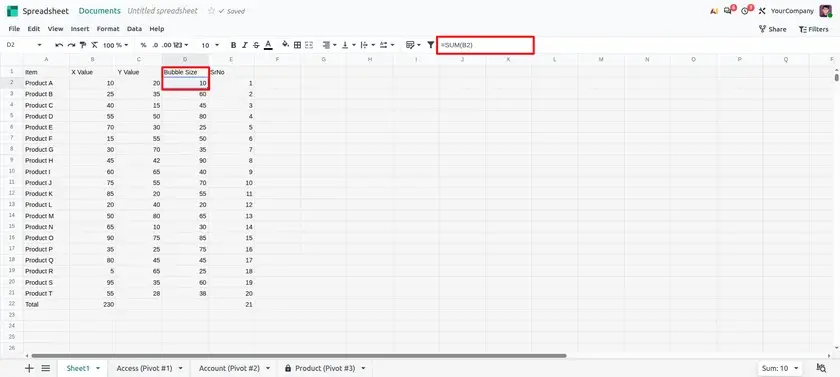
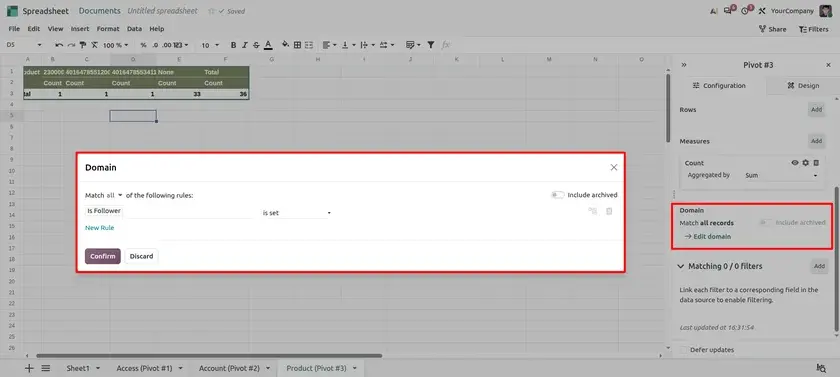
Pivot Domain
Add a Domain to a pivot table created from a range of spreadsheet data, to filter the data by values or by criteria.
How to configure
- Select the pivot table to open its side panel.
- Open the Domain setting and add the filter by values or by criteria.
- Confirm and check that the pivot updates.
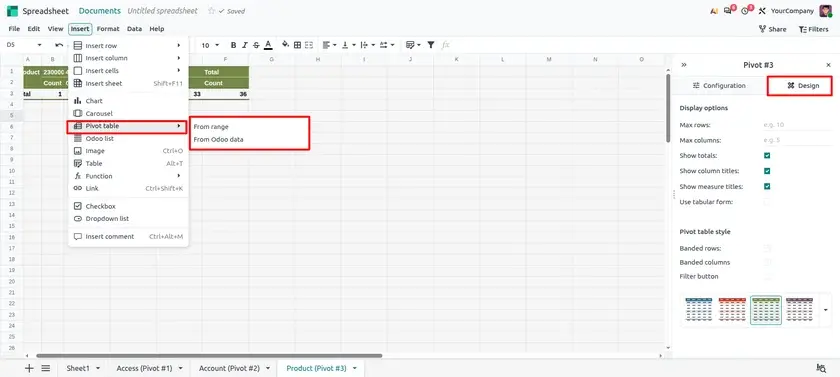
Pivot Table Styles
Customize the appearance of a pivot table with the style options in the side panel, or apply a specific style to it.
How to configure
- Select the pivot table.
- In the side panel, open the style options.
- Choose a style or adjust the options.
Expand and Collapse All
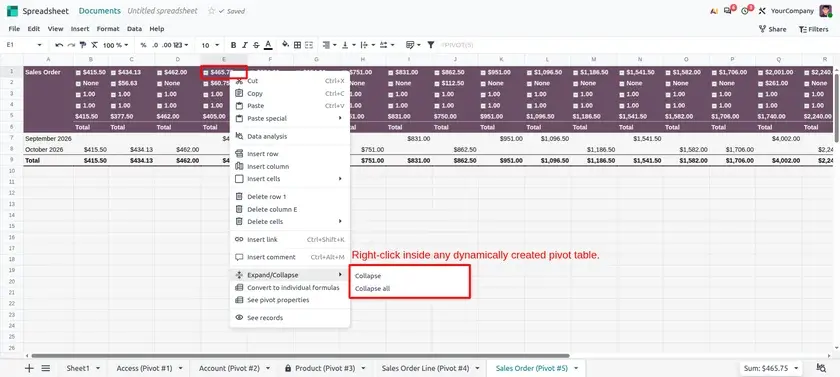
Expand or collapse all groups at once in dynamic pivots.
How to configure
- Open the spreadsheet containing a dynamic pivot table.
- Right-click any cell inside the pivot table.
- From the context menu, select Expand all to expand all grouped rows or Collapse all to collapse them.
Nested and Tabular Views
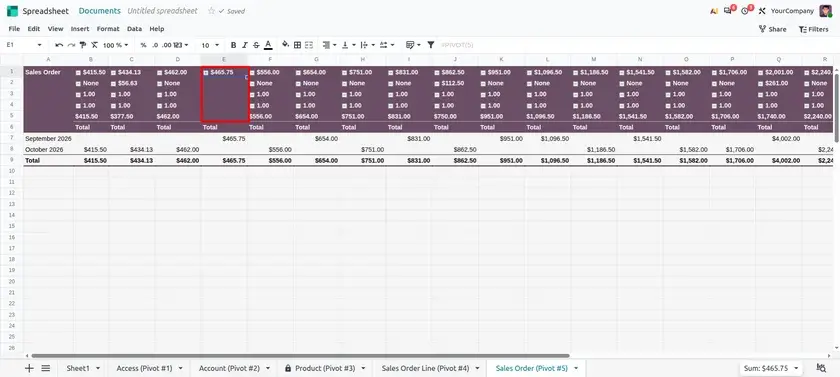
In dynamic pivot tables, switch between the nested view and the tabular view, which flattens the row dimensions.
How to configure
- Open the spreadsheet containing the dynamic pivot table.
- Select the pivot table to open its side panel.
- In the side panel, open the Layout options.
- Choose Nested to display row dimensions in a hierarchical structure.
- Choose Tabular to display each row dimension in a separate column.
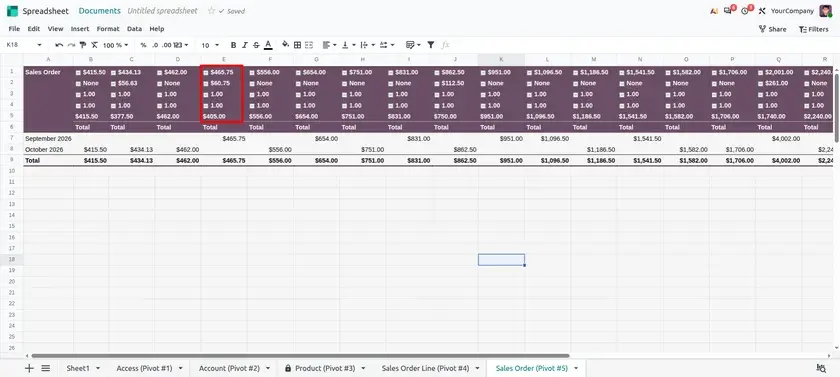
List Insertion
Insert a dynamic list directly from a spreadsheet.
How to configure
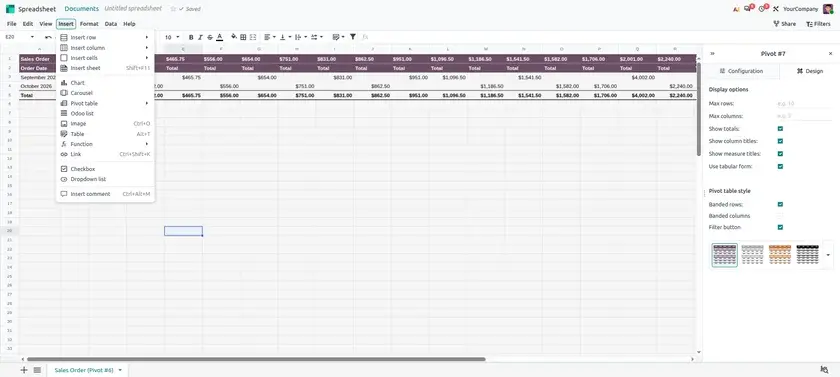
- Open your spreadsheet in Documents.
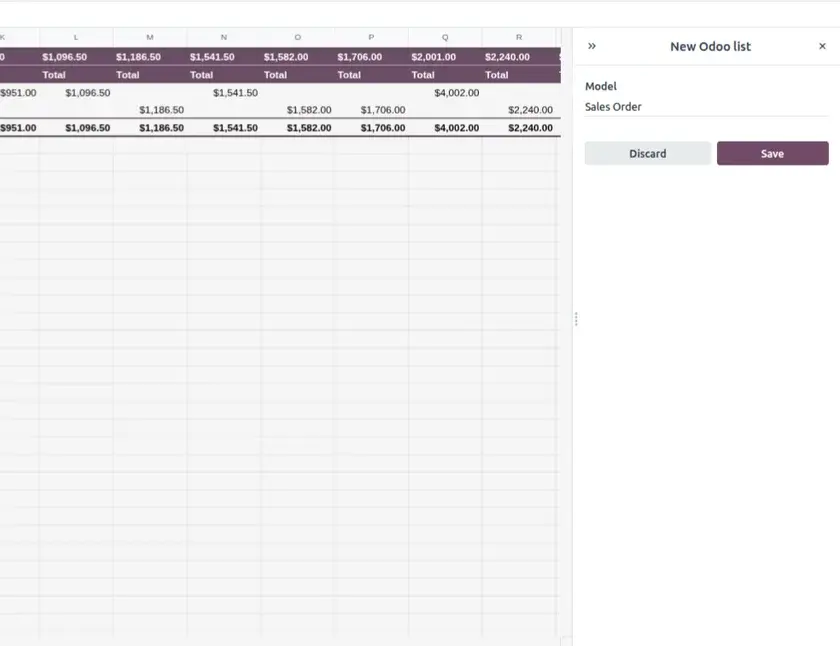
- Go to Insert ▸ List ▸ Odoo list.
- Pick the model and save.
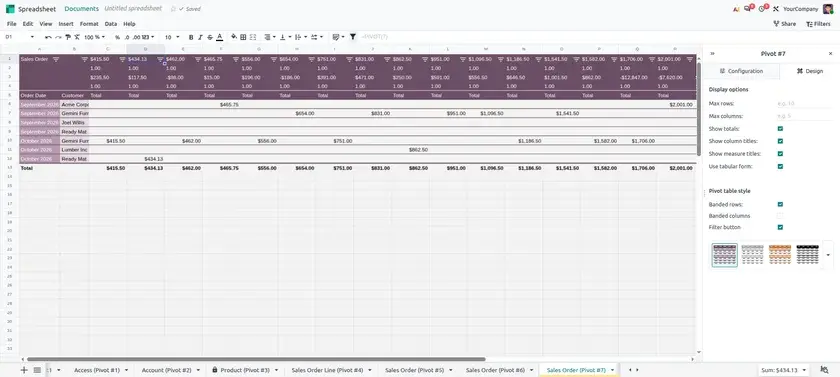
Property Fields in Lists
Property fields that are visible in a list view are now included when you insert that list into an Odoo spreadsheet.
How to configure
- Make sure the property fields are visible in the list view in Odoo.
- Insert the list into the spreadsheet.
- Check that the property columns appear with the other columns.
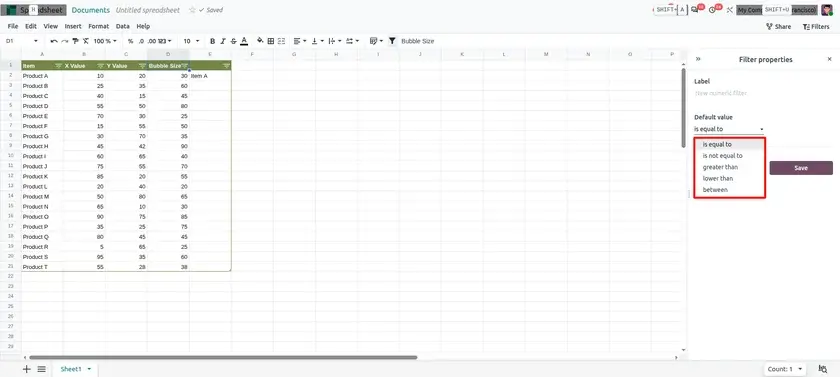
Default Operators for Global Filters
Set the default operator of a global filter.
How to configure
- Open a spreadsheet and click Filters in the top-right corner.
- Create a new global filter or select an existing one to edit its settings.
- Choose the filter type and configure the relevant field.
- Set the default operator from the available options.
- Save the filter and test it to verify that the selected operator is applied by default.
Global Filters from Data Source Properties
Create a global filter from the properties of a data source by selecting the field to filter on directly.
How to configure
- Open a spreadsheet containing a dynamic list, pivot table, or chart.
- Select the data source to open its side panel.
- Open the Configuration tab and locate the relevant field in the data source properties.
- Select the option to create a global filter for that field.
- Configure the filter and apply it to the relevant data.
- Test the filter to confirm that it filters the data as expected.
Reduced JSON File Size
Downloaded JSON files use a more compact formula structure, reducing file size and making the exported data lighter.
How to configure
- Open the spreadsheet you want to export.
- Open the File menu and select the JSON download option, if available.
- Save the downloaded JSON file.
- Compare it with a JSON file exported from an earlier version to check the changes in formula structure and file size.
Template Access
Limit the visibility of, and access to, templates to defined user groups.
How to configure
- Open the relevant template.
- Locate the template's access rights or visibility settings.
- Select the user groups allowed to access the template.
- Save the changes and verify that users outside the selected groups cannot access it.
Top Menu Navigation
Use keyboard shortcuts to open the top menus, then move through them with the arrow keys and the Enter and Escape keys.
How to configure
- Press the keyboard shortcut to open a top menu.
- Move with the arrow keys.
- Press Enter to pick an item or Escape to close the menu.
Mobile: Pinch to Zoom
Pinch to zoom in the grid when using Spreadsheet on a mobile device.
How to configure
- Open the spreadsheet on your mobile device.
- Place two fingers on the grid.
- Move them apart to zoom in or together to zoom out.
How These Features Change the Spreadsheet Workflow
Taken together, the direction of Odoo 20 Spreadsheet is more analysis inside one place, with less copying of data between tools:
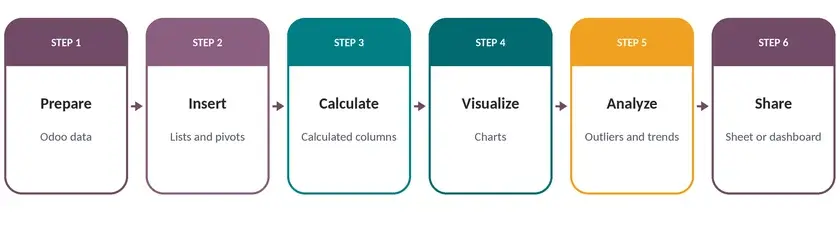
Here is how a typical reporting workflow can flow. Not every report needs every step:
- Prepare Odoo data: decide which Odoo model and fields the report needs.
- Insert data into the spreadsheet: add a dynamic list, pivot table or chart from Odoo.
- Calculate or manipulate the data: add calculated columns to work out totals, margins or differences.
- Visualize with charts: use a bubble chart to compare groups and a calendar chart to see daily patterns.
- Analyze the results: look for outliers, busy days and trends.
- Share or use in a dashboard: share the spreadsheet, or convert it into a dashboard for your team.
Odoo 20 Spreadsheet brings practical improvements for anyone who builds reports in Odoo. Bubble charts compare numbers and categories in one view, calendar charts reveal patterns over time, and calculated columns keep your formulas inside the dynamic list. Together, they make reporting in Odoo more connected and easier to understand.
The smaller updates add control over every step of a report. Chart annotations, custom colors and axis limits make charts clearer; custom formats and date or ranking rules make tables easier to read; named ranges, regex and the new functions make formulas more powerful; and sheet locking, template access and manual recalculation help you protect and manage your work.
Odoo 20 Spreadsheet: New Features and Improvements