The Odoo 20 Barcode application helps warehouse teams process receipts, deliveries, internal transfers, and inventory counts using barcode scanning. The latest updates focus on improving operational control, simplifying manual tasks, and making warehouse workflows more consistent.
In this guide, we explore the key Odoo 20 Barcode improvements, explain their practical use in warehouse operations, and highlight what businesses should check before upgrading.
Executive Summary: Landmark Advancements in Odoo 20 Barcode
| Landmark Advancements | Component / Dialog | Core Business Impact |
|---|---|---|
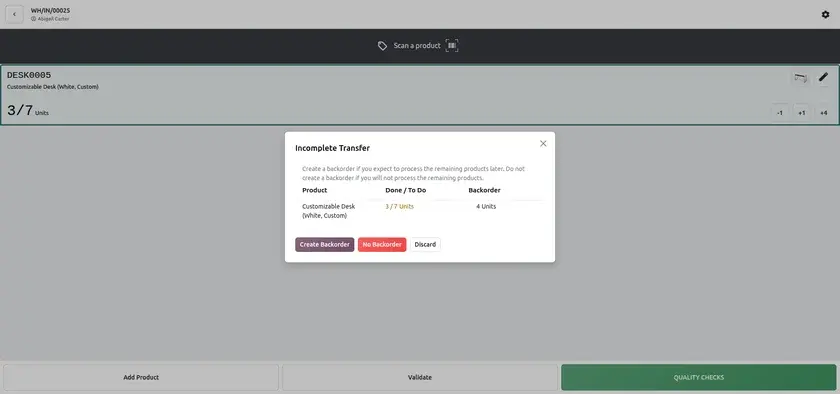
| Choose On-The-Spot Backorder Creation | backorder_dialog.js | When validating partial transfers, workers choose directly on their scanner screen whether to create a backorder or cancel remaining items. |
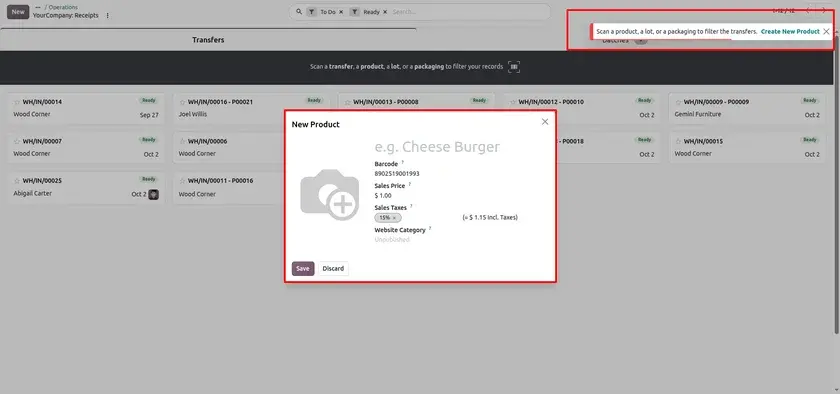
| Scan Unknown Barcode & Assign/Create Product | extra_product_dialog.js | Scanning an unrecognized barcode opens an instant popup to bind the barcode to an existing product or create a new product on the spot. |
| Smart Vendor Batch Suggestions | suggest_batch_dialog.js | System automatically identifies incoming shipments from the same vendor and suggests combining them into a single batch scanning pass. |
| Inventory Adjustment Direct Count Entry | apply_quant_dialog.js | Enter exact stock counts directly on handheld devices with real-time variance highlighting during cycle counts. |
| Dedicated “Light User” License Support | security/stock_barcode_security.xml (group_barcode_user) | Warehouse operators can perform complete barcode scanning operations under a lower-cost “Light User” privilege tier without consuming full Inventory user licenses. |
| Offline Scan Buffering & Auto-Sync | lazy_barcode_cache.js | Scans are buffered locally during Wi-Fi drops and automatically synced when connection is restored. |
| Native Batch Picking & Line Grouping by Product | stock_barcode / stock_picking_type.py (group_lines_by_product) | Batch picking is now built directly into the core barcode app, with a new option to group lines by product at identical locations to speed up multi-order fulfillment. |
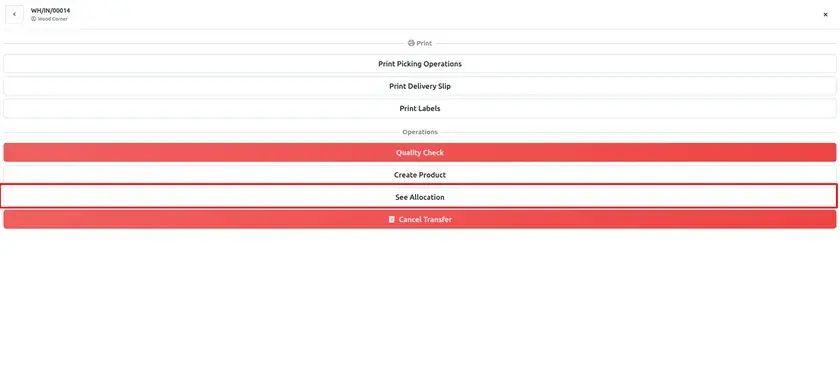
| Cross-Docking & “See Allocation” Report | main.js / main.xml (displayAllocationButton) | Direct “See Allocation” button on incoming/internal transfers to check reception allocations, with color-coded warning badges on allocated destination location |
Choose On-The-Spot Whether a Backorder is Created
Feature Overview: When a warehouse worker scans a partial quantity of a transfer and taps Validate, Odoo 20 opens an interactive dialog directly on the mobile scanner device. The worker chooses whether to create a backorder for the remaining items or cancel the unfulfilled quantity on the spot.
Operational Path: Barcode ▸ Operations ▸ Receipts / Deliveries ▸ [Scan Partial Items] ▸ Validate ▸ Select “Create Backorder” or “No Backorder”.
Scan an Unknown Barcode and Create/Assign Product
Feature Overview: Scanning a barcode that does not exist in the Odoo database no longer stops warehouse operations. Odoo 20 displays an instant mobile wizard allowing the worker to assign the scanned barcode to an existing product or create a new product without leaving the scanning view.
Operational Path: Barcode ▸ Operations ▸ Scan Unrecognized Barcode ▸ Tap “Assign to Product” or “Create Product”.
Cross-Docking Allocation & Allocation Report
Feature Overview: For incoming and internal receipts, the Operations settings menu now includes a “See Allocation” button. This opens the Reception Report directly on the mobile device, allowing workers to see customer orders waiting for the incoming items. Additionally, lines destined for allocated locations are highlighted with amber warning badges, and feature a direct “Print Reservation” button.
Operational Path: Barcode ▸ Operations ▸ Receipts ▸ Tap Settings (Gear Icon) ▸ Tap “See Allocation”.
Protected Inventory Count Requests
Feature Overview: During cycle counts, lines requested by warehouse supervisors via Request Count are locked against accidental operator deletion on the handheld scanner. Operators can still cleanly discard extra unrequested lines they added.
Operational Path: Barcode ▸ Physical Inventory ▸ Select Location ▸ Count Items.
Operational Quick Reference (Odoo 19 vs Odoo 20)
Odoo 20 Barcode keeps warehouse workers moving. Instead of stopping at an error screen, a missing barcode, a partial delivery or a dead Wi-Fi zone, the scanner now offers a way forward right on the device.
The main takeaways:
- Fewer interruptions: choose backorders on the spot, assign or create products for unknown barcodes and keep scanning offline.
- Less manual work: vendor batch suggestions combine receipts for you, and a single GS1 scan fills in SKU, lot, expiry and weight.
- Better accuracy: direct count entry with real-time variance highlighting, audio and haptic confirmation and guided wave picking reduce mistakes.
A good way to start is with the workflow your team hits most often, such as partial receipts or unknown barcodes, and expand from there. Use the screenshot placement notes in this post to build your own training material as you roll each feature out.
Odoo 20 Barcode: New Features and Updates