Odoo 20 introduces useful improvements to Time Off and Payroll, helping businesses manage employee leave requests and payroll operations more efficiently. These updates simplify everyday HR activities and make important information easier to access.
The Time Off application includes improvements to leave allocation, public holiday management, and employee leave overviews. These changes help HR teams manage time-off requests more clearly and reduce manual effort.
Payroll also receives enhancements to work entry management, payroll validation, and payslip processing. Together, these updates help businesses maintain more consistent HR workflows and handle payroll activities with greater clarity.
Where These Changes Make a Difference
Simplified Leave Management
Manage leave types, allocation rules and approval settings through unified Time Types. Configure leave policies and handle employee requests more consistently.
Easier Public Holiday Setup
Use the public holiday loading wizard to simplify yearly holiday setup, with suggested holidays based on the company's country.
Better Payroll Validation
Review payroll warnings and address data issues before finalizing payslips, helping reduce avoidable corrections during payroll processing.
Clearer Payslip Processing
Use test printing, correction workflows and detailed salary computation information to review pay runs and understand how payslip amounts are calculated.
What's new in Odoo 20 Time Off and Payroll?
Unified Time Types
Time off and work entry types, merged. Leave types and payroll work entry types are no longer managed on separate screens. One Time Types record covers both.
Public holidays
Load Public Holidays wizard. Company holidays no longer need to be created line by line. The wizard fetches candidate public holidays for the company country and year.
Work entries
Automated background flow. Work entries are calculated automatically, and approved leave and contract schedules sync into draft payslips under the Worked Days tab.
Payroll warnings
Pre-flight checks on the dashboard. A warning engine surfaces issues such as missing bank accounts, expired contracts and unresolved leaves, each with a direct action button.
Pay runs
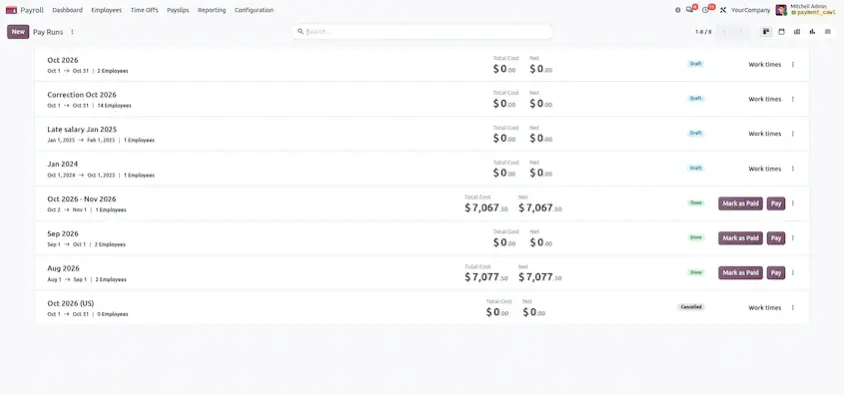
Reworked lifecycle and new actions. Start Pay Run, Test Print, Validate, Pay and Correct give payroll teams a clear, structured path from draft to finalized.
Payslips
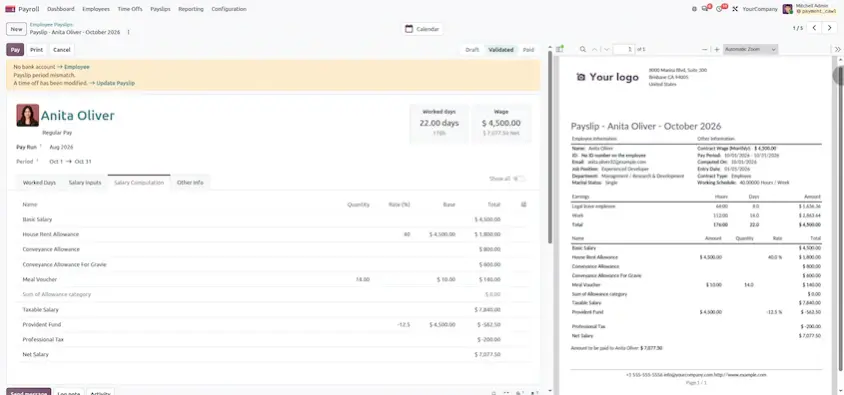
Redesigned screen and calculation tools. KPI blocks, a calendar stat button, a Show All toggle, rule formula tooltips and rule-linked salary inputs make payslips easier to review.
The same release also adds a few supporting tools, including a salary indexation wizard, a set schedule wizard and an audit trail. Here is a quick summary of the main changes.
Why it matters
These changes help HR and payroll teams reduce avoidable corrections and keep employee information, approved leave and payroll records consistent.
Consistent setup
Leave types and work entries are configured together, so leave records and payroll stay aligned.
Less manual entry
Public holidays are loaded by a wizard instead of being created one by one.
Fewer surprises
Warnings highlight missing or inconsistent data before payslips are finalized.
Safer pay runs
Test Print and the Correct workflow help teams review before and fix after finalization.
Easier payslip review
Tooltips and the Show All toggle make salary calculations clearer to verify.
Better traceability
The audit trail records user edits and system changes made to payroll records.
Prerequisites
Get these in place before you configure Time Off and Payroll in your Odoo 20 environment.
What's new in Odoo 20 Time Off?
Odoo 20 Time Off helps HR teams manage employee absences and coordinate leave information with related HR operations. Accurate configuration of time types, public holidays and work entries helps reduce inconsistencies when leave information is used in payroll.
Unified Time Types
Time Off Types (leaves) and Work Entry Types (payroll) used to be managed on separate screens and had to be linked manually. In Odoo 20 they are merged into a single model called Time Types. Review the available options to make sure each leave type follows your company's policies and works correctly with the relevant payroll workflow.
Open Time Types. Navigate to Time Off ▸ Configuration ▸ Time Types (or Payroll ▸ Configuration ▸ Time Types), then click New or open an existing record.
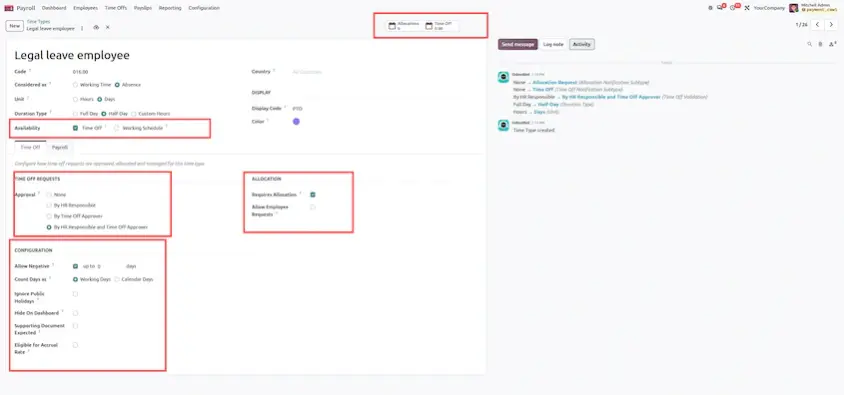
Choose the record type. Toggle the Time Off checkbox (time_off_selectable):
- When OFF, the record works strictly as a payroll work entry type (for example, Attendances or Overtime).
- When ON, a dedicated Time Off tab appears with the leave approval workflow, allocation rules and negative balance settings.
Configure the Time Off tab. Review the options that control how this leave type behaves:
- Time Off Requests: set the Approval mode, such as no validation, by time off officer or by employee hierarchy.
- Allocation: set Requires Allocation, Employee Requests and Allocation Approval.
- Negative Cap: toggle Allows Negative and set the maximum allowed negative balance in days or hours.
- Public Holidays & Accrual: choose whether to include public holidays in the duration, whether the type is eligible for accrual, whether a supporting document is required and whether to create a calendar meeting.
Business benefits
Public Holiday Management
Public holidays affect employee schedules, working-day calculations and leave planning. Odoo 20 introduces an automated Public Holidays Loader, so company holidays no longer need to be created manually line by line. After loading, confirm that the dates and work-entry settings match your organization's calendar.
Open Company Holidays. Navigate to Time Off ▸ Configuration ▸ Company Holidays.
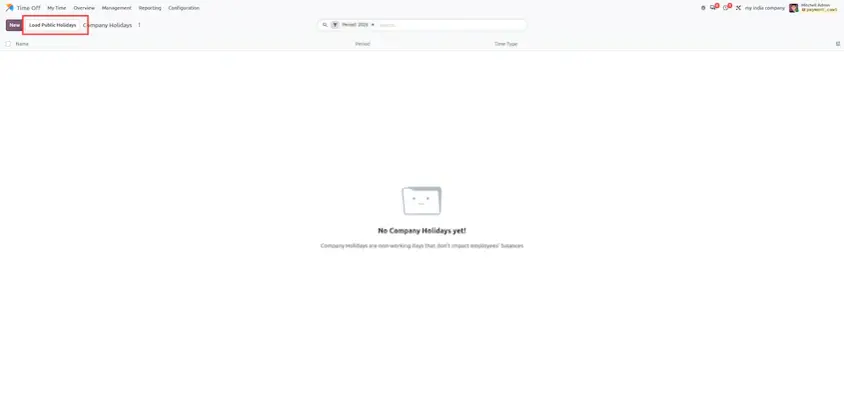
Run the wizard. On the list view header, click Load Public Holidays. Enter the target Year (it defaults to the current year). Odoo detects the company country and fetches candidate public holidays.
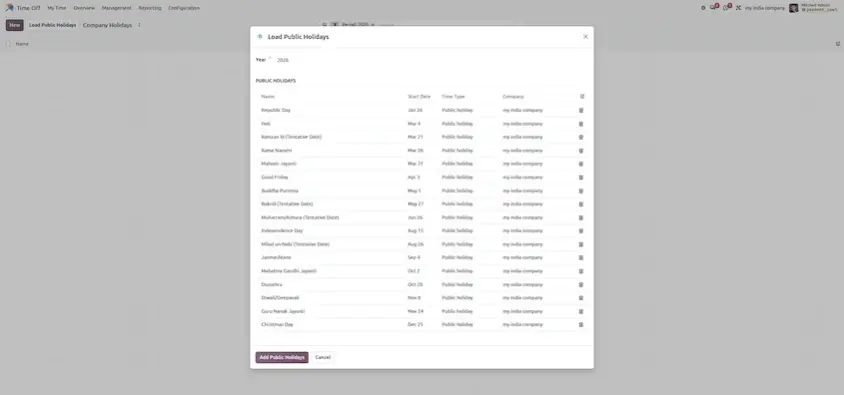
Pick the work entry type and add. Select the target Work Entry Type for each holiday line, then click Add Public Holidays. Odoo creates the company holiday records automatically.
Business benefits
Work Entry Reconciliation
Work entries describe an employee's working time and absences for payroll. In Odoo 20, the standalone Work Entries grid review screen is no longer part of the main Payroll menu, and work entries follow a new automated flow. You should still check that approved time off, employee schedules and generated work entries are consistent, and resolve any conflicts using the workflow available in your installed Odoo version and localization.
Background Computation
Work entries are calculated automatically in the backend, reducing manual effort for payroll officers.
Direct Synchronization
Approved leave and employee contract schedules sync into draft payslips under the Worked Days tab.
No Manual Grid Management
Payroll officers no longer need to review daily colored blocks or manually resolve overlapping conflicts on a timesheet grid.
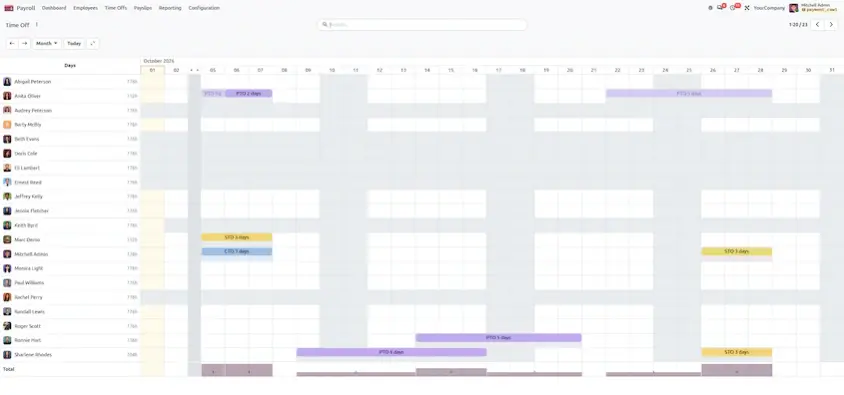
Easy Leave Calendar Access
Open Payroll > Time Offs to access a dedicated Gantt view and verify employee leave schedules without switching apps.
Business benefits
What's new in Odoo 20 Payroll?
Odoo Payroll supports payroll preparation, work-entry handling, payslip generation and salary computation based on your payroll structure and localization. The areas below are worth reviewing when you configure or upgrade your payroll workflow.
Payroll Validation and Warnings
Odoo 20 introduces a Payroll Warning Engine to validate data quality before a pay run is executed. Issues can relate to work entries, employee records, contracts or salary rules. Review warnings carefully and resolve the underlying issue before proceeding.
Open the Payroll dashboard. Navigate to Payroll ▸ Dashboard. Active warning cards are grouped by issue type, for example Missing Bank Accounts, Expired Contracts and Unresolved Leaves to Defer. Exact warning types can vary by localization and configuration.
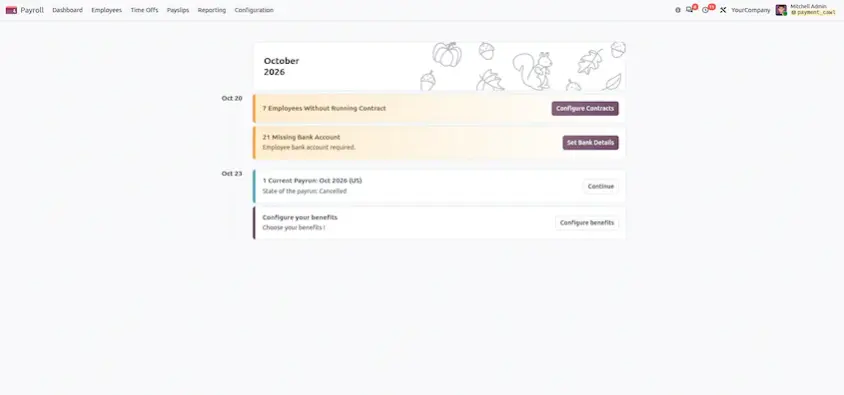
Fix issues in one click. Each card has a direct action button, such as Open Employees or Correct related payslips, so you can resolve the underlying issue before proceeding.
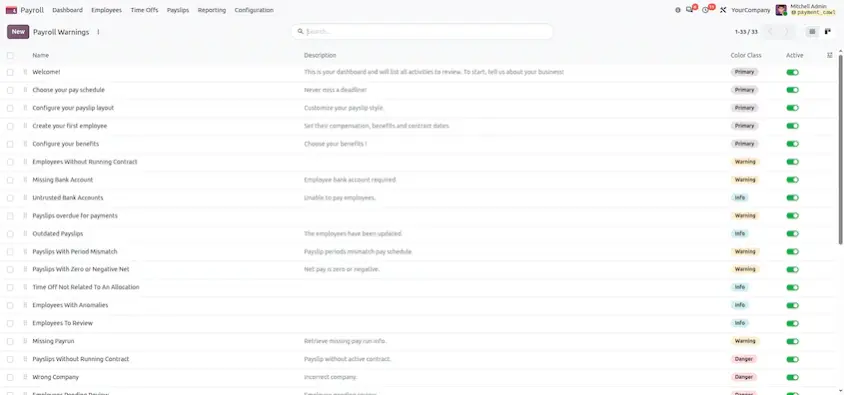
Add custom warning rules. Admins manage rule conditions under Payroll ▸ Configuration ▸ Dashboard ▸ Warnings, using domain filters or Python rules, with options such as blocking payslips, a snooze date and email alerts (hr.payroll.warning).
Business benefits
Pay Run Processing
Pay runs in Odoo 20 follow a structured lifecycle. Before completing a pay run, confirm that employee contracts, work entries, salary rules and payroll inputs are correct, and follow the steps available in your installed Odoo version and localization.
Create a draft pay run. Go to Payroll ▸ Payslips ▸ Pay Runs ▸ New Pay Run. Enter the period dates, select the Salary Structure and filter by Employee Types (for example, Full-Time or Hourly).
Start the pay run. Click Start Pay Run. The system automatically runs pre-flight checks against the dashboard warnings.
Test print. Click Test Print. Odoo generates draft PDFs for all payslips in the batch and attaches them to the chatter, so you can audit them before validation.
Validate. Click Validate. The payslips in the batch are computed.
Pay and distribute. Click Pay to generate bank transfer or SEPA files, then click Send by Email to distribute payslip PDFs to employees.
Correct if needed. If an error is found after the pay run is finalized, click Correct. The Payslip Correction Wizard creates a new corrective pay run with reversing entries and updated draft payslips.
Business benefits
Payslip Review and Salary Computation
Payslips summarize an employee's salary components and payroll calculations for a period. HR and payroll teams should verify worked days, applicable salary rules, deductions and other configured inputs before confirming the results. The available calculation details depend on the salary structure, installed localization and payroll configuration.
Header KPI Blocks
Opening a payslip (Payroll > Payslips > Payslips) displays a Worked Days block with total days and hours, such as 22 days (176h), alongside a Wage block showing Basic Wage and Net Wage.
Stat Buttons and Calendar Link
The Calendar stat button opens the employee's work schedule calendar, while the Payslip Adjustments button links to salary attachments and adjustments.
Show All Toggle
On the Salary Computation tab, the toggle hides zero-amount or intermediate rules, helping payroll officers focus on the final net payout lines.
Rule Formula Tooltips
Each line on the Salary Computation tab includes an information icon that displays the rule evaluation and the variable values used to calculate that line.
Rule-Linked Salary Inputs
On the Salary Inputs tab, input items link directly to Salary Rules and provide instruction tooltips to guide manual data entry.

Business benefits
Additional Wizards and Tools
Salary / Indexation Wizard
Location: Payroll > Configuration > Salary, or through employee records.
Purpose: Bulk-adjust salary figures using indexation percentages or fixed raises.
Set Schedule Wizard
Location: Launched from the employee contract view.
Purpose: Quickly update working schedules across contract versions.
Audit Trail Logs
Location: Payroll > Reporting > Logs > Audit Trail.
Purpose: Track user edits and system modifications made to payroll records for better traceability.
How Odoo 20 Changes HR and Payroll Workflows
The value of an integrated HR workflow comes from keeping employee information, approved leave, working schedules and payroll records consistent. Correct configuration and regular validation help teams reduce duplicated work and avoid preventable errors.
Recommended workflow
Configure employee and contract information. Verify employee details, contracts, salary structures and applicable working schedules.
Set up time-off policies. Configure Time Types, allocations, approval rules and company holidays.
Review leave and work entries. Check that approved absences and employee schedules are represented correctly.
Validate payroll information. Resolve relevant dashboard warnings and verify payroll inputs before generating or finalizing payslips.
Review payslips. Confirm worked days, salary components and calculations against your payroll policies.
Complete the payroll process. Follow the appropriate validation and finalization steps for your Odoo version and localization.
Best practices for businesses
Time Off and Payroll work best when configuration is tested early and reviewed regularly, especially around localization and statutory requirements.
HR Teams
Configure Time Types, allocations, approval rules, and company holidays once to keep leave records consistent.
Payroll Officers
Use warnings, test printing, and payslip tooltips to review payroll data before and during each pay run.
Finance and Administrators
Use payment files, correction workflows, and audit trails to keep payroll records accurate and traceable.
IT and Implementation Teams
Review custom HR modules, integrations, and localization requirements before upgrading to Odoo 20.
How to get the most from it
Protect Sensitive Data
Maintain appropriate access controls for employee records, salary details, and other confidential payroll information.
Test in a Staging Database
Test changes in a staging database before applying them in production to identify potential issues safely.
Use Representative Test Cases
Verify payroll behavior using representative test employees, salary structures, and payroll periods.
Review Customizations
Check custom modules, third-party integrations, and modified workflows for compatibility before upgrading to Odoo 20.
Check Localization Requirements
Review country-specific tax rules, social contributions, and statutory requirements to ensure payroll calculations meet local regulations.
Before you upgrade, review your HR customizations and payroll configuration
For businesses planning an upgrade, a structured review of existing HR customizations, salary rules and payroll configurations can help identify compatibility issues before deployment. Verify the relevant features in your installed Odoo 20 environment and confirm that localization and statutory requirements are satisfied.
Odoo 20 Time Off and Payroll can help businesses coordinate employee absences, review work entries, validate payroll information and manage payslip processing through configured HR workflows. Time Types unify leave and work entry setup, public holidays load with a wizard, warnings catch data issues early, and the reworked pay run and payslip screens make review and correction easier.
The best results come from accurate configuration, careful validation and testing against real business requirements. Before upgrading or changing payroll settings, verify the relevant features in your installed Odoo 20 environment and confirm that localization and statutory requirements are satisfied.
Odoo 20 Time Off & Payroll: Features and Updates