Odoo 20 Point of Sale introduces improvements across retail checkout, restaurant self-ordering, payment handling, inventory visibility, accounting, and receipt printing. This guide explores the POS updates, explains how they work, and highlights the business scenarios where they may be useful.
From managing unavailable products to handling digital receipts and configuring printer workflows, each section covers a specific feature and its practical implications.
Picture this. It is Saturday night, the restaurant is packed, and the kitchen just ran out of the last portion of butter chicken. Three tables are about to order it. Your cashier has no idea. The online menu still shows it. And somewhere a customer is already getting ready to be disappointed.
Now picture a different Saturday. One tap on the till, and that dish disappears from the register and from your online menu, at the same moment. No shouting across the room. No angry reviews.
That small story is a good way to understand Odoo 20 POS. It's brings several practical updates to Point of Sale that make everyday checkout, restaurant work, payments and stock handling easier. The update is not about flashy tricks. It fixes the little daily annoyances that cost shops money and patience. In this post, I will go through all of the new features, tell you what each one does in plain words, and explain why it is worth your time. Let us get into it.
What's New in Odoo 20 POS?
Short on time? Here is the quick version. Odoo 20 POS brings all the headline changes, and the cards below show the major ones at a glance.
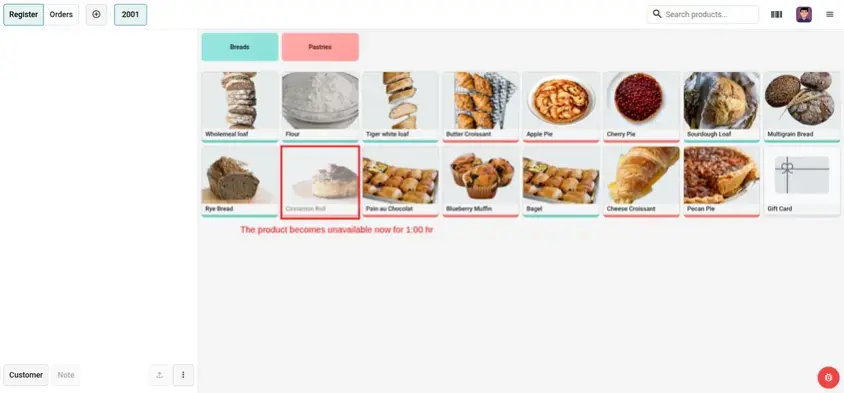
Mark Products Unavailable
Mark a dish or product as out of stock with one tap, on the till and the online menu at once.
Self-Checkout Kitchen Notes
Notes typed by customers at self-checkout now show on the kitchen screen next to the order.
Multiple Currencies
Accept more than one currency at the same till, with automatic conversion at your set rates.
WhatsApp & SMS Receipts
Send the receipt to the customer's phone right after payment, with no paper needed.
One Entry per Session
Closing a session posts one clean accounting entry instead of many small ones.
On-Hand Quantity Without Inventory
Track simple stock counts in the POS without installing the full Inventory app.
Pay-After-Eating QR Code
Print an order-specific QR code so customers order from the table and pay after the meal.
Employee Access Levels
Renamed access levels plus a new, highly restricted "Supervised" level for new staff.
Besides these, Odoo 20 POS includes many smaller updates that make daily work smoother. Each one is explained in its own section below:
Base Price on Labels
Print the price per kilo or litre on product labels so shoppers can compare pack sizes.
Kanban & Pivot for Bookings
View bookings as Kanban cards or a pivot table for a quick overview and analysis.
Convert Items into a Combo
The POS suggests turning matching order items into a combo to shorten big orders.
Auto Payment Entries
Payment entries are created at a time you choose, without waiting for the session to close.
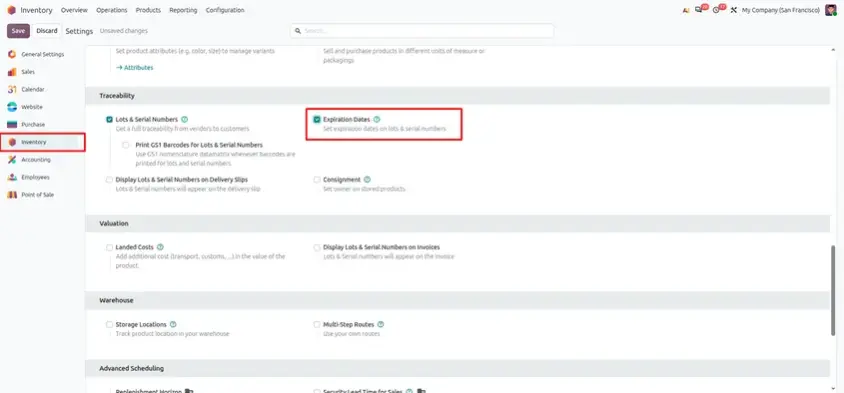
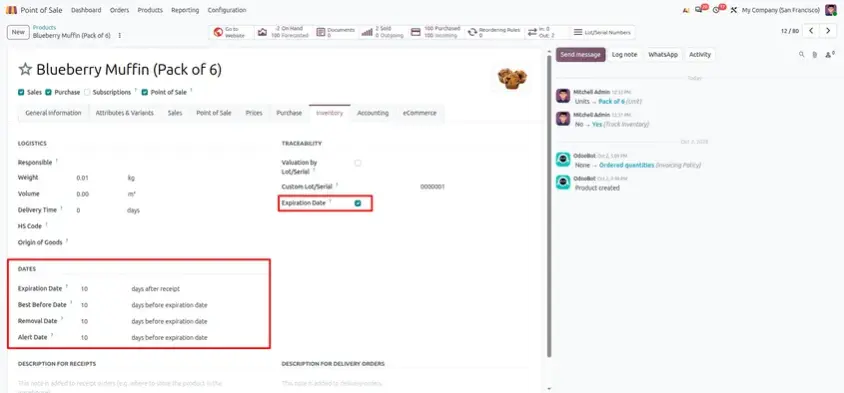
Expired Product Alerts
The cashier gets a notification when selecting an expired product at the till.
Direct USB Label Printing
Connect each label printer directly through a USB proxy for simpler setup.
Mercado Pago Terminal
Terminal QR payments, refunds and cancellations via the Orders API, including Chile.
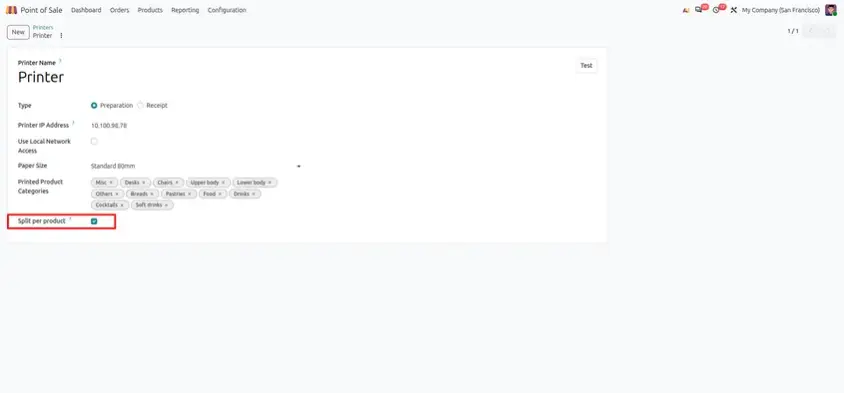
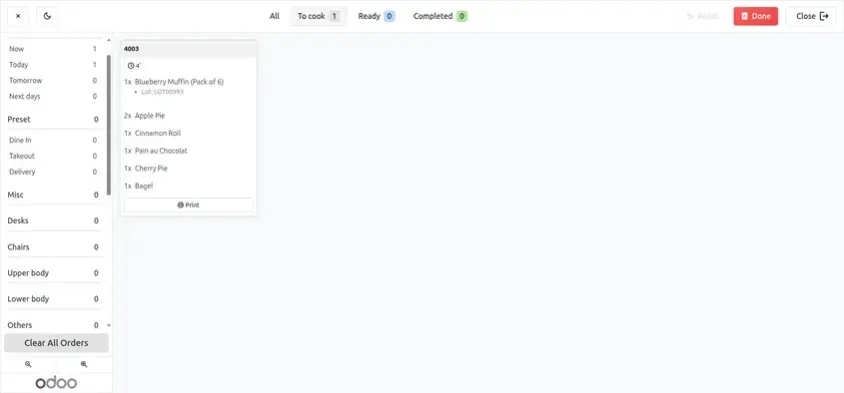
One Ticket per Product
"Split per product" prints a separate preparation ticket for every item in the order.
Multi-Printer Management
Set up several printers and pick which one each till uses, ideal for multiple cash drawers.
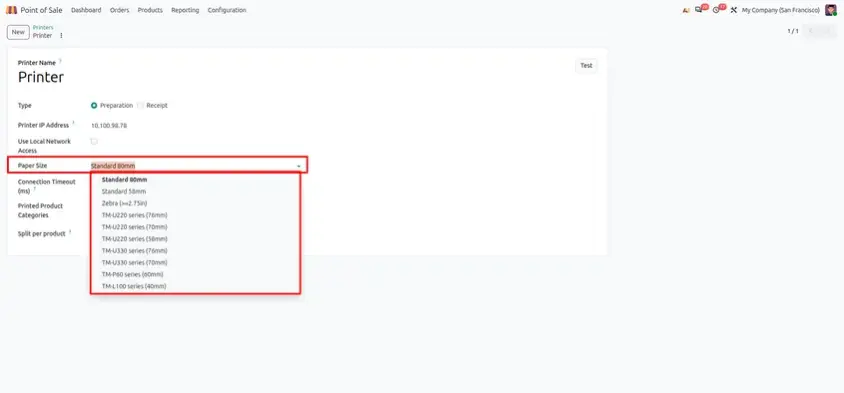
Manual Paper Size
Set the printer's paper size manually in developer mode so receipts print correctly.
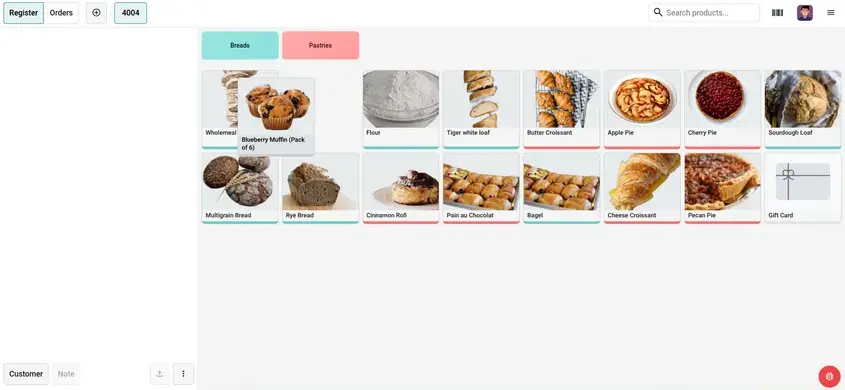
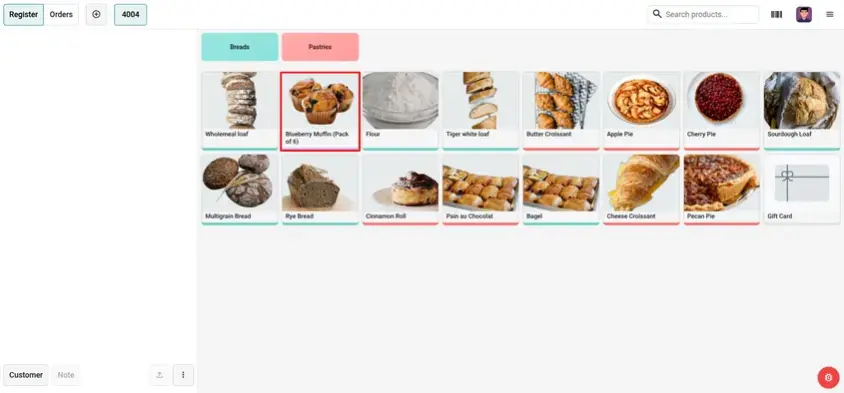
Drag & Drop Product Layout
Rearrange products on the POS screen by dragging them, so best sellers stay within reach.
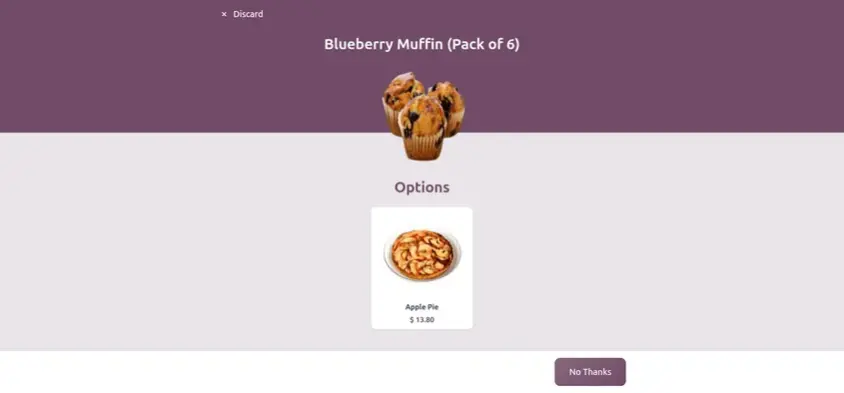
Optional Products in Self-Order
Add-ons like drinks or sides now appear on kiosks and mobile ordering.
Service Fees
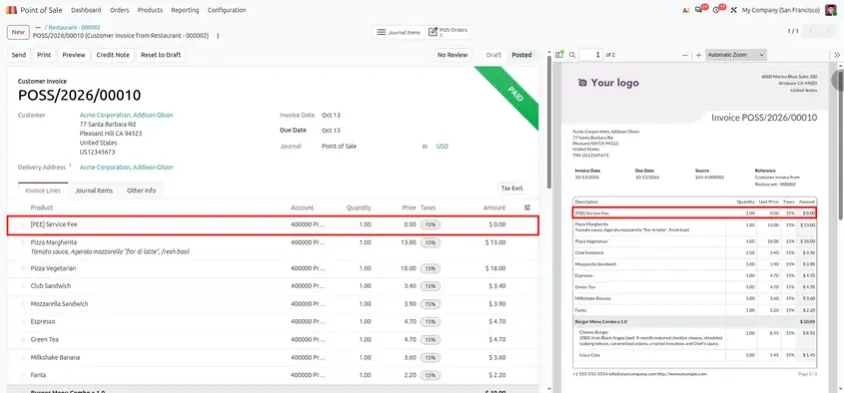
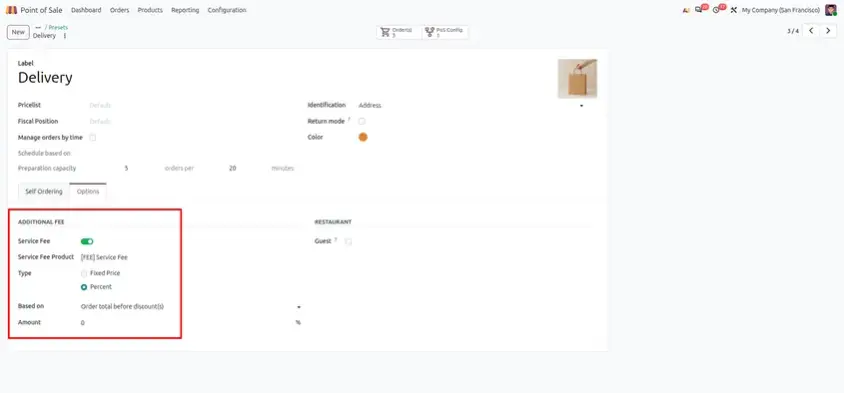
Add a service fee to POS and self-orders through presets, shown clearly on invoices.
Simplified Receipts
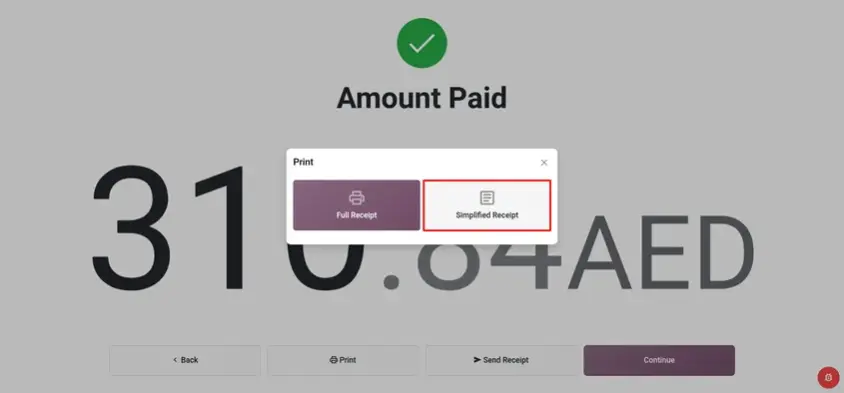
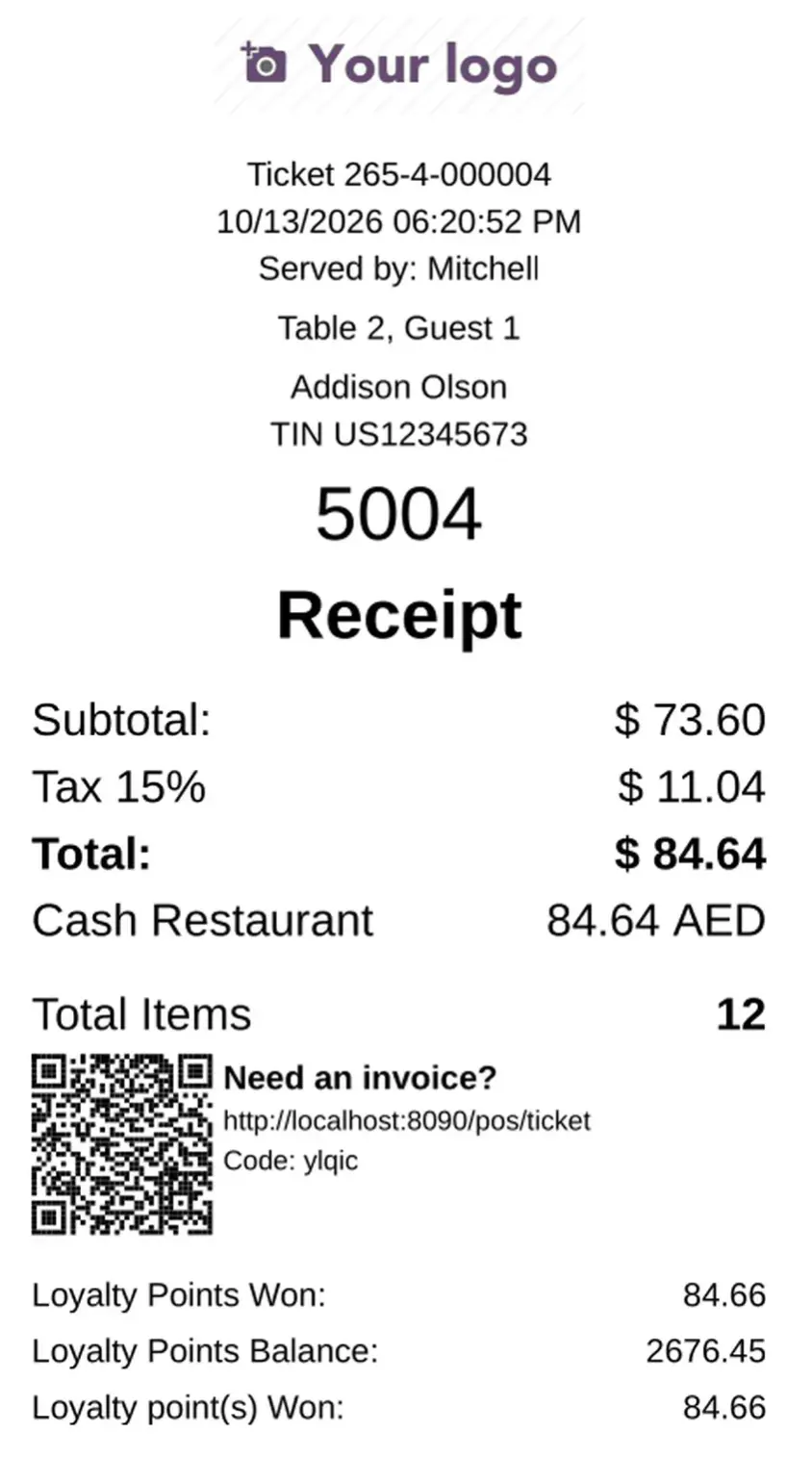
Print a receipt with only subtotals and taxes, without individual order lines.
Static UPI QR Payments
Accept payments through static UPI QR codes, with no payment terminal required.
Mark Products as Unavailable in One Tap
Every restaurant runs out of something. The problem is never the shortage itself. The problem is that the information reaches the cashier late, or never reaches the website at all.
What is new
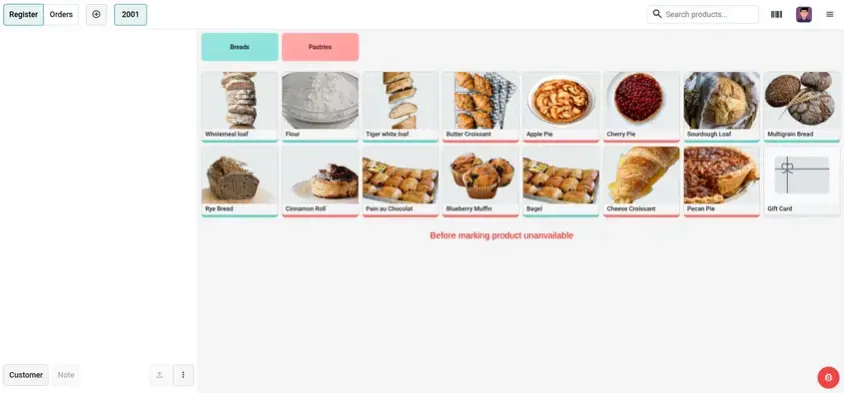
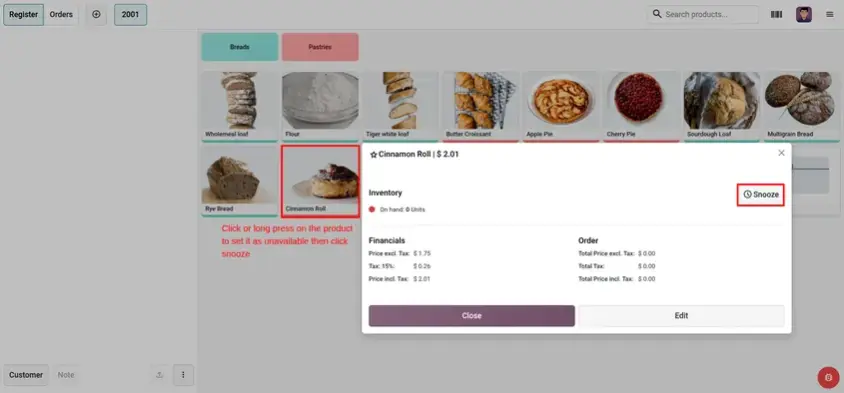
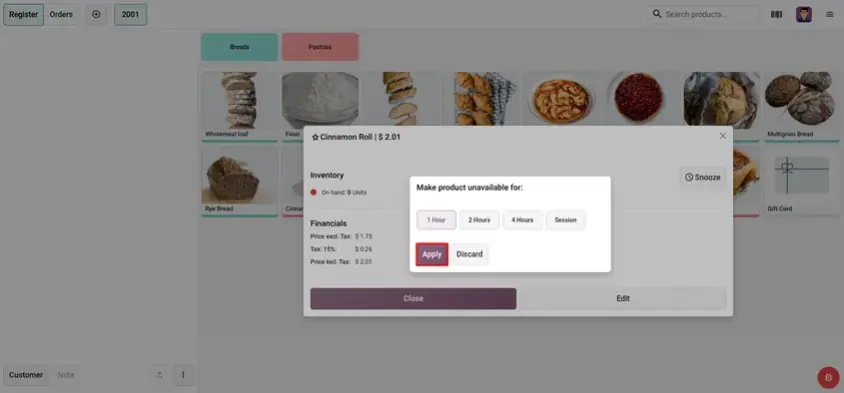
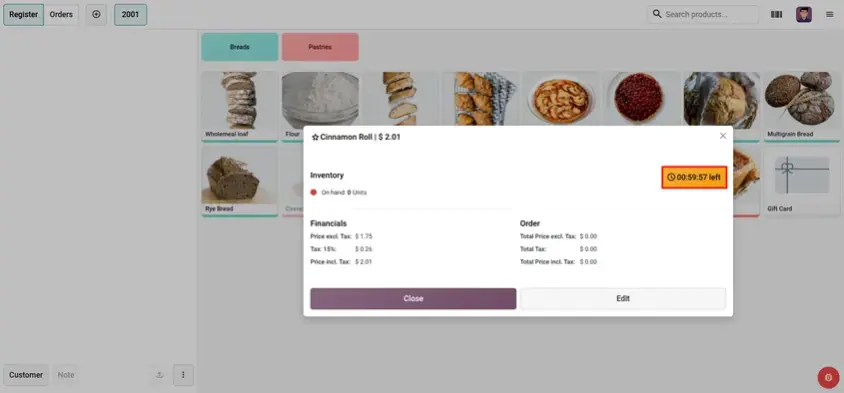
In Odoo 20, you can mark a dish or product as unavailable straight from the Point of Sale screen, with a single tap. Once you do, the till and the online menu both update. The item stops being sellable in both places.
Why it helps
No More Out-of-Stock Sales
The cashier cannot add an unavailable item by mistake.
Fewer Cancelled Orders
Customers ordering online will not pay for a dish that cannot be made.
Less Running Around
The kitchen informs the front desk once, and the system updates the availability.
Easy to Undo
When stock is available again, tap to restore the dish to the menu.
Small things, big savings. Anyone who has handled a rush hour will know exactly how valuable it is.
Example: A restaurant runs out of a popular dish during the evening rush. Instead of taking orders and then apologising, the staff mark the dish as unavailable right from the POS, and nobody can order it by mistake.
Self-Checkout Notes on the Kitchen Screen
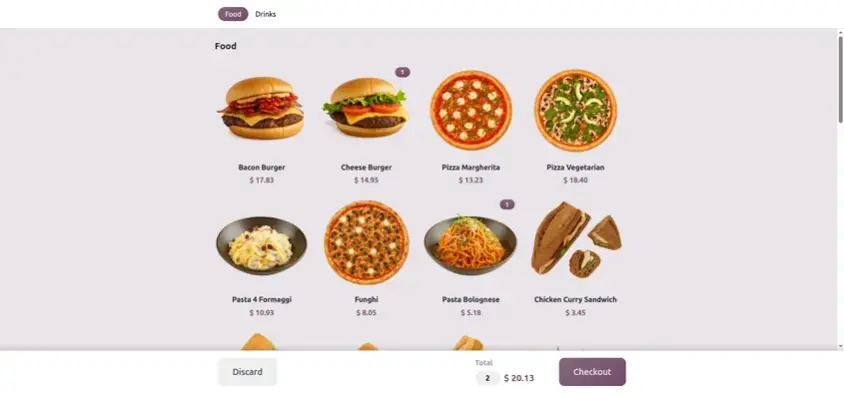
Self-ordering kiosks are great for speed. But anyone who has ever said "no onions, please" to a screen knows the doubt: will the kitchen really see this?
What is new
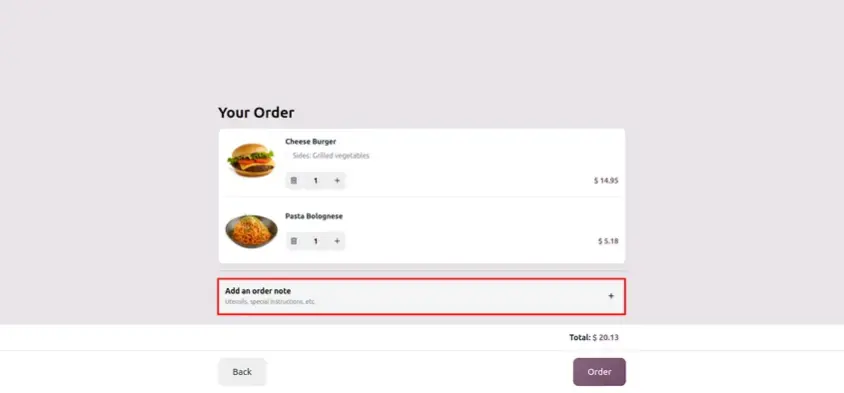
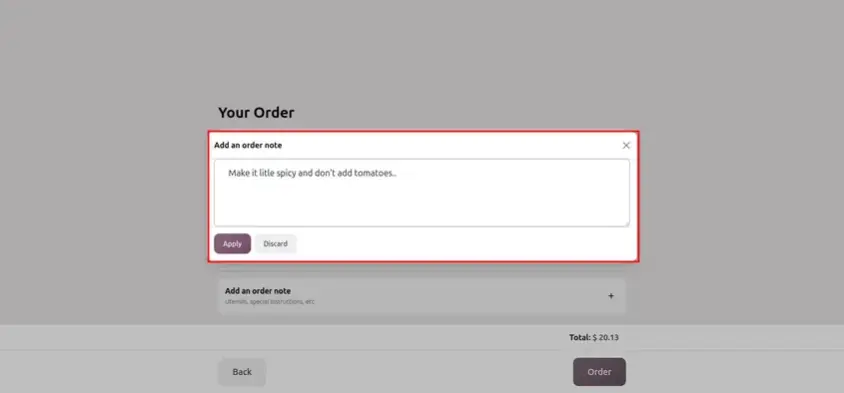
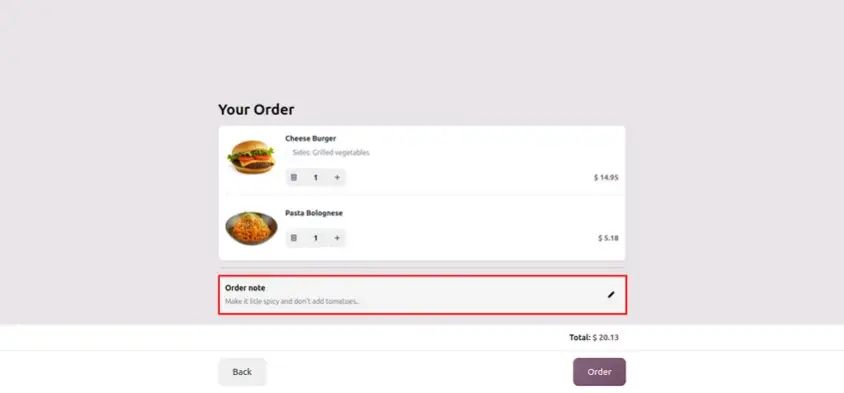
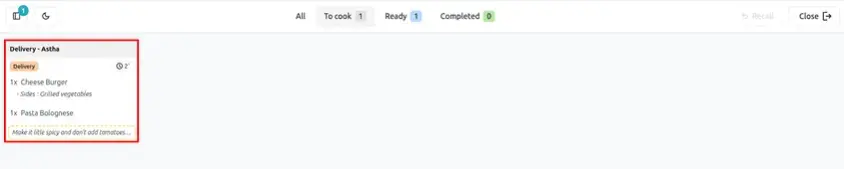
In Odoo 20, a note that the customer types at self-checkout now appears on the kitchen screen. The person cooking sees it right next to the order.
Why it helps
Fewer Wrong Dishes
Requests like "less spicy", "no nuts" or "extra sauce" reach the people who cook.
Safer for Allergies
Important notes are no longer lost between the kiosk and the kitchen.
Happier Customers
Customers feel heard even without talking to a waiter.
Less Waste
A dish made correctly the first time does not get thrown away.
Example: A customer orders a burger at the self-checkout kiosk and types "no onions, extra sauce". The cook sees that note on the kitchen screen next to the order and gets it right the first time.

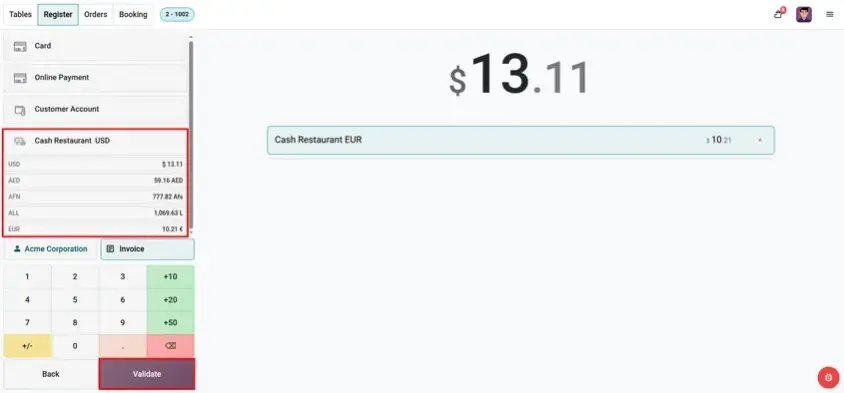
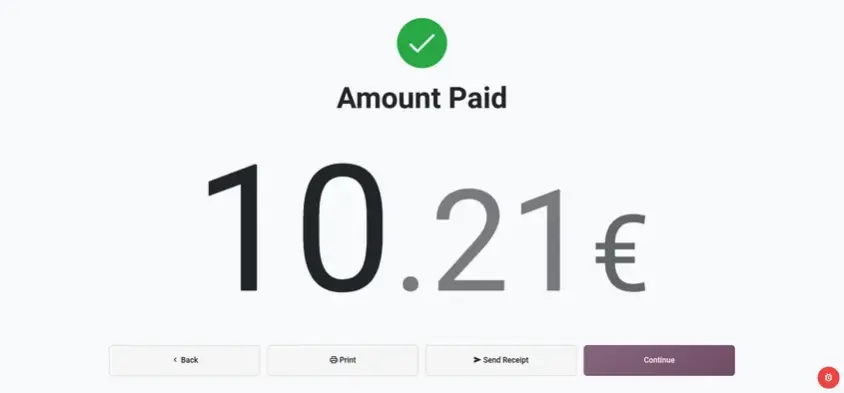
Multiple Currencies at the Same Till
If you run a shop in a tourist area, a border town, a hotel, or an airport, you already know the pain. A customer hands you dollars. Another one pays in euros. You open the calculator, do the maths, and hope you did not make a mistake.
What is new
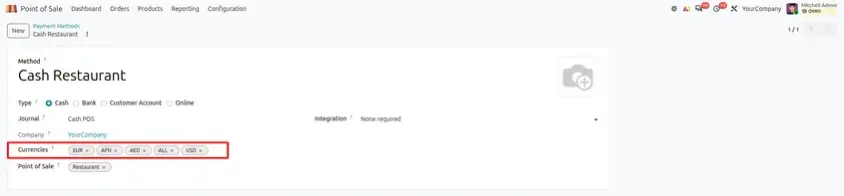
Odoo 20 lets you accept more than one currency at the same time. The customer pays in the currency they have, and Odoo takes care of the conversion.
Why it helps
Faster Checkout
No manual conversion and no calculator needed.
Fewer Mistakes
The system uses your configured exchange rates, so everyone gets the same calculation.
More Sales
Visitors are more likely to buy when they can pay in their own currency.
Cleaner Records
Every payment is recorded in the currency it was received in.
A quick note: for this to work well, keep your exchange rates up to date in Odoo. The tool is only as good as the rates behind it.
Example: A gift shop near a busy tourist spot gets a visitor who wants to pay in euros. The cashier picks the currency, the amount is converted, and there is no calculator and no guessing.
WhatsApp and SMS Receipts
Paper receipts get lost, crumpled or left on the counter. Many customers do not even want them anymore. They would rather have the receipt on their phone.
What is new
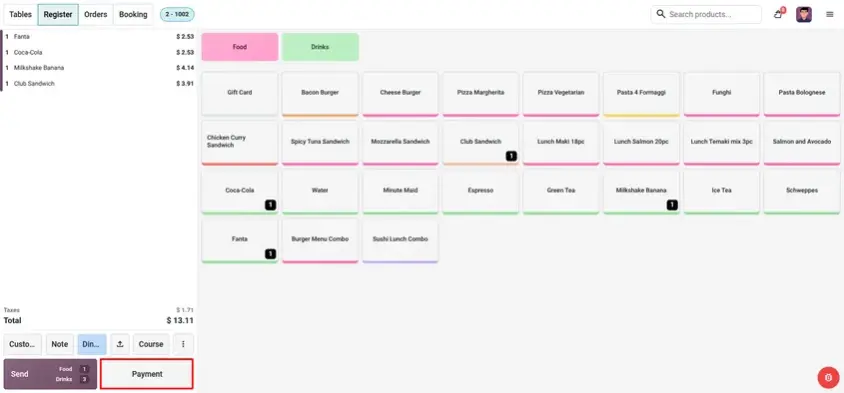
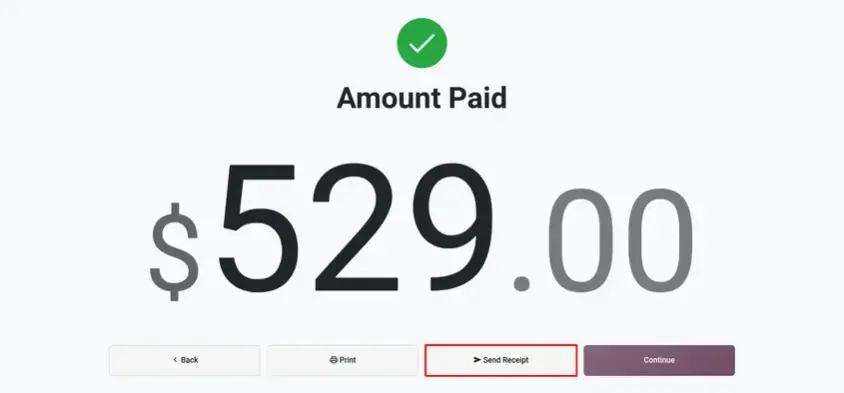
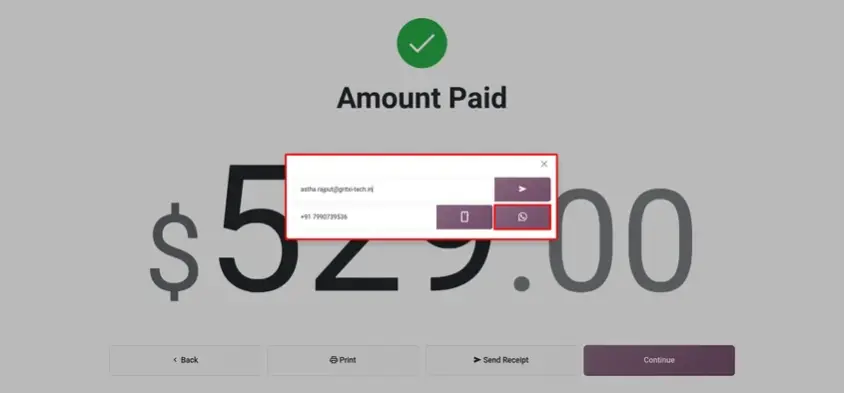
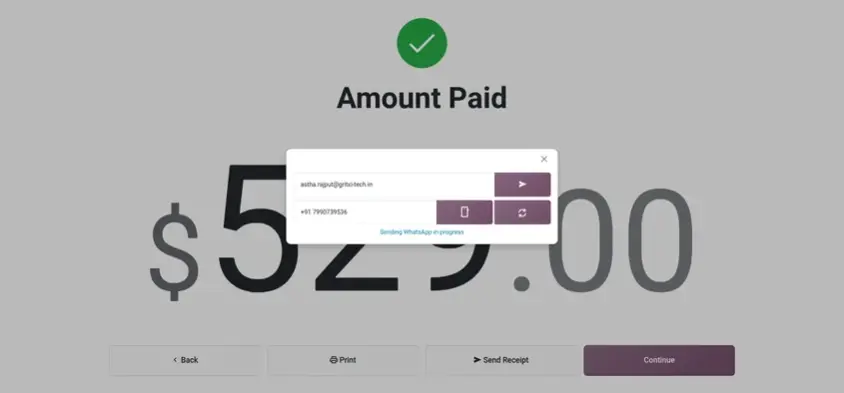
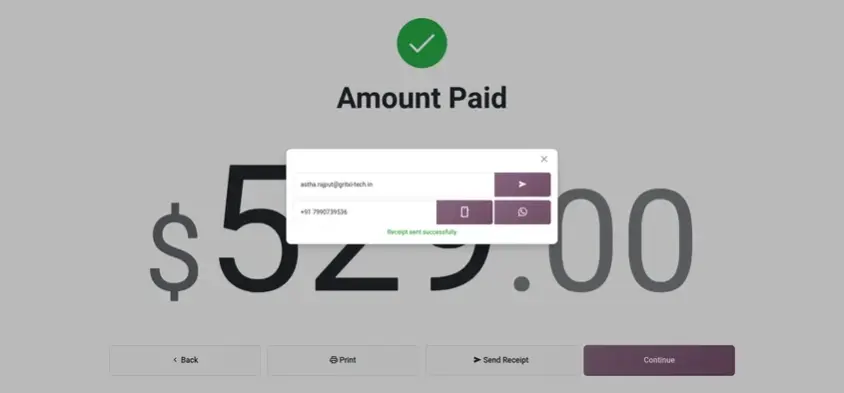
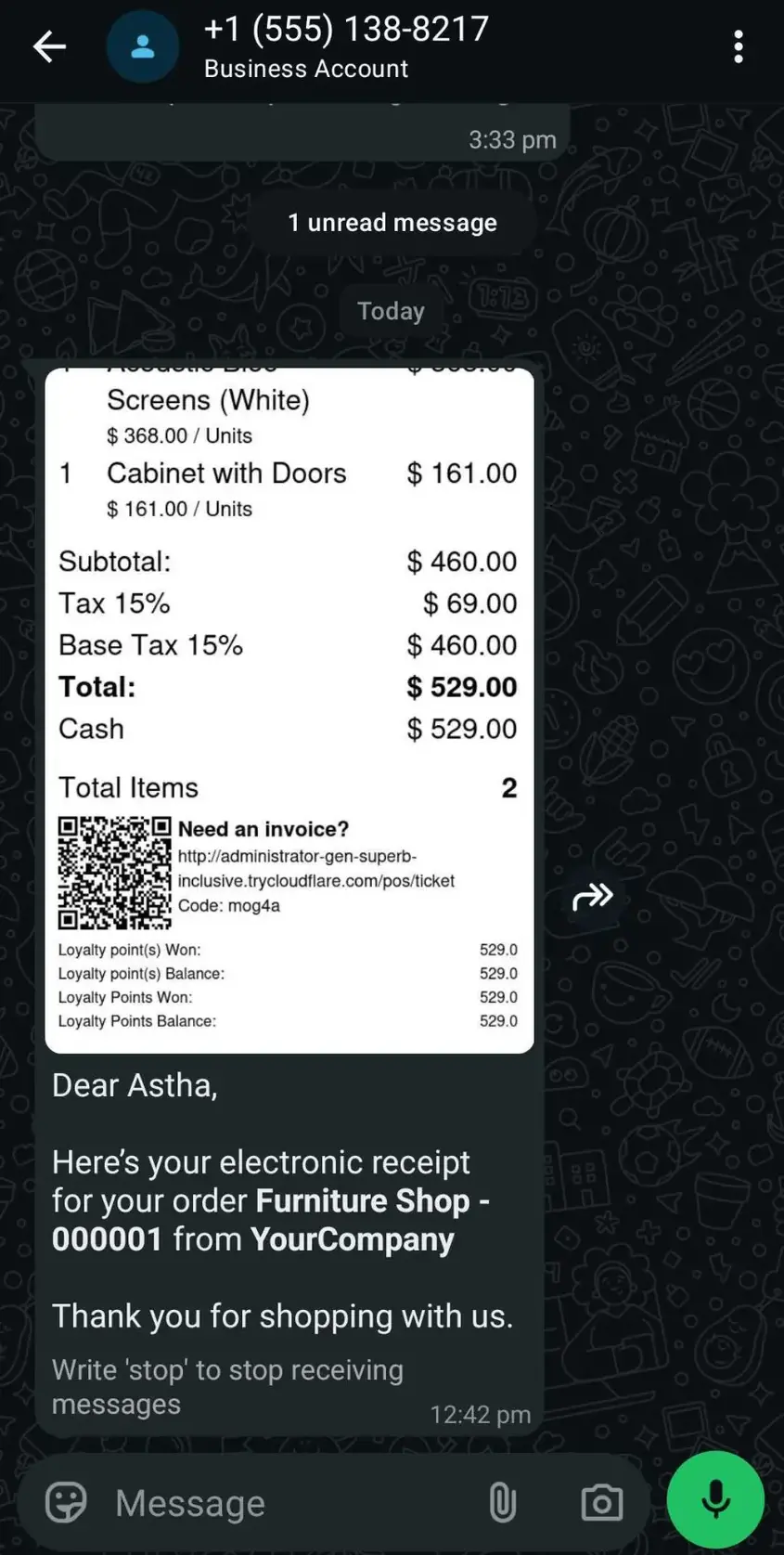
With Odoo 20, you can send the receipt to the customer by WhatsApp or SMS, right from the Point of Sale screen after the payment.
Why it helps
Saves Paper and Costs
Save on paper and printer costs while helping the planet.
Receipts Anytime
Customers can keep their digital receipts for returns, warranties and expense claims.
Better Customer Contact
Digital receipts give customers a convenient way to receive and read messages on their phones.
Quicker Checkout
Avoid printer jams and waiting for paper receipts to print.
Good to know: WhatsApp and SMS need to be connected and set up in your Odoo database first, and SMS credits may be charged by your provider. Check this before you roll it out to all your staff.
Example: A customer at a busy cafe says, "Just send it to my phone." The cashier types the number, taps send, and the next person in the queue is served without a paper slip.
Accounting: One Cleaner Entry per Session
This one is not as exciting on the shop floor, but your accountant will love it.
In the past, a busy day could leave behind a long list of small entries. Looking through them at month end was tiring, and finding a mistake felt like searching for a needle in a haystack.
What is new
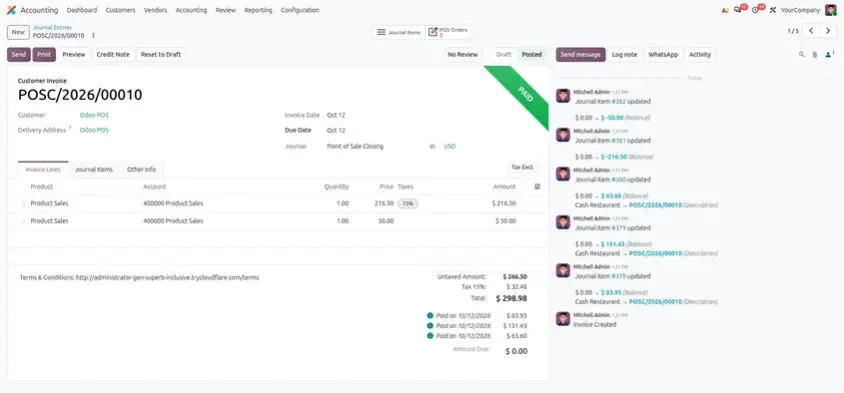
In Odoo 20, when you close a POS session, Odoo posts one cleaner accounting entry for the whole session instead of leaving a messy trail of small ones.
Why it helps
Easier to Read
Your books show one clear summary for each session.
Faster Month-End
Fewer lines to check means reconciliation takes less time.
Fewer Errors
Less clutter helps mistakes stand out sooner.
Ideal for Busy Shops
The more sales you make in a day, the more time you can save.
Example: A store makes hundreds of sales a day. At closing time, the accountant opens one clean entry for the session instead of scrolling through a long list.
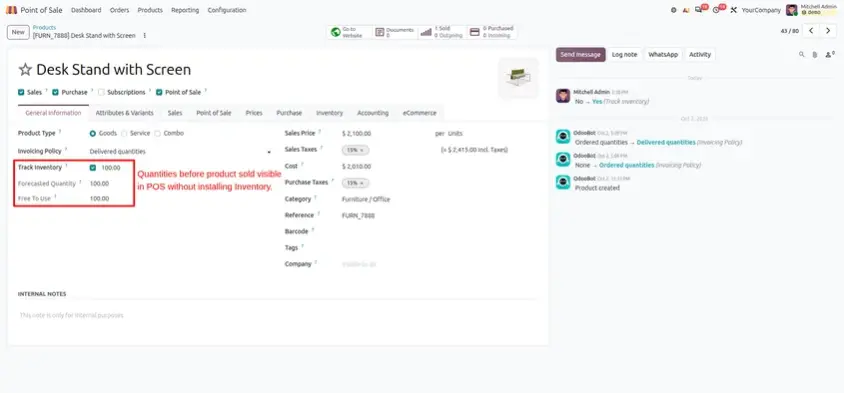
On-Hand Quantity Without the Inventory App
Not every shop needs a full warehouse system. If you run a small cafe, a boutique, or a single counter, the Inventory app can feel like too much. Routes, transfers, locations, operation types. All you wanted was to know how many items are left on the shelf.
What is new
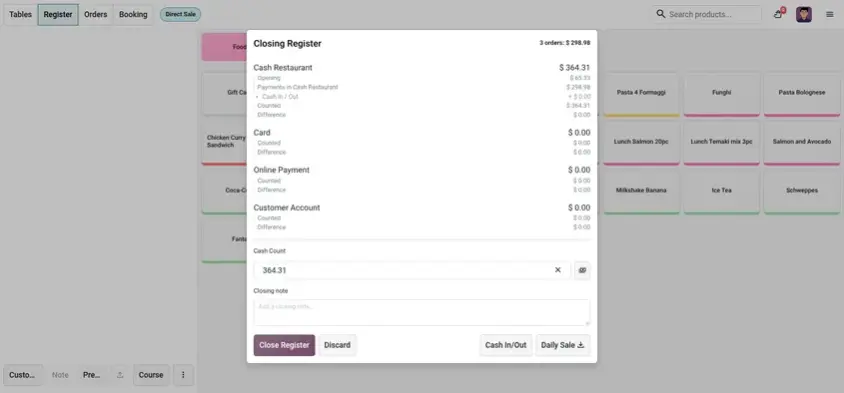
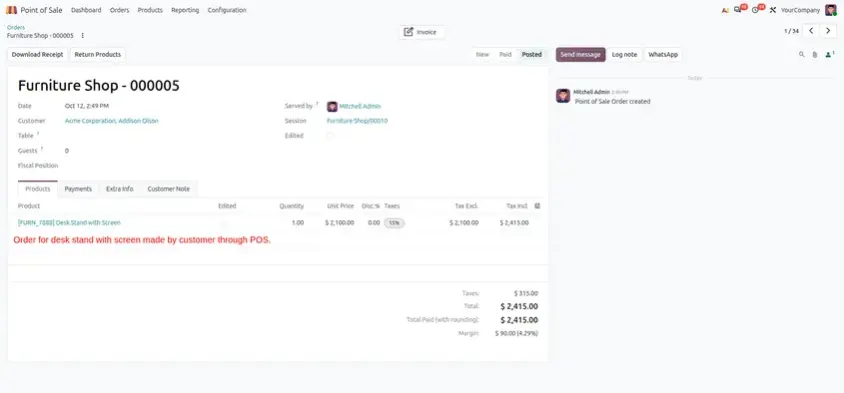
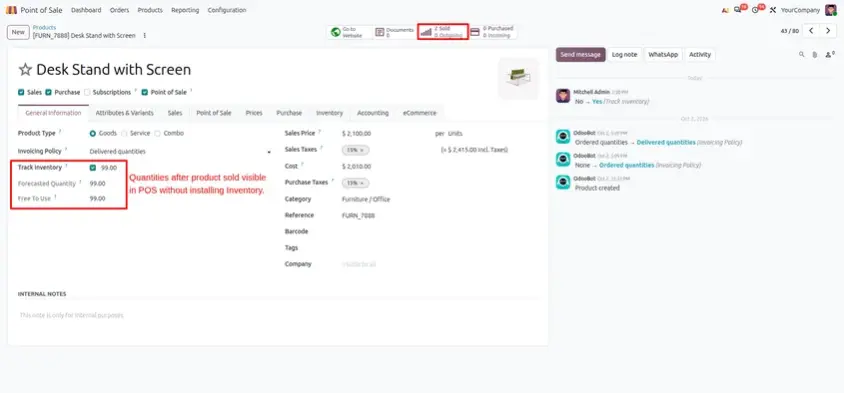
Odoo 20 lets you run Point of Sale with a simple on-hand quantity, without installing the full Inventory app. You keep a basic count of what you have, and the till reduces it as you sell.
Why it helps
Quicker to Set Up
Fewer apps, fewer settings and fewer things to learn.
Easier for Your Team
Staff see a simple stock number instead of complex warehouse screens.
Still Useful
You can see which products are running low before they run out.
Room to Grow
As your business grows, you can move to the full Inventory app later.
Keep in mind: a simple quantity is not the same as full warehouse control. If you need multiple warehouses, lots, serial numbers or purchase flows, the full Inventory app is still the right choice.
Example: A small bakery with one counter sets 40 loaves on hand in the morning. As loaves sell, the number goes down, and the owner knows when to bake more, with no warehouse setup.
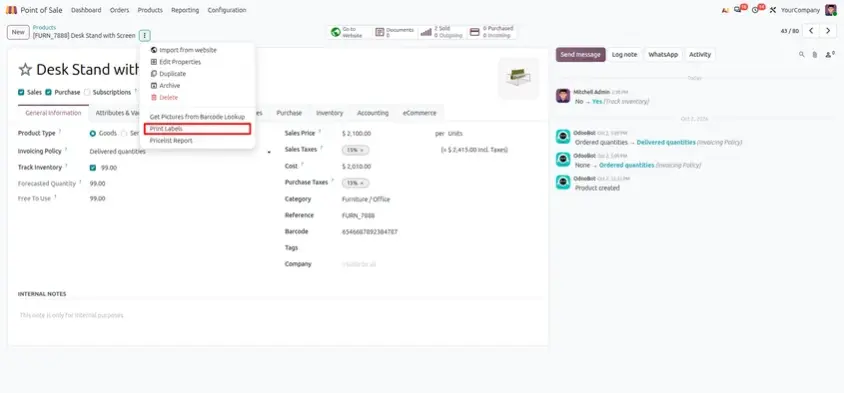
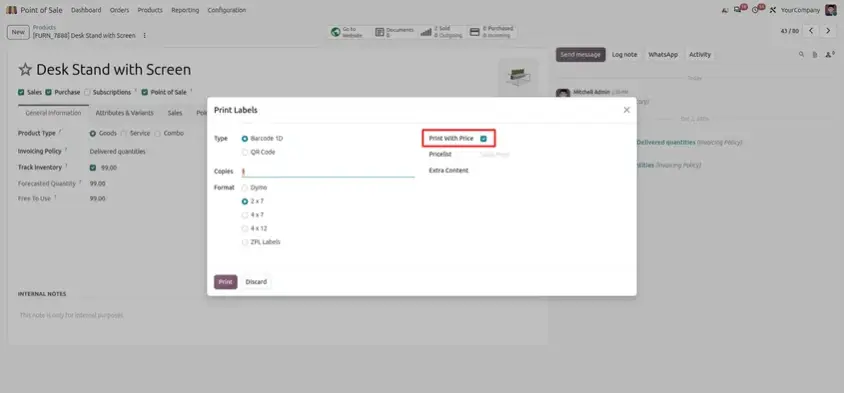
Base Price per Unit on Product Labels
Price tags that show only the total price make it hard for shoppers to compare a 500 g pack with a 1 kg pack.
What is new
Odoo 20 can print the product's reference price (the base price per unit, such as the price per kilo or per litre) on the product label.
Why it helps
Easier Comparison
Shoppers can compare different pack sizes at a glance.
Clearer Pricing
The label shows the actual unit price, not just the pack price.
Less Explaining
Staff spend less time answering price questions at the shelf.
Example: A grocery store sells rice in 1 kg and 5 kg bags. With the base price on the label, the customer sees the price per kilo on both and picks the better deal in seconds.

Kanban and Pivot Views for Bookings
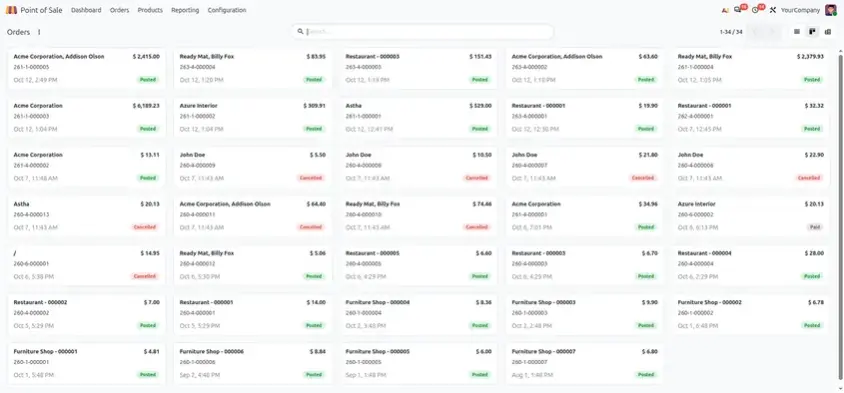
Bookings used to be hard to scan when the list grew long, especially on busy weekends.
What is new
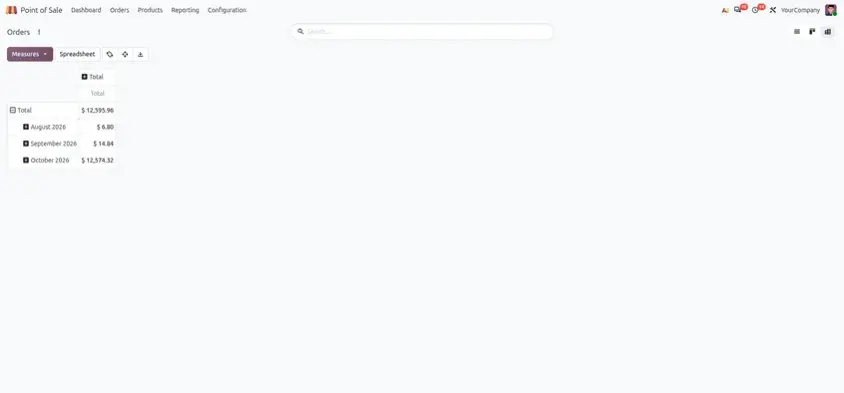
Bookings now have their own Kanban and pivot views, in addition to the usual list.
Why it helps
Visual Overview
The Kanban view groups bookings so you can see their status at a glance.
Quick Analysis
The pivot view helps you total and compare bookings using your chosen criteria.
Better Planning
Managers can identify busy periods and plan staff schedules in advance.
Example: A restaurant manager opens the pivot view on Monday to see how many bookings came in per day last week, then plans the weekend rota around the busiest days.
Convert Order Items into a Combo
Big tables order a lot of single items, and a long order is slow to enter and to read.
What is new
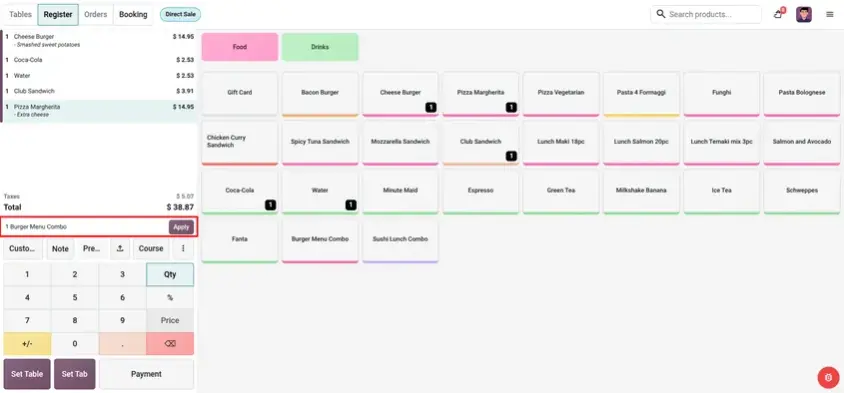
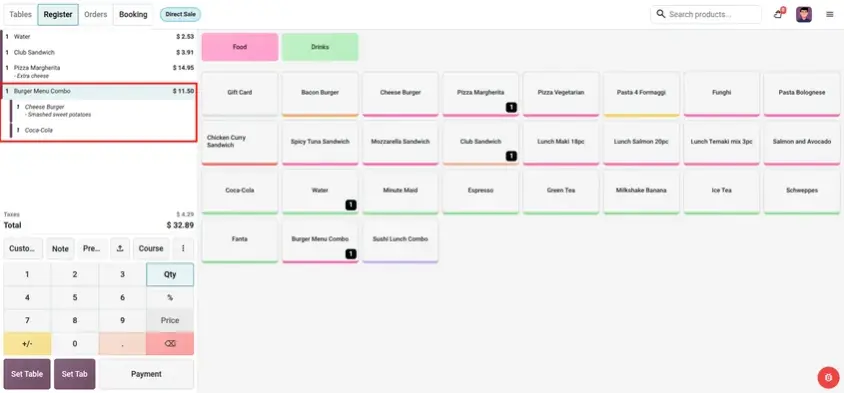
The POS now recommends converting order items into a combo dish where possible. If the items on the order fit an existing combo, the system suggests the swap.
Why it helps
Shorter Orders
Menu orders for large tables become simpler to handle.
Fewer Missed Deals
Customers get the combo price when their items qualify.
Faster Service
Cashiers do not need to remember every combo rule.
Example: A table of eight orders burgers, fries and drinks one by one. The POS suggests converting them into combos, and the waiter accepts with one tap.
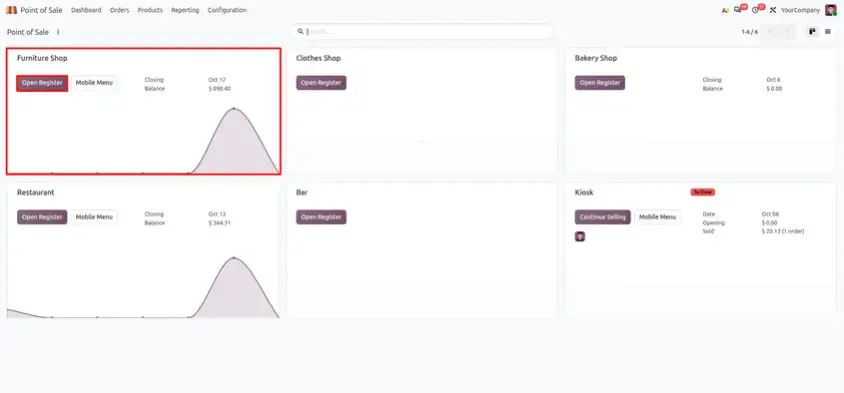
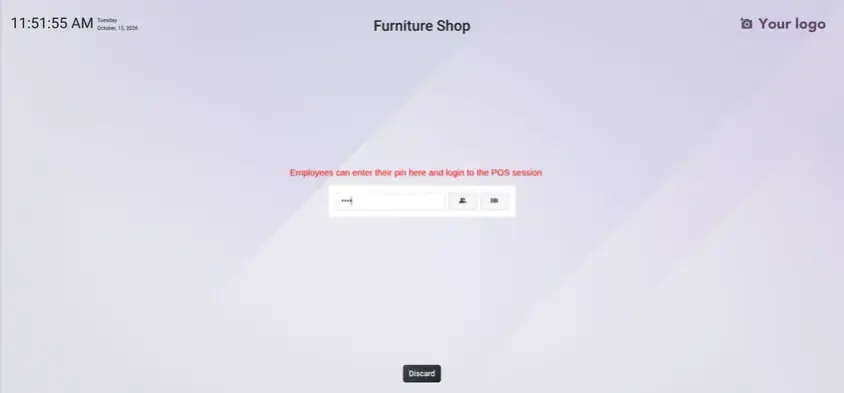
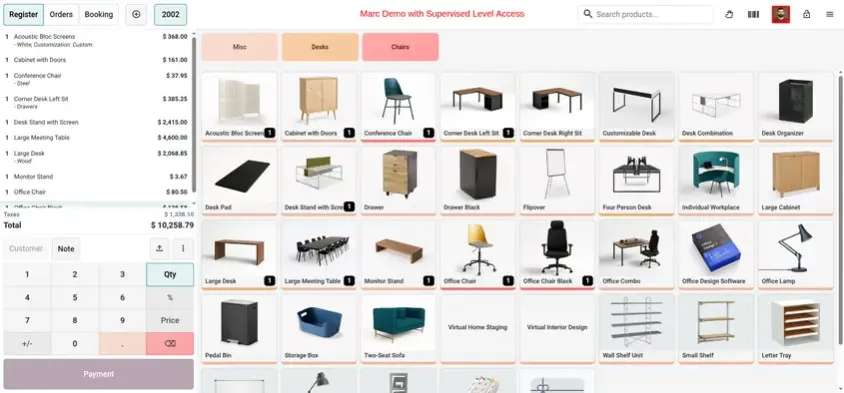
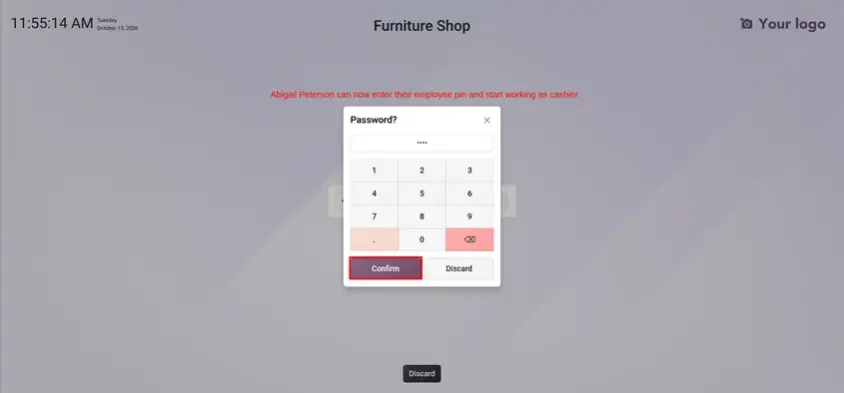
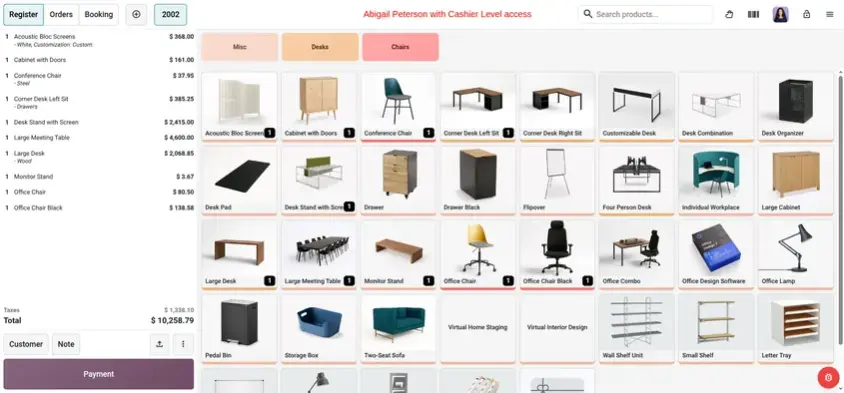
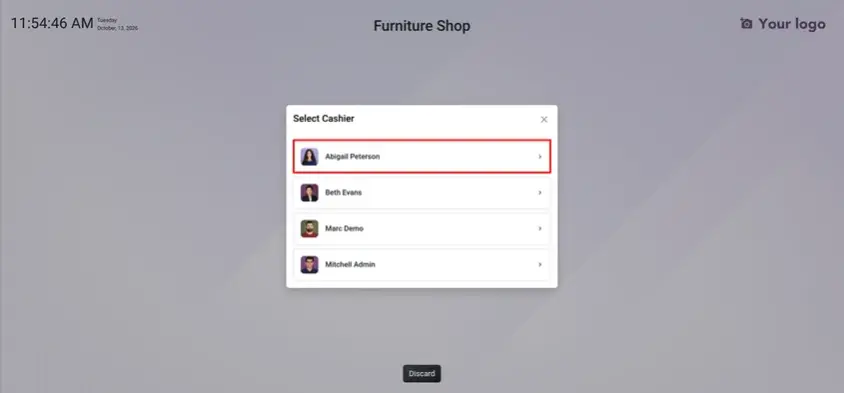
Employee Access Levels
Not every employee should see every part of the POS.
What is new
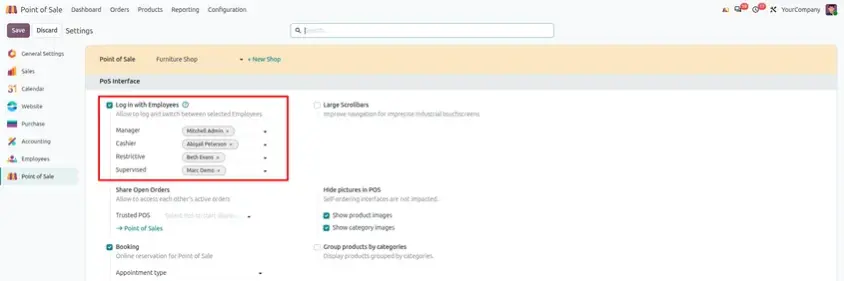
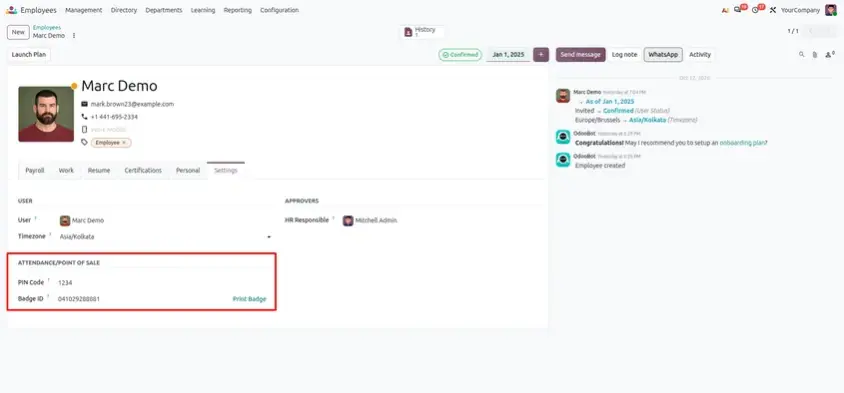
The access levels for employees have been renamed, and a new, very restrictive level called "Supervised" has been added.
Why it helps
Tighter Control
New or temporary staff only get the access they need.
Clearer Names
The renamed access levels are easier to understand.
Safer Till
Sensitive actions stay with trusted employees.
Example: A cafe hires a seasonal worker for the summer. The owner gives that person the Supervised level, so they can serve customers but cannot change things that need a manager.
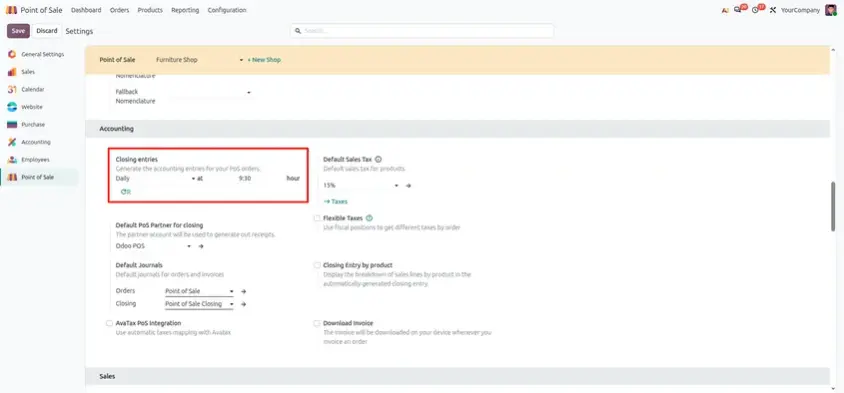
Automatic Payment Entries at a Set Time
Session closing used to be the moment when the payment entries appeared, which could delay your accounting.
What is new
Payment entries can now be created automatically at the time you choose in the settings, without waiting for the session to be closed.
Why it helps
No Waiting
Payments are booked even if the session stays open.
Predictable
Entries appear at a time you decide.
Less Manual Work
Your accountant does not need to wait for staff to close the session.
Example: A restaurant that stays open past midnight sets the payment entries to be created at 3 am. The accountant sees the day's payments the next morning, even if the session is still open.
Notification for Expired Products
Selling an expired product is bad for customers and bad for your reputation.
What is new
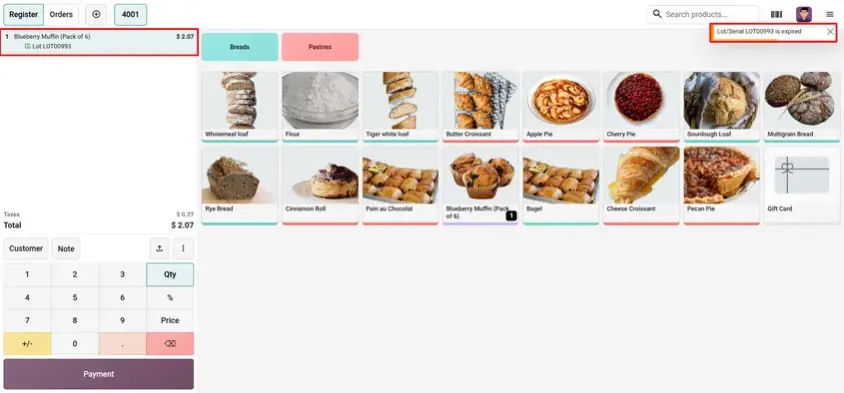
Odoo 20 notifies the user when they select an expired product in the Point of Sale.
Why it helps
Safer for Customers
The cashier gets a warning before the item is sold.
Fewer Losses & Complaints
Expired stock can be identified at the checkout.
Good for Food Retail
Useful for shops that sell dairy, bakery items and other perishable goods.
Example: A cashier scans a yoghurt pot that passed its date. The POS shows a notification, and the cashier removes it from the shelf instead of selling it.
Direct USB Label Printing
Label printers used to need extra steps to connect to the POS.
What is new
Each label printer can now be connected directly through a USB proxy.
Why it helps
Simpler Setup
Connect the label printer to a USB proxy and use it from the POS.
Right Label, Right Place
Each label printer can be configured separately.
Less Hardware Hassle
Reduce the need for workarounds when printing labels.
Example: A boutique connects a small label printer by USB and prints price labels at the counter when new stock arrives.
Mercado Pago Terminal Payments
Card and QR payments often need separate terminals and manual checks.
What is new
Mercado Pago terminal-based QR payments, refunds and cancellations are supported through the Orders API integration, and this also works for Chilean companies.
Why it helps
Complete Payment Flow
Payments, refunds and cancellations are all supported.
Fewer Manual Checks
The payment terminal and the POS stay connected.
More Countries Supported
Chilean companies can use this payment integration too.
Example: A shop in Santiago takes a QR payment on the Mercado Pago terminal. When the customer returns an item, the cashier refunds it from the POS.
Print One Preparation Ticket per Product
One ticket for a long order can be hard to read in a busy kitchen.
What is new
Use the "Split per product" feature to print one preparation ticket per product, instead of one ticket that groups all the products in the order.
Why it helps
Clear Tickets
Each station gets a ticket with a single product.
Fewer Mix-Ups
Cooks do not need to find their item on a long list.
Faster Preparation
Products can be prepared in parallel.
Example: A table orders a pizza, a salad and a dessert. The kitchen gets three separate tickets, one for each station.
Printer Management for Multiple Printers
Larger businesses with several cash drawers need to control which printer is used.
What is new
You can set up multiple printers connected to your POS and select the printer to use. This improves the workflow in large businesses with multiple cash drawers.
Why it helps
Right Printer Every Time
Each till prints receipts on its own printer.
Better for Large Sites
Supports setups with several cash drawers.
Fewer Mix-Ups
Avoid receipts being printed at the wrong counter.
Example: A supermarket has several checkout counters. Each counter chooses its own printer so receipts come out at the right place.
Manual Paper Size for Receipt Printing
Receipts that look cut off or stretched make your shop look careless.
What is new
The paper size of a printer can now be set manually in developer mode, so that receipts are formatted correctly.
Why it helps
Correct Layout
Receipts fit the paper you actually use.
Works with More Printers
Useful with printers that support different paper widths.
Less Trial and Error
Set the paper size once and start printing.
Example: A cafe replaces its receipt printer with a narrower model. The owner sets the paper size in developer mode and the receipts print correctly.
Rearrange Products in the POS with Drag and Drop
Your best sellers should be easy to reach, not buried in the middle of the screen.
What is new
You can now position products in the POS using drag and drop to rearrange them.
Why it helps
Faster Serving
Put best-selling products where cashiers can tap them quickly.
Flexible Layout
Change the product order whenever you need.
Easy to Customize
Simply drag a product to move it to a new position.
Example: A bakery moves its morning bestsellers to the top of the screen for the breakfast rush, and puts them back in place at lunch.
Optional Products in Self-Ordering
Self-ordering customers rarely see the extras unless the screen shows them.
What is new
Optional products are now displayed when ordering from a mobile device or a kiosk, so customers see add-ons such as a drink or a side with their main item.
Why it helps
Higher Order Value
Customers see add-ons at the right moment.
Better Customer Experience
Suggestions feel like helpful, natural recommendations.
Less Staff Effort
The POS screen suggests add-ons automatically.
Example: A customer picks a burger at the kiosk and the screen shows fries and a drink as optional products. They add both with a tap.
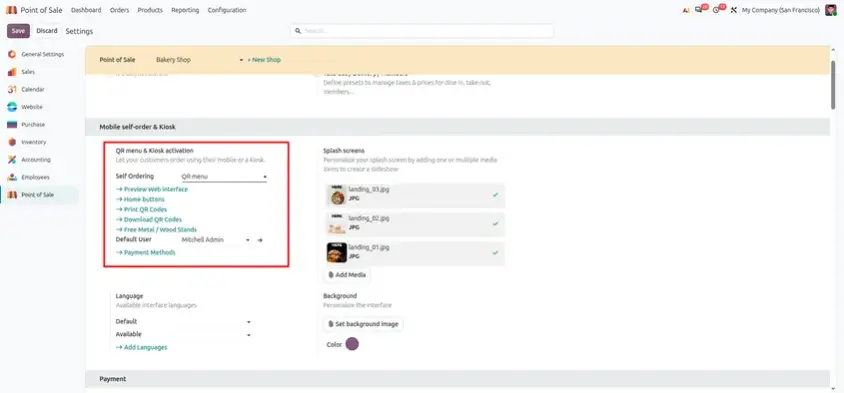
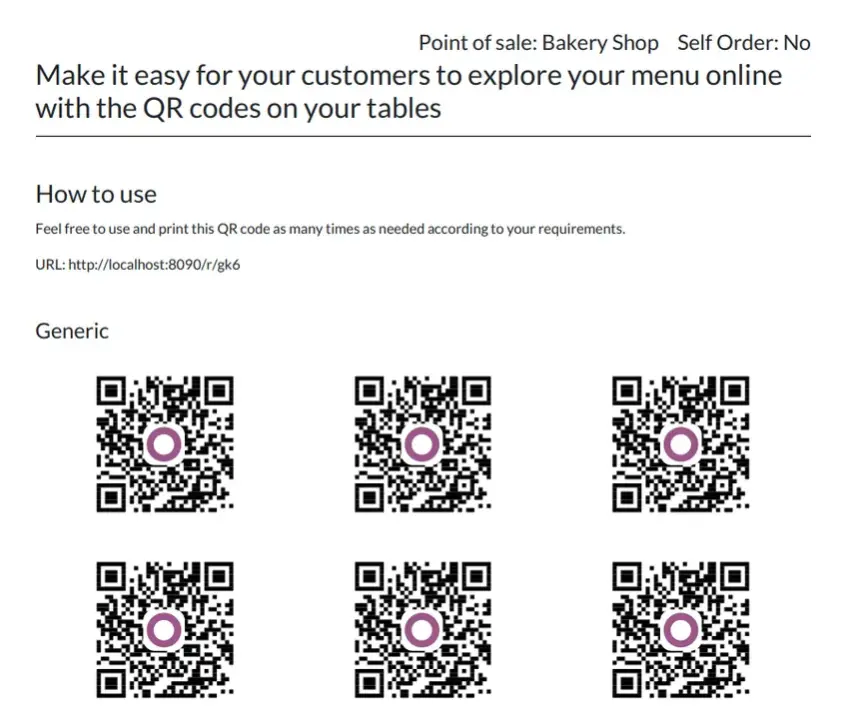
Pay-After-Eating QR Code for Self-Ordering
At a table, customers often want to order at their own pace and pay at the end.
What is new
You can create and print an order-specific QR code. Customers scan it to place their order and pay after eating.
Why it helps
Order from the Table
Customers can place orders without waiting for a waiter.
Pay When Ready
Customers can settle the bill after the meal.
Fewer Staff Steps
Reduce the need to move between tables and the till.
Example: A customer sits down, scans the QR code on the table, orders and eats. When done, they pay from their phone and leave.
Service Fees on POS and Self-Orders
Many restaurants add a service fee, and adding it by hand is easy to forget.
What is new
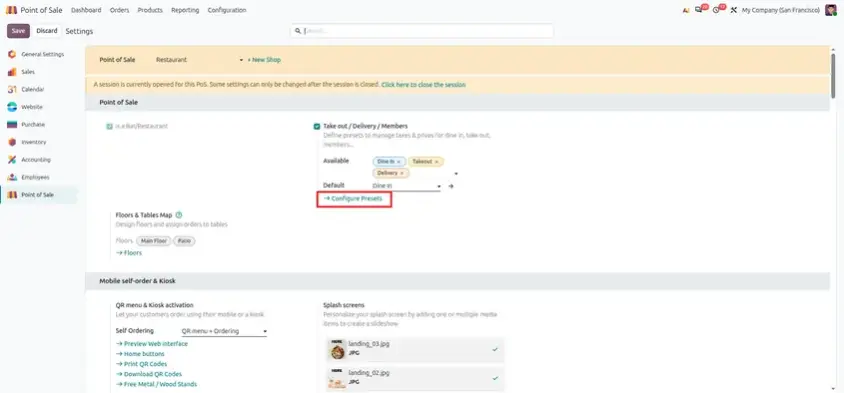
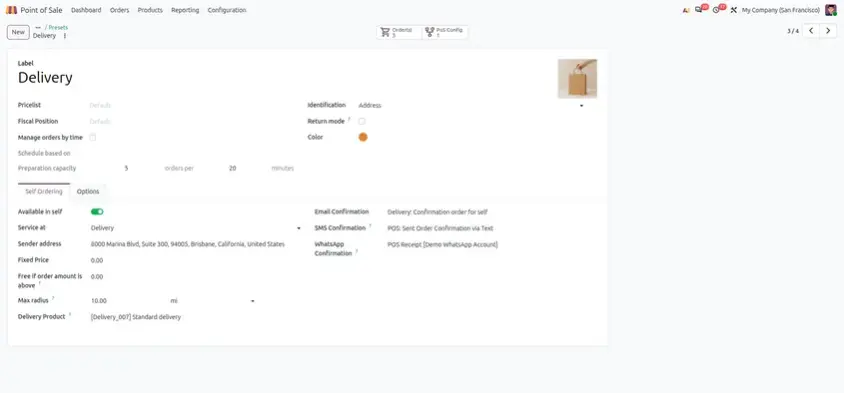
You can add a service fee to orders placed through the POS and to self-orders through presets, and the amount is shown on the invoices.
Why it helps
Consistent Fees
The fee is applied in the same way every time.
Transparent Invoices
Customers can clearly see the fee amount on the invoice.
Works for Self-Orders
Order presets, such as dine-in, can include the fee automatically.
Example: A restaurant adds a service fee to dine-in orders only. Take-away orders through the same kiosk are charged without it.
Simplified Receipts
Sometimes a customer only wants totals and taxes, not every line.
What is new
Print a simplified receipt that shows the subtotals and taxes of the order or purchase order, without the individual lines.
Why it helps
Easier to Read
Customers can focus on the order subtotal and applicable taxes without a long list of individual products.
Less Detail on the Receipt
A simplified format is useful when a summary is sufficient for the customer's needs.
Clearer Transaction Summary
The receipt presents key totals in a compact format.
Example: A company buys lunch for a team. The cashier prints a simplified receipt with only the totals and taxes.
Static UPI QR Code Payments
In India, many customers prefer paying by UPI.
What is new
Payment via static UPI QR codes is now supported.
Why it helps
Familiar for Customers
UPI is widely used, making payments familiar and convenient for customers.
Simple Setup
A static QR code allows payments without needing a payment terminal.
Quick Payment
Customers simply scan the QR code and pay using their UPI app.
Example: A street-food stall shows a UPI QR code at the counter. The customer scans it, pays, and the cashier confirms in the POS.
Benefit from Odoo 20 POS
Odoo 20 POS includes updates for checkout, payments, restaurant workflows, inventory, accounting, and printing. Here is how the improvements can benefit different types of businesses.
Restaurants and Cafes
Use one-tap unavailable products, send kitchen notes from self-checkout, and provide quick digital receipts.
Retail Stores
Keep session accounting clear and check on-hand product quantities more easily.
Multi-Currency Businesses
Accept payments in multiple currencies at the same till, ideal for tourist areas, hotels, and border towns.
Self-Checkout Businesses
Capture customer order notes during self-checkout and make sure important instructions reach the kitchen.
Paperless Stores
Reduce paper receipts by sending customer receipts through WhatsApp and SMS.
Small Shops Without Warehouse
Track product quantities on hand without installing the full Inventory app.
Odoo 19 vs Odoo 20 POS: What Has Changed?
If you are on Odoo 19 today, the obvious question is: what will actually feel different after the upgrade? Here is a simple side-by-side view of the daily work, based on how teams usually handled each task before, and how Odoo 20 POS handles it now.
| Area | Odoo 19 POS | Odoo 20 POS |
|---|---|---|
| Out-of-stock dishes | Staff had to inform the cashier, who then updated or hid the product manually. | One-tap update: Mark the product unavailable on the till and online menu. |
| Self-order notes | Kitchen staff often relied on the cashier or order details for customer instructions. | Clear communication: Customer notes appear on the kitchen screen. |
| Foreign currency | Typically, one currency per till, with manual conversion for visitors. | More flexibility: Accept multiple currencies at the same till. |
| Digital receipts | Print receipts or send them by email. | More options: Send receipts through WhatsApp or SMS as well. |
| Session accounting | Multiple small entries could require extra review at month-end. | Simpler closing: Cleaner accounting entries when the session closes. |
| Stock in small shops | Basic quantity tracking could require installing the full Inventory app. | Simpler stock tracking: Maintain an on-hand quantity without the full Inventory app. |
In short, the Odoo 19 to Odoo 20 POS upgrade focuses on practical improvements across checkout, payments, inventory, restaurant workflows, and printing. Review the features most relevant to your business and verify their availability in your Odoo 20 environment.
Key Takeaways
Smoother Checkout
Odoo 20 POS brings practical improvements that make daily checkout work easier.
Quick Product Availability
Mark products unavailable in one tap on the POS and online menu.
Kitchen Order Notes
Customer notes from self-checkout can reach the kitchen screen for clearer communication.
Multiple Currencies
Accept payments in more than one currency at the same till.
Digital Receipts
Send receipts through WhatsApp or SMS for convenient, paperless transactions.
Simplified Session Accounting
Session closing provides cleaner accounting entries and makes reviews easier.
Simpler Stock Tracking
Small shops can track on-hand quantities without using the full Inventory app.
More Useful Improvements
Explore additional updates, including payment methods, service fees, printer management, and more.
Is Odoo 20 POS Worth the Upgrade?
Odoo 20 POS is not about flashy tricks. It focuses on practical improvements that make daily checkout faster and easier. From handling unavailable products and multiple currencies to sending digital receipts and keeping accounting tidy, these updates cut down the manual steps that slow a team down on a busy Friday night.
My advice before you upgrade: test everything on a copy of your database first, train your cashiers for half an hour, and switch features on one by one. That way you get the benefits without surprises.
And POS is only one part of the release. If you want the full picture, explore the other Odoo 20 updates too: Odoo 20 features guide, Odoo 20 Inventory, Odoo 20 Sales, Odoo 20 Accounting and Odoo 20 Website and eCommerce.
Odoo 20 Point of Sale: New Features and Updates