Odoo 20 Phone: New Features and Updates

Discover Odoo 20 Phone improvements for business calling, VoIP integration, call handling, and connected communication workflows.

This post walks through the 7 new features in the Odoo 20 Phone (VOIP) application. Each one comes with a feature overview, an operational path and a screenshot placeholder.

Artcle Overview

  • 1. Audio Settings During a Call
  • 2. Auto-Fill and Auto-Log
  • 3. Call Flow Designer
  • 4. Call Logging in Chatter
  • 5. Call Transfer to Another Device
  • 6. Simultaneous Calling (Multi-Line)
  • 7. Buy & Request Phone Numbers (DID Management)
  • 8. Conclusion
  • 9. Frequently Asked Questions
Feature 1

Audio Settings During a Call

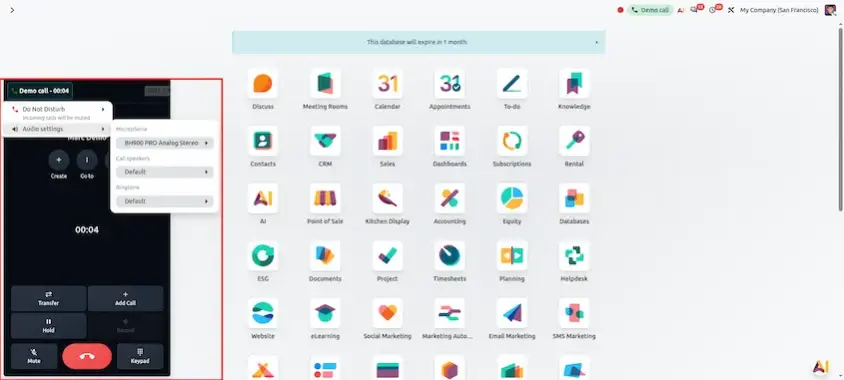
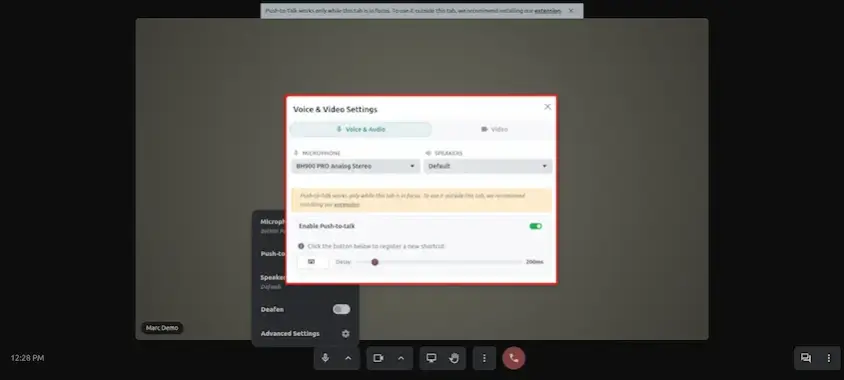
Feature Overview: Select and switch audio sources for your microphone and speaker dynamically during an ongoing live call without disconnecting.
Operational Path
Active Call Window ▸ Click Gear / Audio Settings Icon ▸ Select Microphone / Speaker Device from Dropdown ▸ Audio updates live mid-call.
Audio settings icon in the active call window of Odoo 20 Phone (VOIP)
Microphone and speaker selection dropdown during a live call in Odoo 20 Phone (VOIP)
Feature 2

Auto-Fill and Auto-Log

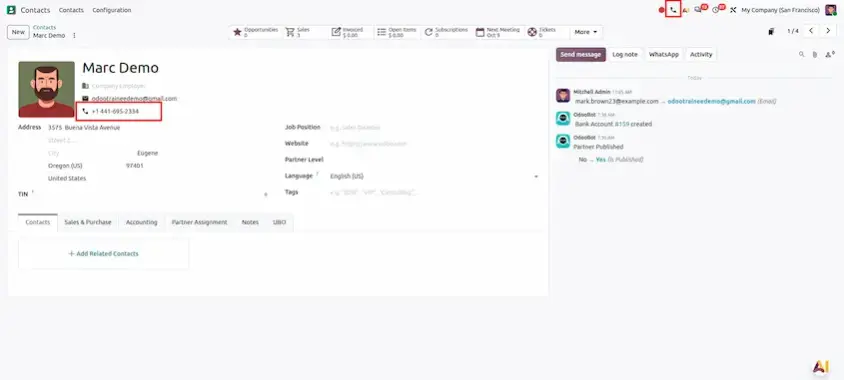
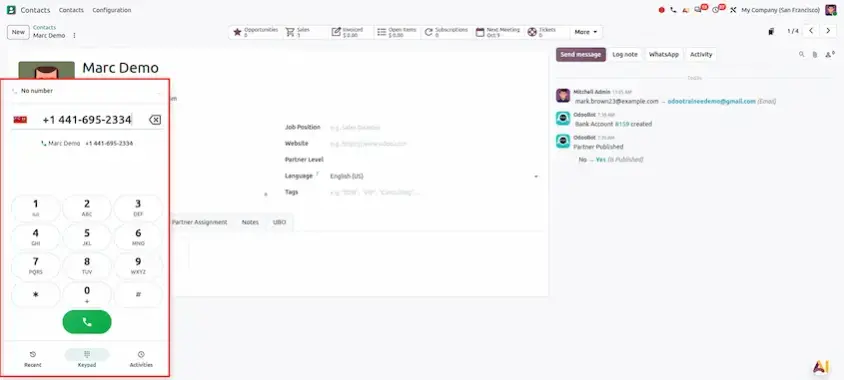
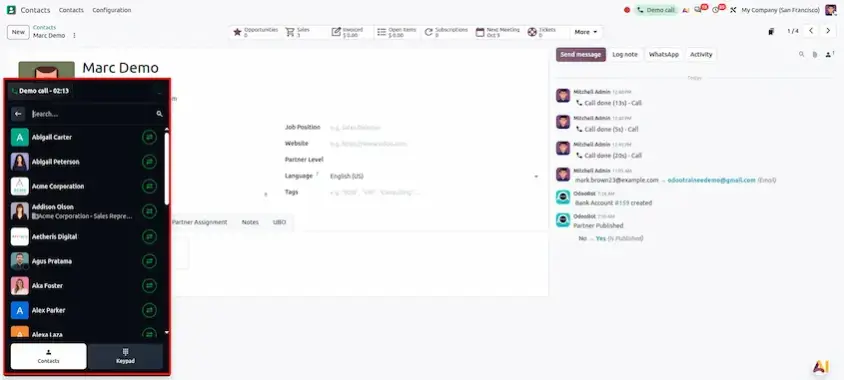
Feature Overview: Opening the softphone widget automatically fills the keypad with the active record's phone number (Contact, CRM Lead, Helpdesk Ticket), and logs the call directly to that record's chatter.
Operational Path
Open any Record (Contact / Lead / Ticket) ▸ Click Phone Icon / Open Softphone ▸ Keypad pre-fills with phone number ▸ Complete call ▸ Call auto-logs in Record Chatter.
Odoo 20 softphone keypad pre-filled with the phone number of the open record
Completed call automatically logged in the record chatter in Odoo 20
Feature 3

Call Flow Designer

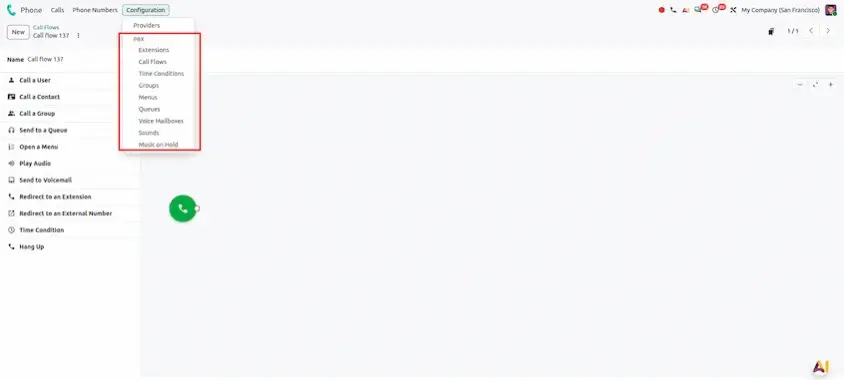
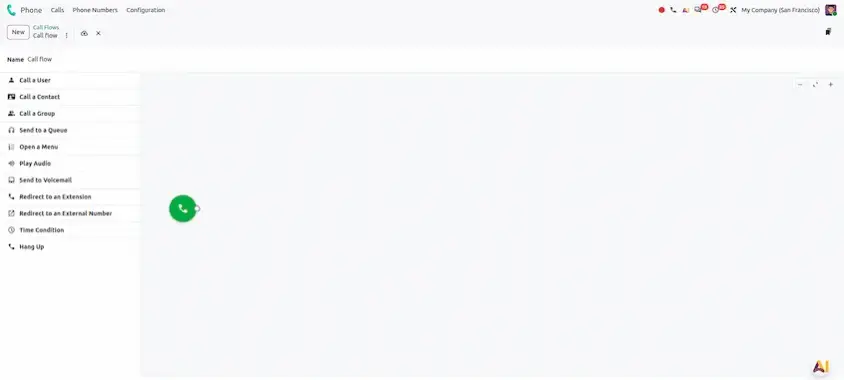
Feature Overview: Visually design complex routing flows for incoming calls with extensions, IVR voice menus, time-of-day schedules, location routing, and advanced cloud PBX features.
Operational Path
Settings ▸ Phone / VOIP ▸ Call Flows ▸ Create ▸ Drag & Connect Flow Nodes (Extensions, IVR Menus, Time Conditions) ▸ Save & Activate.
Call Flow Designer canvas for routing incoming calls in Odoo 20 Phone (VOIP)
Call flow with connected extension, IVR menu and time condition nodes in Odoo 20
Feature 4

Call Logging in Chatter

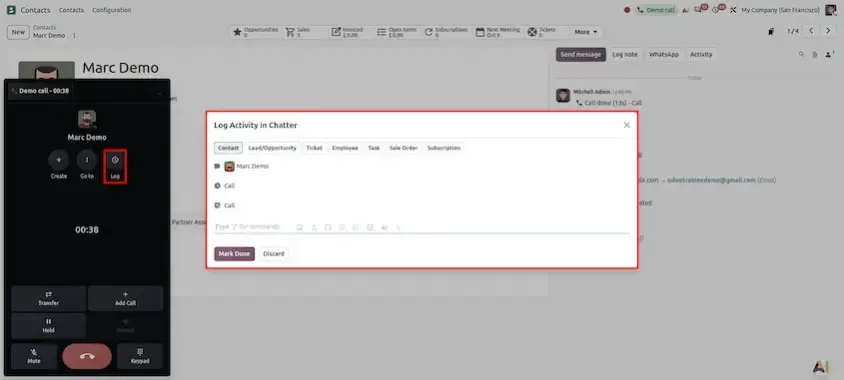
Feature Overview: Log detailed call notes, outcomes, and follow-up tags directly into the record's chatter during or immediately after completing a call.
Operational Path
Active Call Window / Call Ended Screen ▸ Type Call Summary in Notes Box ▸ Select Outcome Tag ▸ Click Log Call ▸ Note posts to Chatter.
Call notes and outcome tag on the call ended screen in Odoo 20 Phone (VOIP)
Feature 5

Call Transfer to Another Device

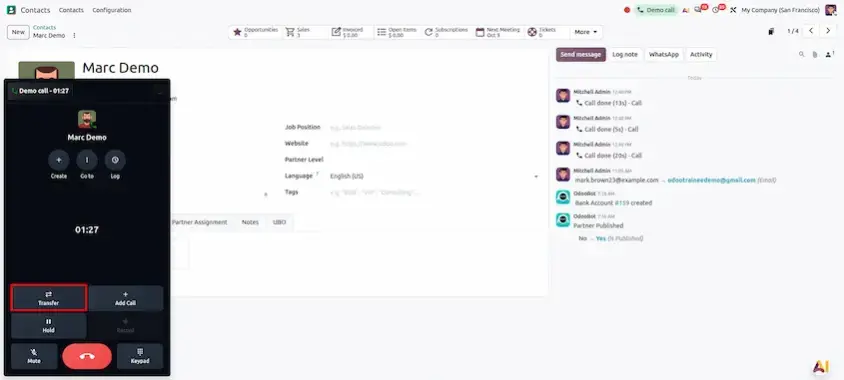
Feature Overview: Move an ongoing live phone call from one device to another (e.g. from laptop browser tab to mobile phone) seamlessly without dropping the connection.
Operational Path
Active Call Window ▸ Click Transfer Call Button ▸ Select Target Device / Browser Session ▸ Call transfers smoothly to target device.
Transfer Call button in the active call window of Odoo 20 Phone (VOIP)
Selecting a target device or browser session to transfer a live call in Odoo 20
Feature 6

Simultaneous Calling (Multi-Line)

Feature Overview: Receive or start a new call while already engaged in an ongoing call. Put the active line on hold and switch between calls seamlessly.

Operational Path
Active Call 1 ▸ Incoming Call 2 arrives ▸ Click Answer & Hold ▸ Call 1 goes on hold while Call 2 connects ▸ Click Swap to switch between calls.
Feature 7

Buy & Request Phone Numbers (DID Management)

Feature Overview: search, buy, and manage phone numbers directly inside Odoo across supported countries. Submit required regulatory identity verification documents and assign routing destinations.

Operational Path
Phone App ▸ Top Menu ▸ Phone Numbers ▸ Click Buy Button ▸ Select Country & Search Available Numbers ▸ Reserve Number ▸ Upload Required Verification Documents (ID / Proof of Address) ▸ Assign Destination (User / Queue / IVR) ▸ Save
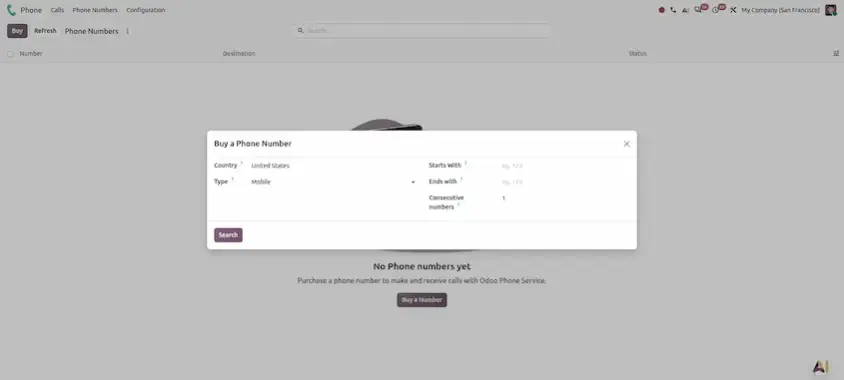
Buy phone numbers screen for DID management in Odoo 20 Phone (VOIP)

Odoo 20 Phone (VOIP) makes handling calls inside Odoo smoother and better connected to your records. Calls are logged automatically, routing can be designed visually, and agents get more control over audio, devices, caller ID and multiple lines.

The main takeaways:

  • Less manual work: auto-fill, auto-log and call logging in chatter keep every call tied to its record.
  • Smarter call handling: the call flow designer, caller ID selection and simultaneous calling help route and manage calls.
  • A better calling experience: a live audio settings, call transfer to another device.

A good way to start is with auto-fill and auto-log, then roll out the call flow designer and caller ID selection as your team gets comfortable. Replace the screenshot placeholders with captures from your own environment to build training material.

Frequently Asked Questions

Odoo Phone commonly refers to telephony and VoIP functionality integrated with Odoo. Available capabilities depend on the installed applications, telephony provider, and configuration.

Calling from CRM or contact records may be supported when the appropriate Phone or VoIP integration is configured. Verify the required provider and setup for your environment.

Telephony functionality generally requires a compatible calling service or provider. Check the supported configuration and provider requirements for your Odoo edition.

Call logging and history depend on the available integration and configuration. Test incoming and outgoing calls to confirm what information is recorded.

Check provider credentials, network connectivity, browser permissions, device audio settings, and the telephony integration configuration. Review provider logs when the issue persists.

Depending on the configuration, telephony can connect with contacts, CRM, and related communication workflows. Confirm the specific integrations supported by your installed version.
ODOO 20 MIGRATION & IMPLEMENTATION

Ready to Move to Odoo 20?

Build a smarter, more scalable Odoo experience for your business.

Whether you are planning an Odoo 20 migration, launching a new eCommerce website, or need customization, integrations, or ongoing support, our Odoo experts can help you plan and implement the right solution for your business.

Improve Business Communication with Odoo

Simplify business calling and connect communication workflows with Odoo implementation and customization services from GritXi Technologies. We help businesses evaluate and configure Odoo to support their operational requirements.

Contact Us

Get GritXi's Expertise

Sign in to leave a comment
Oct 16, 2026

Odoo 20 Sign: New Features and Updates

What's New in Odoo 20 Sign? Odoo 20 Sign introduces improvements to signature automation, document preparation, signer management, and the signing experience. 7 NewKey updates include: 1. Automated Si...
Oct 14, 2026

Odoo 20 Expenses: New Features and Updates

Managing employee expenses efficiently is essential for maintaining financial control, ensuring timely reimbursements, and simplifying accounting operations. Businesses need a reliable way to review e...
Oct 13, 2026

Odoo 20 Recruitment: New Features and Updates

Finding the right candidate is one of the most important and time-consuming parts of recruitment. HR teams often need to review numerous resumes, compare candidate skills with job requirements, and id...