Managing inventory is more than just keeping products in stock. Businesses need to know when to order more products, how to ship goods, where products are stored, and how much their stock is worth.
Odoo 20 Inventory brings new features to make these tasks easier. Users can plan stock levels, track extra product costs, allocate stock using the forecast report, download ready-to-use CMR documents, and manage stock movements between company warehouses. Shipping is also easier with Sendcloud and the new ShipStation connector.
Odoo 20 also makes it easier to check past stock levels, review old stock, track product movements, and see changes in inventory value. Other updates include simpler returns and separate HS codes and packaging for product variants. Let's look at each feature and see how it helps with daily inventory tasks.
Note: This guide covers new Odoo 20 Inventory features and continuing improvements. Where a feature was introduced in an earlier Odoo version, we identify that distinction to help readers understand what has actually changed.
Suggested Stock Levels for Reordering Rules
You should not have to guess your Min and Max.
What is new
Odoo 20 can suggest the minimum and maximum stock levels for a reordering rule. The suggestion uses the demand history, the days of coverage you want, and how often you order.
When you open the replenishment information of a product, you will see a Min - Max Suggestion section. It shows the demand and the suggested quantities, together with how many days of stock each one covers.
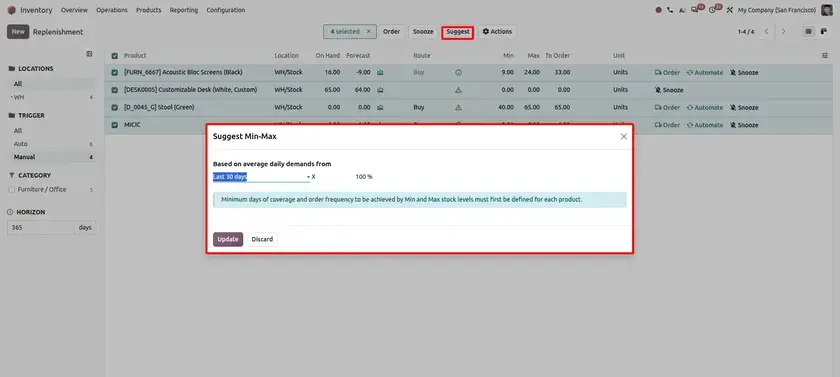
Odoo 20 -- Replenishment information with the Min - Max Suggestion
What the Screen Shows
| Field | What it shows |
|---|---|
| Based on: Last 7 days | The past period used to work out the demand. |
| Factor: 100% | The adjustment applied to the demand. |
| Demand: 5.57 Units/day | The demand for the chosen period. |
| Min: 50 Units (9 days) | The suggested minimum, with the days it covers. |
| Max: 134 Units (15 days) | The suggested maximum, with the days it covers. |
| Replenishment Time: 8 days | The replenishment time shown for the product. |
| Vendor Lead Time: 8 days | The lead time of the supplier. |
Why it helps
Less guessing
You start from a suggested Min and Max, not from a blank field.
Based on real demand
The suggestion follows what the product really sold.
Coverage in days
You see how long the stock should last.
Example: Odoo shows a demand of 5.57 units per day. It suggests a minimum of 50 units (9 days) and a maximum of 134 units (15 days). The team checks these numbers and uses them for the reordering rule.
How It Works
There are five stages, from demand to replenishment:
Demand history is read by Odoo.
Min - Max suggestion is shown for the product.
Review the suggested quantities.
The reordering rule is set with the values you keep.
Replenishment follows the rule.
Note: The values above are an example for one product. The Odoo 20 release notes name the factors used, but they do not give one fixed formula for every product. So the Min and Max should not be shown as the result of one universal calculation.
Landed Costs for Specific Products
A cost should only be added to the products it belongs to.
What is new
A landed cost line can now be applied to specific products of a transfer. Before, a cost was spread over every product in that transfer. The new Apply On field adds one step first: it chooses the products, and then the Split Method divides the cost between them.
Where Apply On Appears
The field shows in two places. On the landed cost product, it sets a default. Here, the product Elevator Installation has Is a Landed Cost ticked, Apply On set to All Products, and the Default Split Method set to By Quantity.
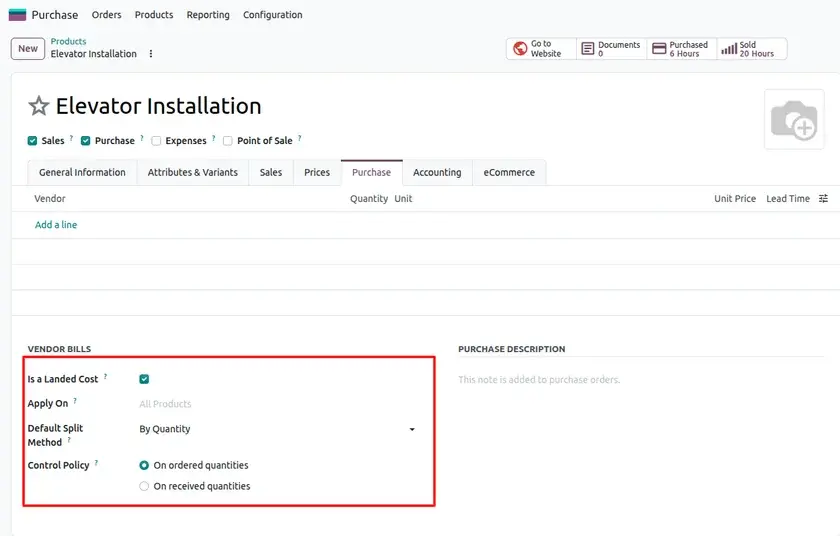
Odoo 20 -- Landed cost product (Is a Landed Cost, Apply On, Default Split Method)
On the landed cost record, each line in Additional Costs has its own Apply On column next to the Split Method. This is the part that is new in Odoo 20. A line can go to all products of the transfer, or only to the products chosen for that cost. It can replace the default of the product.
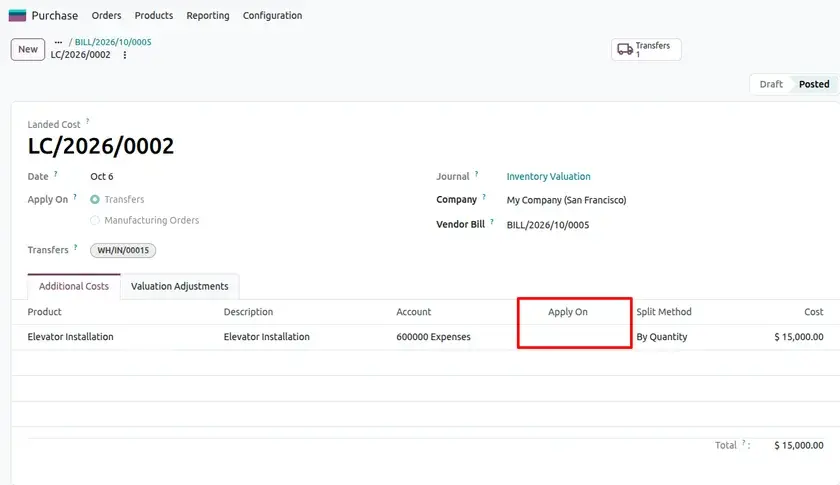
Odoo 20 -- Landed cost record with the Apply On column
What the Screen Shows
| Field | What it shows |
|---|---|
| Landed Cost: LC/2026/0002 | The landed cost record made from the vendor bill. |
| Apply On (header): Transfers | The record is for stock transfers, not manufacturing orders. |
| Transfers: WH/IN/00015 | The incoming transfer this cost is linked to. |
| Vendor Bill: BILL/2026/10/0005 | The bill this landed cost came from. |
| Product: Elevator Installation | The cost line taken from the bill. |
| Split Method: By Quantity | How the cost is divided between the chosen products. |
| Cost: $15,000.00 | The amount of this cost line. |
Why it helps
No spread on other products
A cost does not touch items it has nothing to do with.
One choice per line
Different cost lines on one record can go to different products.
Defaults carry over
The Apply On and Split Method set on the product fill in new cost lines.
Better values
Each product gets a more exact stock value, with fewer manual journal fixes.
Example: The Elevator Installation cost of $15,000.00 is linked to transfer WH/IN/00015. With Apply On set to Selected Products, the cost stays with the product it was paid for.
Previous Approach vs. Apply On
| Previous approach | Odoo 20 replacement | What changes |
|---|---|---|
| A cost split across every product of the transfer | Apply On set to Selected Products | The cost stays with the right products. |
| Only the Split Method (quantity, cost, weight or volume) was set | Apply On first, then the Split Method | One more control for each line. |
| Fixing wrong costs by hand | The right products are chosen at the start | Fewer manual adjustments. |
How It Works
There are five stages, from the product to the cost on the right items:
Mark the product as "Is a Landed Cost".
Add it to a purchase order line.
Tick the landed cost box on the vendor bill.
Odoo creates the landed cost record.
Apply On limits the cost to the chosen products.
Note: The screens show one example purchase: an Elevator Installation service of $15,000.00 on transfer WH/IN/00015. Apply On is set for each cost line, so the result depends on which products you choose for that cost.
Variant-Specific HS Codes
Two variants of one product can need two different customs codes.
What is new
You can set a Harmonized System (HS) code for each product variant. Before, one code was used for the whole product. This helps when variants of the same product have different customs classes.
Why it helps
Exact customs data
Each variant gets the code that fits it.
Better for export
Variants with different classes are handled correctly.
More flexibility
Materials or features can have their own codes.
Example: A company sells a T-Shirt in Cotton and Polyester. Both belong to one product, but they need different HS codes.
| Product variant | Material | HS code |
|---|---|---|
| T-Shirt -- Cotton -- Black | Cotton | 6109.10 |
| T-Shirt -- Cotton -- White | Cotton | 6109.10 |
| T-Shirt -- Polyester -- Black | Polyester | 6109.90 |
| T-Shirt -- Polyester -- White | Polyester | 6109.90 |
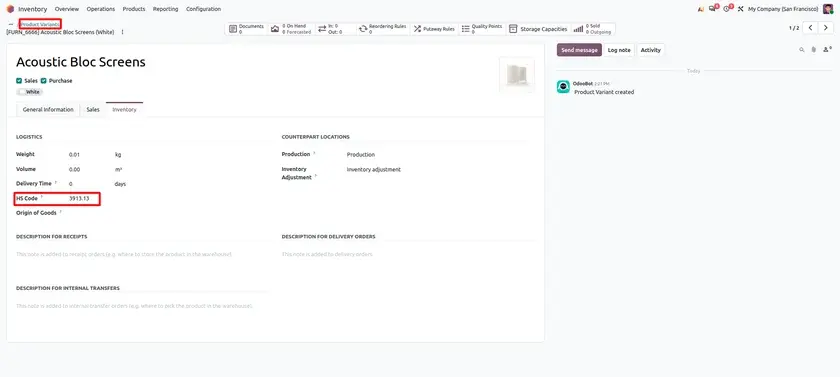
Note: Variant-specific HS codes work in Odoo 20, but they are not new in Odoo 20. They were already available in Odoo 19.4 and continue in Odoo 20.
Simplified Returns
Returning a product should take fewer steps.
What is new
The return wizard is gone. Before, you had to open a wizard and check the products and quantities before the return was created. Now the return is more direct.
Why it helps
Fewer steps
There is no extra wizard to go through.
Faster work
The warehouse team handles returns quicker.
Easier to use
Daily returns follow a more direct path.
Example: A customer sends back a product from a finished delivery. The warehouse team starts the return from that transfer and continues with the return operation, with no wizard.
Previous Approach vs. Simplified Returns
| Previous approach | Odoo 20 replacement | What changes |
|---|---|---|
| A return wizard to check products and quantities | A direct return from the transfer | One step less. |
| Extra screens for each return | The return operation opens right away | Faster for the warehouse team. |
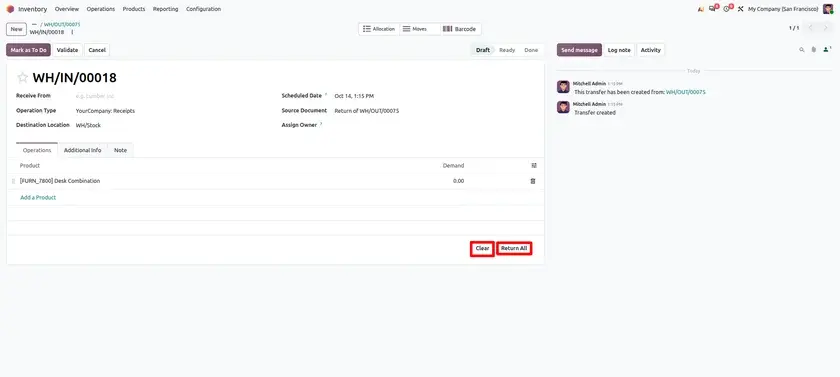
Note: Simplified returns work in Odoo 20, but they are not new in Odoo 20. They were already added in Odoo 19.3 and continue in Odoo 20.
Allocation Report
Allocate stock right where you see the forecast.
What is new
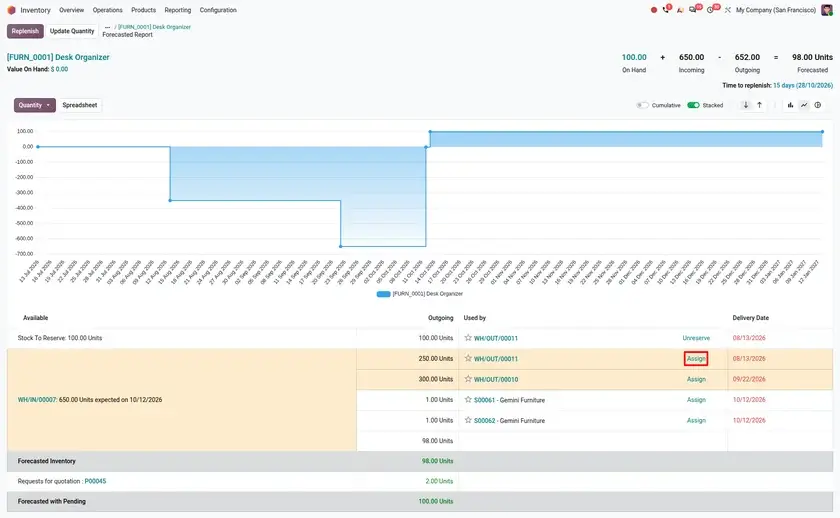
The allocation flow is better. You can now allocate directly from the forecast report, and the allocation report has a new design.
Why it helps
Fewer clicks
Allocate from the same report where you read the forecast.
Clearer view
The new design is easier to read.
Faster planning
Less jumping between screens.
Example: A planner opens the forecast report of a product, sees the stock that is coming in, and allocates it to a waiting order from the same report.
CMR Document
Generate CMR Documents from Delivery Orders.
What is new
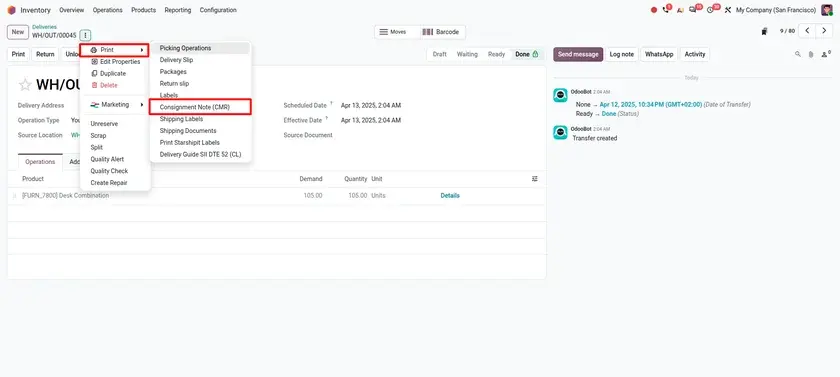
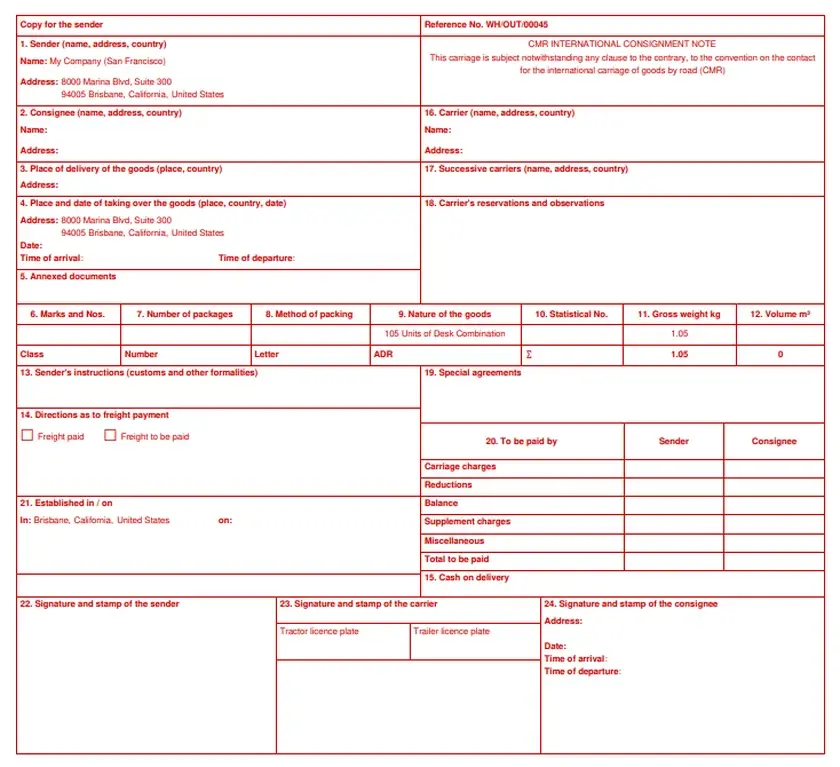
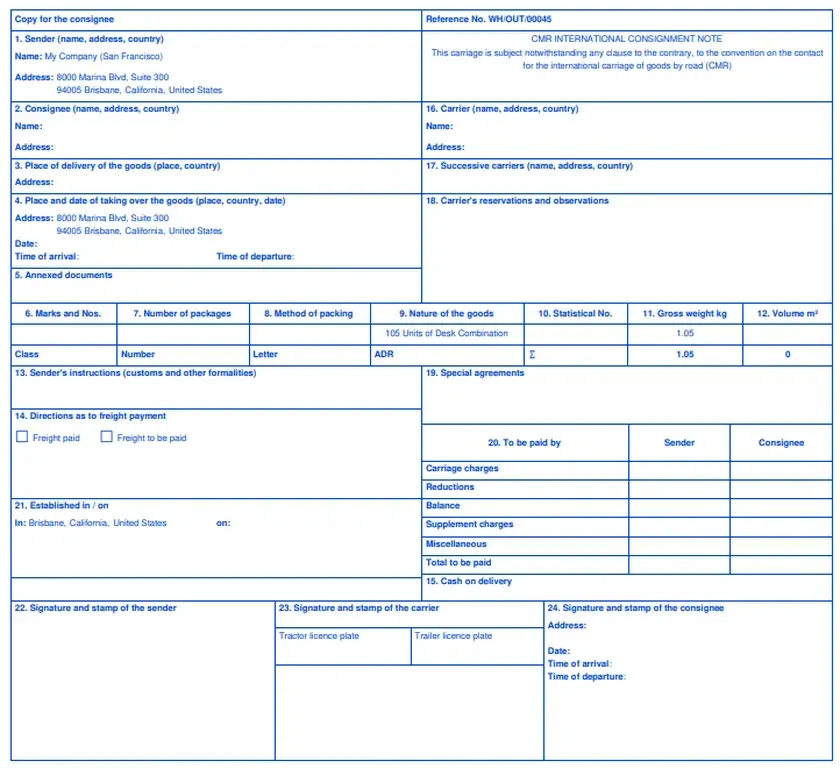
You can download a CMR (Convention on the Contract for the International Carriage of Goods by Road) from a delivery. The document is prefilled with the information of the transfer.
Why it helps
Less typing
The data comes from the transfer.
Fewer mistakes
No copying of addresses or goods by hand.
Ready to use
Download it and send it with the goods.
Example: The warehouse team prepares a delivery for a customer in another country and downloads the CMR, already filled in.
Company-Specific Customer Lead Times
Each company can promise its own delivery time.
What is new
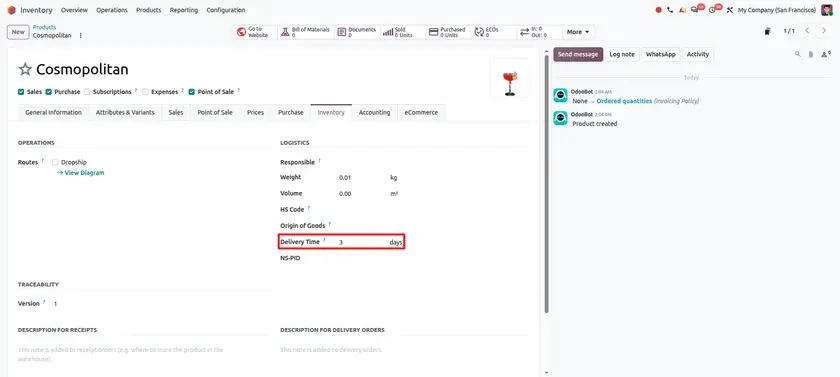
The customer lead time of a product can now be different for each company.
Why it helps
Own lead time
Every company sets the time that fits its own work.
One product, many companies
No need to copy the product.
More exact dates
Delivery dates follow the company that sells.
Example: Two companies sell the same product. One has a nearby warehouse and promises 2 days, and the other promises 7 days.
Intercompany Flows
Companies of one group can work together smoothly.
What is new
Intercompany flows have been improved in four ways:
Resupply by route.
Use routes to resupply one company from another.
Shared warehouses.
Deliver a sales order from the warehouse of another company, or use the pickup points of another company.
Right costs.
The valuation cost of transferred products is properly moved between companies.
Linked orders stay in sync.
Updates to linked sales and purchase orders, such as price or quantity, are sent to the other company.
Why it helps
One flow
Goods and costs move between companies in a clean way.
Better values
Each company has the right stock value.
Fewer manual updates
Changes reach the other company by themselves.
Example: Company A sells a product but ships it from the warehouse of Company B. The cost moves to Company A. Later the quantity on the sales order changes, and the linked purchase order is updated too.

Inventory at a Past Date
Look at your stock as it was, not only as it is.
What is new
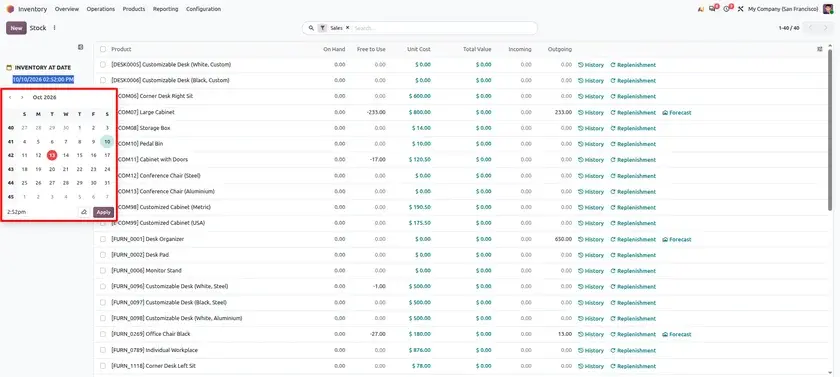
The stock report has a new date picker. It gives an improved overview of the inventory at a past date. It keeps your filters and lets you choose a precise timestamp.
Why it helps
See the past
Check the stock on any day you need.
Filters stay
Your search does not reset when you change the date.
Exact time
Pick the hour and minute, not only the day.
Example: An accountant needs the stock at the end of the month. The date picker shows the stock at that exact time, with the same filters as before.
Location-Specific Push Routes
Let the place of arrival decide where the product goes next.
What is new
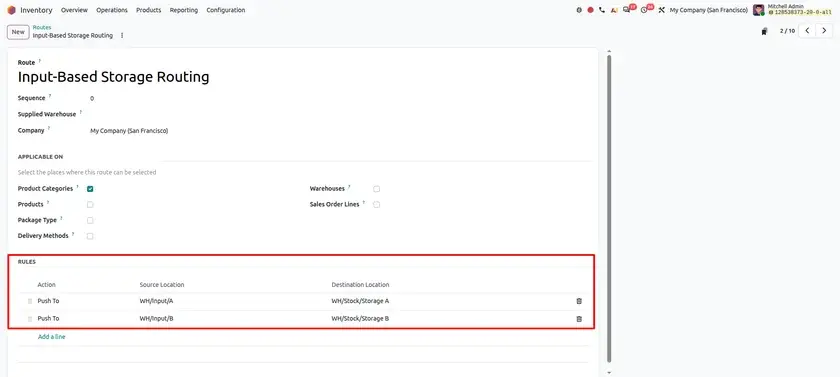
You can create push routes based on the specific destination of the product. For example, a product follows route A if you receive it in WH/Input/A, and route B if you receive it in WH/Input/B.
Why it helps
Smarter routing
The next move depends on the exact location.
Fewer manual moves
Odoo pushes the product the right way.
Fits your layout
Different input locations can have different paths.
Example: Goods received in WH/Input/A go to one storage area, and goods received in WH/Input/B go to another.
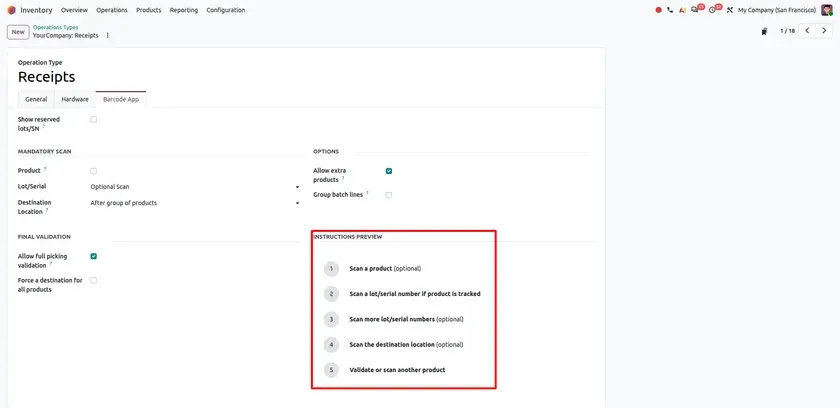
Preview Barcode Instructions in Operation Type
See what the operator will see before they scan.
What is new
You can preview the Barcode instructions shown to the operator. The preview follows the settings you chose, and you see it directly from the operation type.
Why it helps
Check your setup
See the result of your settings at once.
Fewer surprises
Operators get the instructions you expect.
No extra test
You do not need to try it on a device first.
Example: A manager changes the barcode settings of the Receipts operation type and opens the preview to see the instructions for the operator.
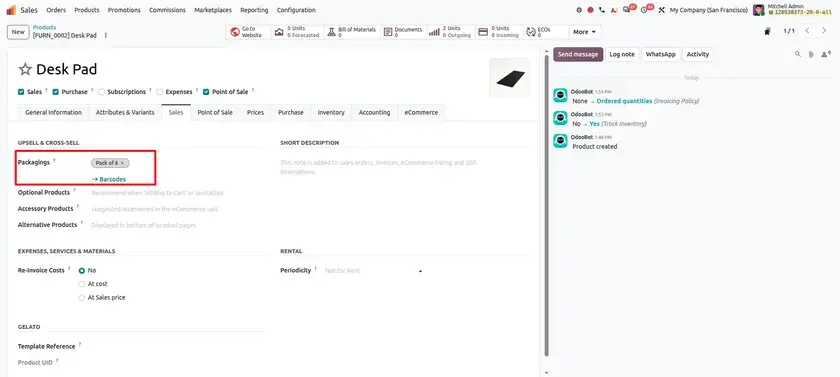
Product Packaging Barcodes
Packaging barcodes should be easy to find.
What is new
You can now access and manage product packaging barcodes more easily from the product form.
Why it helps
One place
Packaging and its barcode are on the product form.
Easy to find
No search in other menus.
Easy to manage
Change a barcode in the same screen.
Example: A user opens a product, goes to its packaging, and updates the barcode of a box of 12.

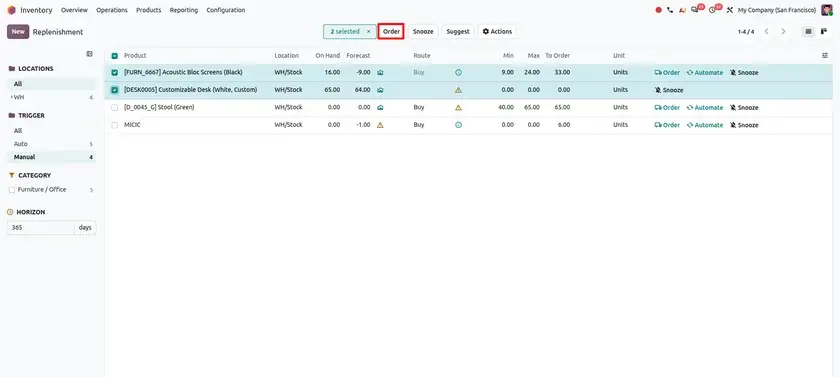
Product Replenishment
A Unified Replenishment Order Button.
What is new
In the replenishment dashboard, the "Order" and "Order to max" buttons are now one "Order" button.
When you reorder in advance, which means you select products without the "To reorder" filter, the order quantity is the maximum quantity minus the forecast quantity.
Previous Approach vs. One Order Button
| Previous approach | Odoo 20 replacement | What changes |
|---|---|---|
| Two buttons: Order and Order to max | One Order button | Simpler dashboard. |
| You chose which button to use | The quantity is calculated for you | Less to decide. |
Why it helps
Simpler
One button to remember.
Clear rule
For advance orders, the quantity is max minus forecast.
Fewer mistakes
No wrong button choice.
Example: A planner selects a product without the "To reorder" filter. The maximum is 100 and the forecast is 40, so the order quantity is 60.
Inventory Valuation Adjustments
Inventory Valuation Adjustments and Auditability.
What is new
Product cost adjustments and their effect on inventory valuation are now listed in a new "Valuation Adjustments" menu. The menu is available in debug mode. With perpetual accounting, journal entries are created automatically.
Why it helps
Clear list
All cost adjustments are in one place.
Impact is visible
You see how each change affects the valuation.
Entries are automatic
With perpetual accounting, no manual journal entry.
Example: The cost of a product is changed. The finance team opens Valuation Adjustments and sees the adjustment and its effect on the stock value.
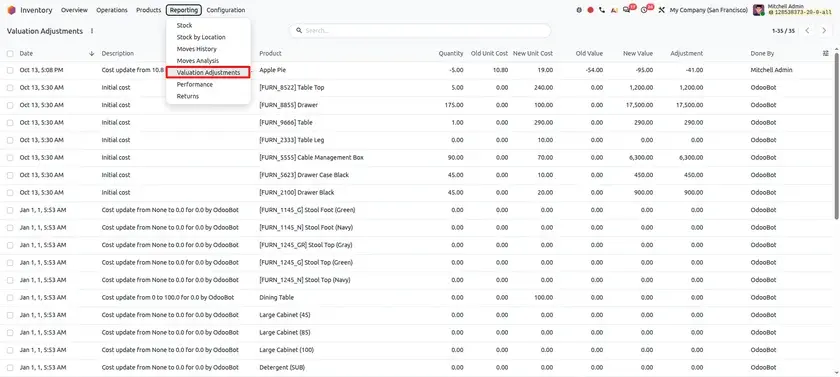
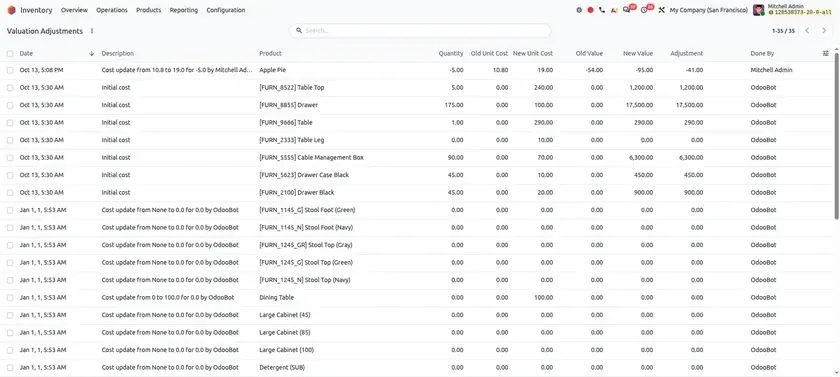
Note: The menu is only shown in debug mode.
Sendcloud: Pickup Points
Choose the pickup point in Odoo.
What is new
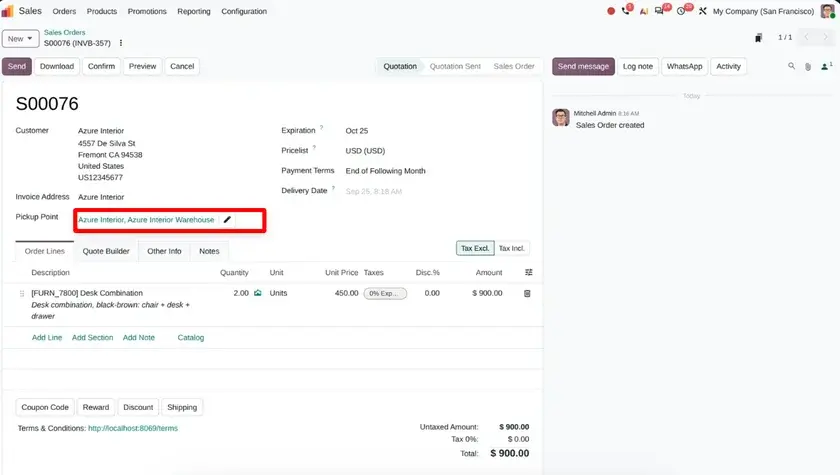
Pickup points offered by Sendcloud carriers can now be selected directly from a sales order or a transfer. They can also be corrected after an eCommerce order has been placed.
Why it helps
Select in Odoo
Choose the point on the order or the transfer.
Fix later
Correct a pickup point after the eCommerce order.
Fewer problems
The parcel goes to the right place.
Example: An online customer orders with a pickup point. The team notices a wrong point and changes it on the transfer before shipping.
Sendcloud: Package Reference
Your own reference on the carrier label.
What is new
The package reference from Odoo is now sent to Sendcloud. It can be shown on the labels of carriers that support package references.
Why it helps
Easy matching
Link a parcel to your Odoo package fast.
Same reference
Odoo and Sendcloud use the same one.
Clear labels
The reference can appear on the label.
Example: A package has a reference in Odoo. The label from the carrier shows the same reference, so the team finds the package at once.
Note: The reference is only shown on labels of carriers that support package references.
ShipStation Shipping Connector
Ship with ShipStation without leaving Odoo.
What is new
An integration with the shipping and fulfillment platform ShipStation has been added. It lets you calculate shipping costs and get shipping labels and tracking numbers directly through Odoo.
Why it helps
One tool
Do shipping work in Odoo.
Costs on the order
Know the shipping cost early.
Labels and tracking
Get them without a second platform.
Example: The team validates a delivery, gets the label and the tracking number from ShipStation, and the customer receives the tracking number.
Inventory Aging Report
Identify Slow-Moving and Aging Inventory.
What is new
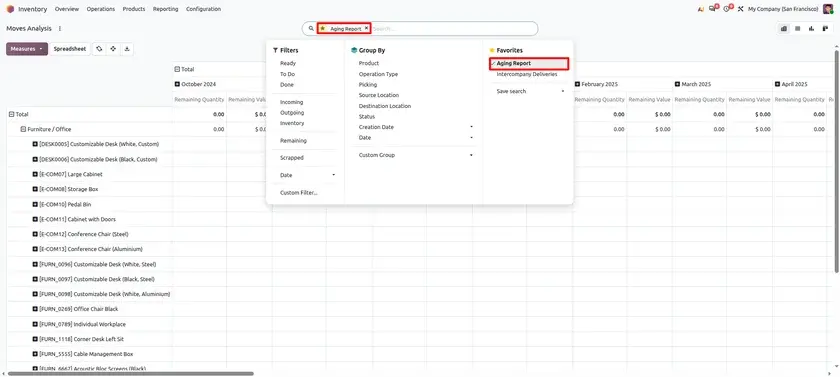
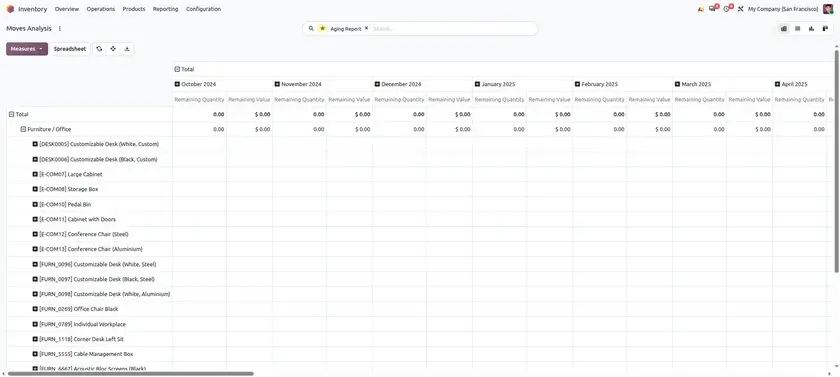
You can open a stock aging report from the "Moves Analysis" pivot view.
Why it helps
See old stock
Find products that stay a long time.
Pivot view
Group and filter the data your way.
Act sooner
Plan sales or orders based on age.
Example: A manager opens the aging report to find products that have been in the warehouse for a long time and plans a discount.
Vendor Purchase Reference
Know the vendor of a receipt at a glance.
What is new
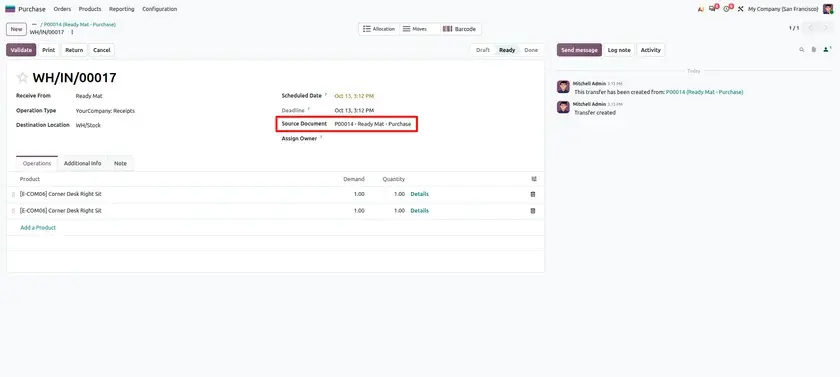
The vendor purchase reference now appears on receipt transfers.
Why it helps
Better traceability
The reference is on the receipt.
Quick check
Operators see the vendor from the incoming transfer.
No extra step
No need to open the purchase order.
Example: A truck arrives. The operator opens the receipt, reads the vendor purchase reference, and knows which vendor sent the goods.
ZPL Location Barcodes
Print location labels on your label printer.
What is new
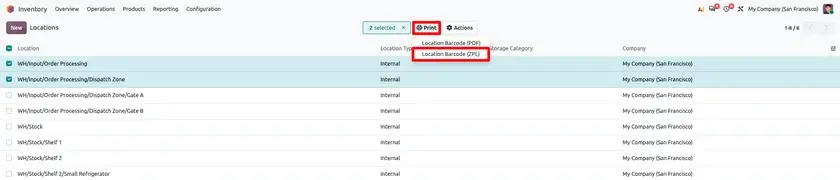
Location barcode labels are now available in ZPL format.
Why it helps
Printer ready
ZPL is used by many label printers.
Easy printing
Make labels for your locations.
Clear scanning
Labels help operators find locations by barcode.
Example: The team prints barcode labels for all shelf locations in ZPL format and sticks them on the racks.
Odoo 20 Inventory helps you plan, move and track your stock with less work. Suggested stock levels and the simpler replenishment dashboard give you a good start for ordering. Landed costs for specific products and valuation adjustments keep your costs clear. Intercompany flows, push routes, the CMR document and the Sendcloud and ShipStation connections make moving goods easier. Past-date inventory, the aging report and the traceability report give you better answers from your data.
Odoo 20 Inventory: New Features and Updates