Business Overview
Accurate time tracking is essential for businesses that manage projects, services, consulting work, and customer engagements. However, manually recording every activity throughout the working day can be time-consuming, and employees may forget to start or stop a timer.
Odoo 20 Timesheets supports activity-based timesheet suggestions through the Timesheet Assistant and ActivityWatch integration. This guide covers setup, activity tracking, assistant rules, reviewing suggestions, and creating timesheet entries. It also highlights the configuration options and workflow improvements available in Odoo 20.
Instead of manually recording every activity, employees can allow ActivityWatch to track activity locally, review the resulting suggestions in Odoo, assign the appropriate project and task, and then create the timesheet entries they want to keep.
Timesheet Assistant Workflow
The complete Timesheet Assistant process can be divided into the following stages:
Timesheet Assistant Process
Each stage has a specific purpose in the implementation process.
Business Process at a Glance
| Stage | Odoo Area | Main Activity |
|---|---|---|
| Stage 1 | Timesheets Settings | Enable the Timesheet Assistant |
| Stage 2 | ActivityWatch | Install the desktop tracker and browser extension |
| Stage 3 | ActivityWatch | Configure the local tracking environment |
| Stage 4 | Odoo + ActivityWatch | Restart the ActivityWatch server and test the connection |
| Stage 5 | ActivityWatch | Track applications, windows and websites |
| Stage 6 | Timesheet Assistant | Configure rules for generating meaningful suggestions |
| Stage 7 | Timesheet Assistant | Review and select activity suggestions |
| Stage 8 | Timesheets | Assign project/task and create timesheet entries |
Stage 1 – Enable the Timesheet Assistant
The first step is to activate the Timesheet Assistant from the Odoo Timesheets settings.
Navigate to the Timesheets configuration and enable the Timesheet Assistant option under the relevant time-encoding settings.
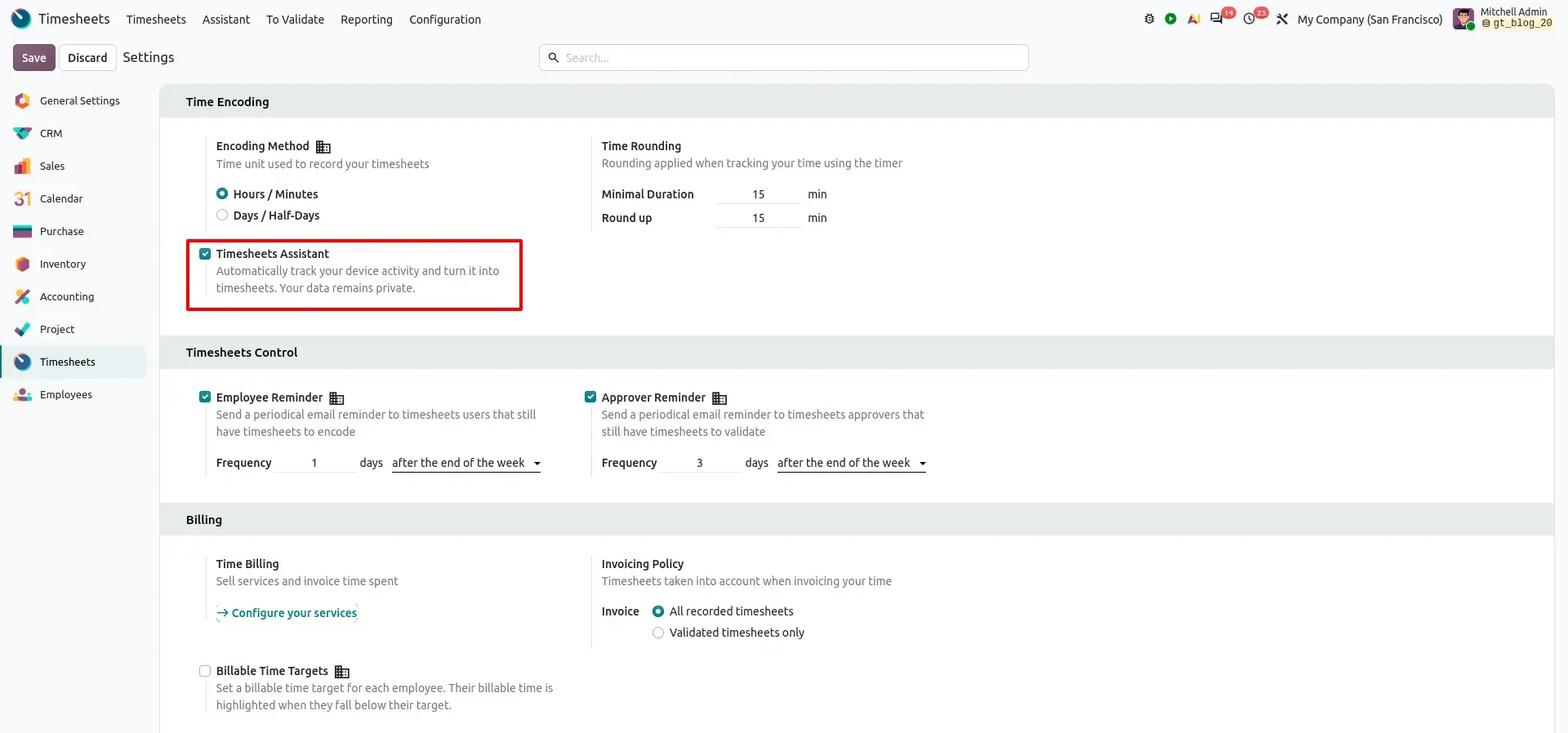
Once enabled, users can access the Assistant from the Timesheets application.
The Assistant provides the interface where activity-based suggestions will eventually appear.
Open the Timesheet Assistant
The Assistant can also be opened directly from the top-bar timer.
The timer popover contains an Open Assistant link.
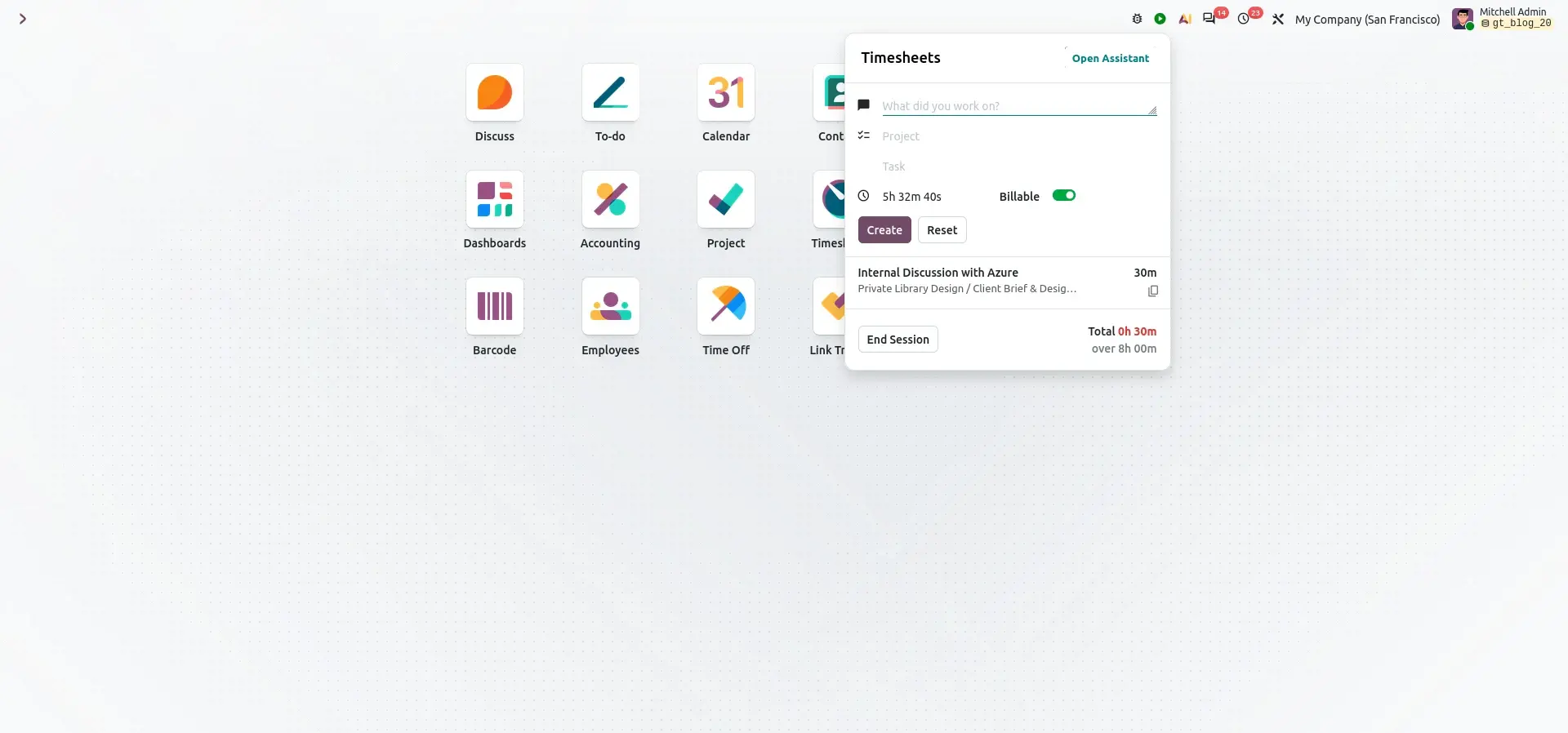
This provides a convenient way for employees to move between manual time tracking and activity-based timesheet suggestions.
Understand the Assistant Dashboard
After opening the Assistant, users can see their timesheet information and activity suggestions.
The page includes:
- My Timesheets
- Billable time
- Non-billable time
- Suggestions
- Activity tracker setup information
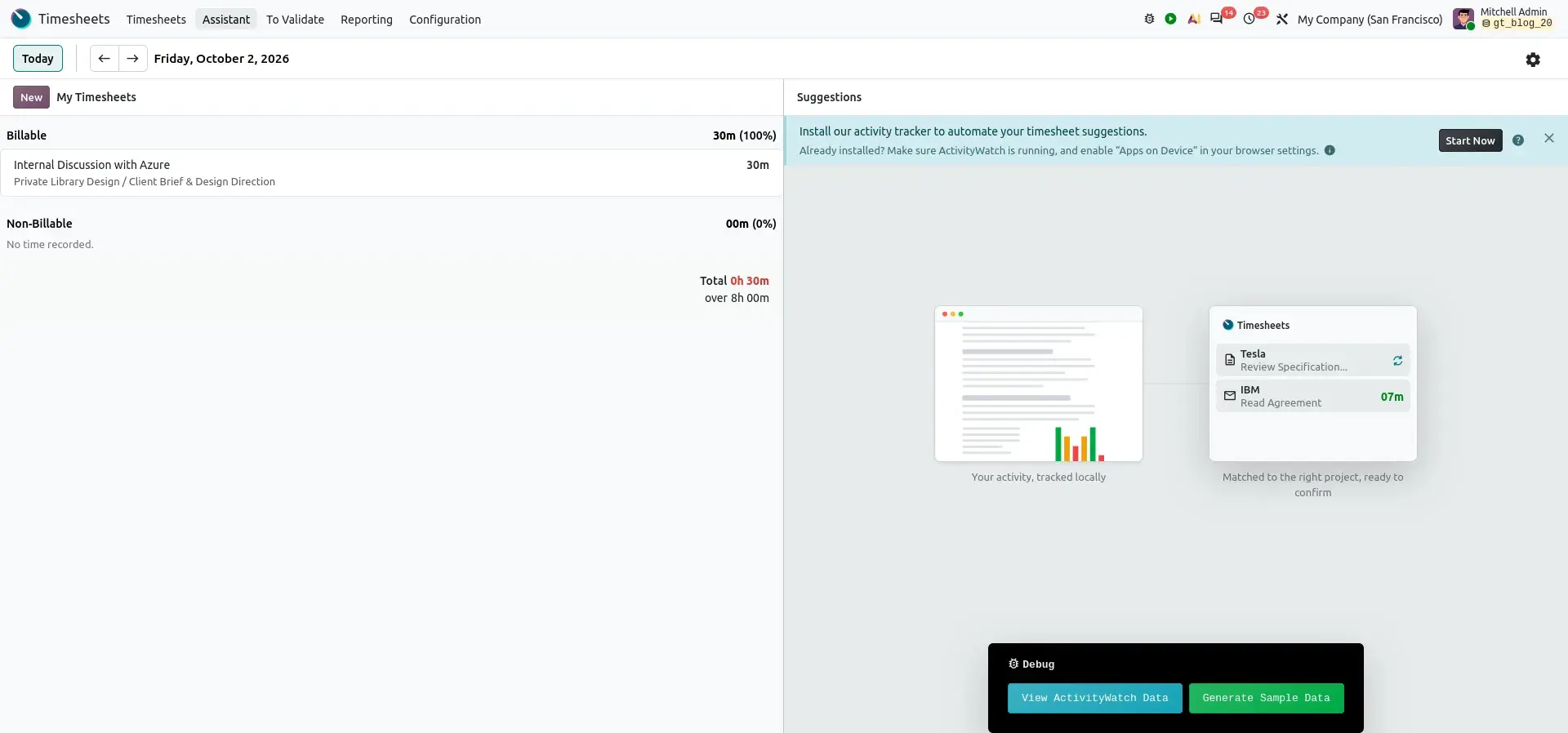
If ActivityWatch has not yet been connected, Odoo guides the user through the setup process.
Stage 2 – Install ActivityWatch
ActivityWatch is the local activity-tracking component used by the Timesheet Assistant.
The setup wizard guides the user through the installation process.
ActivityWatch runs on the user's computer and collects information about computer activity that can later be used by the Timesheet Assistant.
Install the Desktop Tracker
The first setup step provides instructions for installing the ActivityWatch desktop application.
A browser extension is also recommended when website activity needs to be tracked.
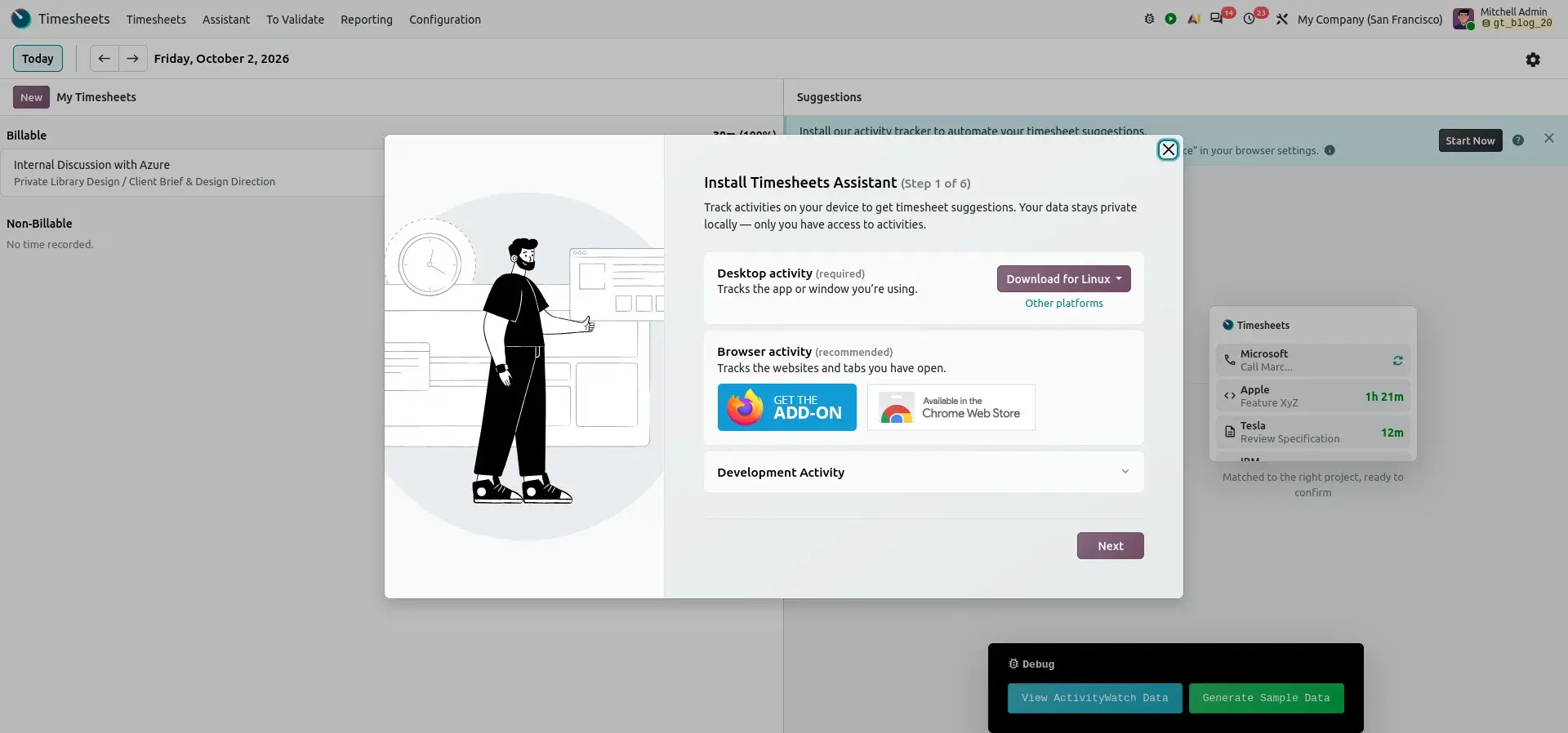
The browser extension helps ActivityWatch capture relevant browser activity in addition to desktop application activity.
Restart After Installation
After installing ActivityWatch, the user may need to restart or log out before continuing.
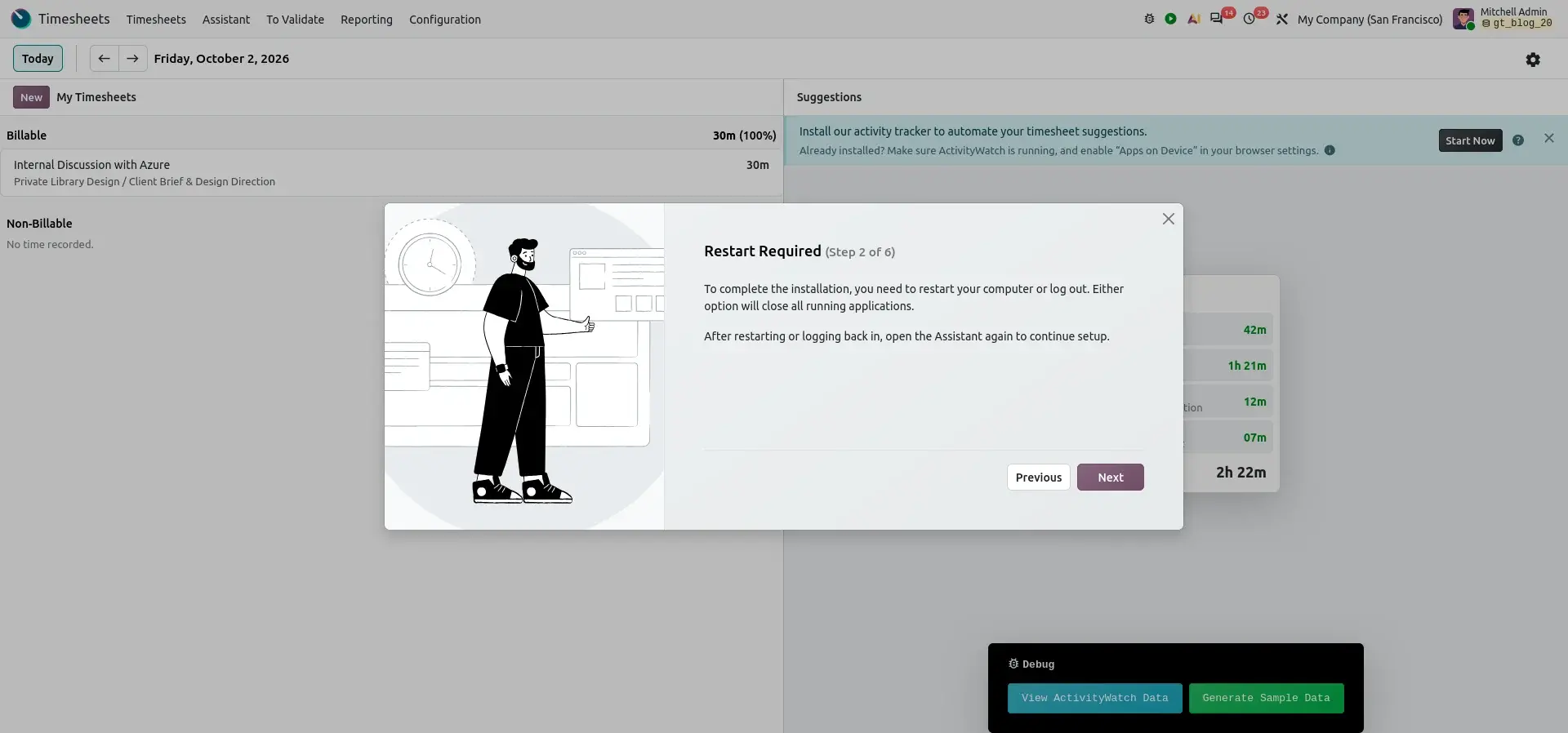
Restarting ensures the installed components are initialized correctly.
Stage 3 – Configure ActivityWatch
After ActivityWatch has been installed, it needs to be configured so that Odoo can communicate with the local ActivityWatch service.
One of the important configuration areas is CORS.
Configure CORS Origins
The ActivityWatch server runs locally on the employee's computer.
Odoo therefore needs permission to communicate with that local server.
The setup wizard provides instructions for configuring the required CORS settings.
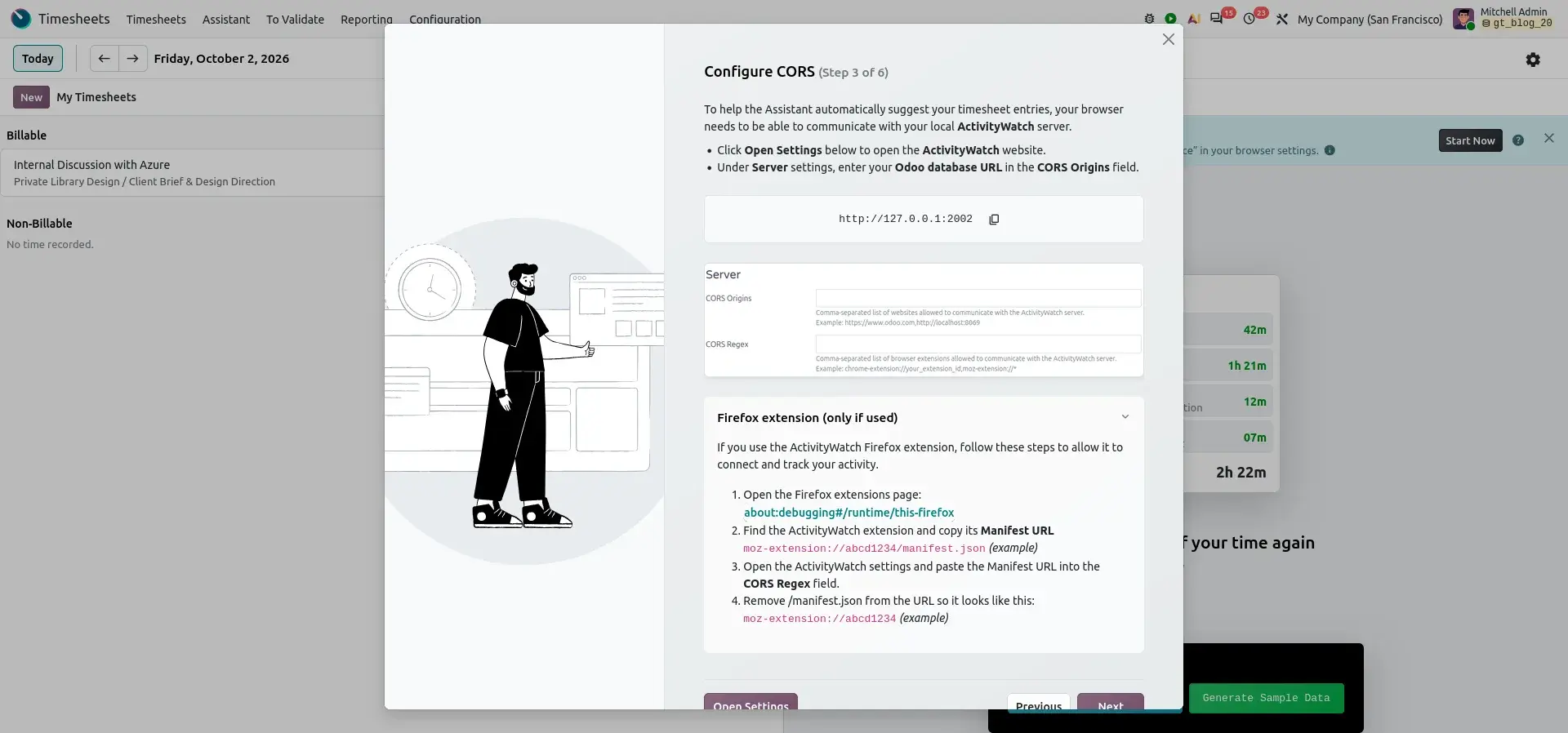
Which addresses to add
The Odoo database address needs to be added to the appropriate CORS configuration. For Firefox users, the browser extension address may also need to be added to the CORS Regex configuration.
Enter the CORS Configuration
Open the ActivityWatch settings and enter the required addresses.
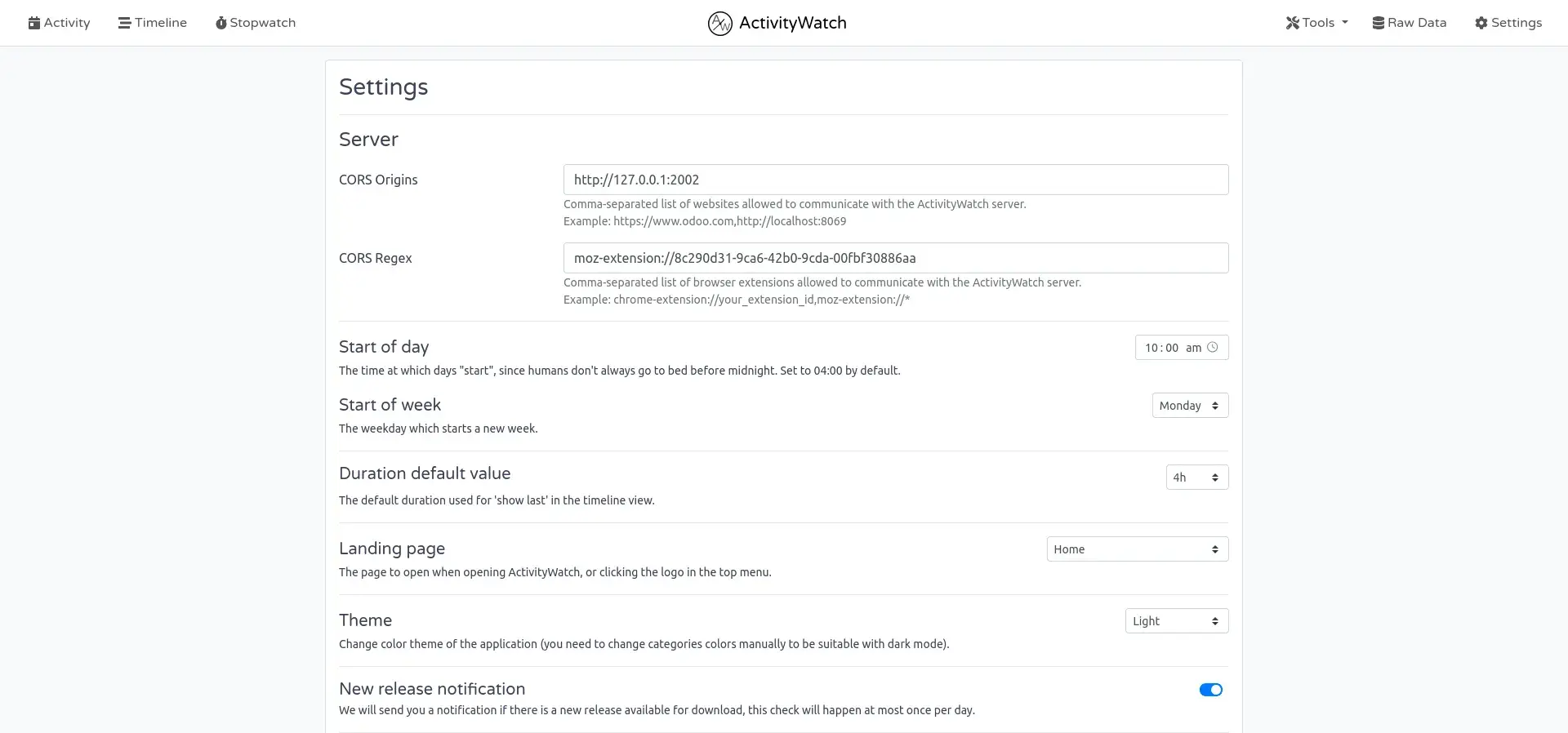
CORS Origins:  https://www.odoo.com,http://localhost:8069
CORS Regex:    chrome-extension://your_extension_id,moz-extension://*
CORS Origins takes a comma-separated list of websites allowed to communicate with the ActivityWatch server, such as your Odoo address. CORS Regex takes a comma-separated list of browser extensions allowed to communicate with it.
This configuration establishes the required communication path between the Odoo database and the locally running ActivityWatch service.
Stage 4 – Connect ActivityWatch with Odoo
Once ActivityWatch has been installed and configured, the ActivityWatch server needs to be restarted.
Restart the ActivityWatch Server
The server can be restarted from the ActivityWatch system-tray menu.
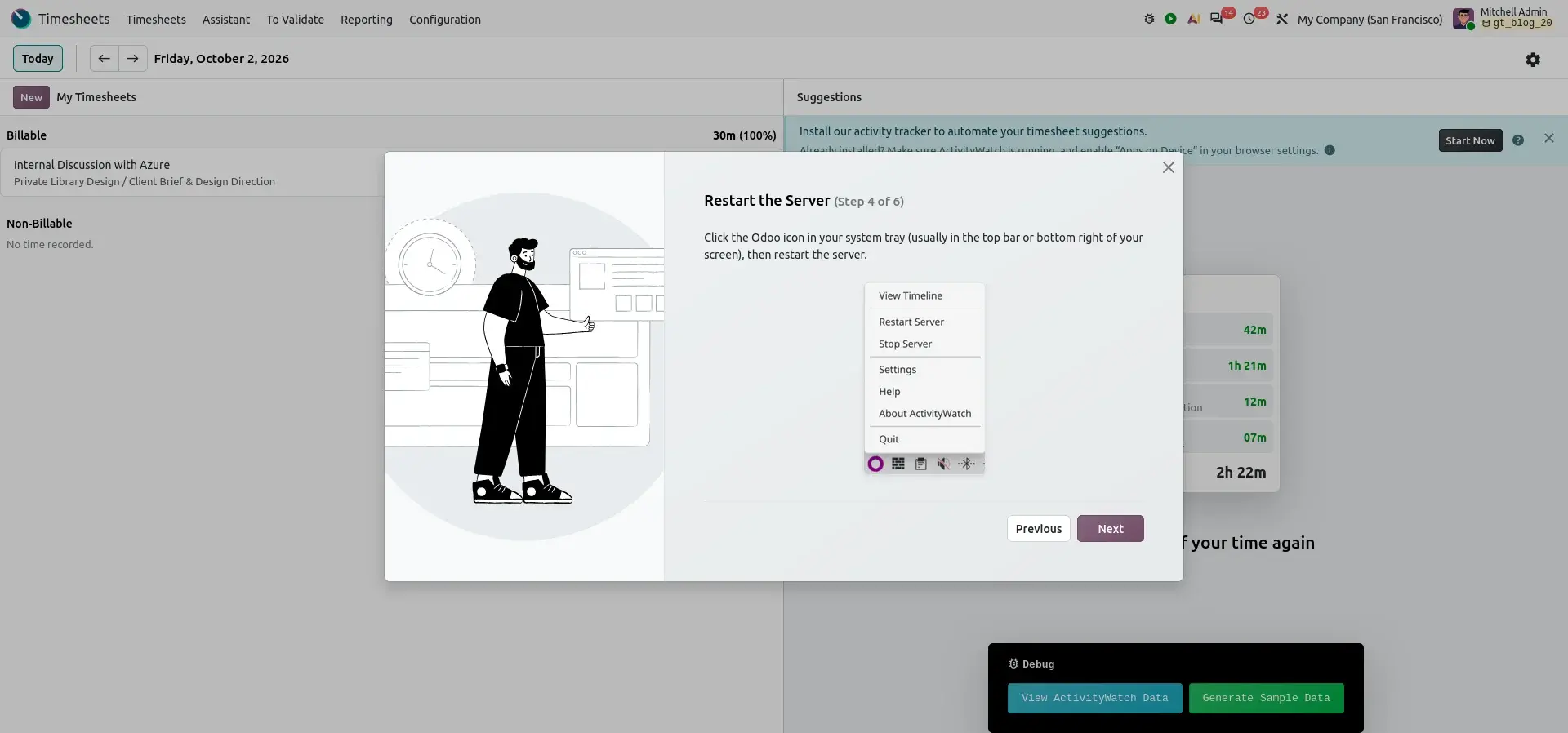
After restarting, the ActivityWatch service should be ready to accept the connection from Odoo.
Test the Connection
The setup process can then test whether Odoo can successfully communicate with ActivityWatch.
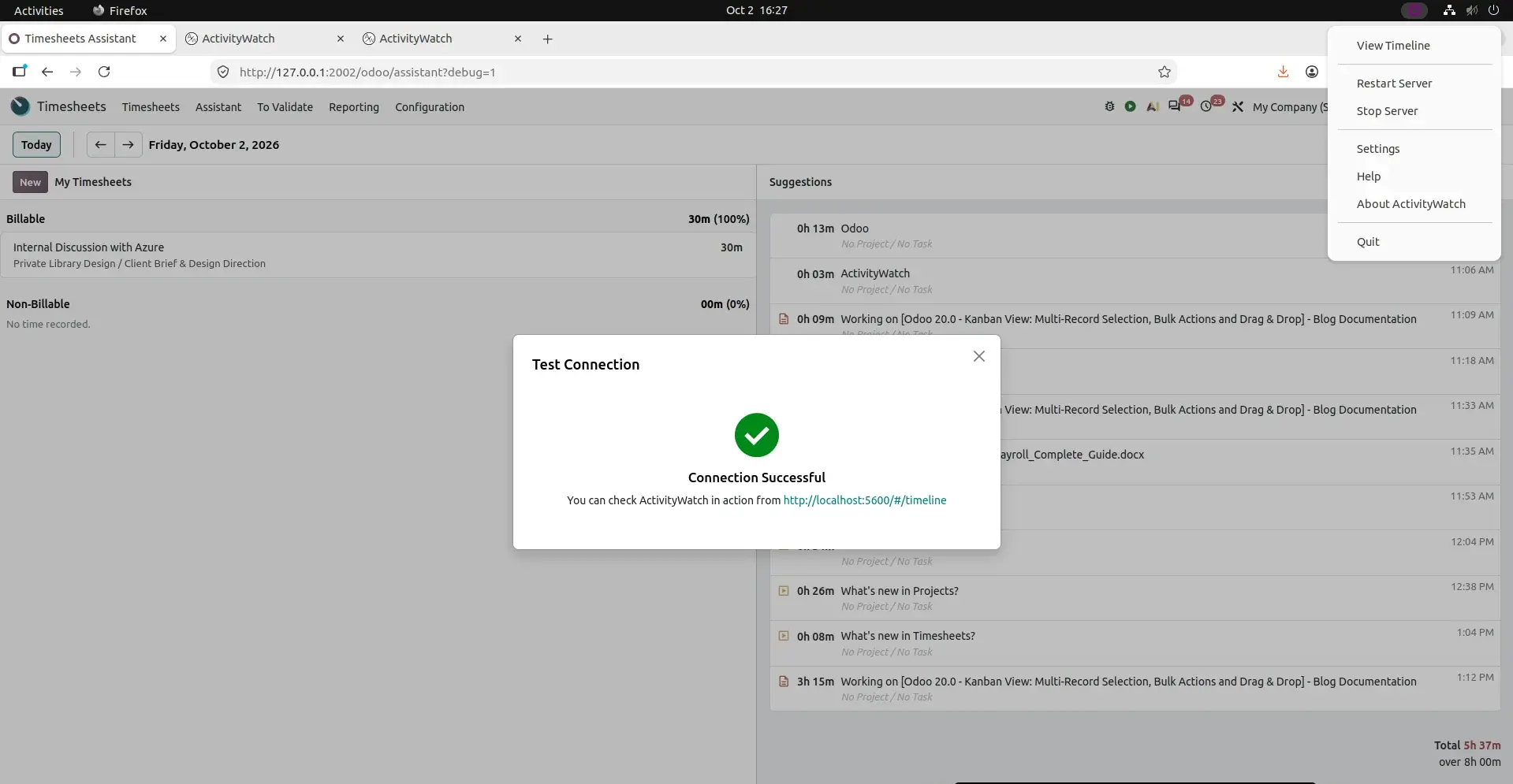
Once the connection succeeds, the basic integration is ready.
The employee can now continue working normally while ActivityWatch records the configured activity locally.
Stage 5 – Track Daily Activity with ActivityWatch
After the connection has been established, ActivityWatch starts collecting activity information on the user's device.
Depending on the installed components and configuration, tracked information can include:
- Applications
- Window titles
- Websites
- Browser activity
- Activity duration
- Activity timelines
The collected activity can be reviewed directly in ActivityWatch.
Review the ActivityWatch Daily Summary
ActivityWatch provides a daily overview of computer activity.
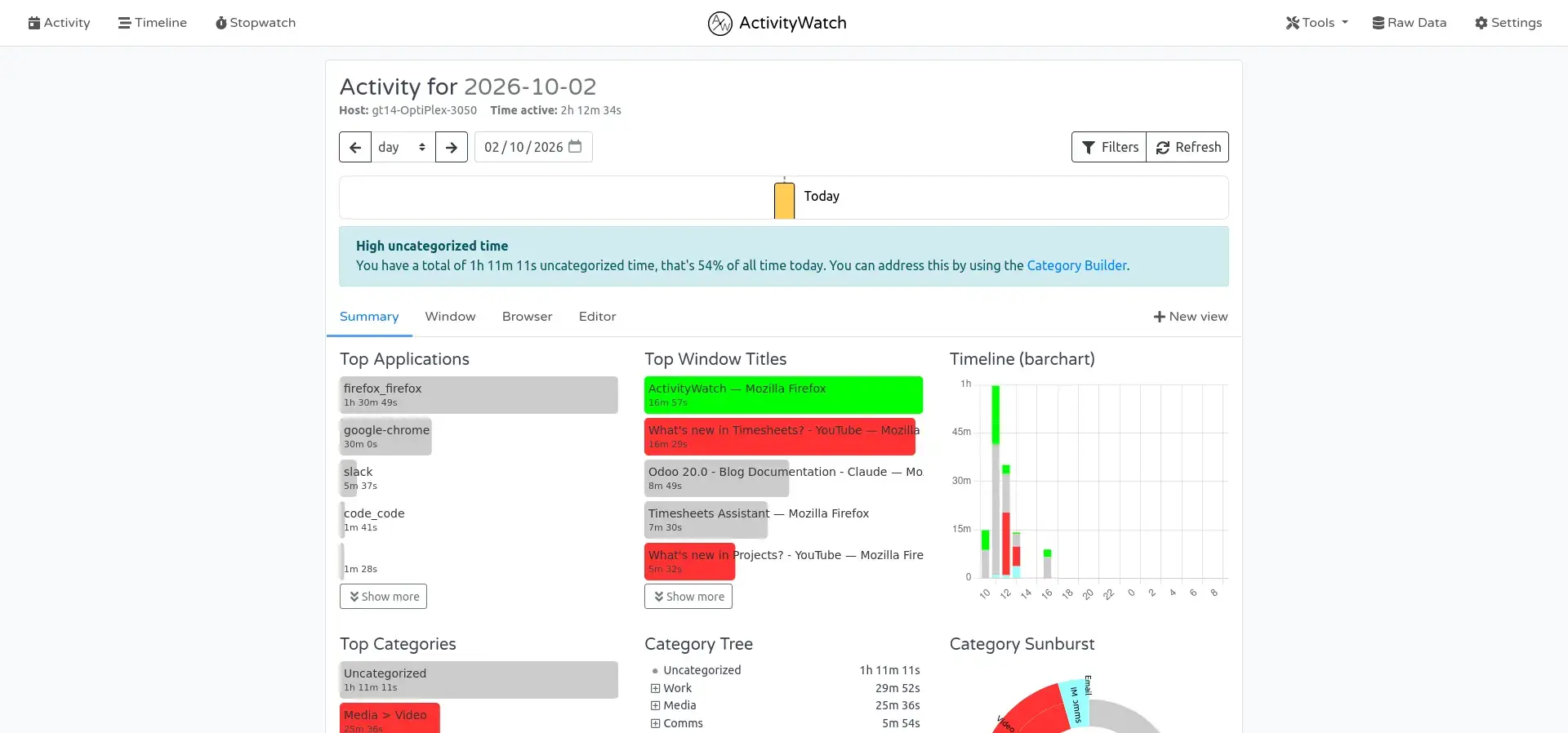
The daily summary provides an overview of where computer time was spent.
This information is later used by the Timesheet Assistant to help generate suggestions.
Review the Activity Timeline
ActivityWatch also provides a detailed timeline of recorded activity.
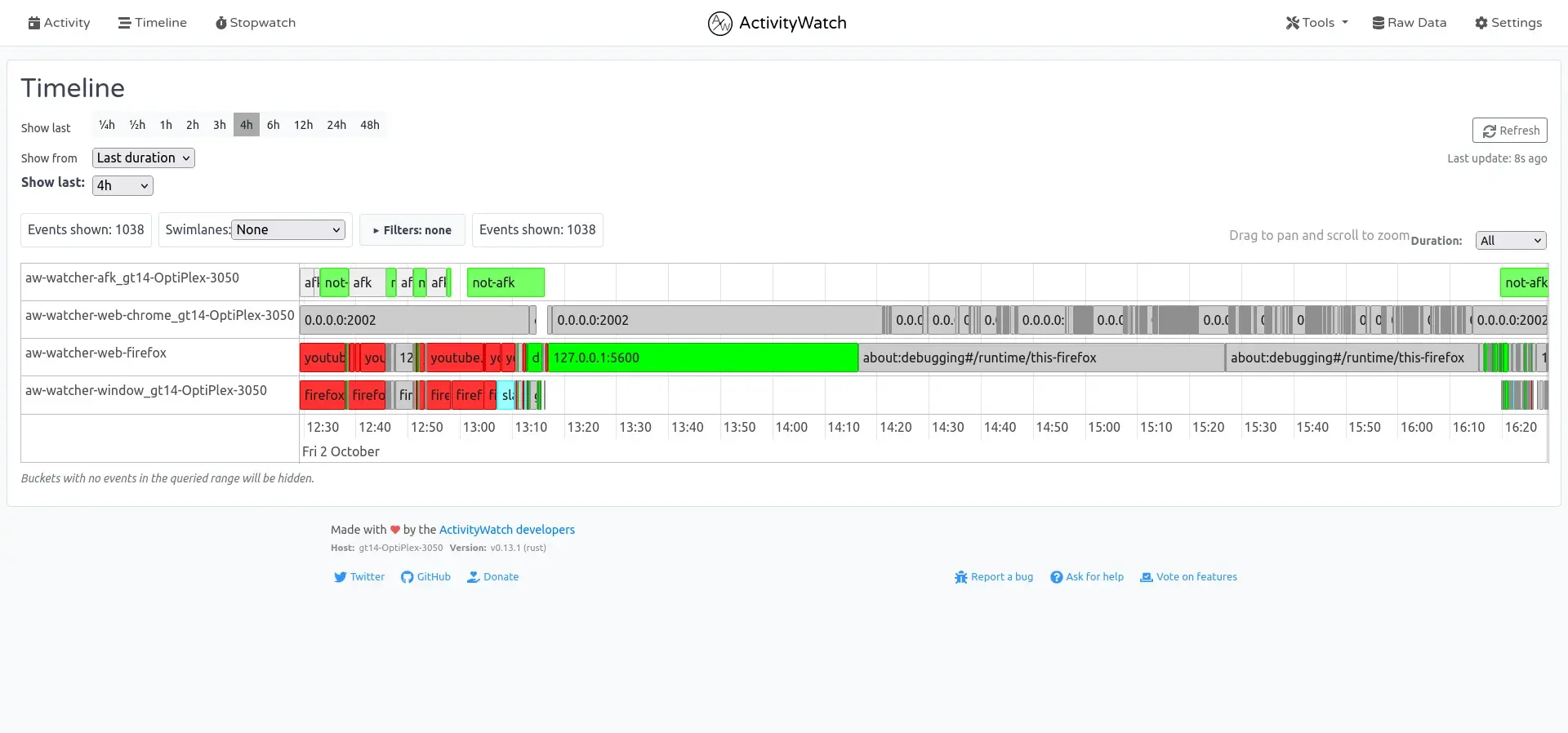
This timeline can help users understand why a particular activity suggestion appears in the Timesheet Assistant.
Review ActivityWatch Settings
ActivityWatch includes additional settings for managing the local activity-tracking environment.
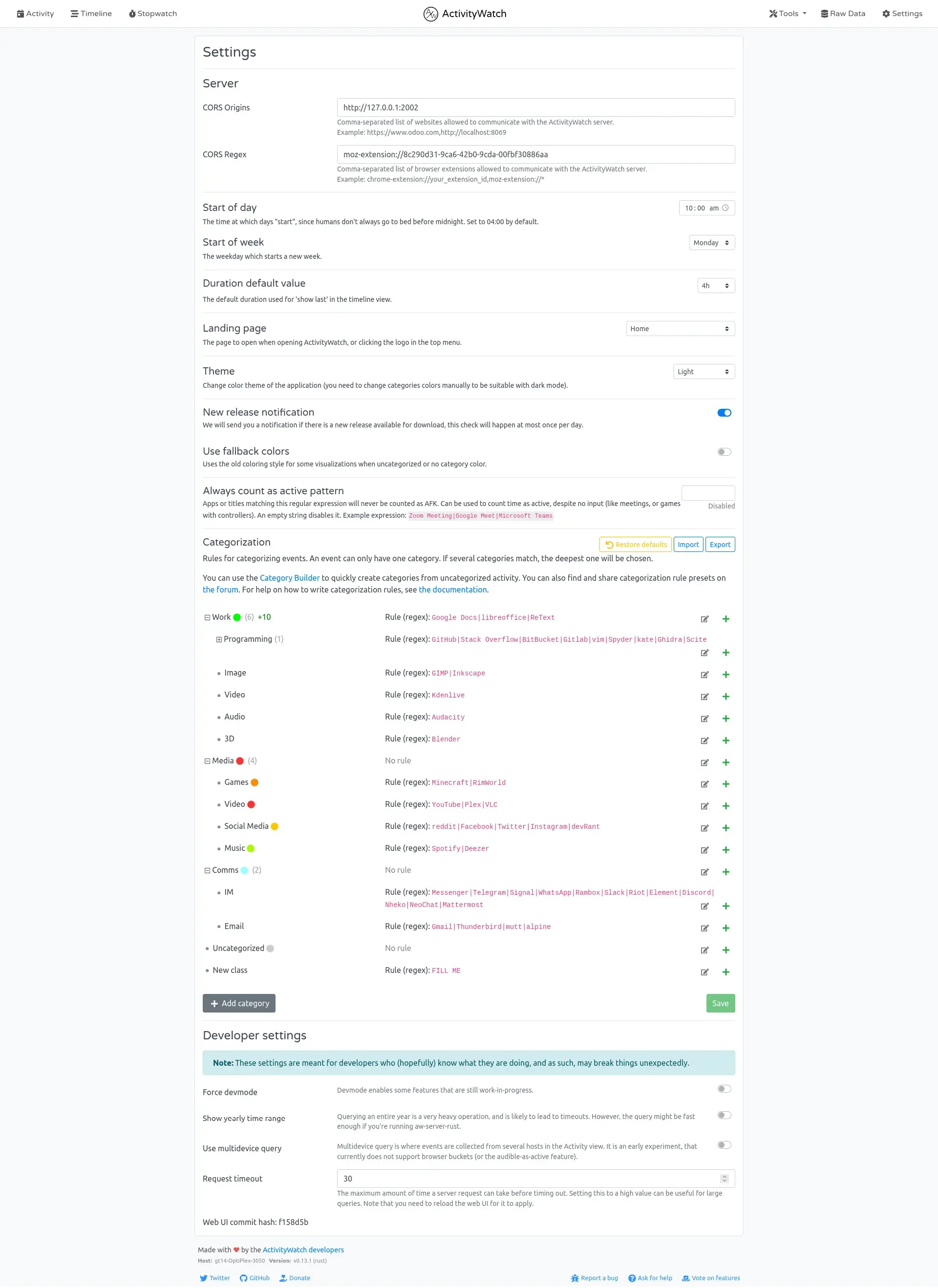
Depending on the organization's requirements, administrators or advanced users can review the available categorization and configuration settings.
For the standard Odoo integration, however, the primary requirement is establishing the connection between ActivityWatch and Odoo.
Stage 6 – Configure Assistant Rules
Raw activity information is not always suitable as a timesheet description.
For example, ActivityWatch may capture a website address, application name, or window title that does not clearly explain the work performed.
Assistant Rules help convert these activity patterns into useful timesheet suggestions.
A rule can define:
- Rule name
- Activity type
- Matching pattern
- Description template
Review the Default Assistant Rules
Odoo provides rules that can identify common types of work activity.
Examples include:
- Development
- Messaging
- Documents
- Spreadsheets
- Presentations
- Meetings
- Odoo activity
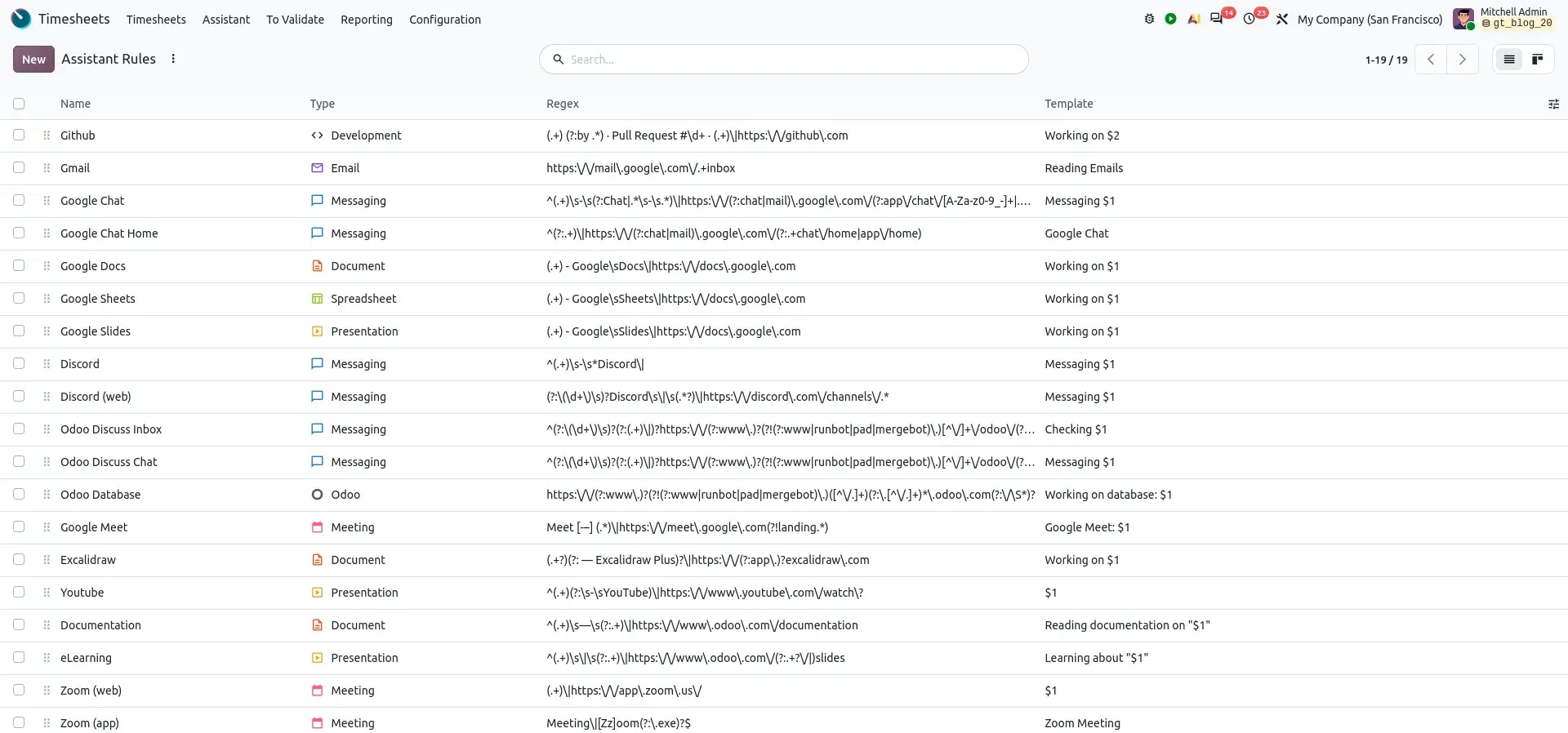
For example, an email-related activity can be converted into a suggestion such as Reading Emails.
A document-related rule can use the document information to create a more meaningful activity description.
How Assistant Rules Process Activity
The basic process is:
This makes raw device activity easier for employees to understand when reviewing their suggestions.
Configure Rule Sharing
Assistant Rules can be configured according to how broadly they should be available.
Depending on the configuration, a rule can be:
- Shared with everyone
- Shared with selected users
- Shared with groups
- Kept private
This allows organizations to create common rules while still supporting user-specific requirements.
Configure Side Activities
Some activities are short interruptions rather than the employee's primary work.
For example:
- Checking messages
- Reviewing notifications
- Quickly checking an email
Such activities can be treated as Side Activities when appropriate.
This helps distinguish secondary interruptions from longer primary activities.
Configure Time Thresholds
Assistant Rules can also use time thresholds.
A threshold determines how long an activity needs to occur before it becomes relevant for a suggestion.
This can help prevent very short activities from creating unnecessary suggestions.
Stage 7 – Review Activity Suggestions
Once ActivityWatch is connected and the relevant Assistant Rules are configured, the Timesheet Assistant can display activity-based suggestions.
Users should review these suggestions before creating timesheets.
A suggestion may contain information such as:
- Description
- Date
- Time
- Duration
- Project
- Task
The employee can determine which activities are relevant and should become official timesheet entries.
Review an Individual Suggestion
A user can select a suggestion and assign it to the appropriate project and task.
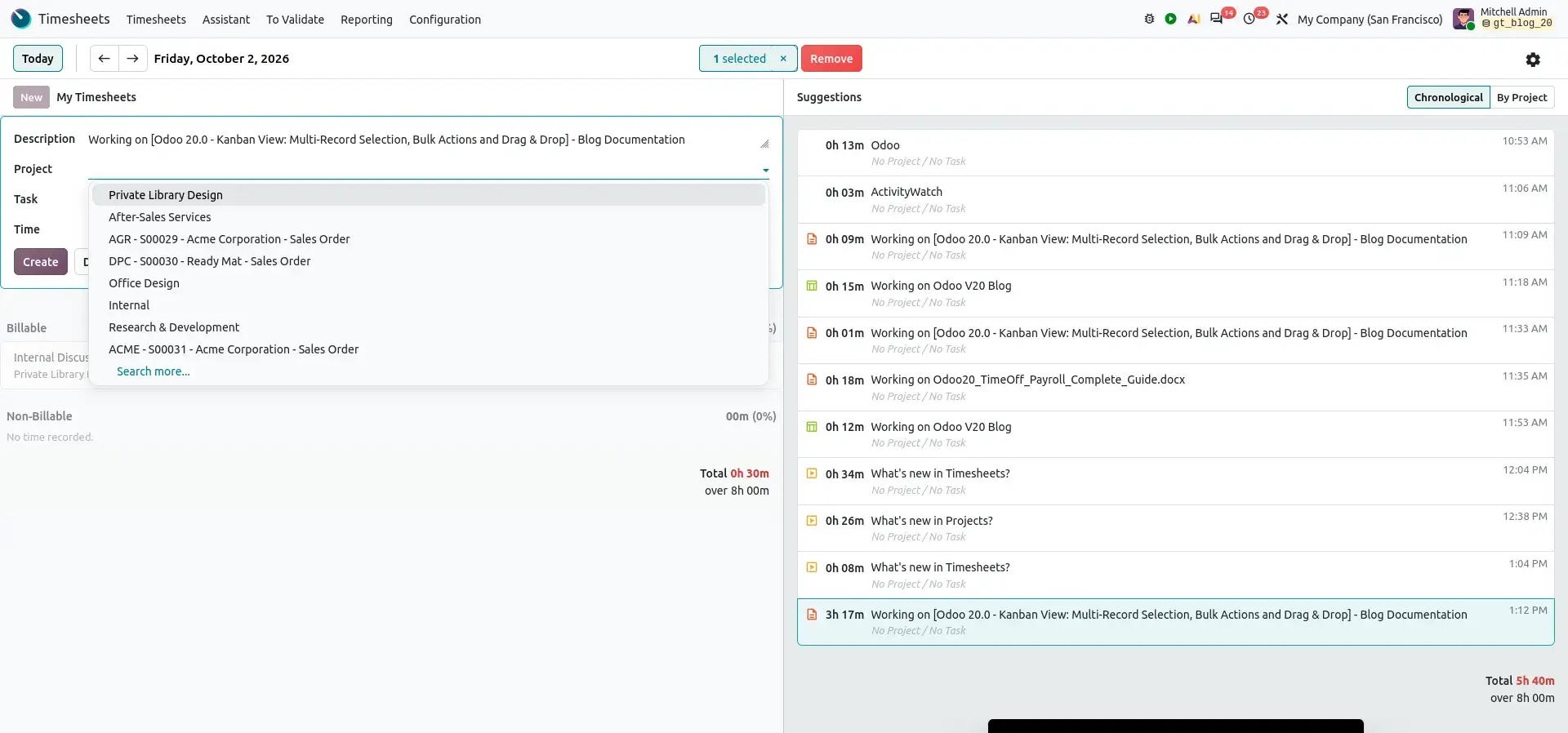
This review step is important because not every detected computer activity necessarily represents billable or project work.
Combine Multiple Suggestions
Related activities can also be combined into one timesheet entry.
For example, several related training videos can be selected and merged into a single Training activity.
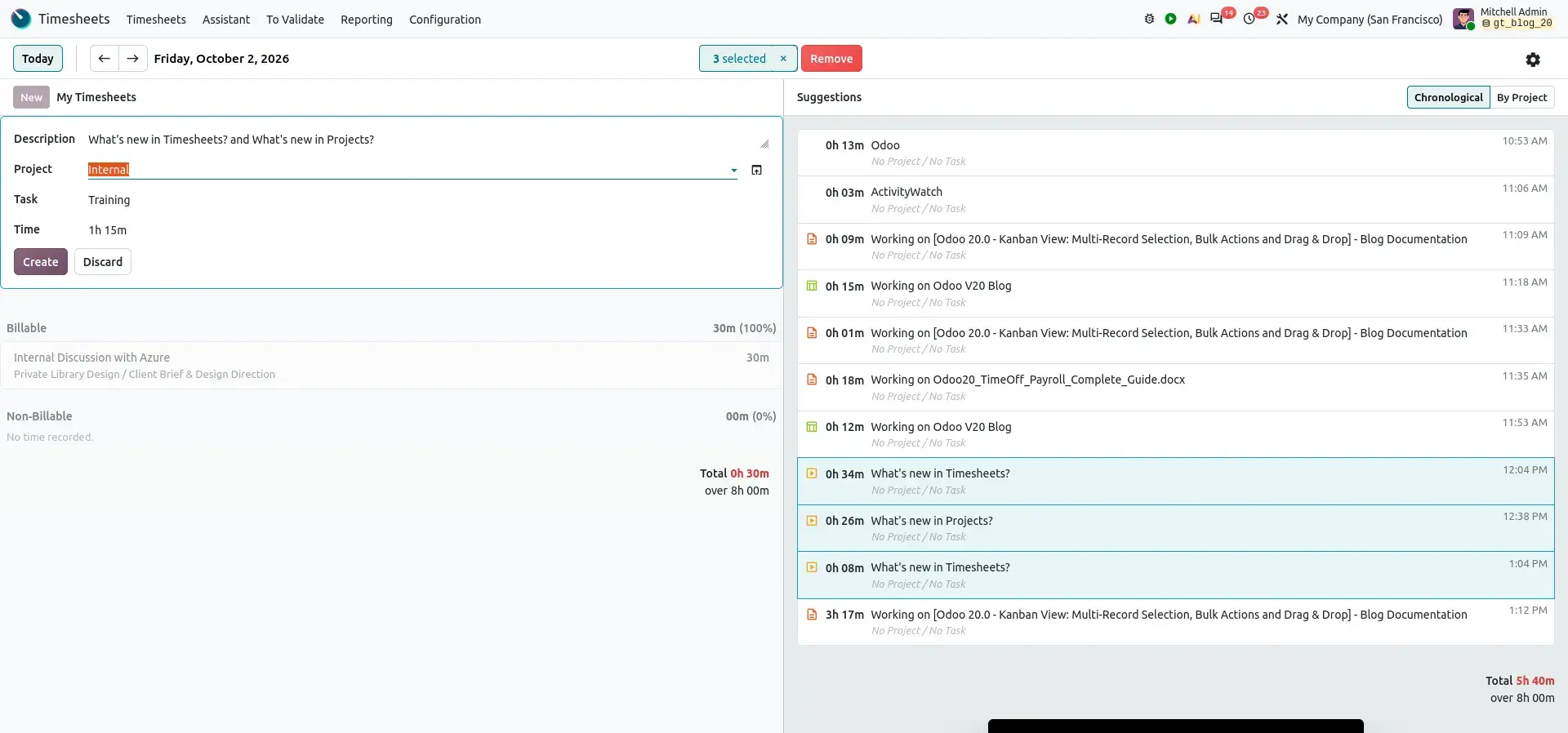
Combining related suggestions can keep the final timesheet concise while preserving the total time spent.
Stage 8 – Create Timesheet Entries
After reviewing the suggestions, the employee can select the appropriate project and task and create the timesheet.
The workflow is:
The Create action converts the selected suggestion into a timesheet entry.
Suggestions that are not relevant can instead be removed.
This ensures that the employee has an opportunity to review the information before it becomes part of the Odoo timesheet record.
Timesheet Assistant End-to-End Workflow
The complete implementation and daily usage process can now be summarized as:
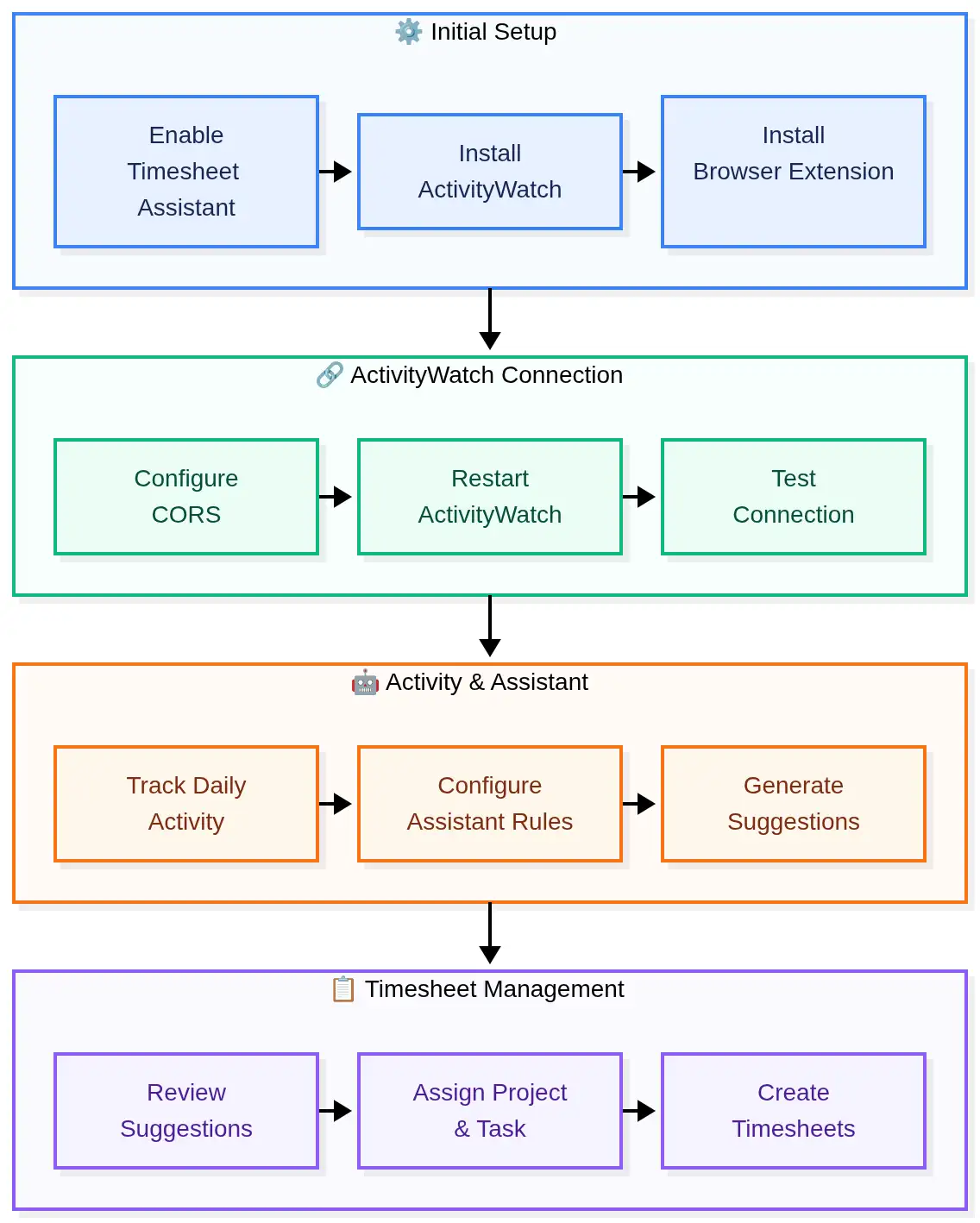
This workflow separates activity tracking from timesheet creation.
ActivityWatch records activity locally, while the employee reviews the resulting suggestions before creating the official Odoo timesheet entries.
Timesheet Assistant and Top-Bar Timer
The Timesheet Assistant does not replace the top-bar timer.
Both methods can be used together.
| Method | How It Works | Typical Use |
|---|---|---|
| Top-Bar Timer | Employee manually starts and stops the timer | Precise tracking of a known task |
| Timesheet Assistant | ActivityWatch generates suggestions | Reconstructing and reviewing daily activity |
| Manual Timesheet | Employee enters time manually | Corrections or retrospective entries |
For example
An employee may use the top-bar timer for a scheduled customer project and later use the Timesheet Assistant to identify work that was performed without starting the timer.
Use Cases
Use Case 1: Consulting Teams
Consultants often move between meetings, emails, research, documents, and customer projects.
The Assistant can help reconstruct activities that may otherwise be forgotten during manual timesheet entry.
Use Case 2: Remote Teams
Employees working remotely can review their daily activity rather than relying entirely on memory when completing their timesheets.
Use Case 3: Software Development Teams
Developers frequently switch between development environments, browsers, documentation, project tools, and communication applications.
Assistant Rules can help turn these activities into more meaningful suggestions.
Use Case 4: Professional Services
Professional service teams can use the Assistant alongside manual time tracking to improve the completeness of project-time records.
Business Benefits
The Timesheet Assistant helps users review activity-based timesheet suggestions generated through ActivityWatch integration. Users can review the suggested activities, assign the appropriate project and task, and create timesheet entries.
ActivityWatch tracks supported computer activity locally and provides activity information that the Timesheet Assistant can use to suggest timesheet entries. Users can review these suggestions in Odoo before adding them to their timesheets.
ActivityWatch provides activity information for timesheet suggestions. Users should review the suggestions and confirm the relevant project, task, description, and time before creating the timesheet entries.
Assistant rules help determine how tracked activities are matched to useful timesheet descriptions or suggestions. Rule configuration and sharing options depend on the features available in your installed Odoo version and configuration.
Odoo's SaaS 19.3 documentation states that activity data is processed locally on the user's device. Review the documentation for your deployed version to confirm how activity information is collected, processed, and used by the integration.
Before vs. After
| Area | Traditional Approach | With Timesheet Assistant |
|---|---|---|
| Activity tracking | Employee remembers activities | ActivityWatch tracks activity locally |
| Time identification | Primarily manual | Activity can generate suggestions |
| Descriptions | Employee writes them | Rules can generate descriptions |
| Forgotten activities | Difficult to reconstruct | Activity history provides context |
| Multiple activities | Enter separately | Related suggestions can be combined |
| Final timesheet | Manual entry | Employee reviews and creates |
FAQ
The Timesheet Assistant is a Timesheets feature that uses activity information to provide suggestions for potential timesheet entries.
ActivityWatch is the local activity-tracking application used with the Timesheet Assistant to record computer activity.
No. The employee reviews the suggestions and chooses which activities to create as timesheets.
Depending on the installed components and configuration, it can track applications, window activity, browser activity, websites, and activity duration.
Assistant Rules identify activity patterns and convert them into meaningful suggestions for the user.
Odoo 20 Timesheets: What's New in Timesheet Assistant & ActivityWatch