Purchase management can quickly become a series of small tasks that slow your team down. Re-entering the same vendor details, adjusting delivery dates, checking vendor quality, and reviewing costs across a long order all add extra work.
Odoo 20 introduces several Purchase improvements designed to make these tasks easier. You can save delivery terms on vendors, manage delivery dates more flexibly, track vendor quality from incoming goods, organize long-term purchase agreements with sections and notes, and view subtotals for each section of an order.
Together, these updates make purchasing more organized and give teams a clearer view of orders, costs, deliveries, and vendor performance.
What's New in Odoo 20 Purchase?
Five purchasing improvements are worth exploring in Odoo 20. Below is a quick overview of the updates and how they help procurement teams.
Vendor Incoterm defaults
Save Incoterm details once and let every order pick them up
Expected Arrival override
Clearly state that the original supplier promise must be recorded manually in the chatter if needed.
Vendor Quality Rate
Turn incoming goods checks into a view of supplier reliability
Blanket order sections and notes
Organize long-term agreements with sections and notes
Purchase order section subtotals
Every section of a purchase order shows its own total
Delivery Terms Once on the Vendor
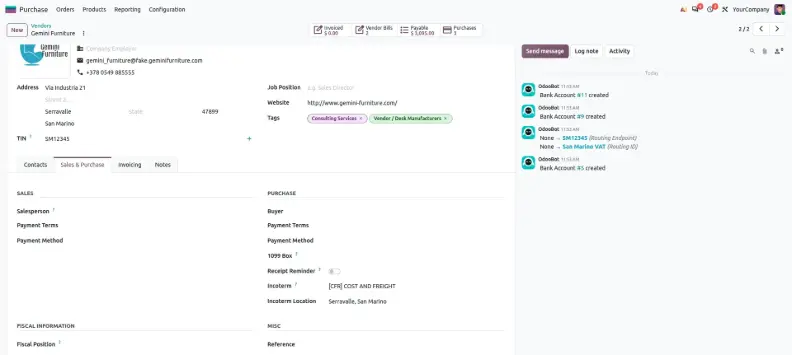
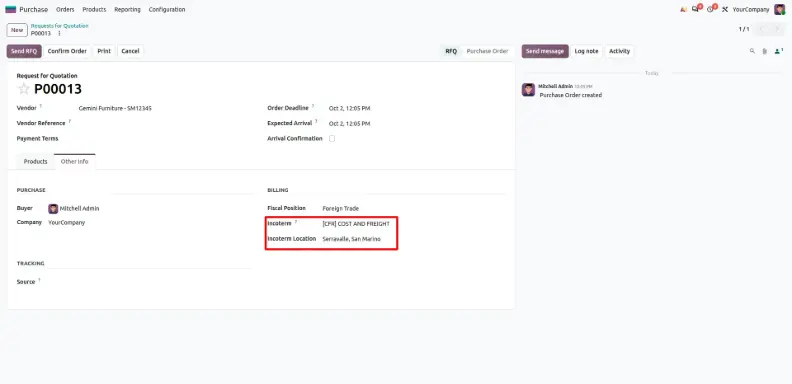
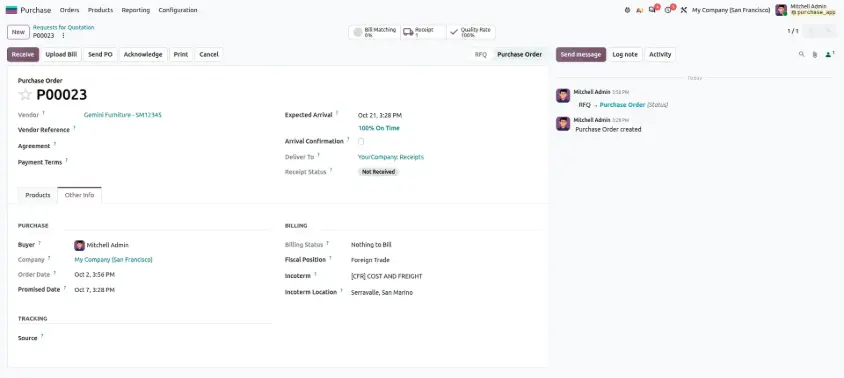
Odoo 20 lets you keep Incoterm and Incoterm Location details right on the vendor's contact record. From then on, each new request for quotation or purchase order for that supplier suggests those values on its own.
Saving Incoterm and Incoterm Location details on the vendor record reduces repetitive data entry and helps maintain consistent delivery terms across requests for quotation and purchase orders.
Configuration Steps
A few one-time steps get the vendor defaults working before your next order.
Operational Instructions
- Navigation path: Purchase ▸ Vendors ▸ [Select Vendor].
- Open the Sales & Purchase tab and scroll down to the Purchase section.
- Choose the Incoterm (for instance FOB, CIF, EXW or DAP) and enter the Incoterm Location, such as Port of San Marino.
- Save the vendor. Those values now act as the default for every future order with this supplier.
After saving, the terms travel through your purchasing documents without any retyping:
- Request for Quotation (RFQ): appears in the Other Info tab.
- Purchase Order: carried across automatically once the RFQ is confirmed.
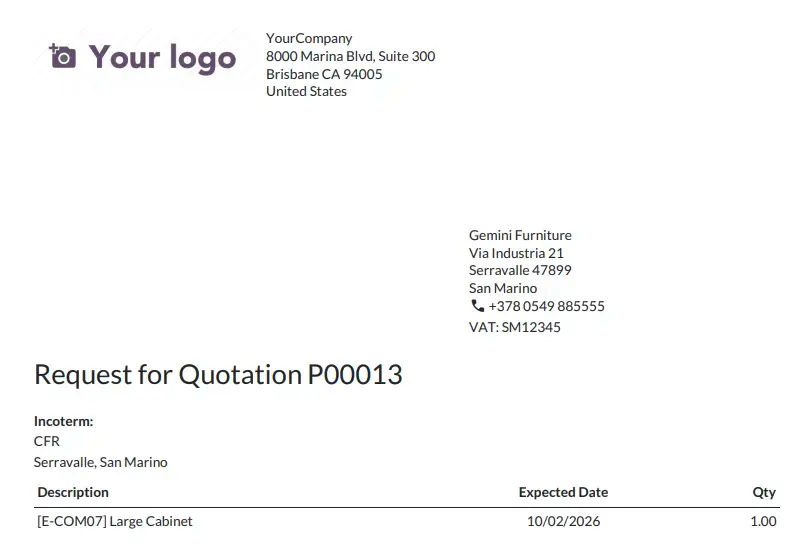
- Printed or PDF copy: included in the terms section the vendor receives.
Change the Expected Arrival and Still Keep the Vendor's Original Date
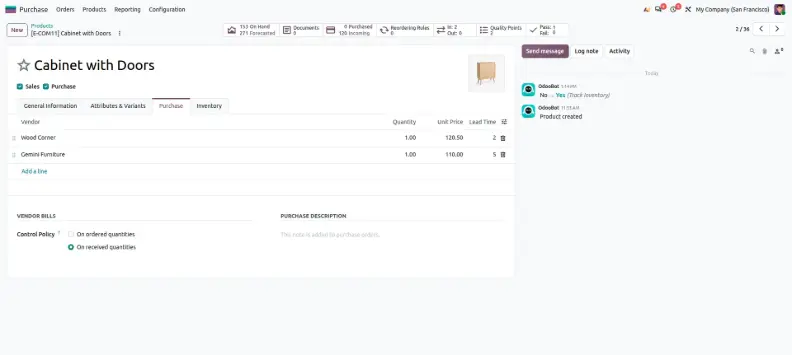
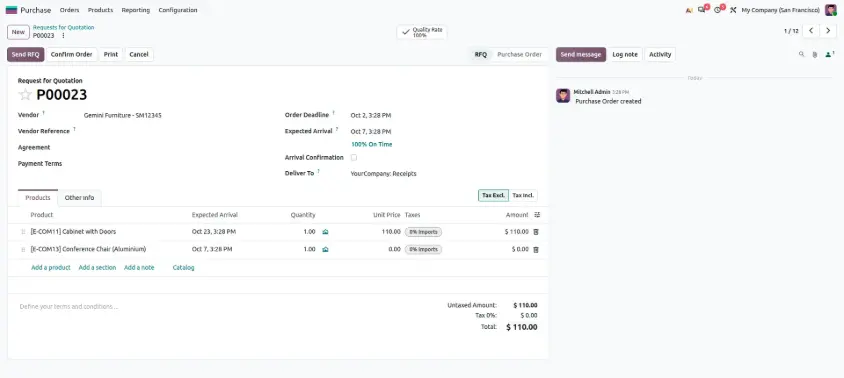
Edit the Expected Arrival date directly from a purchase order when the delivery schedule changes, while using the vendor's delivery lead time to calculate the original expected date and supporting on-time delivery tracking.
Deliveries slip all the time. If a new date simply replaces the supplier's original promise, you lose the evidence you need to judge how dependable that supplier really is.
Configuration Steps
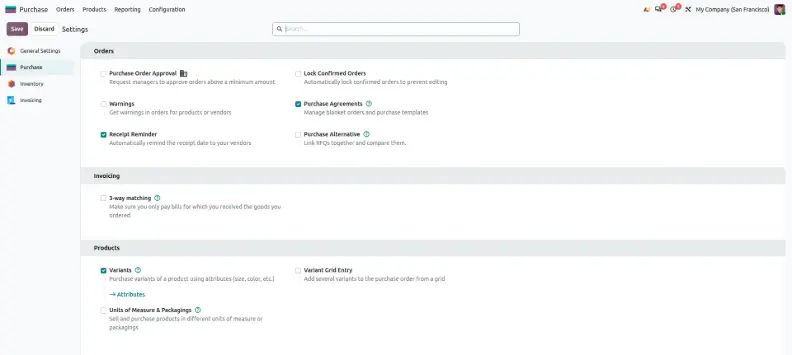
Sensible lead times and reminders make the expected arrival date more accurate from day one.
Operational Instructions
- Navigation path: Purchase ▸ Orders ▸ [Open Order].
- Click the Expected Arrival field in the order header.
- Enter the new working date and save the order.
- Add a Log note in the chatter that records the date the supplier originally promised, so the promised and working dates can be compared later.
See a Vendor Quality Score from the Checks on Their Goods
With the Quality app installed next to Purchase, goods arriving from a vendor can go through quality checks. Odoo 20 gathers the pass and fail results of those checks into a vendor quality score, shown on the vendor form as the Quality Rate button, so a supplier's reliability is visible straight from the partner record.
Configuration Steps
Tracking supplier quality requires the Quality app and at least one control point for incoming receipts.
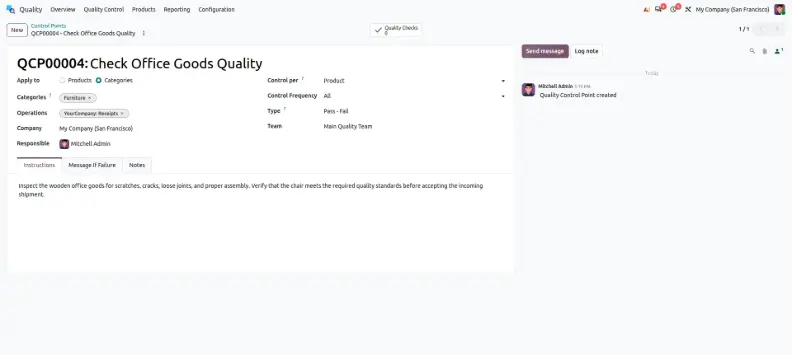
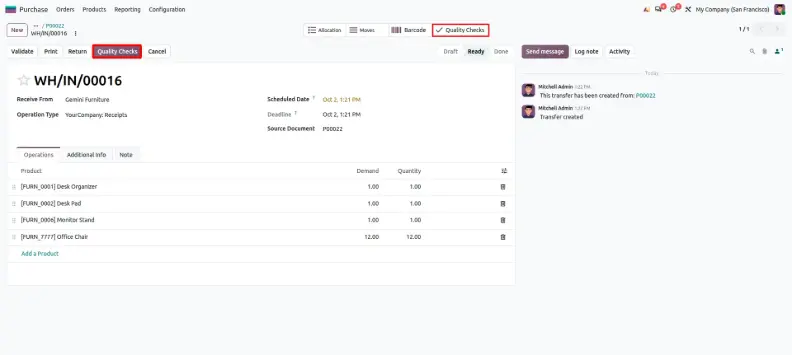
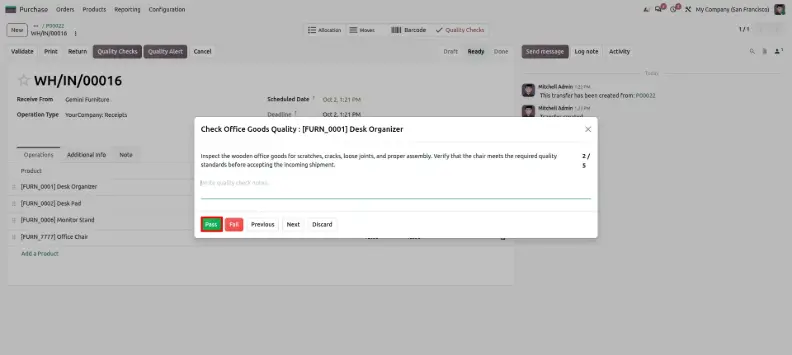
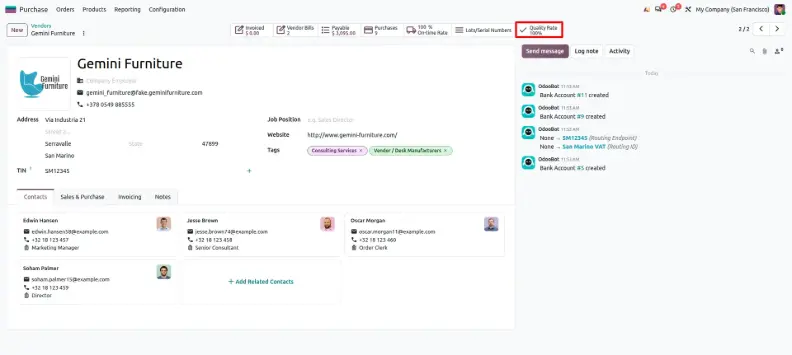
Procurement managers can now compare suppliers before placing a new order or renewing a blanket agreement, instead of treating quality history as something only the quality team can see.
The vendor quality figure depends on the Quality app and the control points you define, so what you see varies with your setup and edition.
Add Sections and Notes to Blanket Orders
A blanket order (purchase agreement) records the products and prices you agreed with a vendor. In Odoo 20, the Products tab shows Add a section and Add a note beside Add a product. Sections gather related lines, for example by product family or delivery phase, while notes hold free-text remarks such as delivery conditions or price comments.
Long-term agreements often span several product families or delivery phases. Sections and notes let buyers group the lines clearly and leave short instructions right on the agreement.
Configuration Steps
Sections and notes live among the agreement lines, so setup is mostly a quick check.
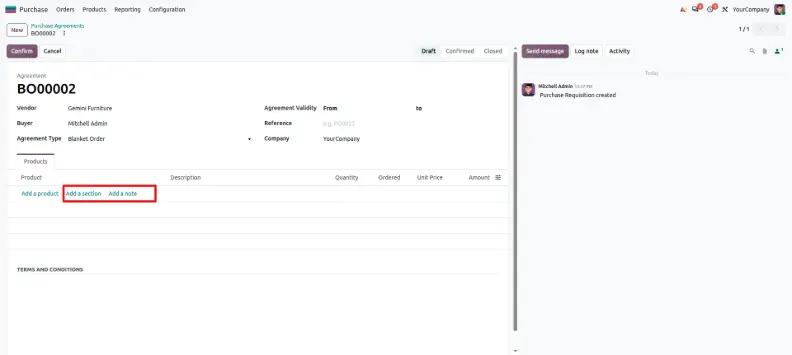
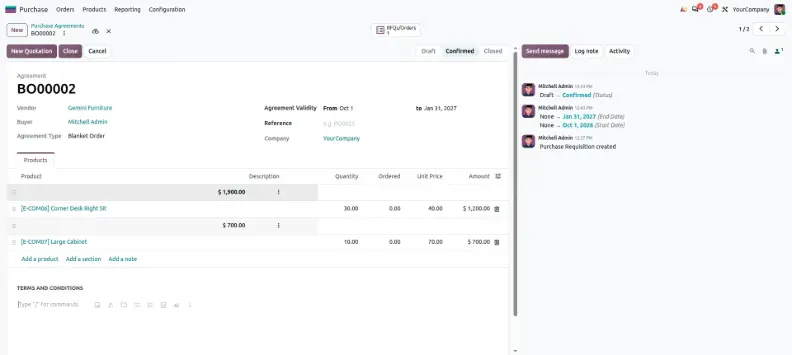
With sections and notes, even a long agreement stays easy to read and review.
Show a total on each section of the purchase order
Order lines can be grouped with Add section headers. In Odoo 20, sections and subsections can show a total for just their own lines, on top of the overall order total. Big, multi-category orders become easy to scan.
Configuration Steps
Section headers are ordinary order lines, so there is very little to set up.
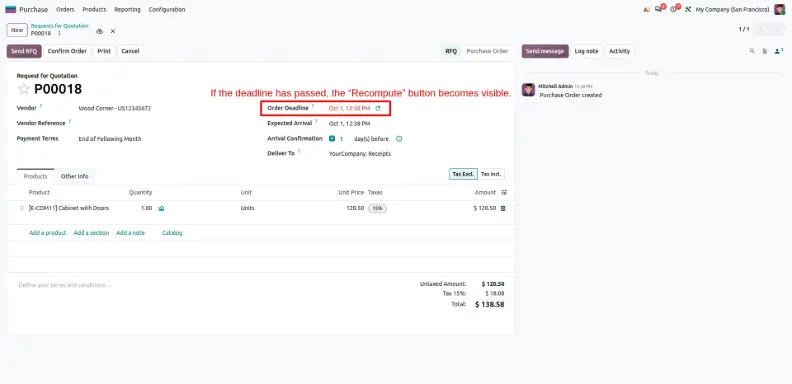
It is especially handy for large orders covering several categories, projects or delivery batches, because reviewers can check each group's cost without adding up lines by hand.
Recompute Expected Arrival When the Deadline Has Passed
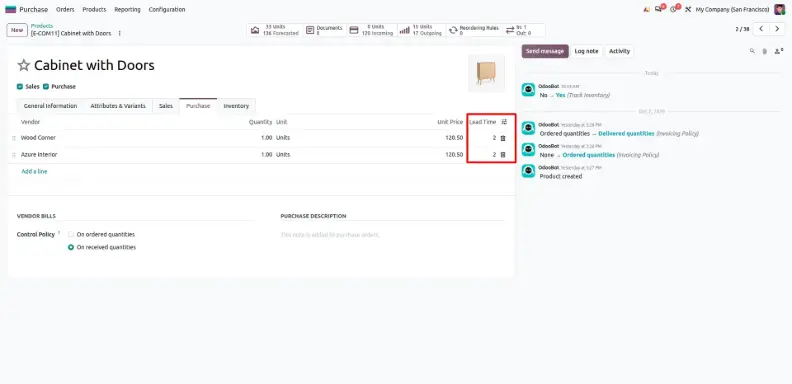
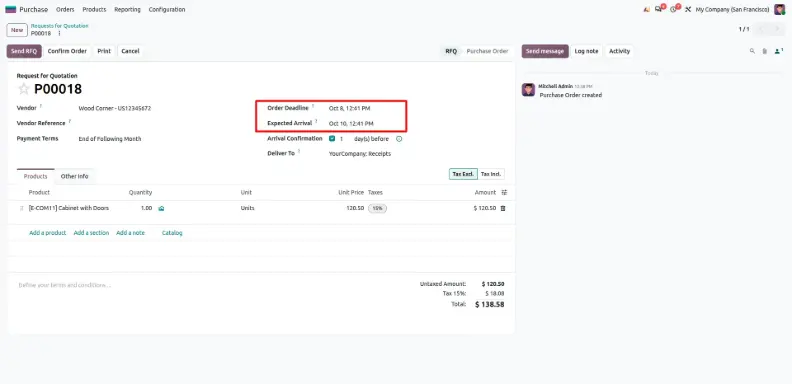
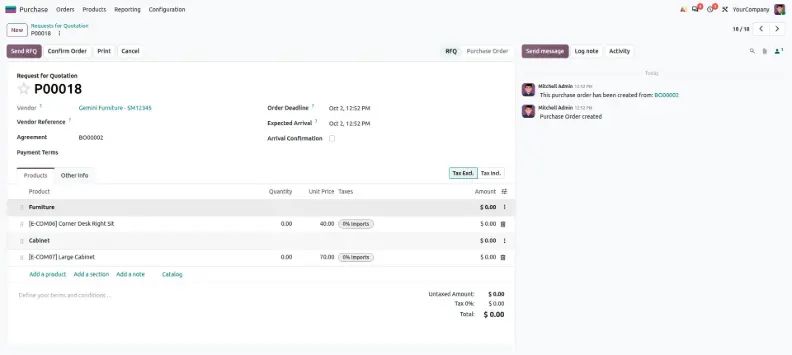
If an RFQ is not confirmed before the Order Deadline, the Expected Arrival date can end up being based on a deadline that has already passed. Odoo 20 lets you recompute the Expected Arrival in one click using the vendor Delivery Lead Time configured on each product and the current date. This refreshes the dates so planning, receipts, and reminders stay realistic.
Configuration Steps
How to Use
- Navigation Path: Purchase ▸ Orders ▸ Requests for Quotation ▸ [Open RFQ].
- Compare the Order Deadline with the Expected Arrival. If the deadline is in the past, the arrival dates may be out of date.
- Use the recalculate option so Odoo sets new expected arrival dates from the product lead times and today.
- Check the updated dates, then confirm the RFQ to turn it into a purchase order.
- Add a Log note in the chatter if the vendor's original quote date matters for later comparison.
Recomputing the expected arrival keeps planning, receipts, and reminders in step with the real delivery schedule. It also keeps on-time delivery figures meaningful when an RFQ has waited longer than planned.
Configuration Checklist
Use this short list to set up a test instance in the right order.
Previous Approach vs. Odoo 20 Summary
How These Features Change the Purchase Workflow
Taken together, the direction of Odoo 20 Purchase is a more connected process with far less repeated work:
Here is how a typical purchase can flow:
- Set up the vendor once: the Incoterm and Incoterm Location are stored on the vendor record.
- Create an RFQ or purchase order: the vendor's default terms are suggested automatically.
- Organize the order into sections: every section shows its own subtotal for easier review.
- Confirm the order and wait for goods: the expected arrival date can be adjusted later, while the supplier's original promise stays logged for comparison.
- Receive and check the goods: quality checks on incoming goods feed the vendor's quality score.
- Review supplier performance: quality results and date reliability inform the next order or agreement renewal.
Odoo 20 Purchase brings several practical improvements that make procurement more structured, transparent, and less repetitive. Vendor-level Incoterm defaults reduce repeated data entry, improved Expected Arrival handling preserves the supplier's original commitment, the option to recompute Expected Arrival keeps dates realistic when an order deadline has passed, Vendor Quality Rate provides clearer supplier performance visibility, sections and notes organize blanket orders, and section subtotals make large purchase orders easier to review. Together, these features create a more connected purchasing workflow that helps teams manage vendor terms, deliveries, arrival dates, quality, agreements, and costs more efficiently.
Odoo 20 Purchase: New Features & Improvements