Business Overview
Managing projects successfully requires more than creating tasks and assigning employees. Teams need clear responsibilities, effective scheduling, accurate time tracking, customer collaboration, and visibility into project profitability.
Odoo 20 Projects and Timesheets helps businesses coordinate project activities, track working hours, manage team responsibilities, and monitor project performance. This guide explores key Odoo 20 updates, practical workflows, and useful project management capabilities that can help teams improve visibility, accountability, and operational efficiency.
The new workflow connects project staffing, planning, time tracking, customer collaboration, and profitability analysis:
This article explores five key Odoo 20 Projects and Timesheets improvements:
- Top-Bar Timer for Time Tracking
- Project Roles and Template-Based Staffing
- Gantt Planning and Schedule Printing
- Customer Project Collaboration
- Dedicated Margin and Forecast Reporting
Odoo 20 Projects & Timesheets Workflow
The five improvements can be viewed as part of a complete project lifecycle:
Project Lifecycle
Each feature addresses a different part of the project-management process.
Business Process at a Glance
| Stage | Odoo Area | Main Activity |
|---|---|---|
| Top-Bar Timer | Timesheets | Track time without leaving the current screen |
| Project Roles | Project | Define responsibilities and assign team members |
| Gantt Planning & Print | Project | Plan, reschedule, and share the project schedule |
| Customer Collaboration | Project / Portal | Give customers controlled access to project information |
| Margin Reporting | Project Reporting | Review budget, actual and forecast profitability |
Feature 1 – Track Time from Anywhere with the Top-Bar Timer
Time tracking is an essential part of project management, particularly for businesses that bill customers based on employee time.
In Odoo 20, users can access the timesheet timer directly from the top bar, without having to open the Timesheets application separately.
This allows employees to start tracking time while they are already working on a project, task, board, or another Odoo screen.
Start a Timesheet from the Top Bar
The timer popover provides the main information required for a timesheet entry.
Users can:
- Enter a description of their work.
- Select a Project.
- Select a Task.
- Monitor the running time.
- Mark the time as Billable when applicable.
- Create or end the time-tracking session.
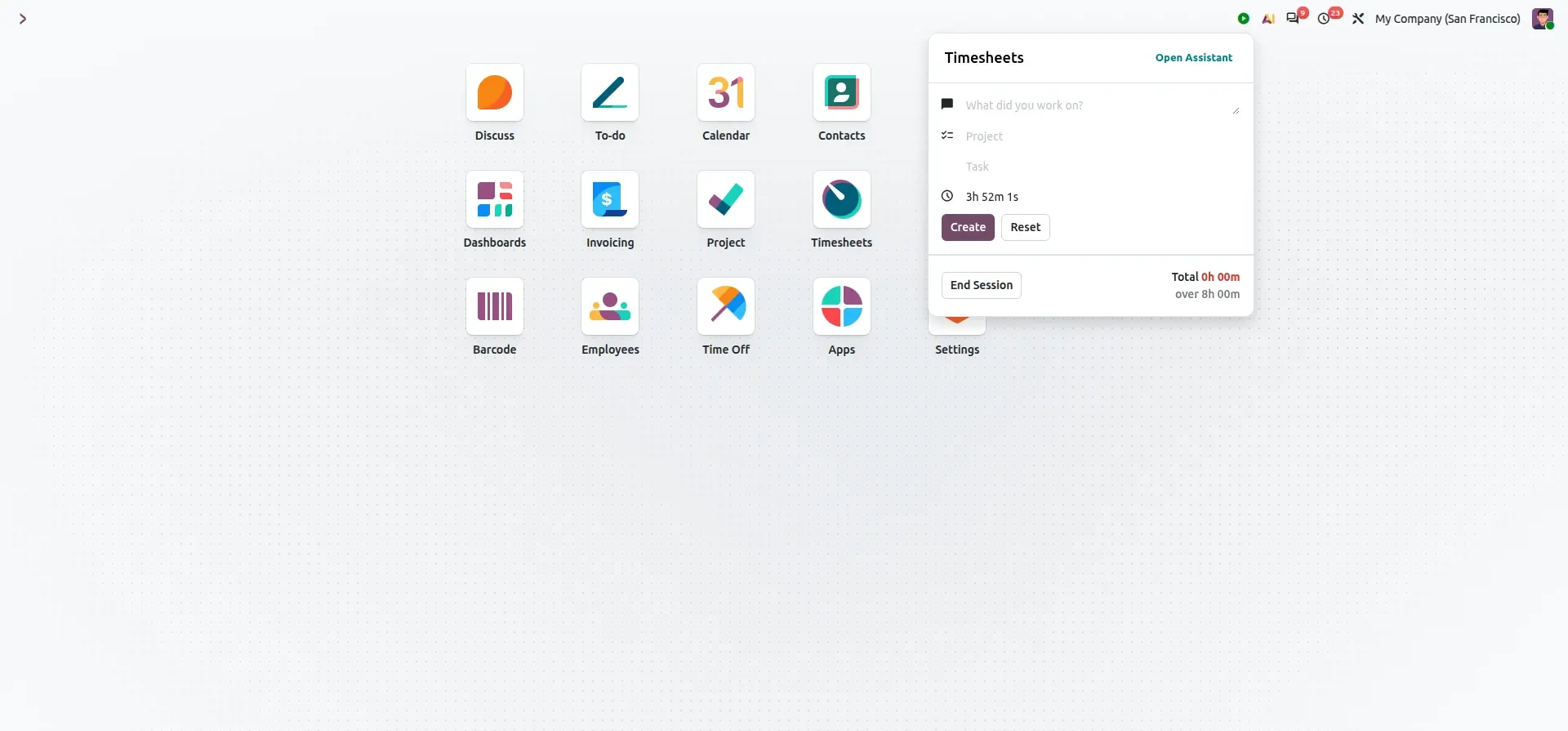
The timer makes time tracking available without interrupting the employee's current workflow.
Select the Project
The project selector allows the employee to choose the project associated with the work.
The list can include projects and sales-order-related projects.
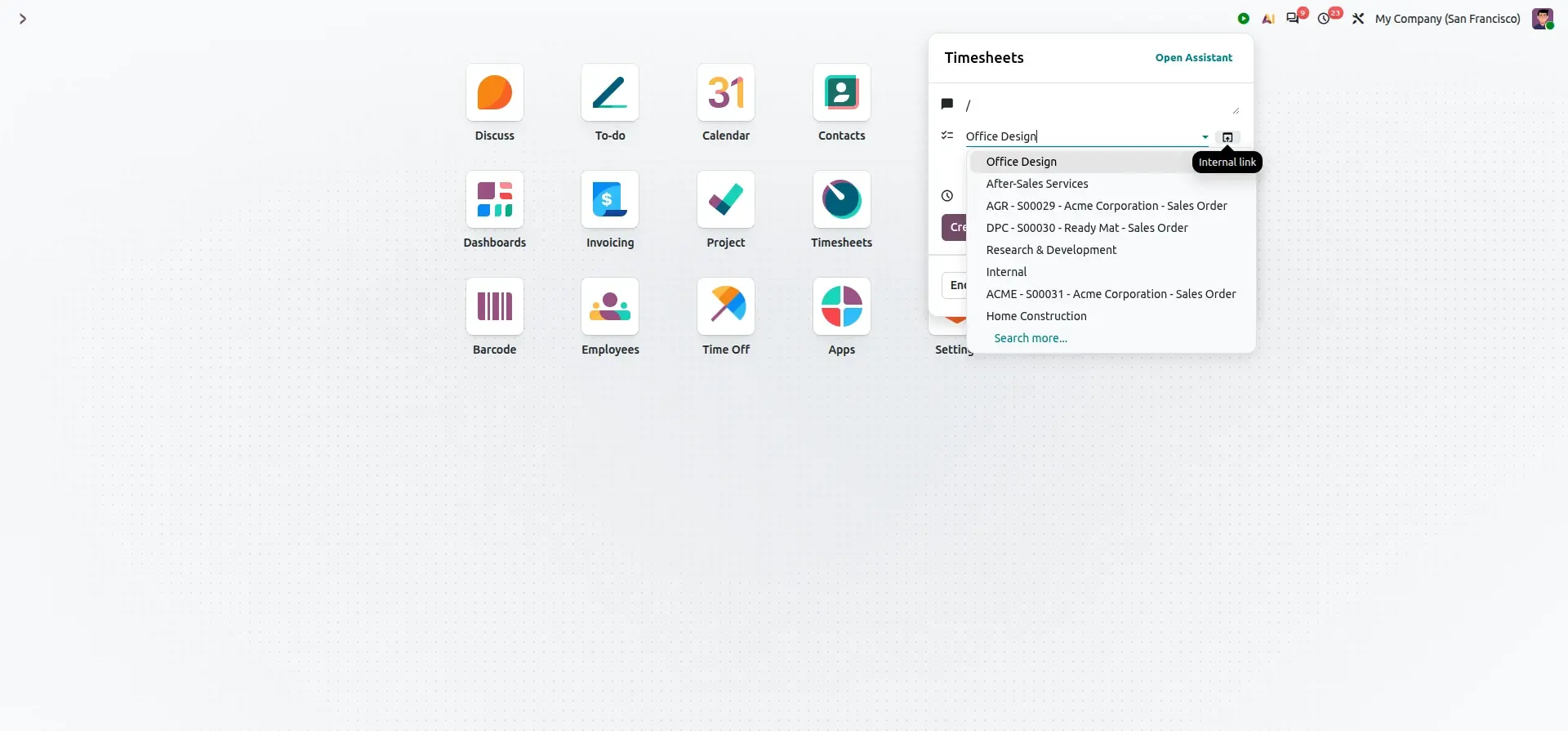
The project can be selected directly from the timer.
Open the Project from the Timer
An internal-link action is available next to the selected project.
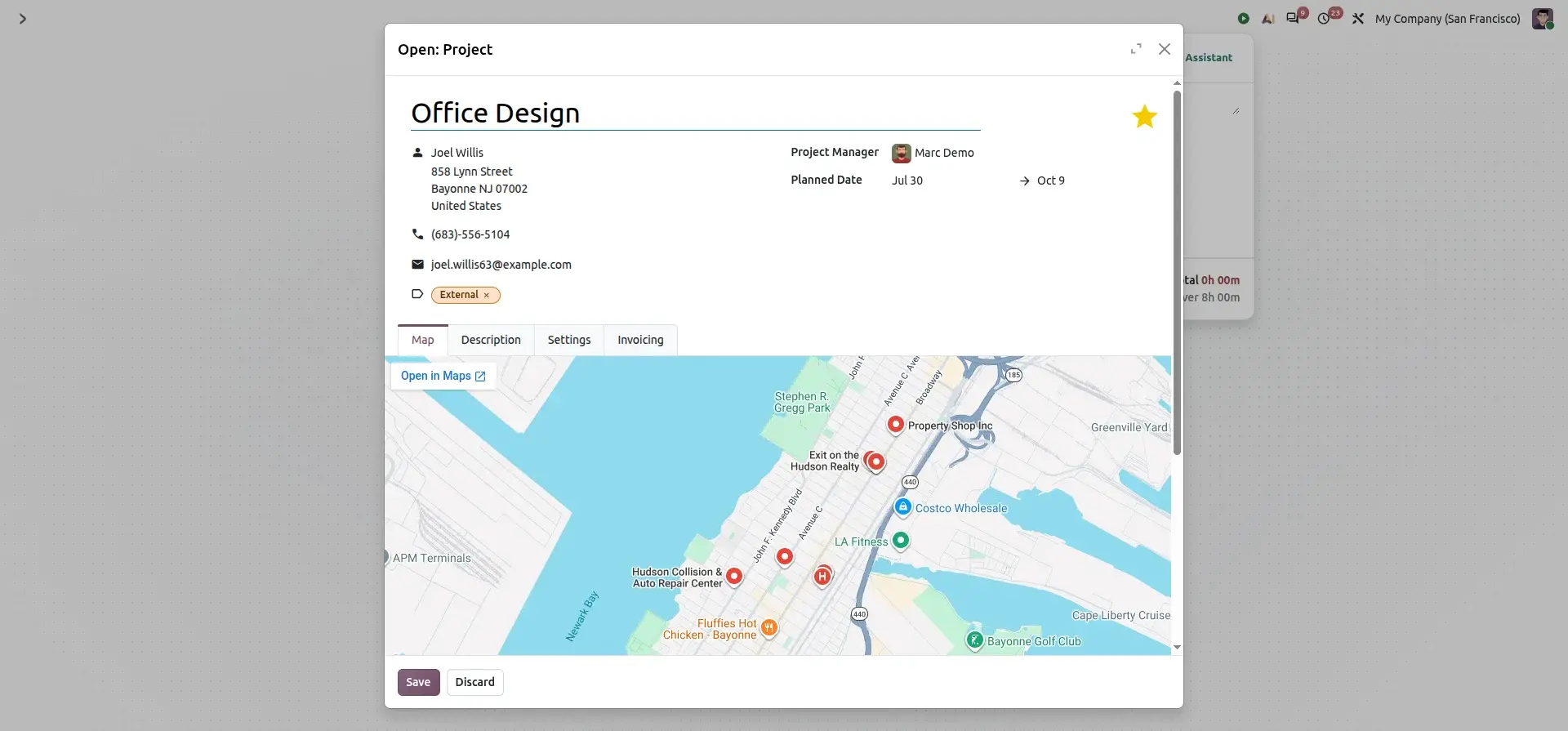
This allows users to move directly to the project when they need additional project information.
Select the Task
After selecting a project, the employee can select the appropriate task.
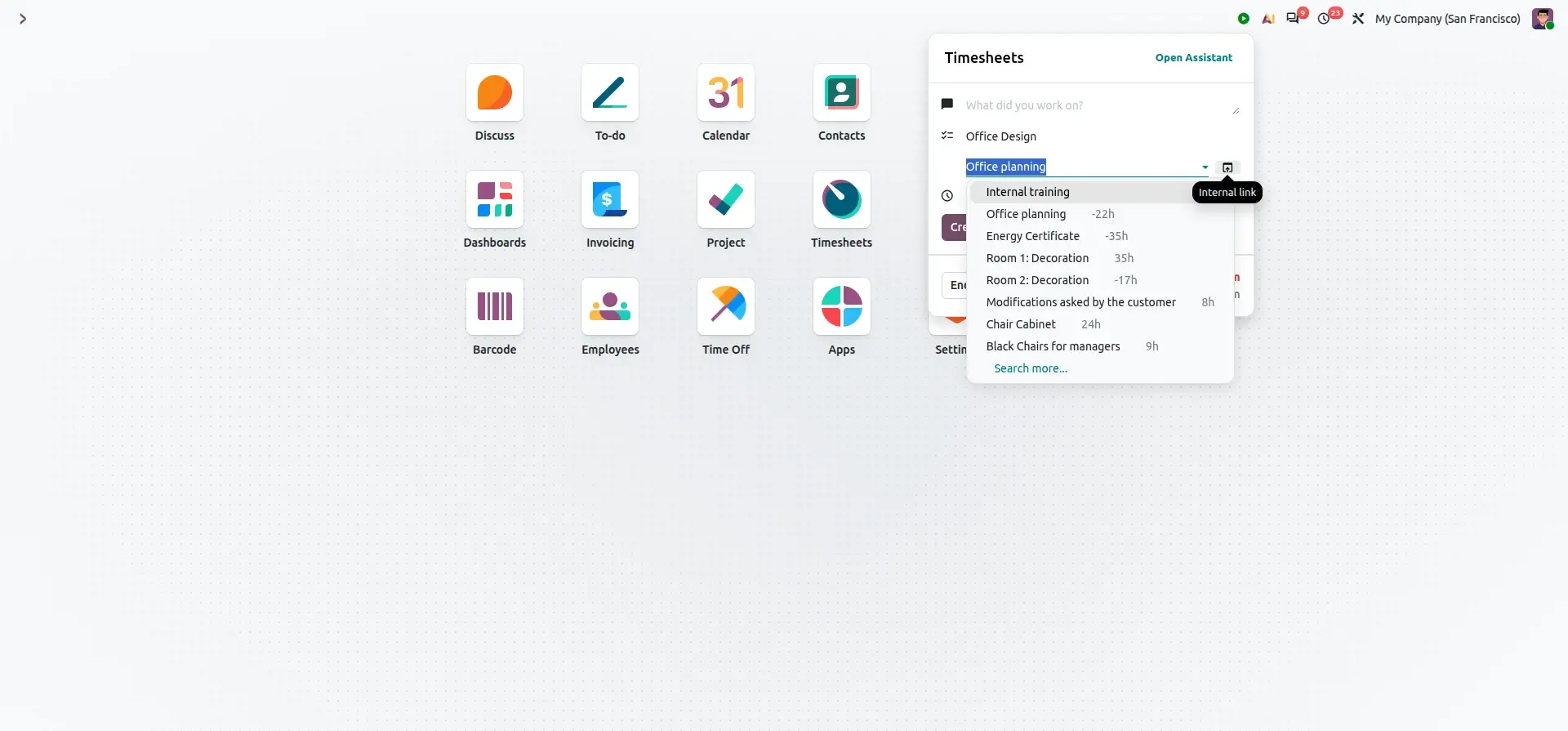
This keeps the timesheet connected to the correct project task.
Track Billable Time
Once a task is selected, the timer can display the Billable option.
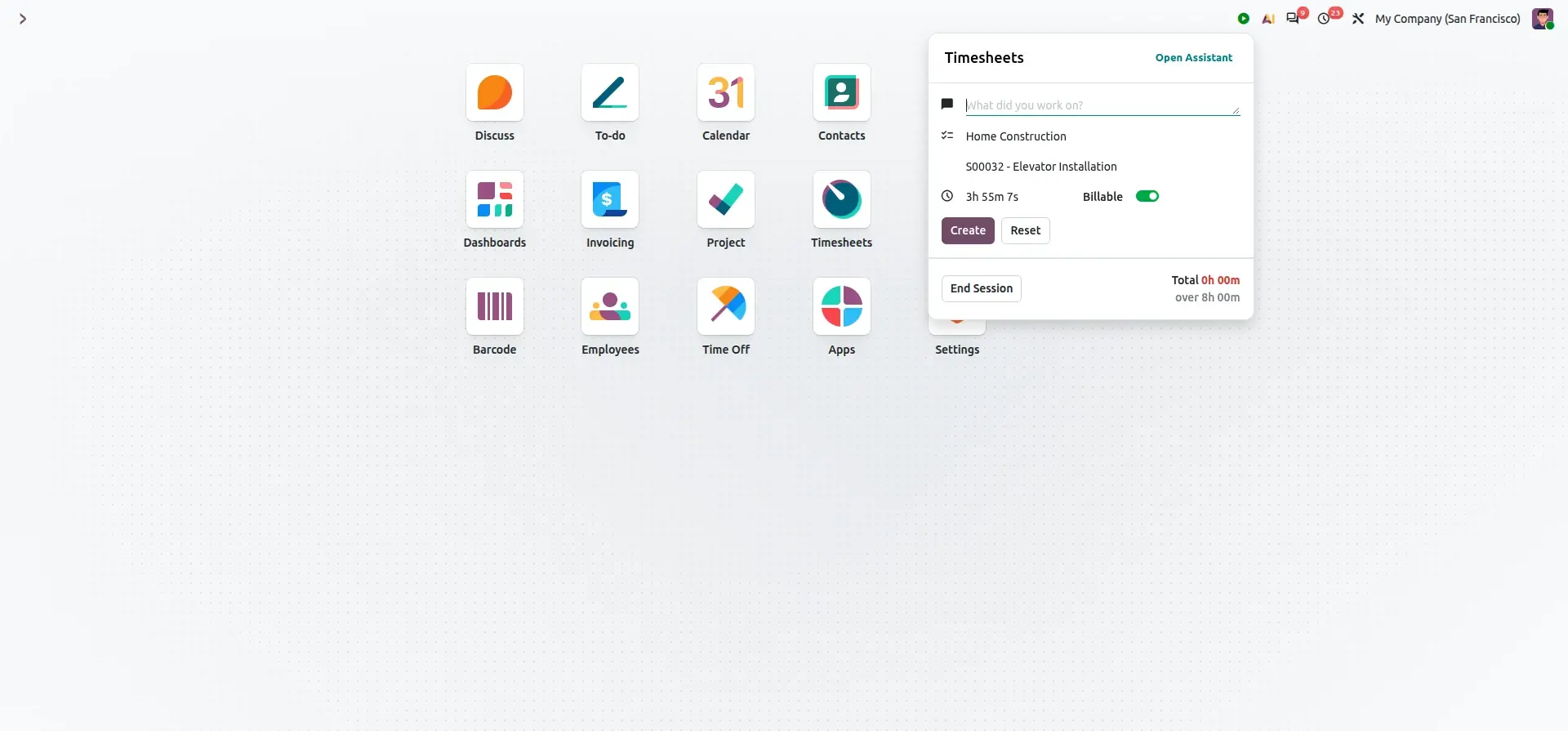
This is useful for service businesses that need to distinguish customer-billable work from internal project time.
Keep Working While the Timer Runs
The timer is not restricted to the Timesheets application.
Users can open it while working on other Odoo screens.
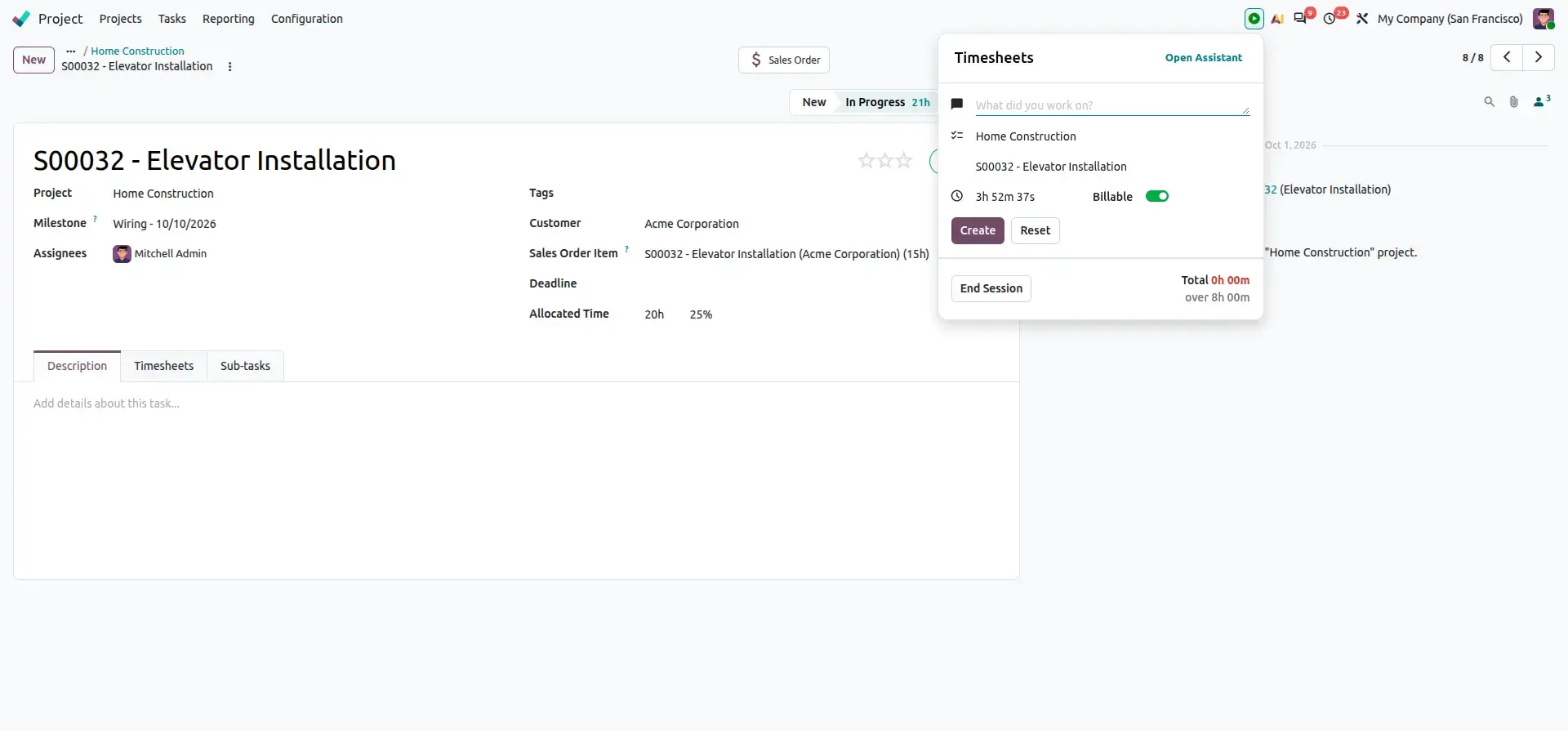
The timer remains accessible while the user moves through the Odoo interface.
View Recent Time Entries
The timer can also display recent entries.
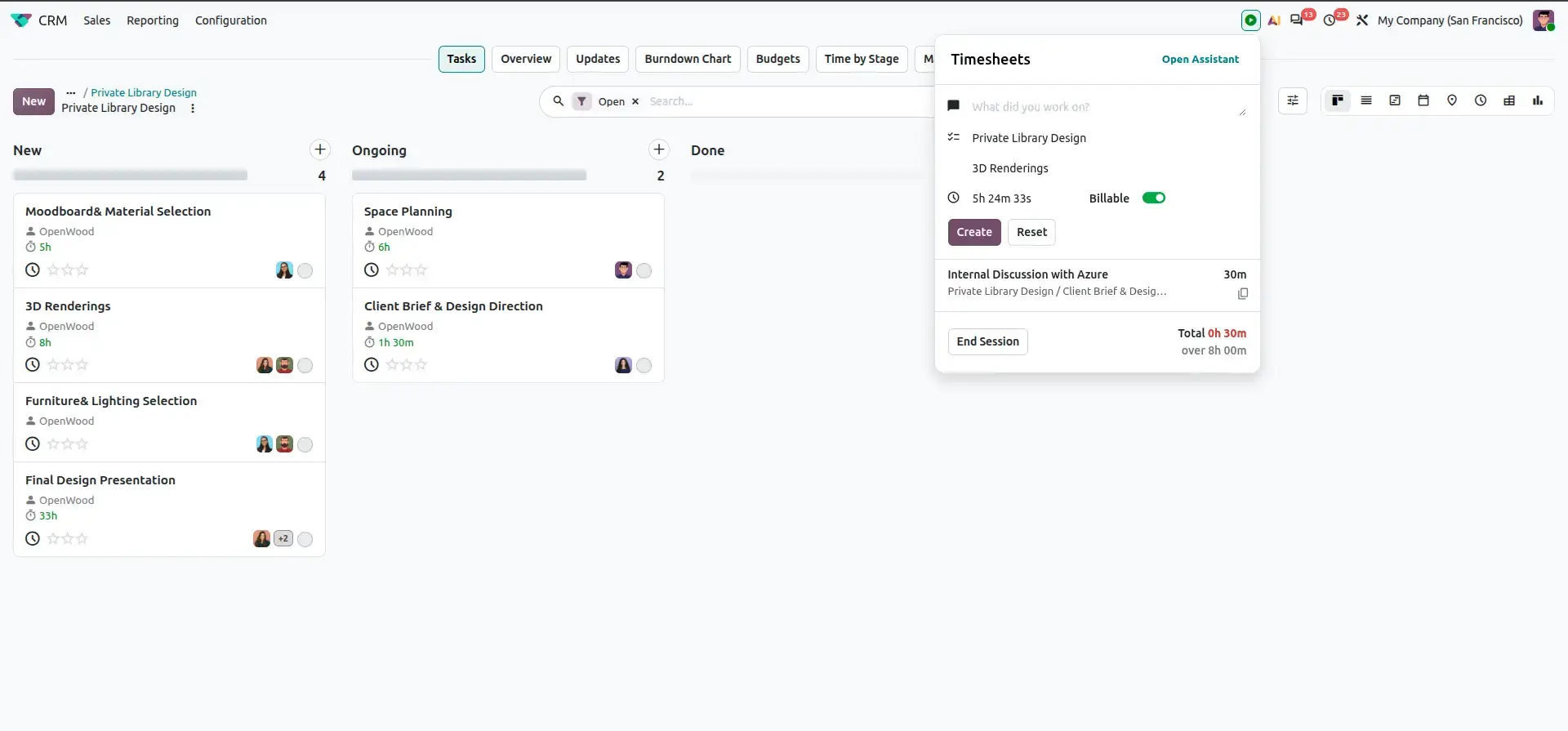
This provides a quick way to review recent tracked activity.
Business Value
The top-bar timer helps organizations:
- Reduce forgotten time entries.
- Minimize navigation between applications.
- Improve time-recording consistency.
- Capture billable work more efficiently.
- Keep time associated with the correct project and task.
Feature 2 – Assign Project Roles and Staff Projects Faster
Project staffing often involves repeatedly selecting the same types of employees for similar projects.
Odoo 20 improves this workflow through Project Roles, allowing organizations to define roles and associate team members with them.
Examples include:
- Project Manager
- Design Architect
- Developer
- Logistics Staff
- Electrician
- Plumber
- Quality & Safety Officer
This provides a structured way to define who can perform each project responsibility.
Define Project Roles
Project roles can be configured with their associated team members.
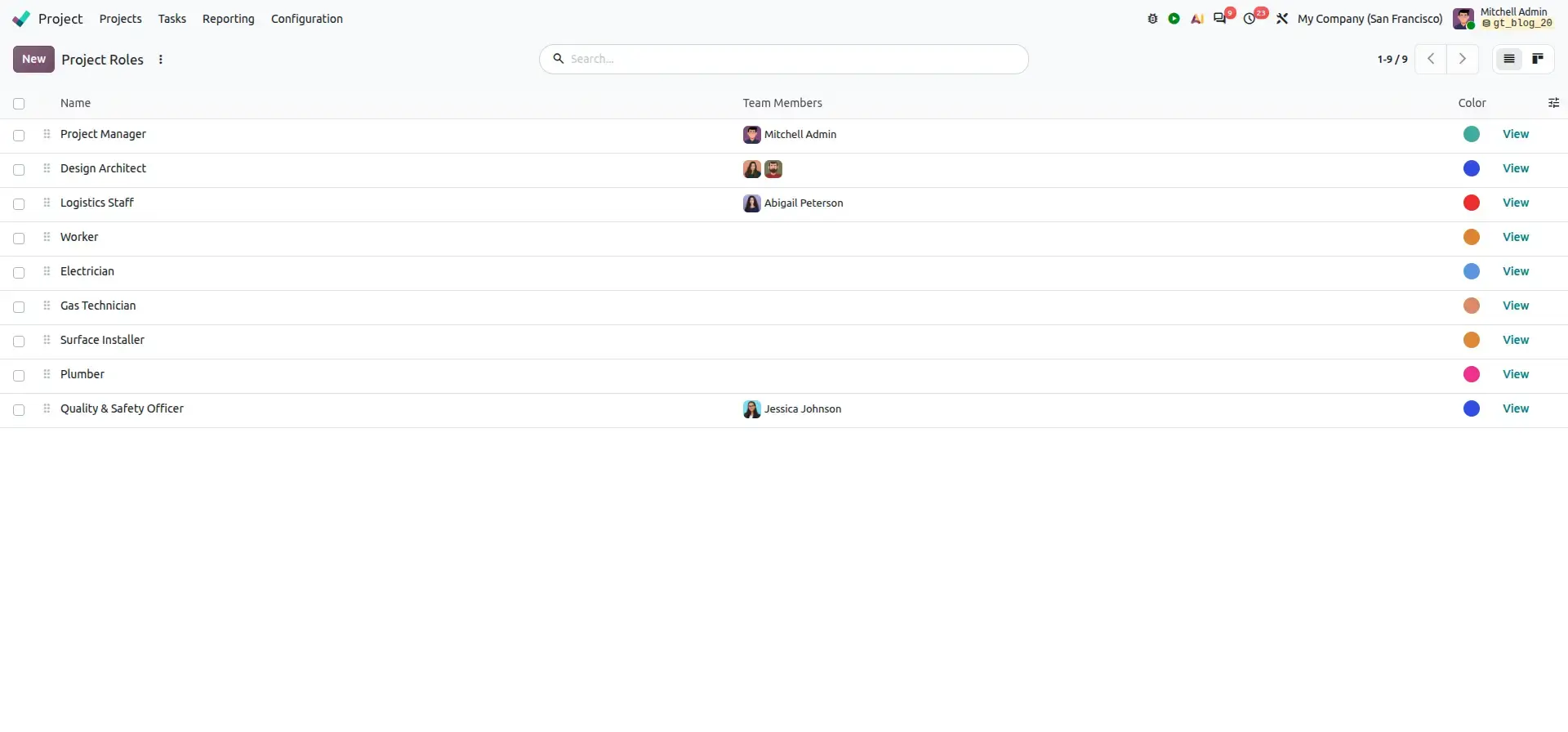
Roles provide a reusable structure for project staffing.
Instead of treating every project as a completely new staffing exercise, organizations can establish standard roles for recurring project types.
Use Roles in Project Templates
Roles can also be incorporated into project templates.
A project template can contain predefined settings and tasks that can be reused when new projects are created.
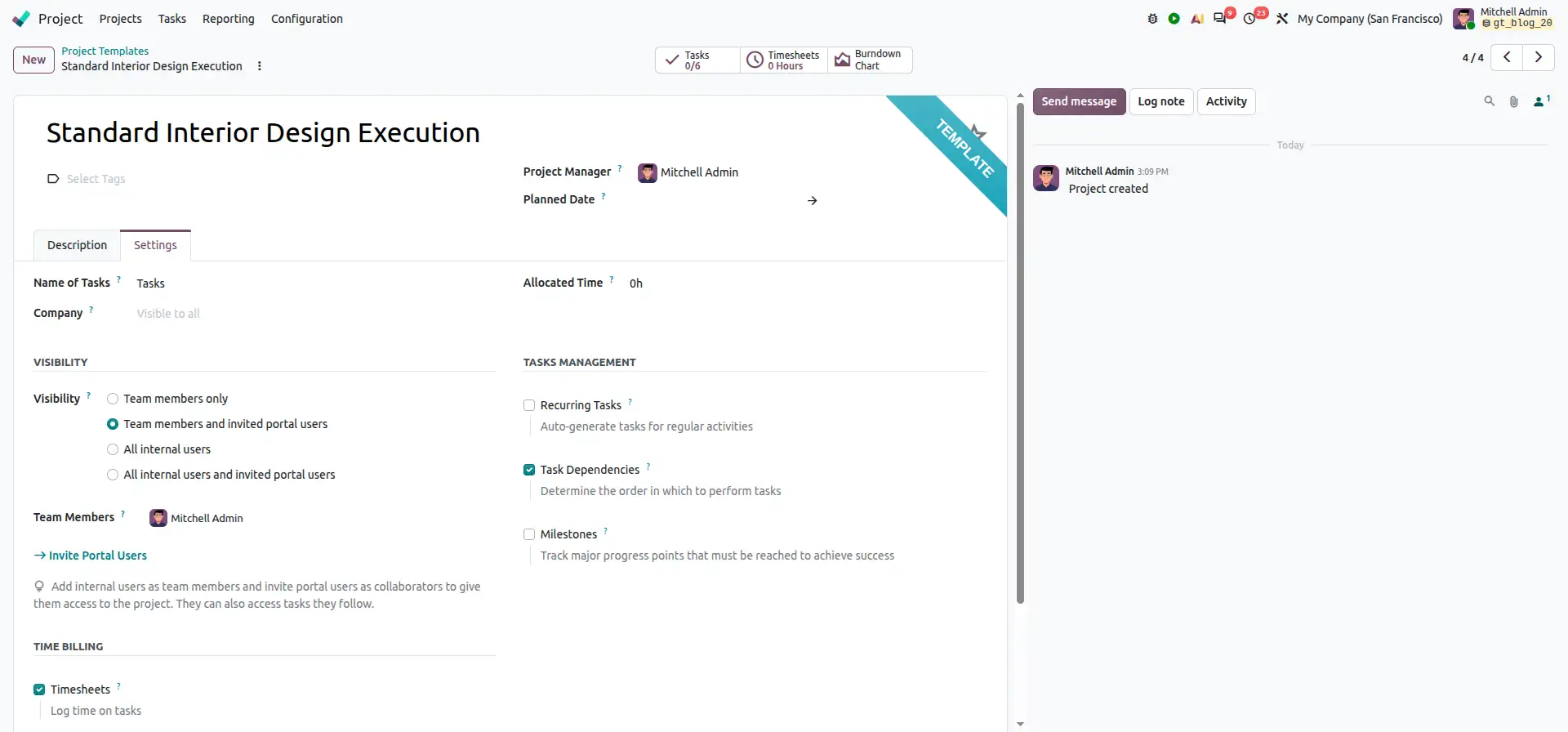
Templates are particularly useful for businesses that deliver similar projects repeatedly.
Assign Roles to Template Tasks
Individual template tasks can be associated with a project role.
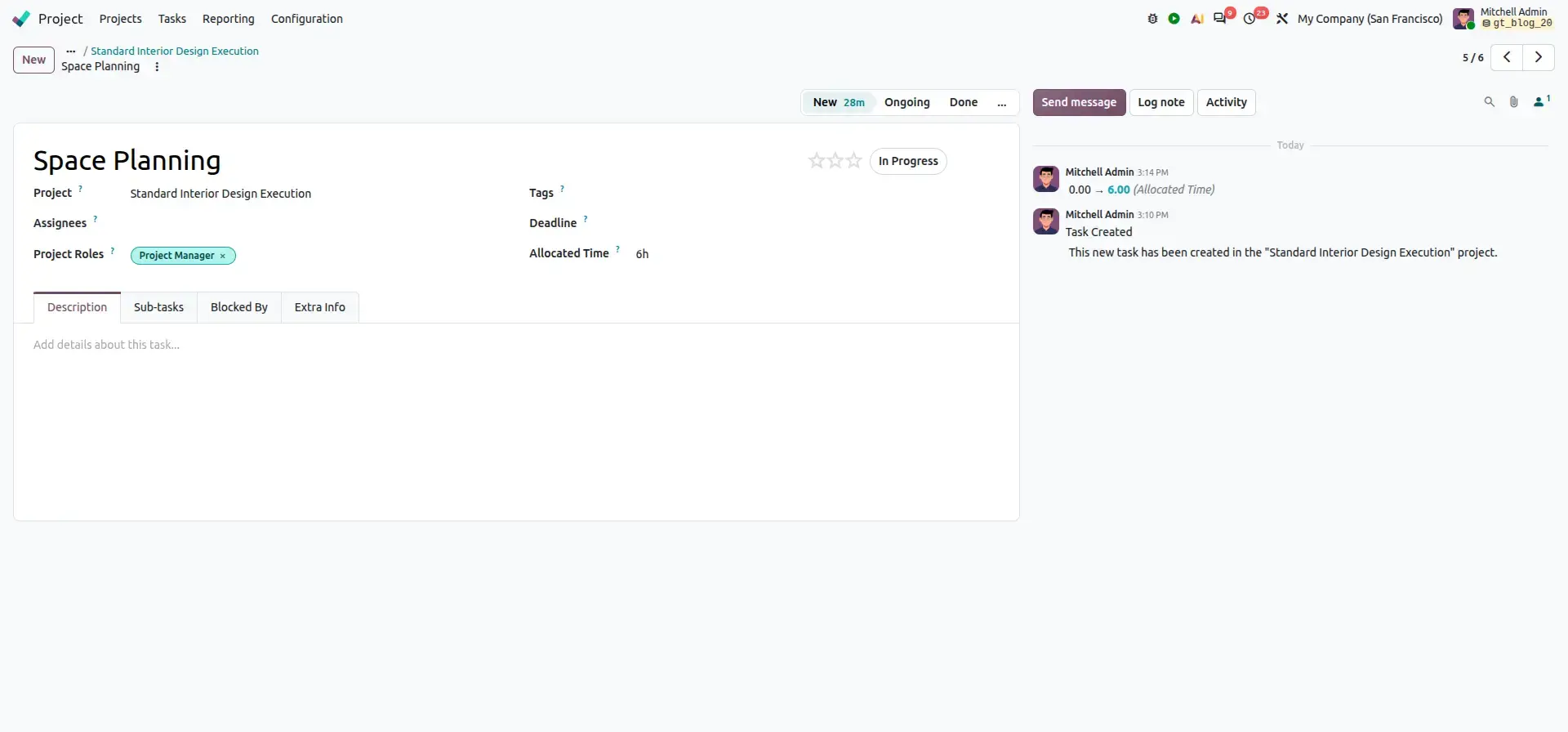
This allows the project structure to define not only what needs to be done, but also the type of person responsible for each activity.
Create a Project from a CRM Opportunity
Odoo 20 also supports a workflow where a project can be created from a CRM opportunity.
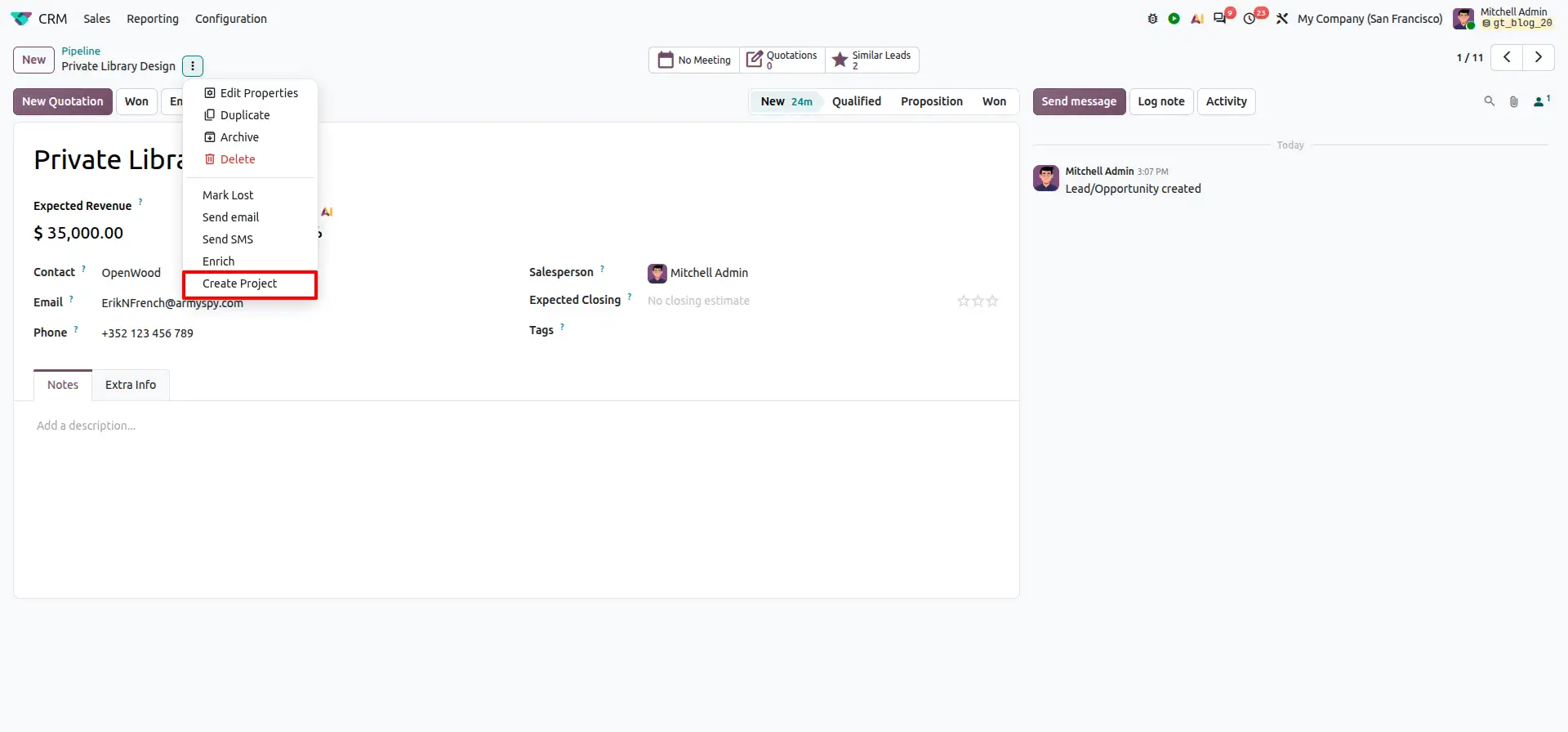
After the opportunity is ready to become a project, the user can initiate project creation.
Select a Template and Assign Team Members
The project creation dialog allows the user to select the appropriate template and assign team members to the defined roles.
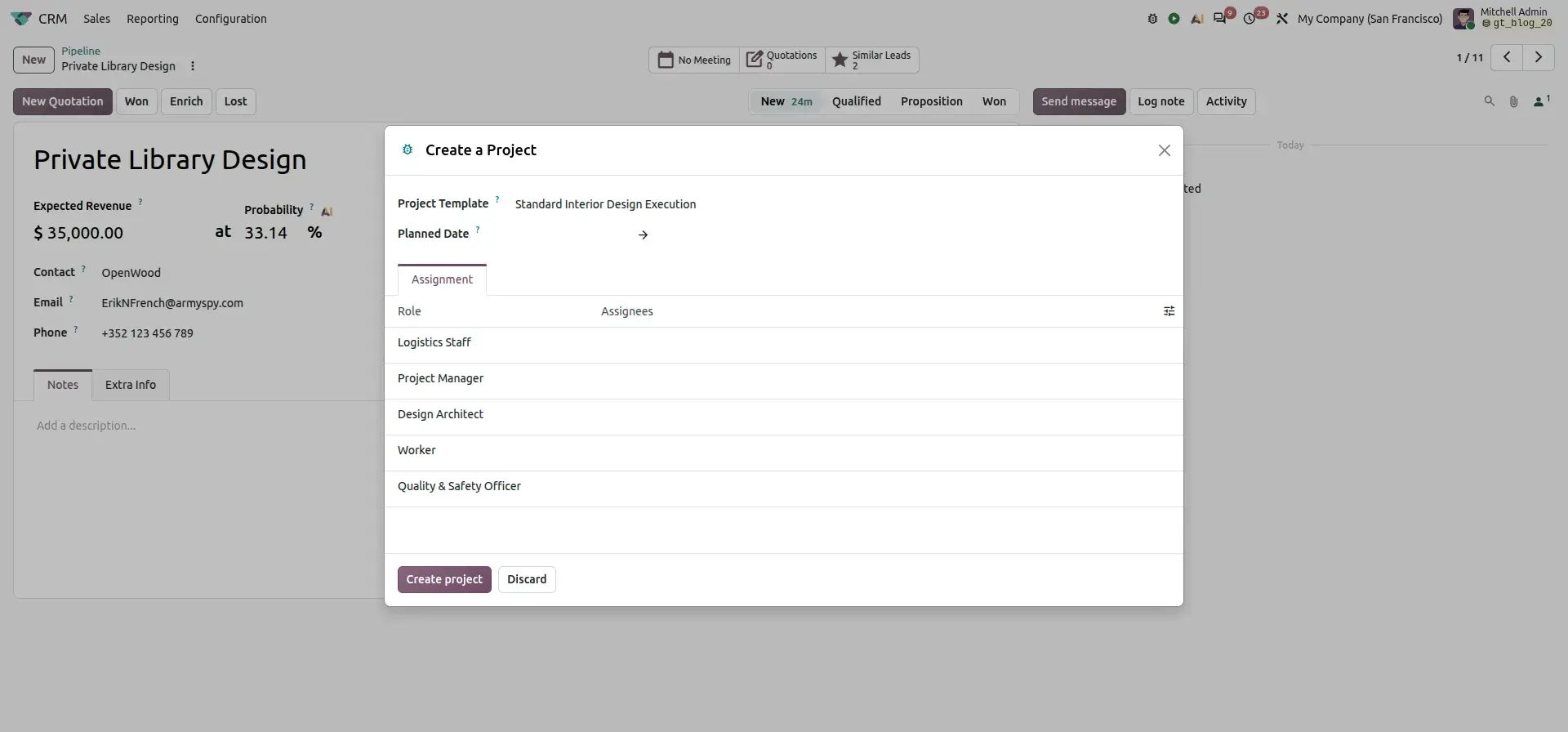
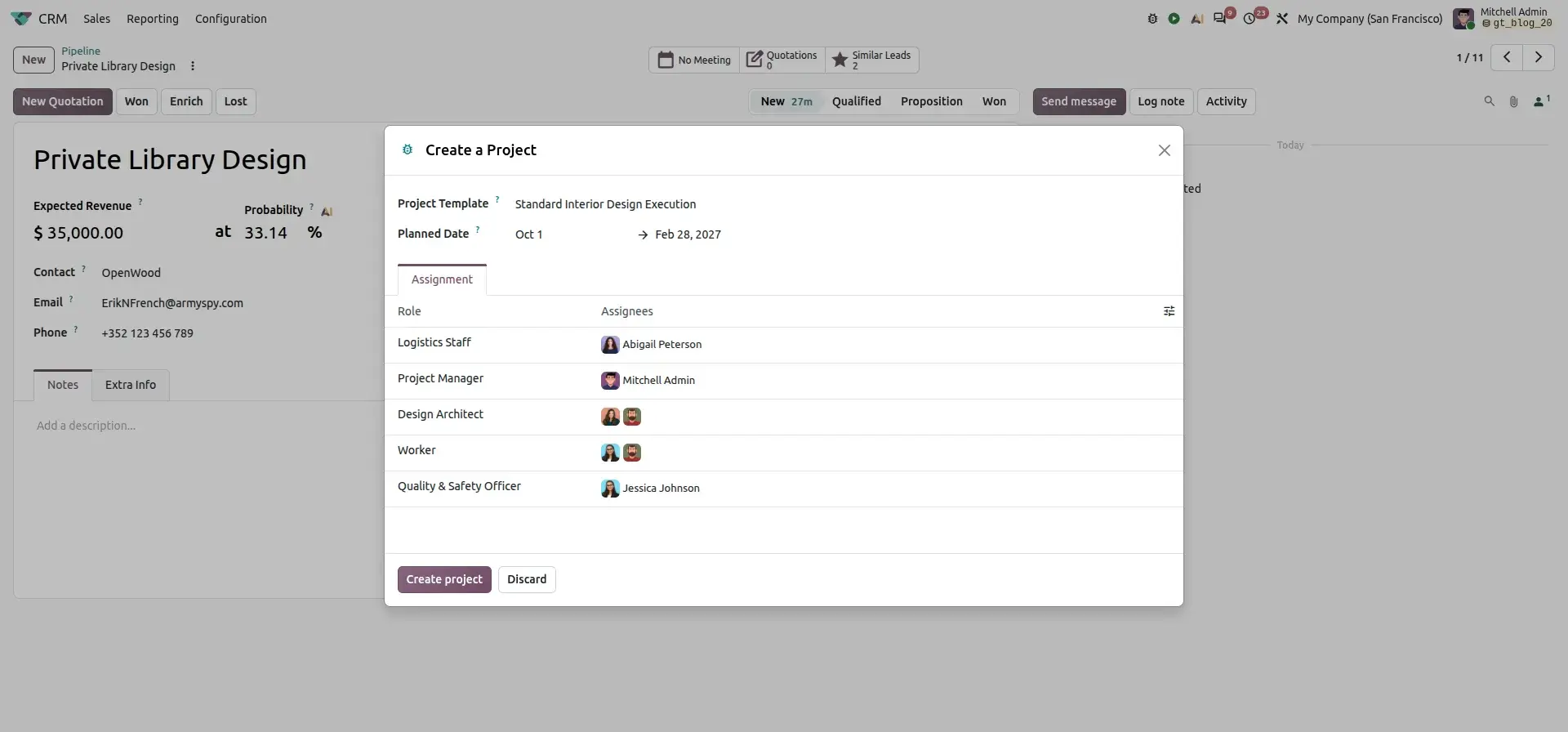
This connects the sales-to-project transition with the project's staffing requirements.
Start with a Ready-to-Work Project
After the project is created, the project board contains the tasks and their assigned employees.
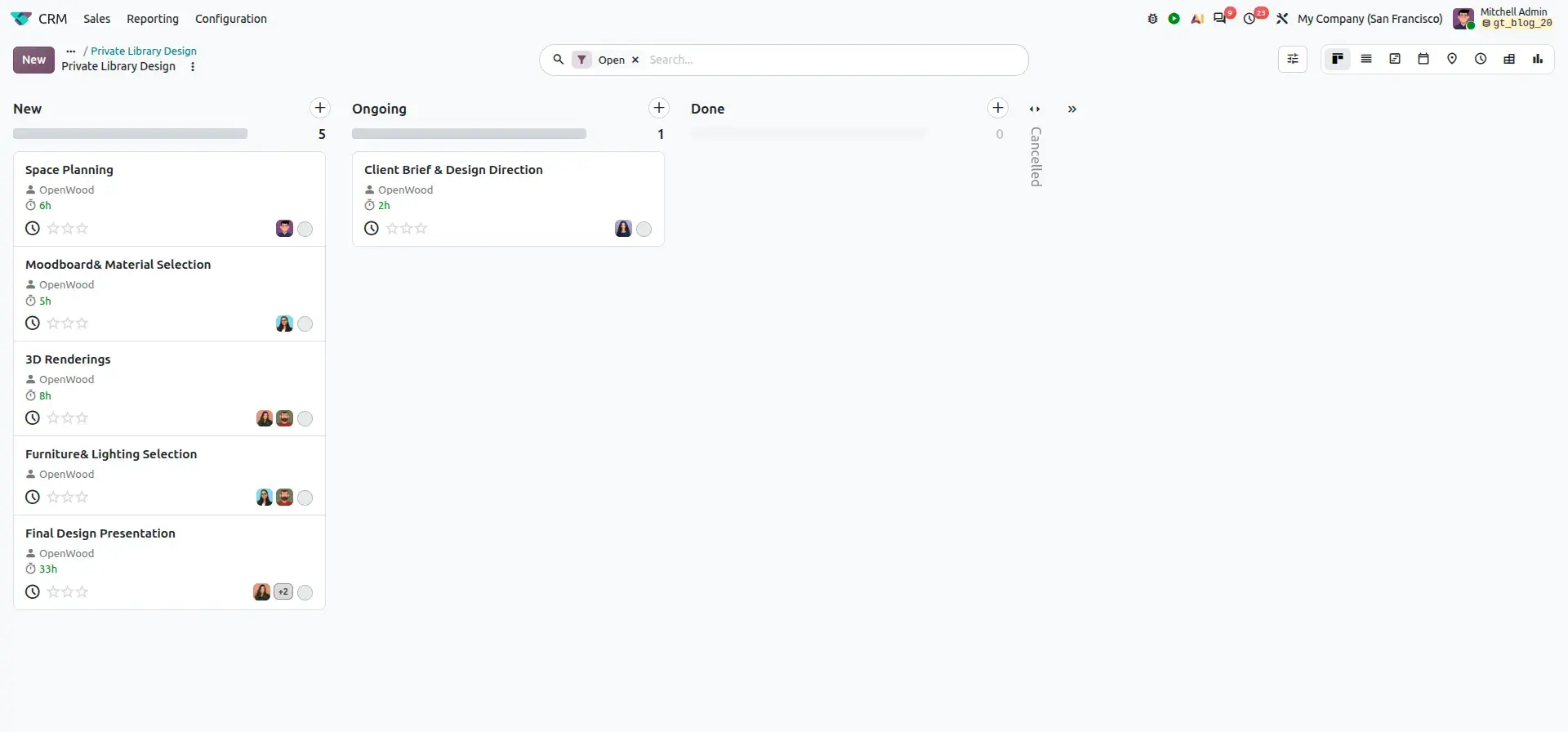
The result is a more structured transition from opportunity to project execution.
Business Value
Project roles and templates can help organizations:
- Standardize project staffing.
- Reduce repetitive project setup.
- Clarify responsibilities.
- Reuse proven project structures.
- Transition more smoothly from CRM opportunities to project execution.
Feature 3 – Plan and Print Project Schedules from Gantt
Once a project has been created and staffed, the next step is to plan the work.
Odoo's Gantt view provides a visual way to schedule tasks, assign work, manage dependencies, and reschedule activities.
Odoo 20 also adds a Print option to the Gantt view, making the project schedule easier to share outside Odoo.
Plan Tasks in Gantt
The Gantt view provides a timeline-based representation of project tasks.
It can show:
- Task schedules.
- Assignees.
- Dependencies.
- Allocated time.
- Unscheduled tasks.
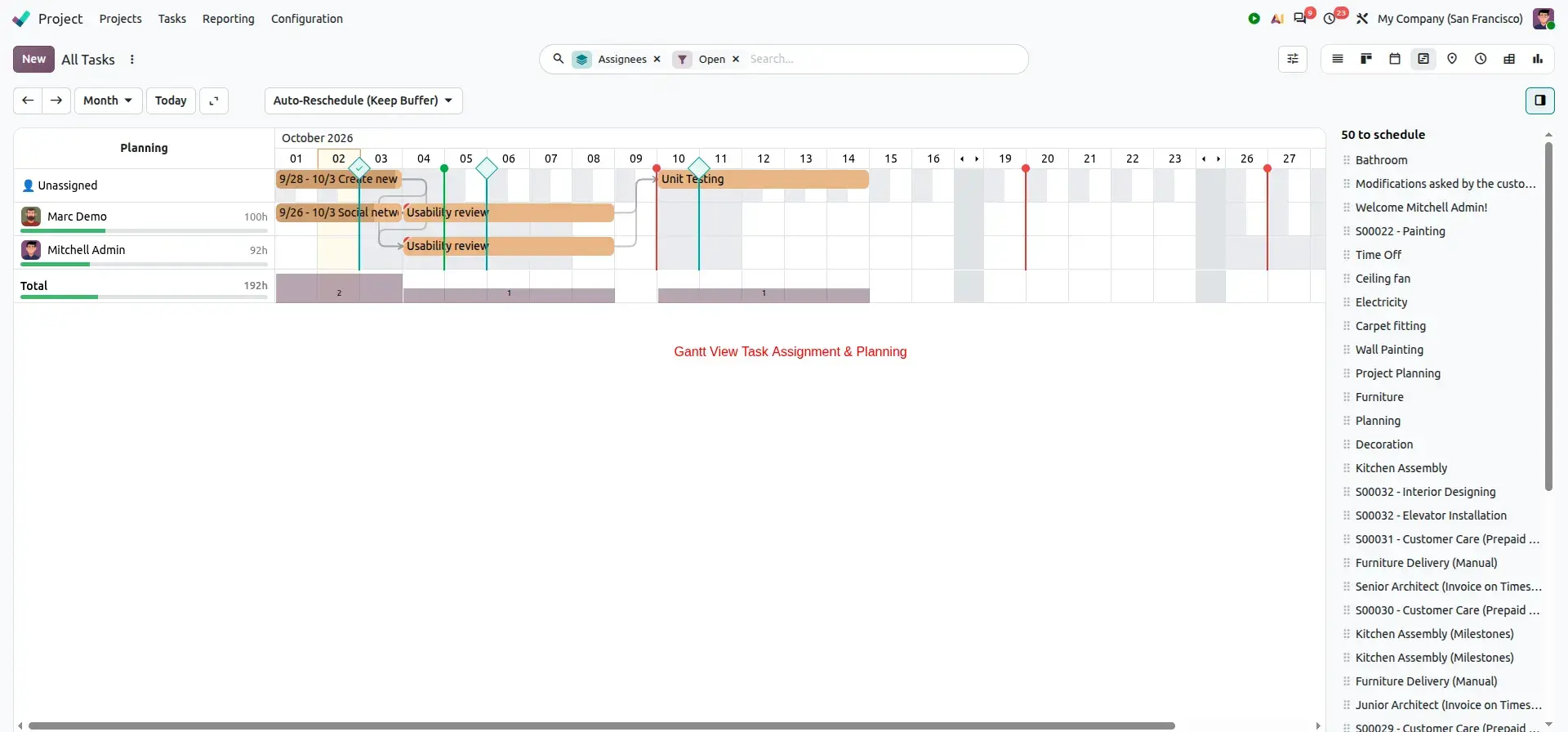
This gives project managers a visual overview of workload and timing.
Review Task Details
Selecting a task displays relevant scheduling information.
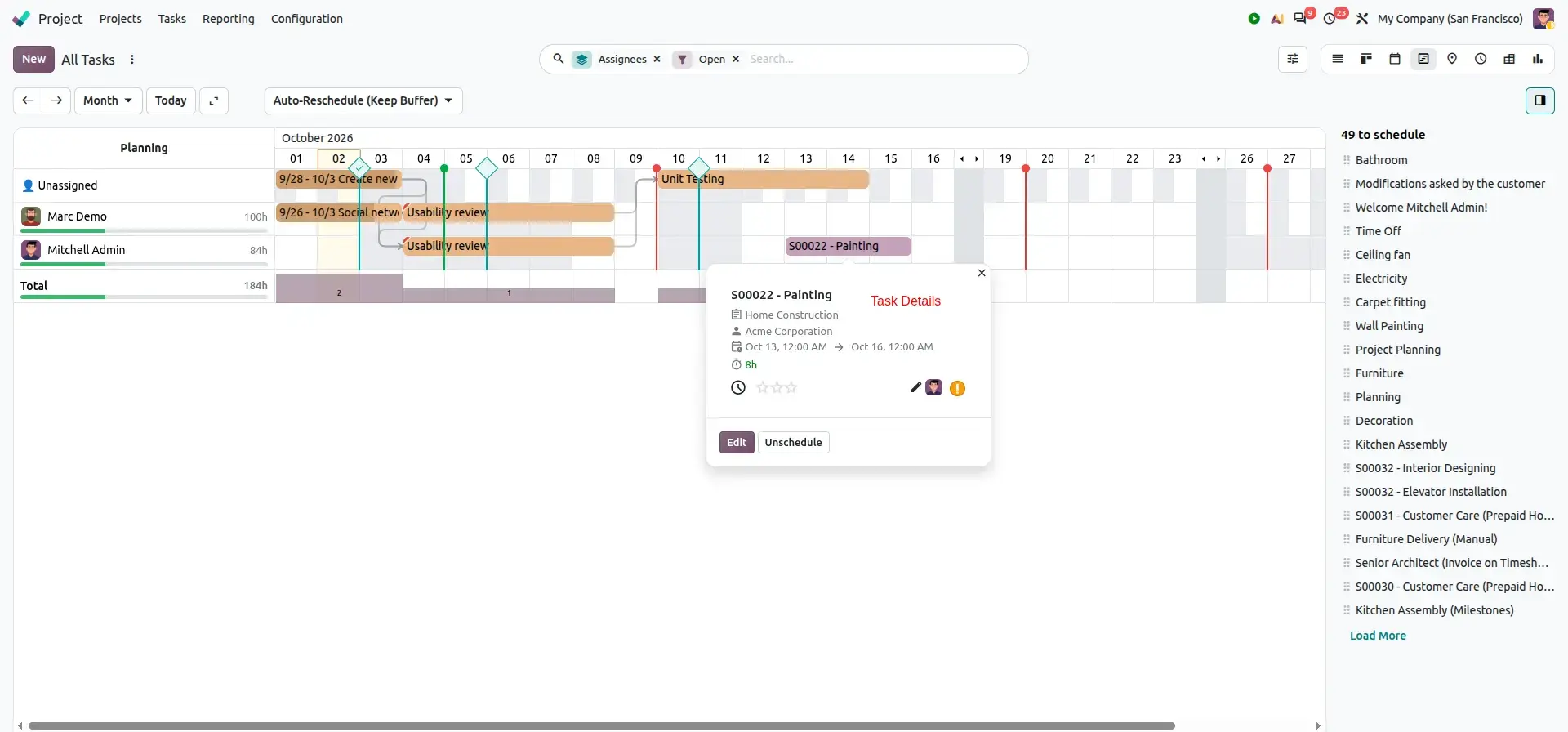
Project managers can review the schedule and make changes when required.
Print the Gantt Schedule
Odoo 20 adds a Print action to the Gantt view.
The option is available through the Gantt view's action menu.
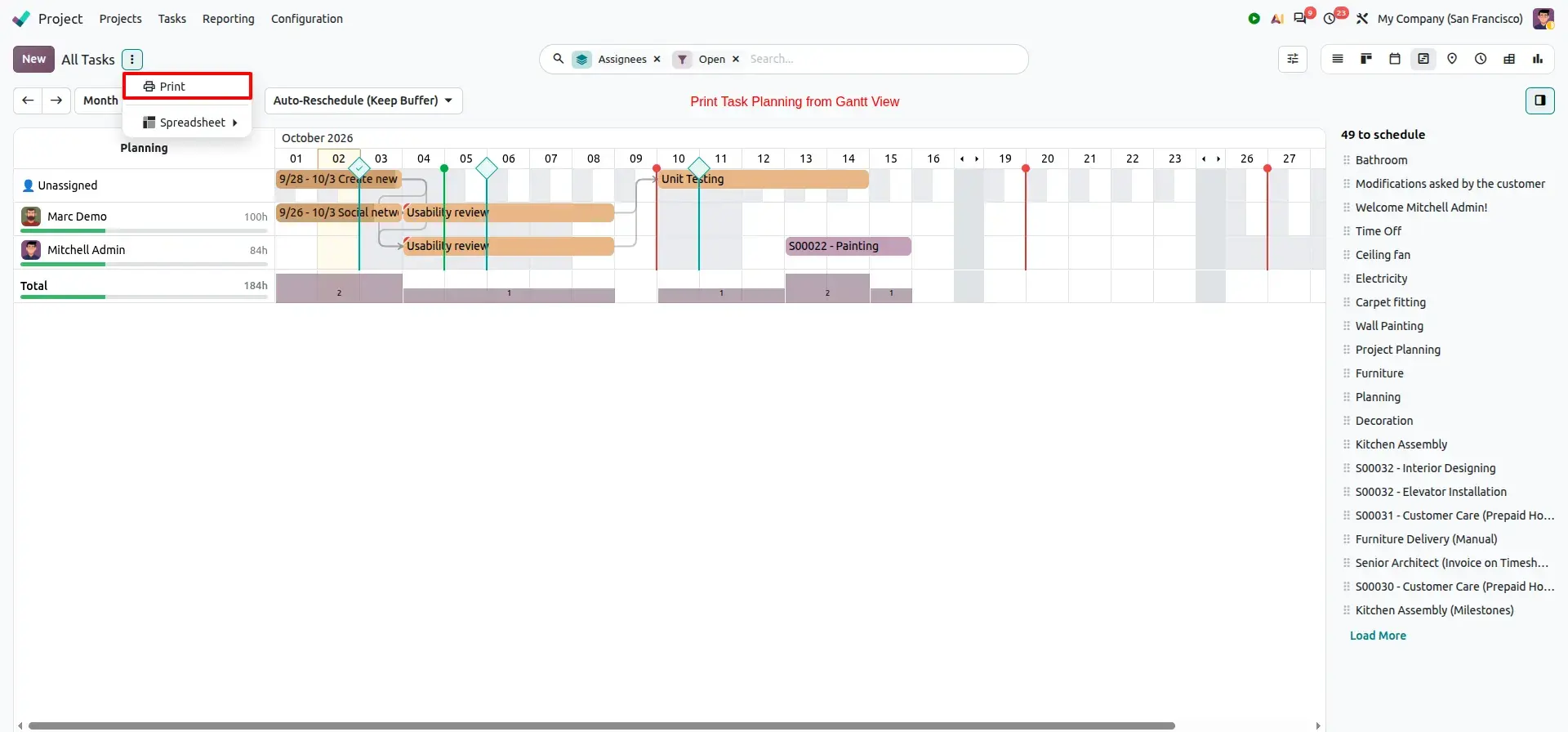
The project schedule can then be generated as a printable document/PDF.
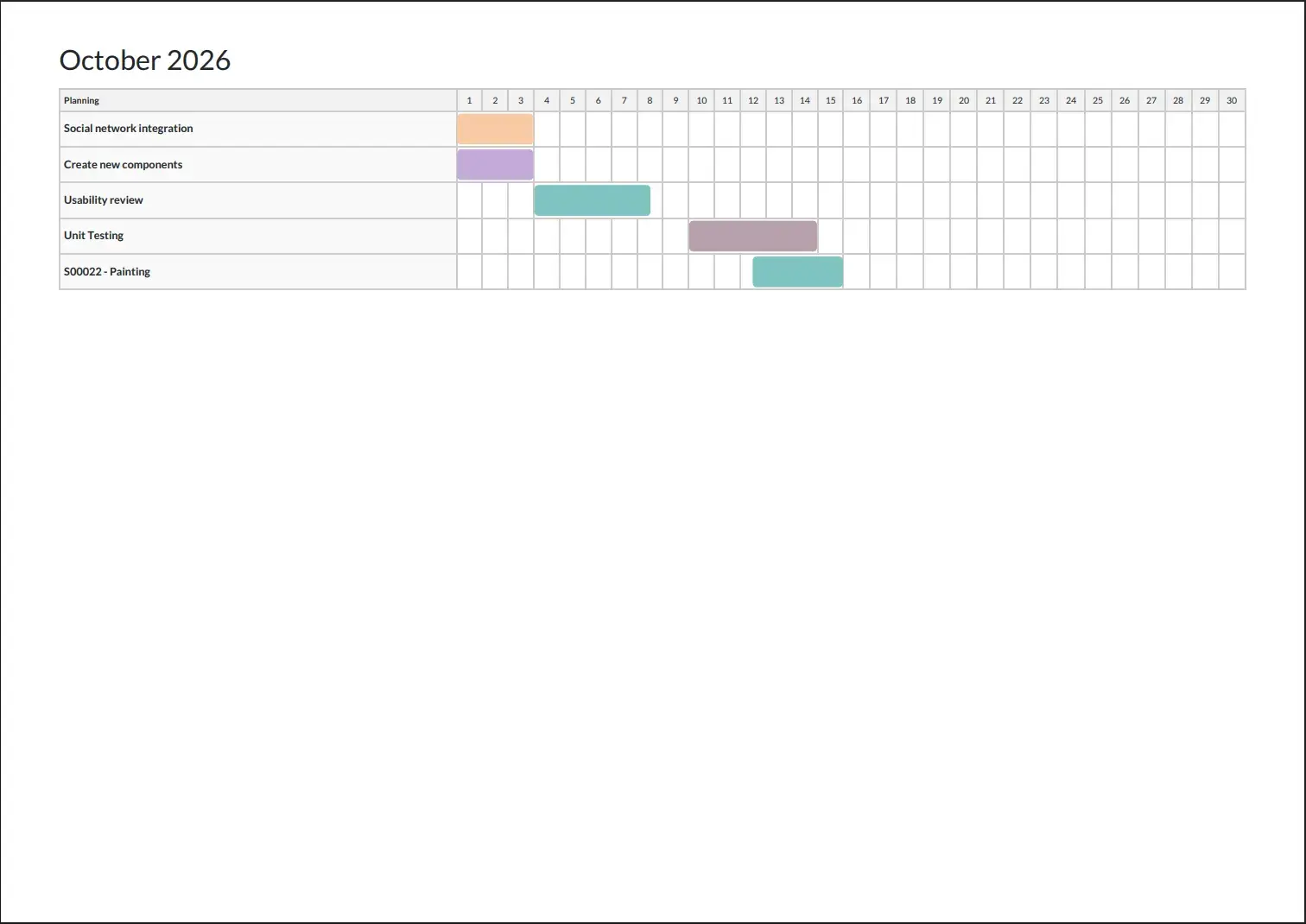
The printed schedule can be useful for:
- Project meetings.
- Management reviews.
- Customer discussions.
- On-site coordination.
- Offline reference.
Business Value
Gantt planning and printing can help organizations:
- Visualize project schedules.
- Assign unscheduled work.
- Manage dependencies.
- Reschedule tasks efficiently.
- Share schedules with people who do not work directly in Odoo.
Feature 4 – Give Customers Controlled Access to Projects
Customer collaboration is another important part of project delivery.
Customers may need visibility into tasks and progress, but they do not necessarily need access to every internal project discussion or notification.
Odoo 20 provides a collaboration workflow that separates project collaborators from followers.
Configure Project Visibility
Project settings provide options for controlling who can access the project.
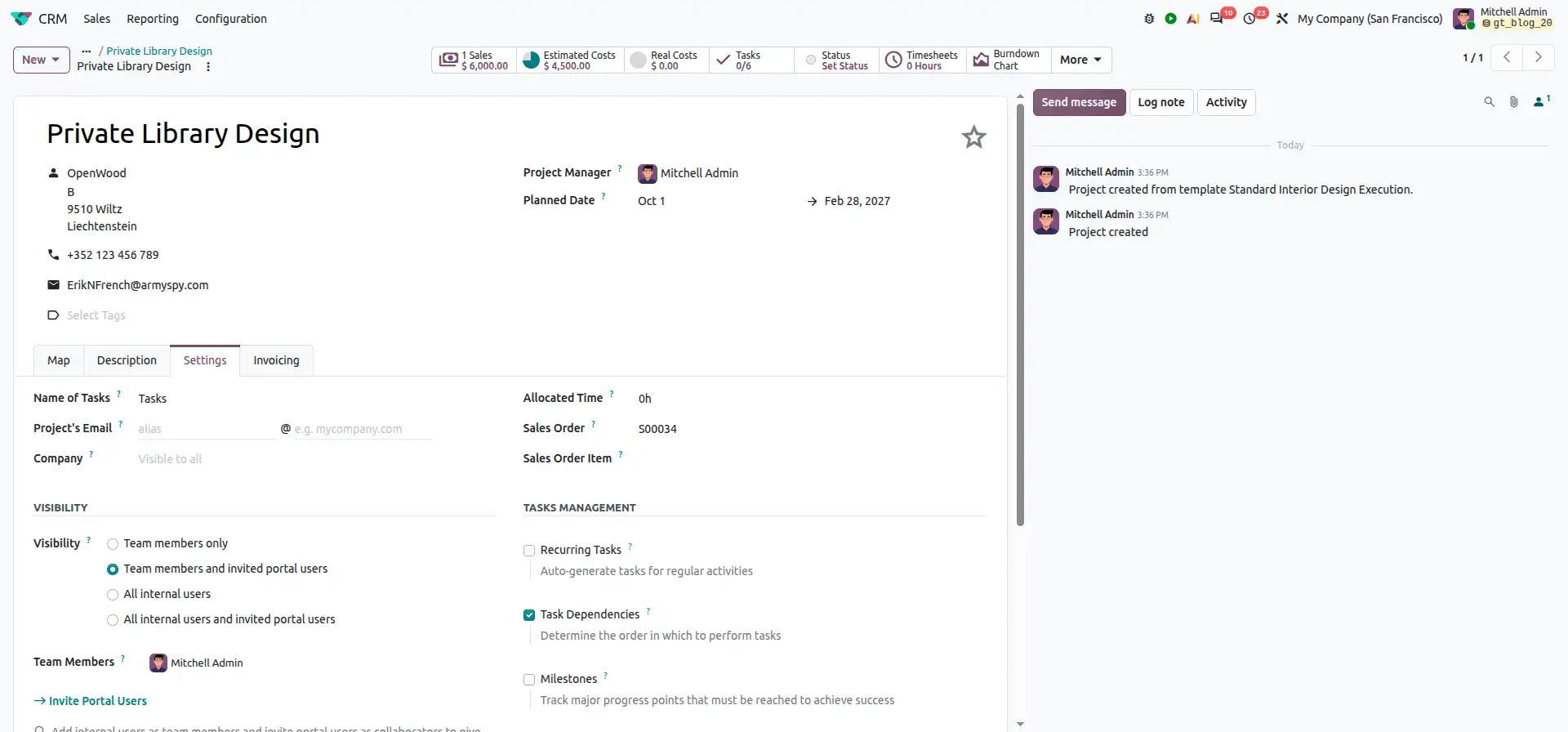
This allows organizations to determine how project information is exposed to external users.
Share the Project with a Customer
The project can be shared with external users through the project actions.
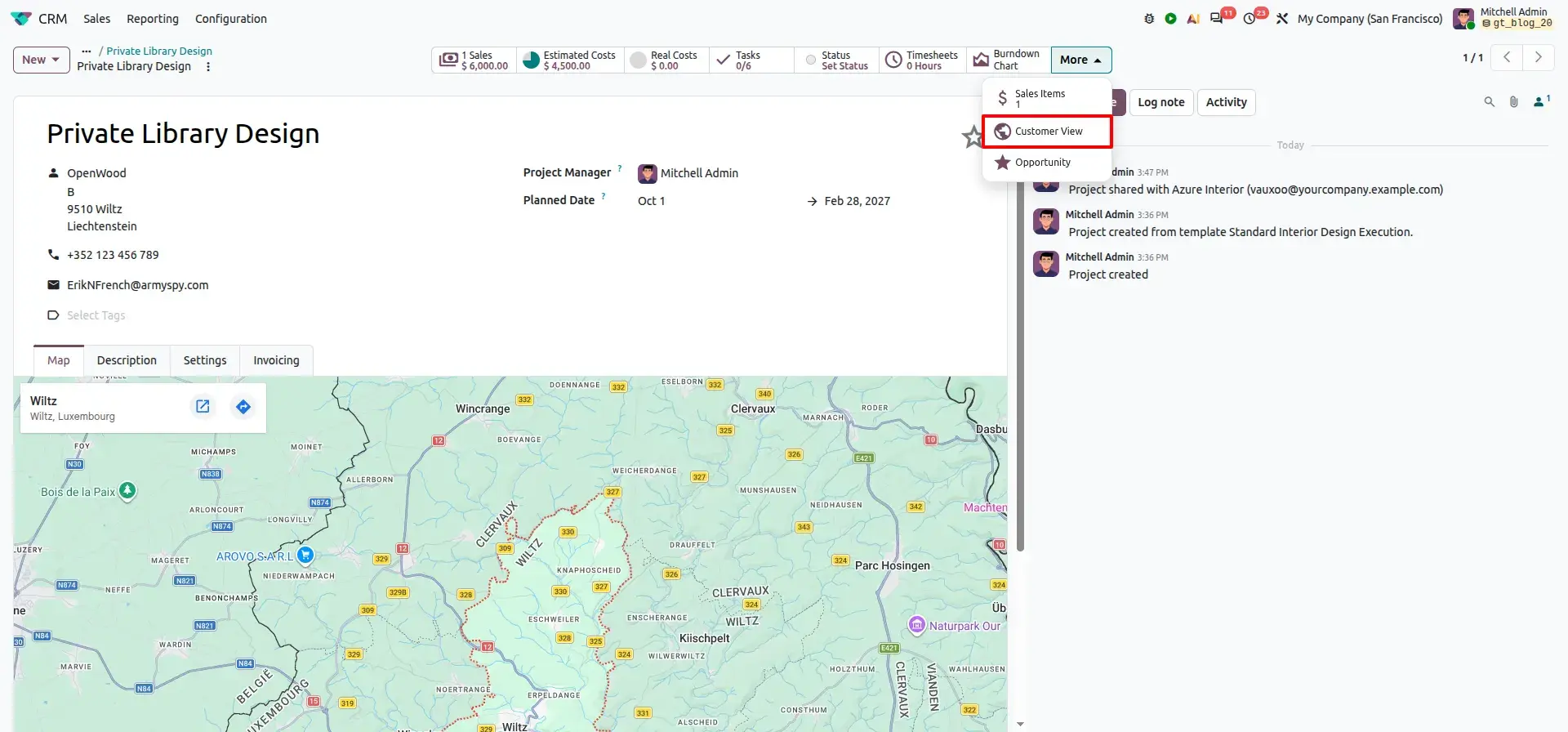
Choose the Customer's Access Level
The Share Project dialog allows the organization to define the customer's level of access.
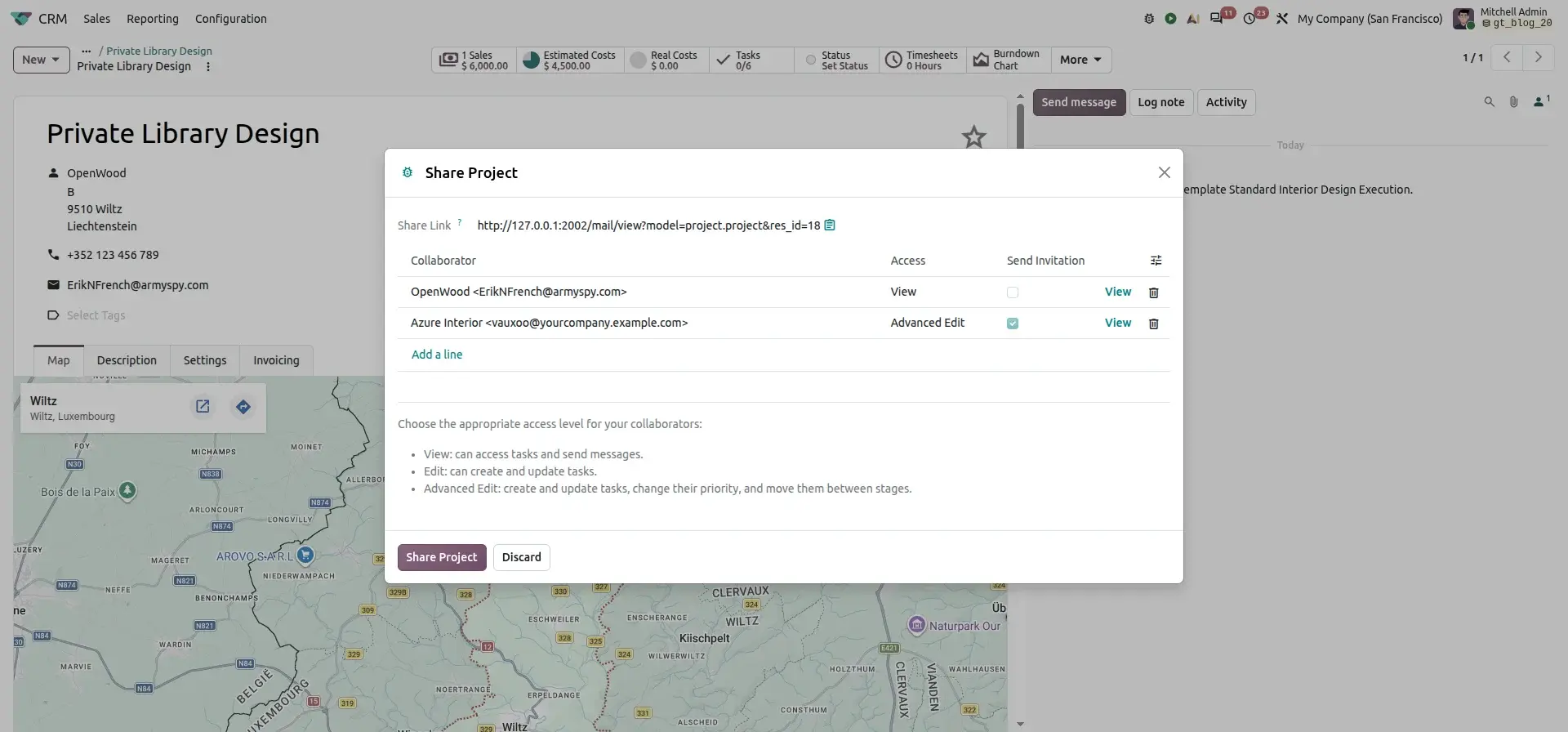
The available levels provide different capabilities.
| Access Level | Customers Can |
|---|---|
| View | Access project tasks View relevant project information Send messages |
| Edit | Everything in View, and additionally: Create tasks Update tasks |
| Advanced Edit | Everything in Edit, and additionally: Change task priority Move tasks between stages |
The appropriate level depends on how much involvement the customer should have in the project.
Customer Project Portal
After access is granted, the customer can access the project through the portal.
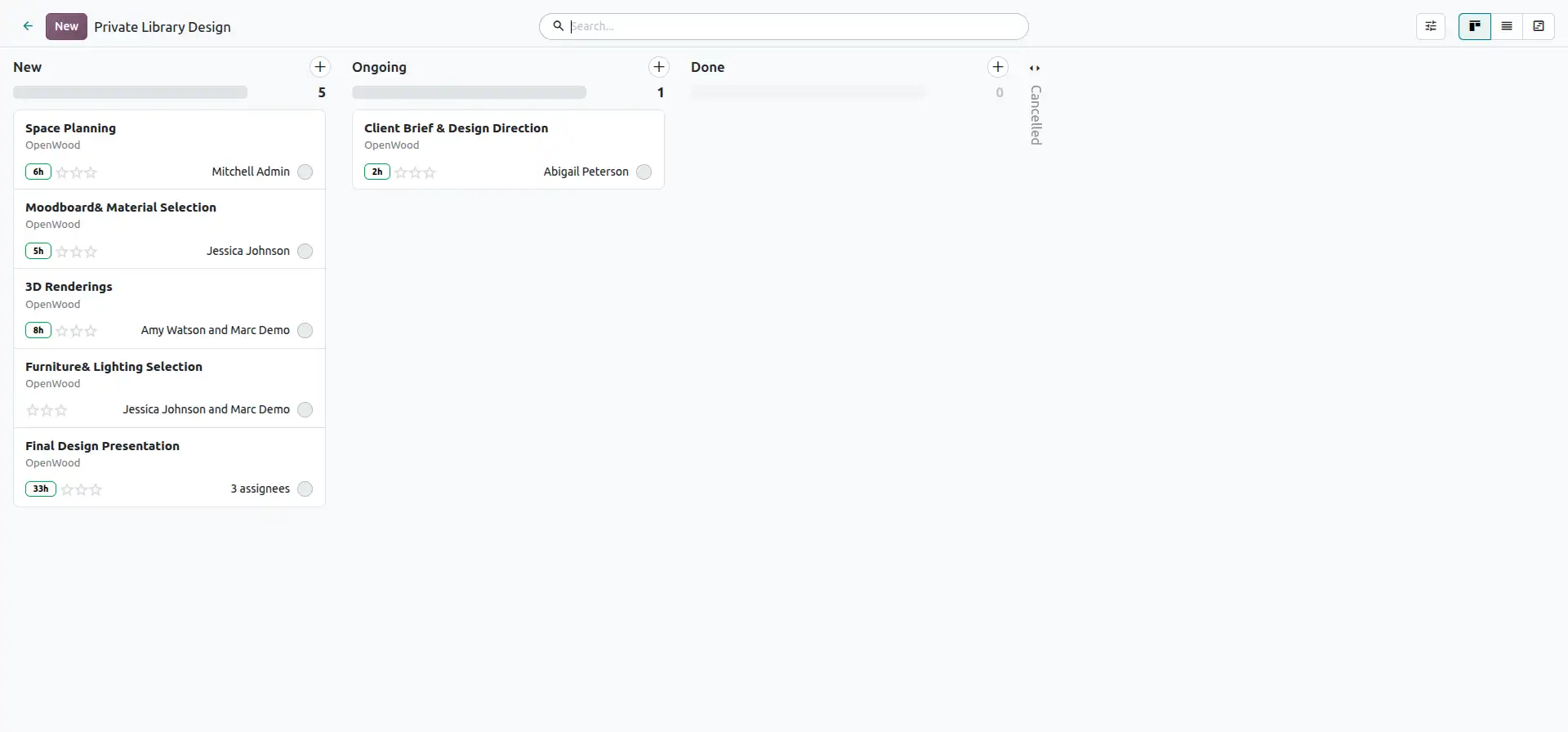
The customer can therefore follow project activity without requiring access to the internal Odoo project interface.
Customer and Team Communication
Customers can communicate with the project team through task discussions.
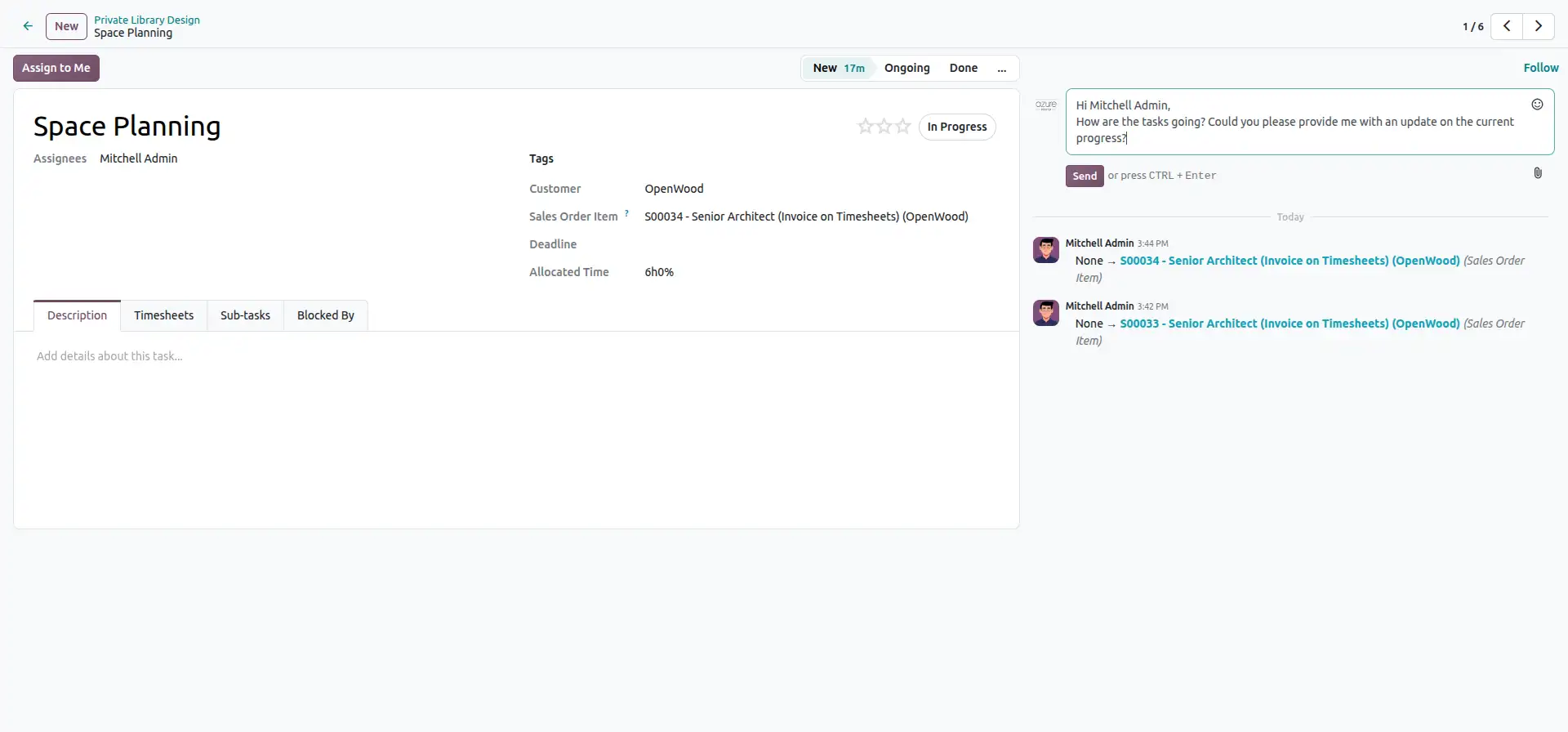
The internal project team can respond through the same task communication thread.
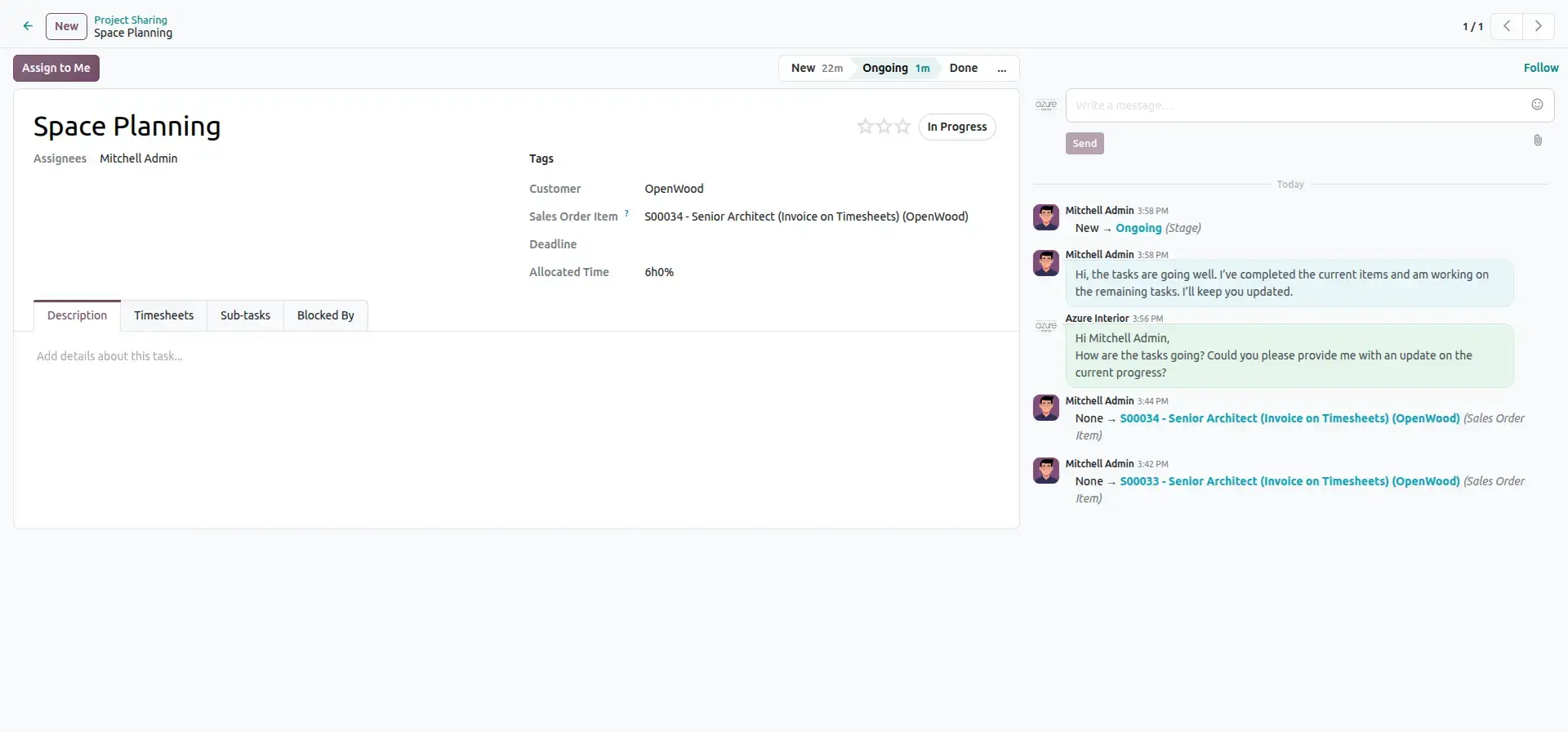
This creates a shared communication history around the task.
Business Value
Customer collaboration provides:
- Controlled external project access.
- Better project transparency.
- Less unnecessary notification traffic.
- Clearer customer communication.
- Flexible levels of customer participation.
Feature 5 – Analyze Project Margins with Dedicated Reports
Tracking project time is only part of project management.
Businesses also need to understand whether the revenue generated by a project is sufficient to cover its costs.
Odoo 20 changes the way project profitability information is presented by moving margin analysis into dedicated reporting areas rather than relying on the previous profitability panel on the project dashboard.
Start with the Sales Order
For a time-based service project, the sales order can contain the service that is delivered through timesheets.
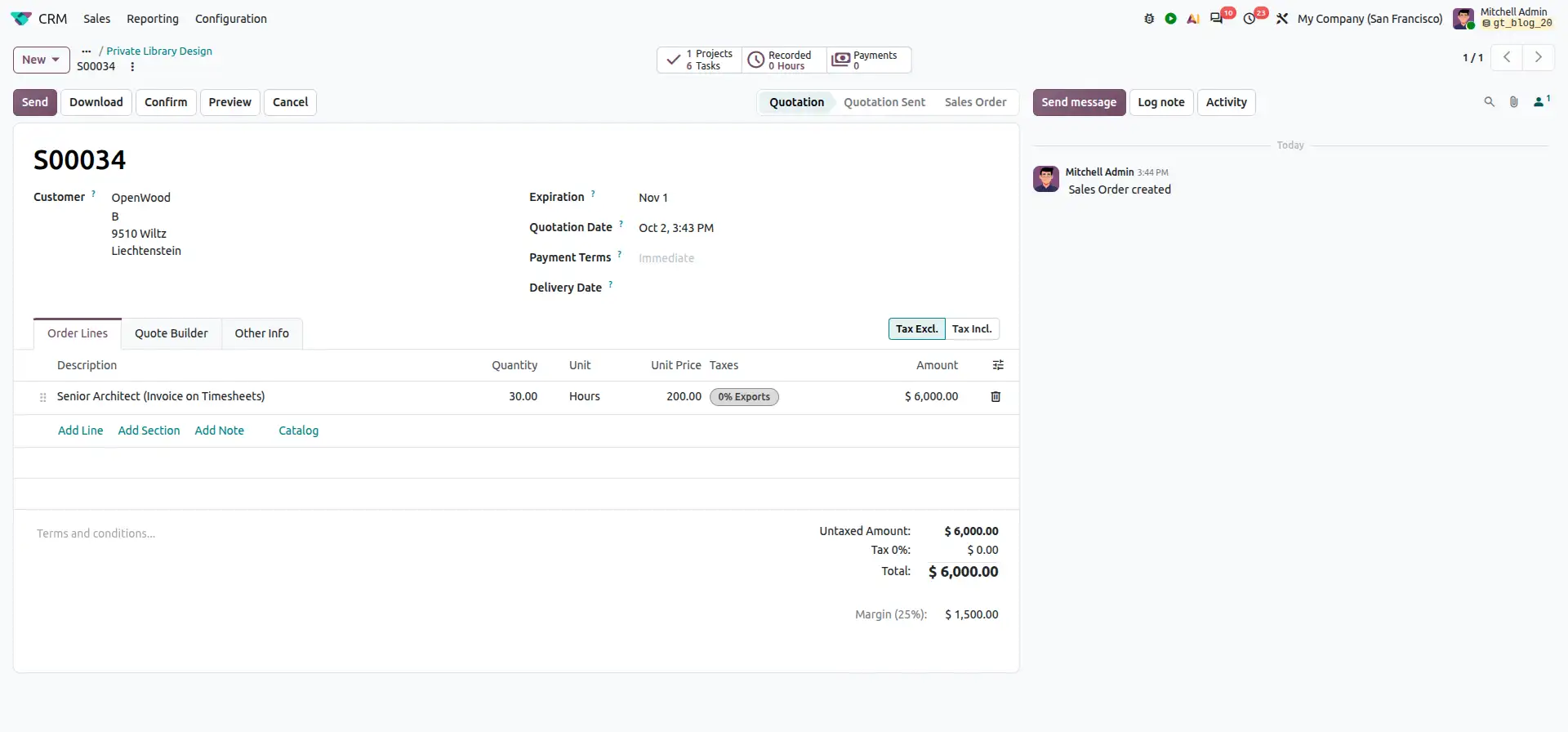
This connects the commercial side of the project with the time delivered by the project team.
Access Project Reporting
Project reporting provides multiple views for analyzing project performance.
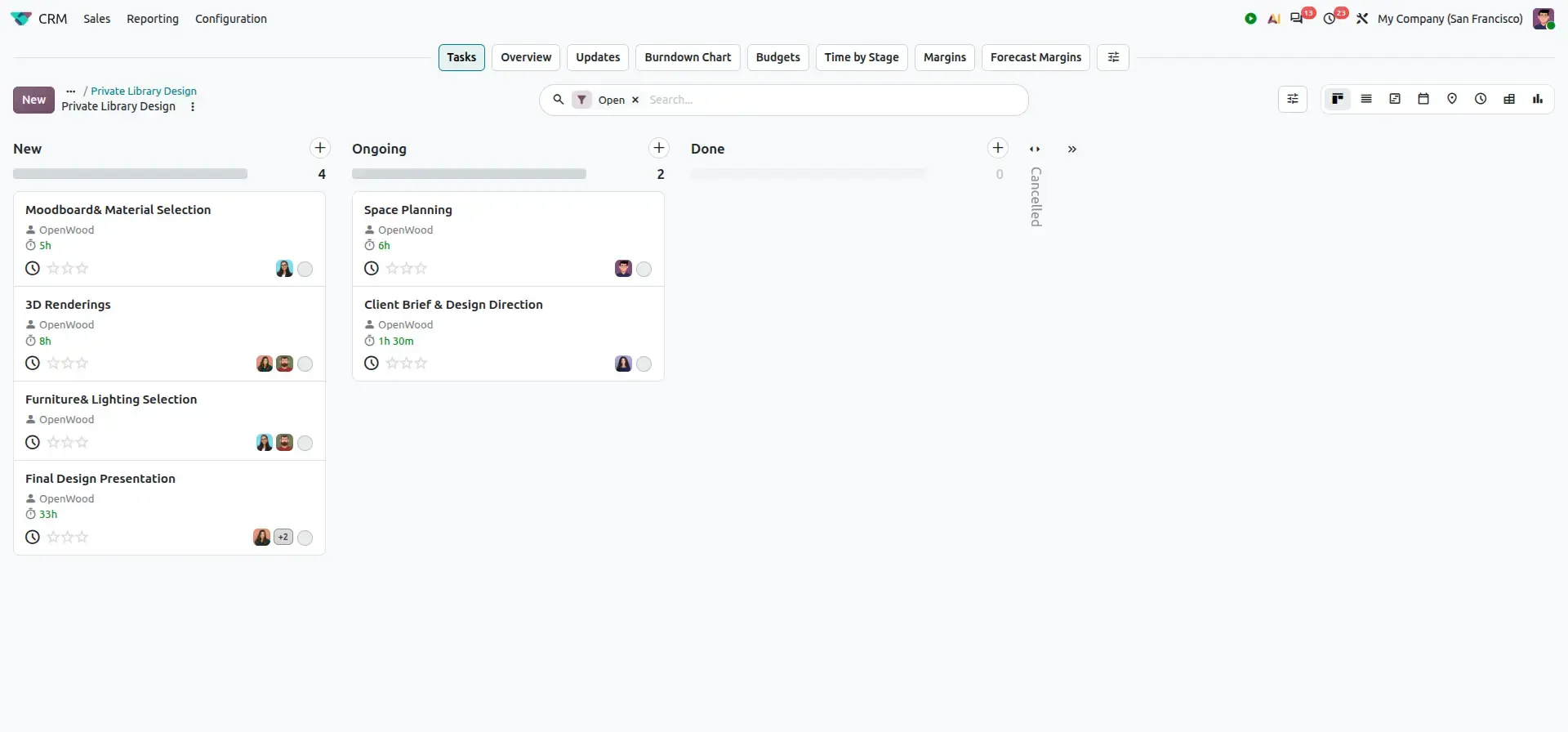
These reporting areas allow project managers to analyze different aspects of project execution.
Review the Burndown Chart
The Burndown Chart provides a view of task progress over the selected period.
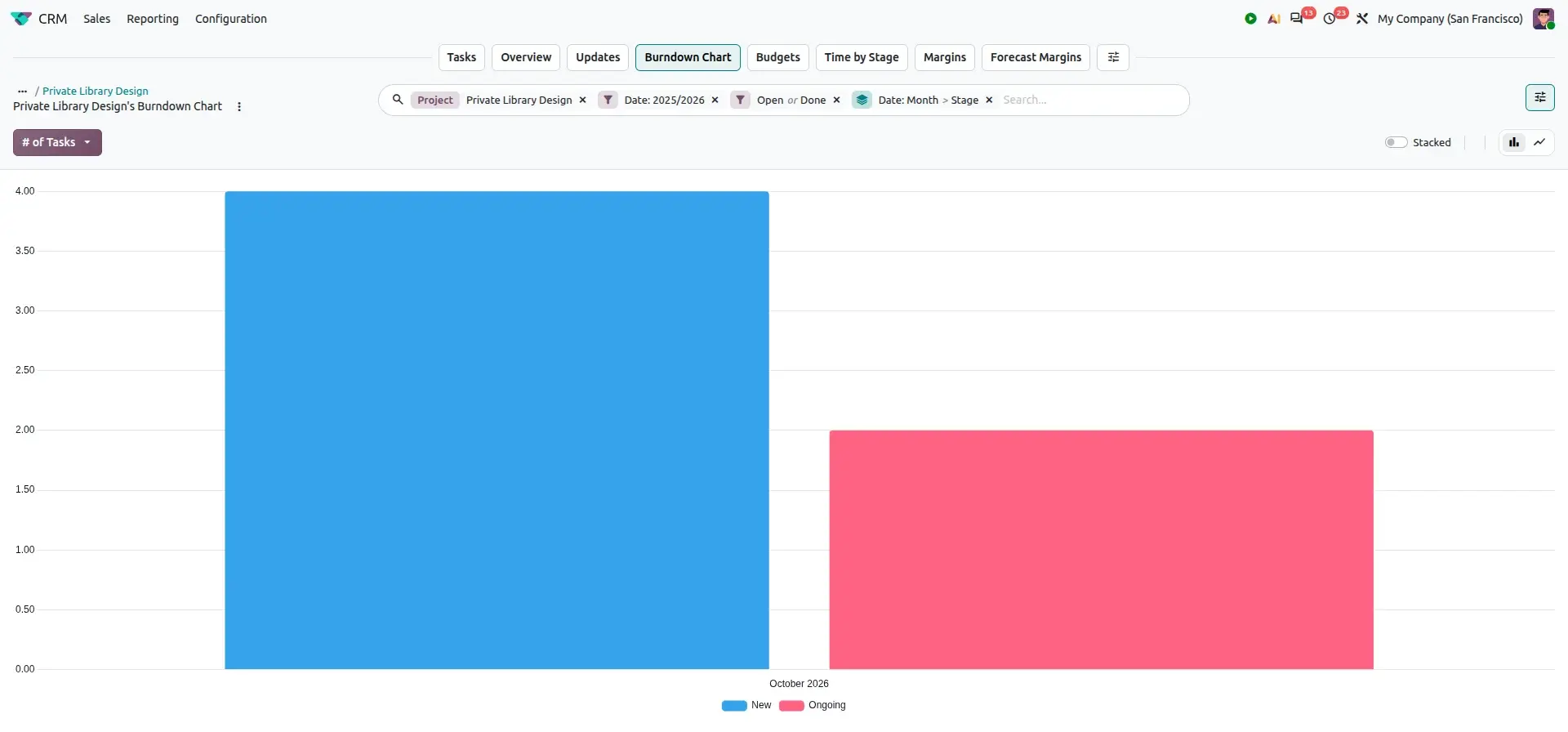
This can help project managers monitor how quickly project work is progressing.
Review Project Budgets
The Budgets view provides information about the project's budget configuration.
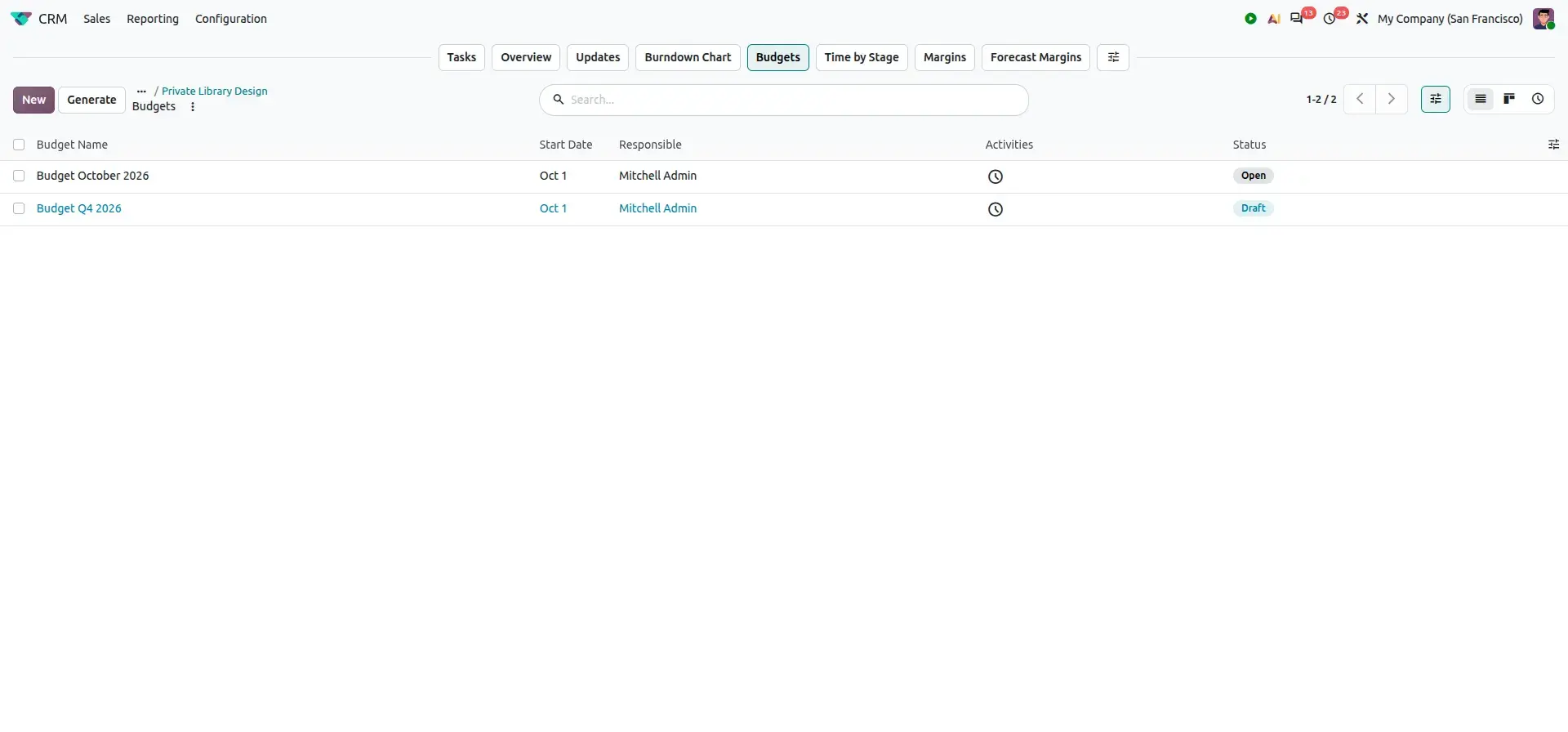
Budget information can be used alongside time and sales data to monitor project financial performance.
Analyze Forecast Margins
The Forecast Margins report provides a more detailed financial view.
It can show information such as:
- Amount sold.
- Amount delivered.
- Amount invoiced.
- Expected cost.
- Forecast margin.
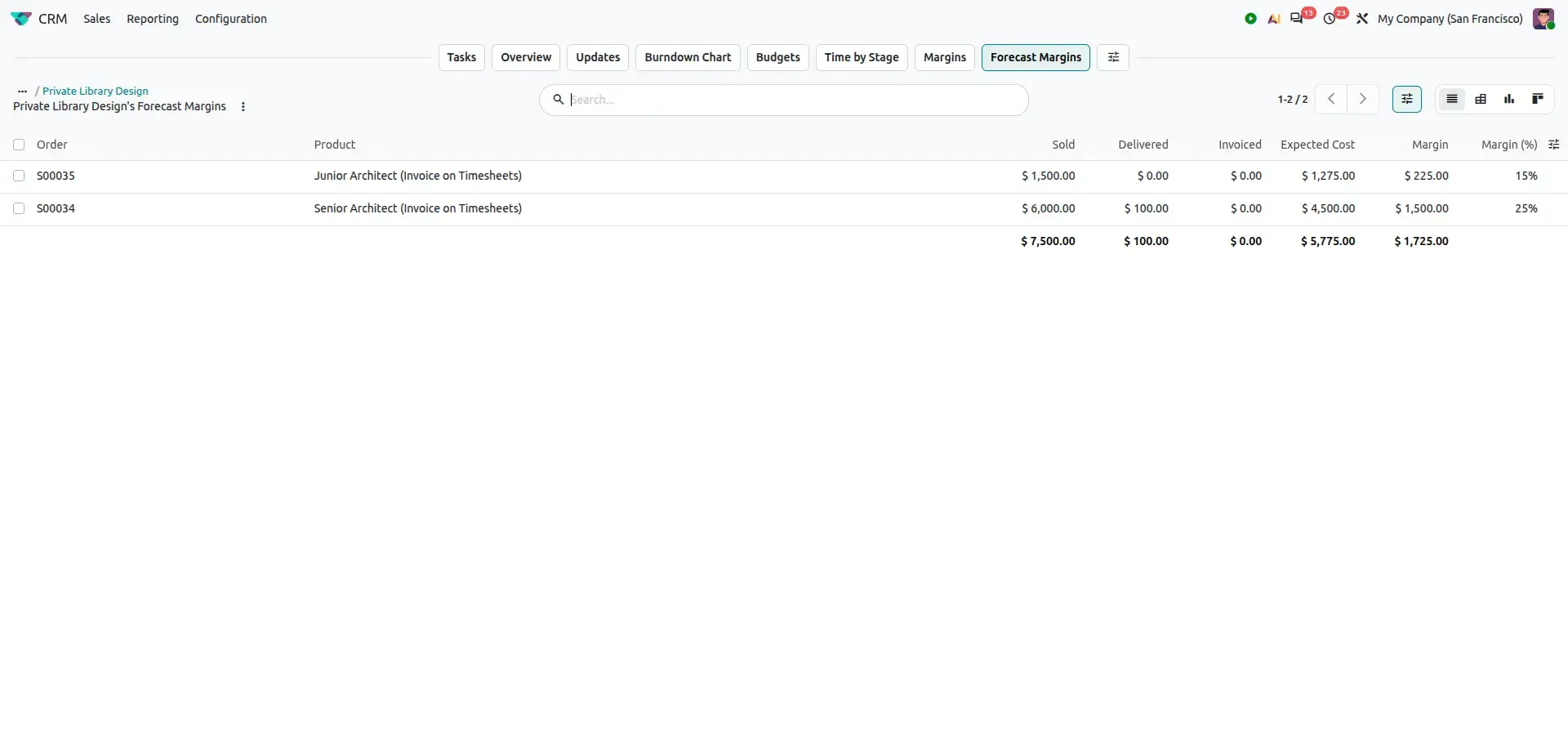
For example, the illustrated data shows:
The exact values will naturally vary according to the project and sales data.
Business Value
Dedicated margin reporting helps businesses:
- Monitor project financial performance.
- Compare revenue with expected costs.
- Identify potential margin issues.
- Review project forecasts.
- Connect sales and project-delivery information.
Complete Projects & Timesheets Workflow
The five improvements can now be connected into one project lifecycle:
From Opportunity to Profitability
This creates a more connected workflow from sales opportunity to project delivery and financial analysis.
Business Scenario
Consider an interior design company delivering a customer project.
A CRM opportunity is converted into a project using a predefined project template.
The project automatically uses roles such as:
- Project Manager
- Design Architect
- Logistics Staff
- Quality & Safety Officer
Team members are assigned to those roles.
The project manager opens the Gantt view and schedules the project's tasks. Unscheduled tasks are assigned to the appropriate team members.
The project schedule is printed from the Gantt view for the project meeting.
Employees use the top-bar timer to record the time spent on project tasks.
The customer receives portal access with the appropriate project permissions.
The project manager reviews budgets and forecast margins to understand the project's financial position.
The complete process becomes:
Business Benefits
Project roles and templates reduce repetitive configuration when creating similar projects.
The top-bar timer makes timesheet recording accessible while employees are working anywhere in Odoo.
Gantt scheduling provides a visual way to organize tasks, dependencies, assignees, and dates.
The Gantt print function makes it easier to share project plans outside Odoo.
Customers can receive project access with defined permissions instead of being treated simply as internal followers.
Dedicated margin and forecast reporting provides a clearer view of project financial performance.
Before vs. After Odoo 20
| Area | Traditional Workflow | Odoo 20 |
|---|---|---|
| Project staffing | Manually select team members | Define roles and assign team members |
| Project creation | Configure projects individually | Use templates and role-based setup |
| Time tracking | Navigate to Timesheets | Start timer from the top bar |
| Project planning | Review tasks separately | Plan visually in Gantt |
| Schedule sharing | Screenshots or manual documents | Print directly from Gantt |
| Customer access | Follow project or use limited collaboration | Invite portal users with defined access |
| Profitability | Review information across different areas | Dedicated margin and forecast reporting |
FAQ
Odoo 20 introduces Timesheets improvements, including the top-bar timer for logging time from anywhere, ActivityWatch integration, and additional Timesheet Assistant options. Project teams should also review the specific project-management changes documented for their Odoo 20 deployment.
Employees can use the top-bar timer to track time against a project or task and create timesheet entries. They can also enter time manually or record it from supported project tasks, depending on their access rights and configuration.
Yes. Odoo Projects supports portal collaboration with configurable access modes. Businesses can invite customers to view tasks or collaborate on selected project activities, depending on the project's visibility settings and permissions.
Yes. Odoo provides project reporting that helps businesses review project costs, revenues, budgets, and profitability. The available figures depend on the project's configuration and the related timesheet, sales, and cost records.
Integrating Timesheets with Project Management connects recorded working hours with projects and tasks. This helps businesses monitor time spent, compare planned and actual effort, support service invoicing, and assess project performance.
Odoo 20 Projects & Timesheets: New Features and Improvements