
RFQ from Sale Order
Create multiple RFQ from Sale order based on selected vendors
RFQ from Sale Order
Generate Purchase Orders directly from Sales Orders with vendor-based automation, smart Purchase Order management, and streamlined procurement workflows.
App Overview

Introduction
The RFQ from Sale Order process streamlines procurement by generating Purchase Orders directly from Sales Orders, thereby enhancing efficiency across interdepartmental operations.
This optimized approach minimizes manual errors, ensures accurate data transfer between departments, and speeds up order fulfillment. By automating the flow from sales to procurement, organizations can improve productivity, maintain better inventory control, and respond more efficiently to customer demands.

Business Case
The RFQ from Sale Order module helps businesses simplify and automate the procurement process by generating Purchase Orders directly from Sales Orders. It reduces manual work, minimizes errors, improves coordination between sales and purchase teams, and speeds up the overall order fulfillment process.
Key Features

One-Click RFQ
Generate Purchase Orders directly from Sales Orders with a single click button.
Vendor Selection
Select vendors individually from Sales Order lines for precise procurement control.

Smart Integration
Seamless smart button replacement shows the linked POs count automatically.

Quick Access
Instant navigation between Sale Order and all corresponding Purchase Orders.

PO Consolidation
Automatically merge multiple lines into one PO when the vendor is the same.

Maintain Integrity
Keep separate Purchase Order lines for grouping products while identifying the vendor.
Configuration Steps
Generate PO from SO
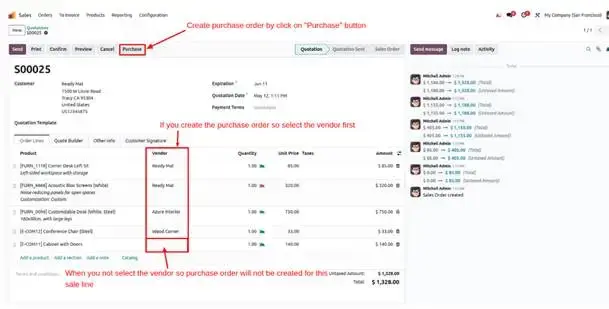
Select the desired vendor from the Sale Order Line in the Order Lines tab and click the Purchase button to create a corresponding PO.
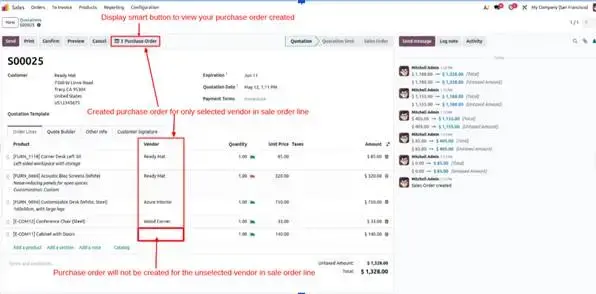
View the Purchase Order
The Purchase button is automatically replaced with a smart button displaying the total number of linked POs.
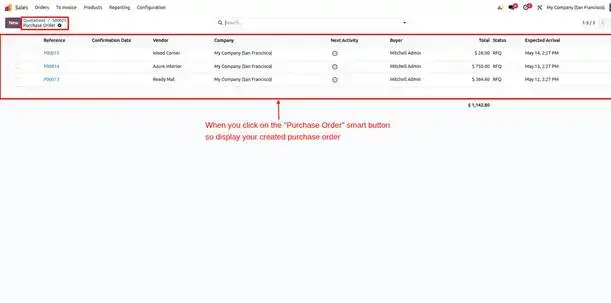
Display All Created POs
Quickly access all linked records by clicking the Purchase Orders smart button directly on the Sale Order form.
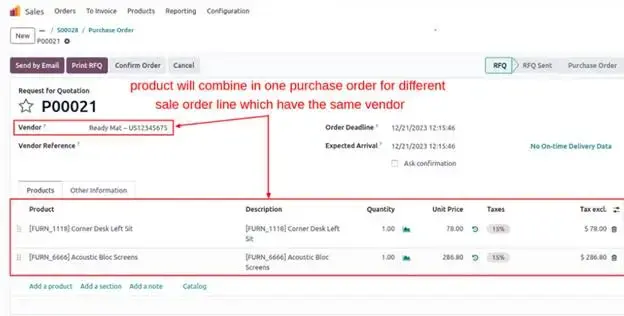
Consolidated Automation
Combine multiple SO lines into a single PO when the same vendor is selected across items.
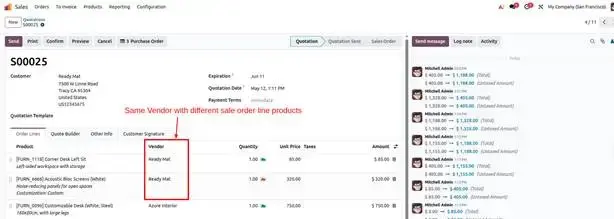
Unique Line Handling
Even when consolidated, separate Sale Order lines are respected within the resulting Purchase Order for full traceability.
Frequently Asked Questions
Technical Details
Dependencies
• Inventory (stock)
• Purchase (purchase)
• Sales (sale_management)
• Discuss (mail)
• Invoicing (account)
License
OPL-1
Need Assistance?
Email Support
contact@gritxi-tech.comAny Questions?
Have questions about this app?
Fill out the form below and our team will get back to you with more information.
Customer Reviews
Share your experience with this module.
Write a Review
Latest Reviews
No reviews yet. Be the first to share your thoughts!