
POS Total Items and Quantity Count
Show total items, quantity on POS screen and receipt
POS Total Items Quantity Count
Easily track Total Items and Total Quantity right inside your Odoo Point of Sale order summary panel and receipts continuously, seamlessly integrated and configurable.
App Overview

Introduction
In a busy Point of Sale environment, cashiers often need a quick glance at how many items and how much total quantity are in the current order — without manually counting lines or looking at individual quantities. Odoo’s native POS screen does not display these totals anywhere.
The POS Total Items and Quantity Count module adds two optional summary figures directly to the POS order summary panel and the printed receipt: Total Item (number of distinct order lines) and Total Qty (sum of all quantities across all lines). Both can be independently enabled or disabled from POS Settings.

Purpose
The purpose of the POS Total Items & Quantity Count module is to provide cashiers and businesses with instant visibility into the contents of every Point of Sale order. By displaying the total number of items and the total quantity of products directly on the POS screen and customer receipts, the module eliminates the need for manual counting, improves order accuracy, and enhances the checkout experience. With configurable display options, multi-company support, and real-time updates, businesses can maintain better operational efficiency while ensuring clear and transparent transaction information for both staff and customers.
Key Features
Live Order Summary Display
Total Item and Total Qty are shown in real time inside the order summary panel on the POS screen, updating instantly.
Receipt Printing Support
Both counters are printed directly on the customer receipt below the order amount block ensuring customer transparency.
Two Independent Toggles
Display Items Count and Display Qty Count are separate settings giving you precise control over what appears.
Configured from POS Settings
Both toggles live under a dedicated section in Point of Sale Settings. No developer mode or technical configuration is needed.
Per-Company Settings
The toggle values are stored on the company record natively. In a multi-company setup, each unit controls displays independently.
Active Session Protection
Both toggles gracefully become read-only while a POS session is open preventing mid-session display inconsistencies securely.
Zero Performance Impact
The counters calculate entirely client-side from order line data present. No extra heavy database queries happen.
Minimal Footprint
Includes just two Boolean fields and simple JavaScript patches ensuring zero new models or unnecessary schema changes.
Configuration & Workflow
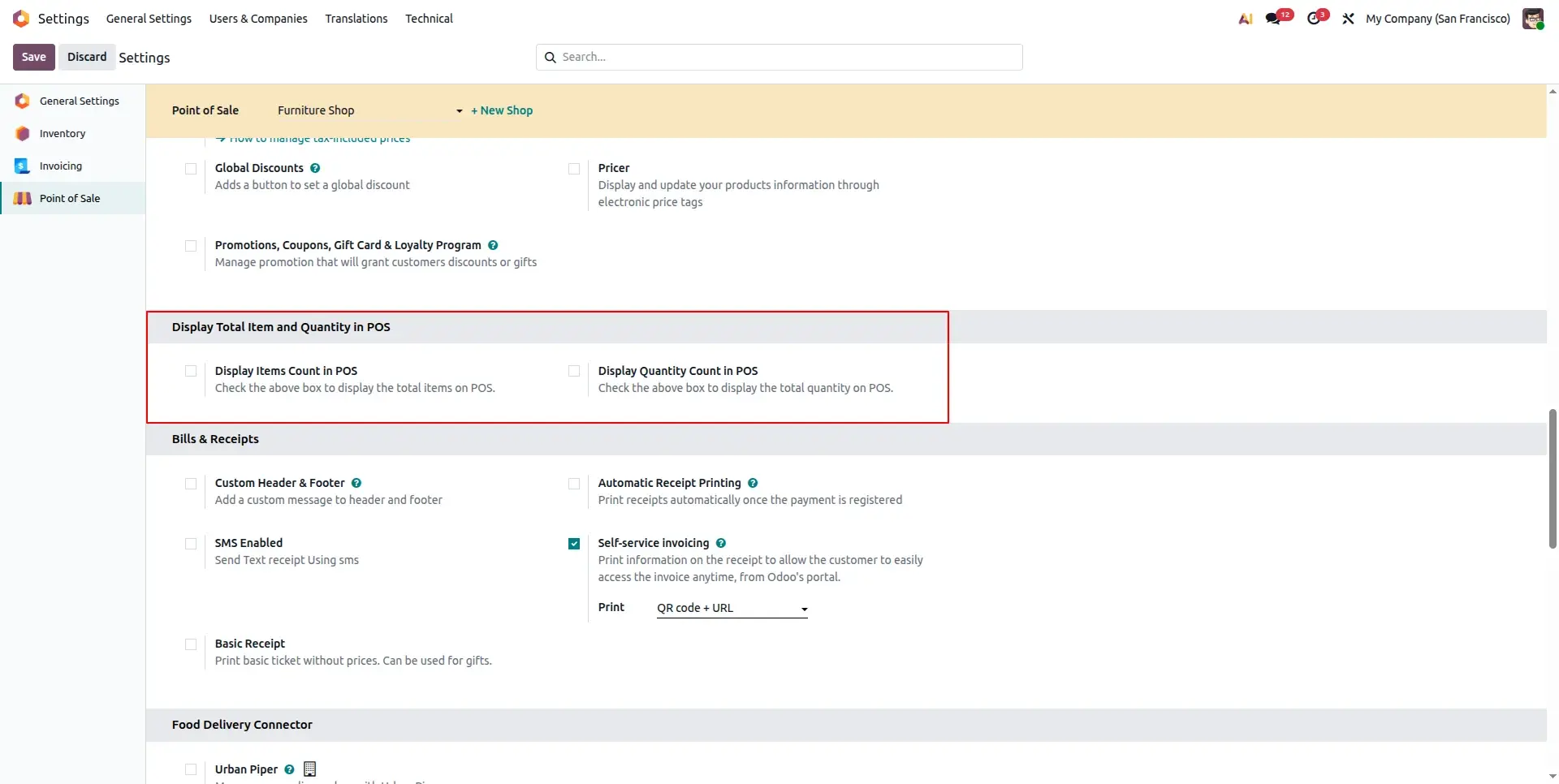
The following screenshots demonstrate how administrators can configure item and quantity counters in Point of Sale and display them on both the POS screen and customer receipts.
Configuration
Administrators can enable Display Item Count in POS and Display Quantity Count in POS from Point of Sale Settings to control how item and quantity totals are displayed throughout the POS workflow.
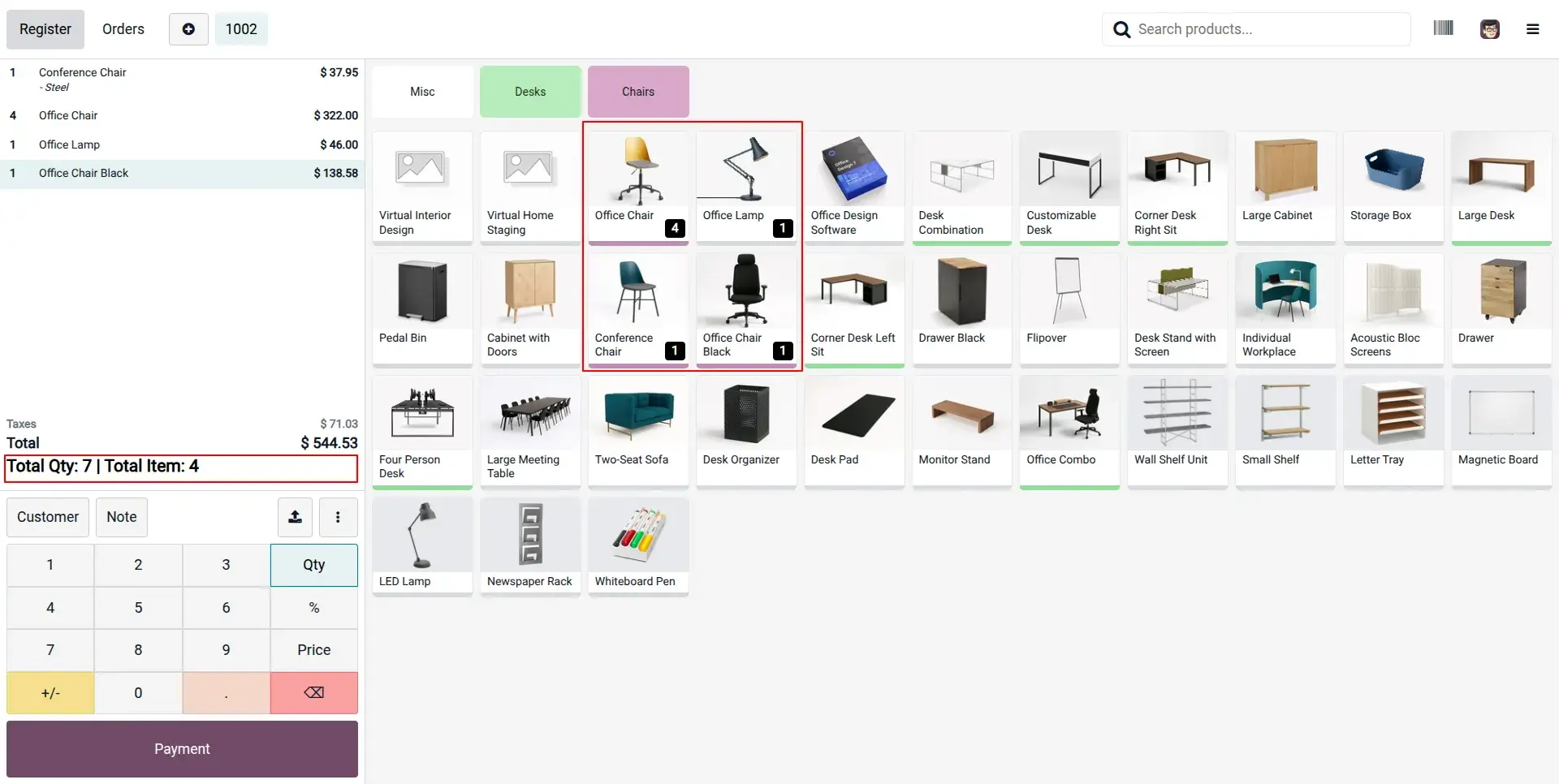
Items and Quantity Count on POS Screen
Display the total number of unique items or the total quantity of products directly on the POS screen. Administrators can choose either Item Count or Quantity Count based on business requirements.
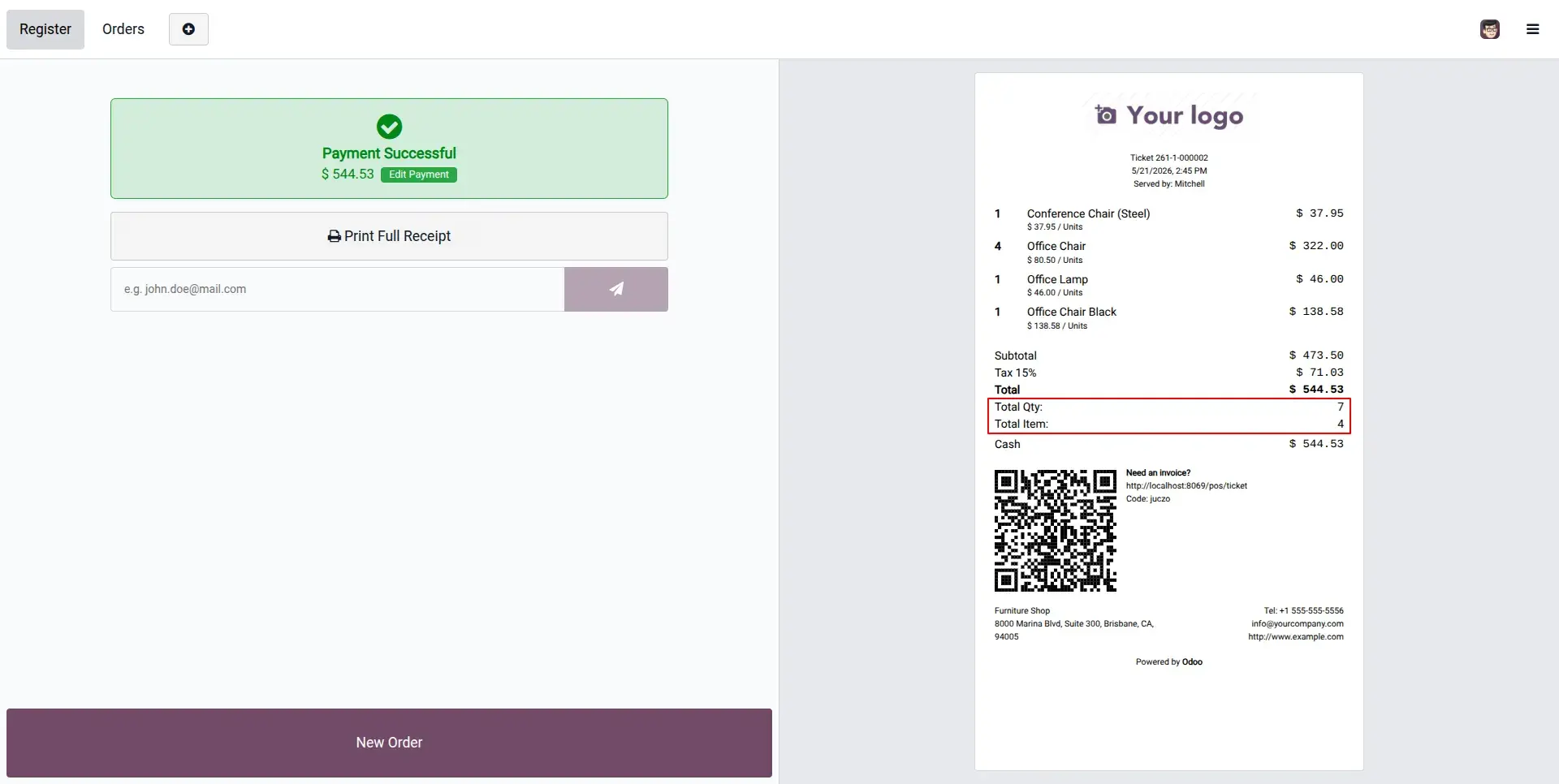
Items and Quantity Count on POS Receipt
Show the total item count or total quantity purchased on printed POS receipts. This provides customers and cashiers with a clear summary of purchased products and quantities.
Frequently Asked Questions
Technical Details
Dependencies
• Point of Sale (point_of_sale)
• Discuss (mail)
• Inventory (stock)
• Invoicing (account)
License
OPL-1
Need Assistance?
Email Support
contact@gritxi-tech.comAny Questions?
Have questions about this app?
Fill out the form below and our team will get back to you with more information.
Customer Reviews
Share your experience with this module.
Write a Review
Latest Reviews
No reviews yet. Be the first to share your thoughts!